

What you will build
A contract enters Review contract. A member of Contract reviewers chooses Approve or Return for correction. Each choice reaches a different terminal node. Approve requires a review note, which becomes an instance variable. This first version records a decision; it does not change a document keyword. Add that side effect only after the task flow works.Prepare the configuration
You needworkflow-engine.manage, an available Contract document type, and a Contract reviewers user group. Use a test document and two accounts: one in the review group and one outside it. The workflow’s service identity must have the content access required by any actions you later add.
Create the definition and nodes
- Open Settings → Admin Settings → Workflow → Designer.
- Set Name to
Contract review, choose Document, and select the Contract document type. Keep the generated identifier stable after the first save. - Add three nodes named Review contract, Approved, and Needs correction.
- Set Review contract as the Initial node. Turn on Terminal for Approved and Needs correction.
- Leave event triggers empty for the first test. This keeps the definition available for a deliberate manual start instead of starting it for every new contract.
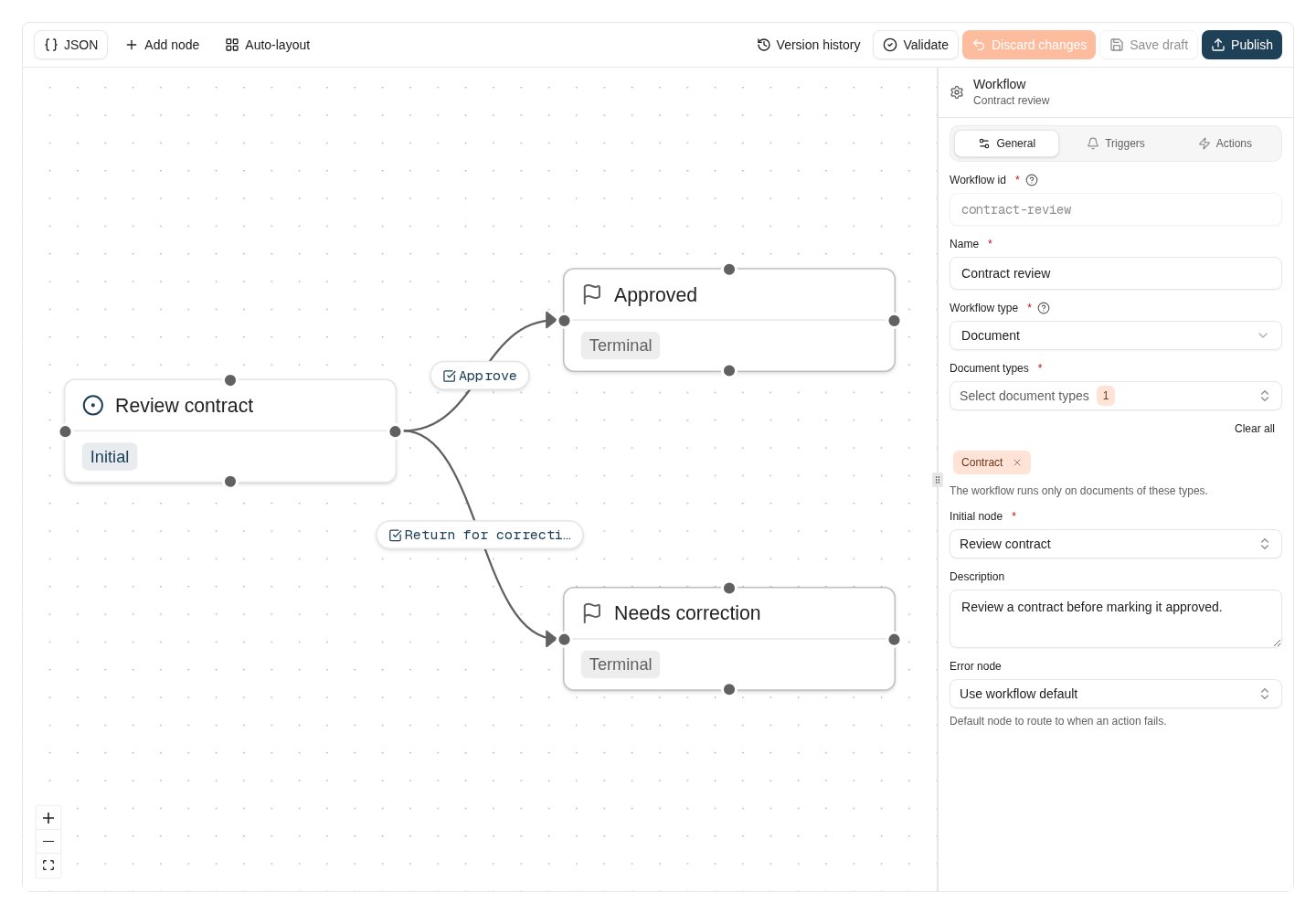
The contract review draft has one initial node and two terminal outcomes.
Configure the two decisions
Draw a transition from Review contract to each terminal node. Select each edge and configure:
For Approve, add an input named
reviewNote, with label Review note, type Text, and Required enabled. The input name identifies the instance variable; the label is what the person completing the task reads.
With Visible to the person who started the workflow off, do not leave Visible to groups empty unless all otherwise eligible users should be able to act; see who sees a task. A task group assignment does not grant document access by itself.
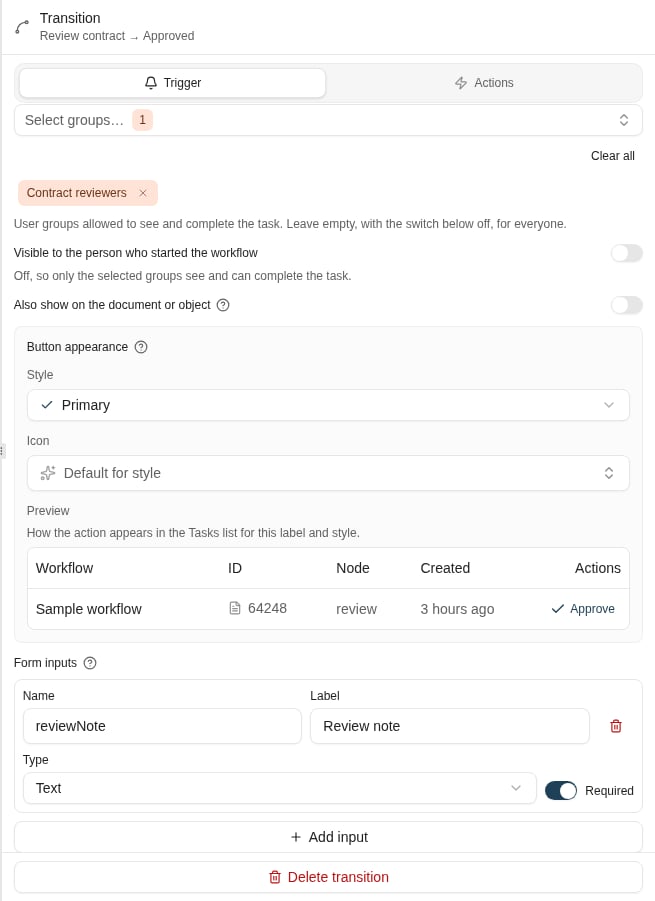
The Approve task requires a review note. Its input name becomes an instance variable.
Validate, save, and publish
Choose Validate, resolve errors, then Save draft. Check that there are no unsaved changes before choosing Publish. Add a release note describing the initial manual review process. Publishing makes this version available to callers. It does not start an instance by itself. Start it for the test document from the instance administration controls, or expose it through a document workflow action.Verify the whole path
Use instance history to check the transition and final state. A terminal node means this workflow run is finished; the node’s name alone does not update the document’s business status.
Add automation in a second version
After verifying the manual path, choose what should change:- To write the decision into metadata, add a keyword action to the transition or terminal node. Confirm the keyword belongs to Contract and verify the stored value after completion.
- To start automatically on upload, add a
document.createdtrigger. Check the document-type scope and optional event filter before publishing; an unrestricted trigger applies to every matching event in scope. - To escalate overdue work, add a Timer transition to a different escalation node. Use an ISO-8601 duration such as
P2D, and decide whether the escalation creates another task, sends a message, or both.
Where to read next
Building workflows in the designer
Create, edit, validate, and publish workflow definitions in the visual designer — nodes, transitions, triggers, and versioning.