

- User group reference rules say which group in this environment a user group name from another environment means.
- Kept different in this environment records configuration this environment holds differently on purpose, so a promotion stops offering to change it.
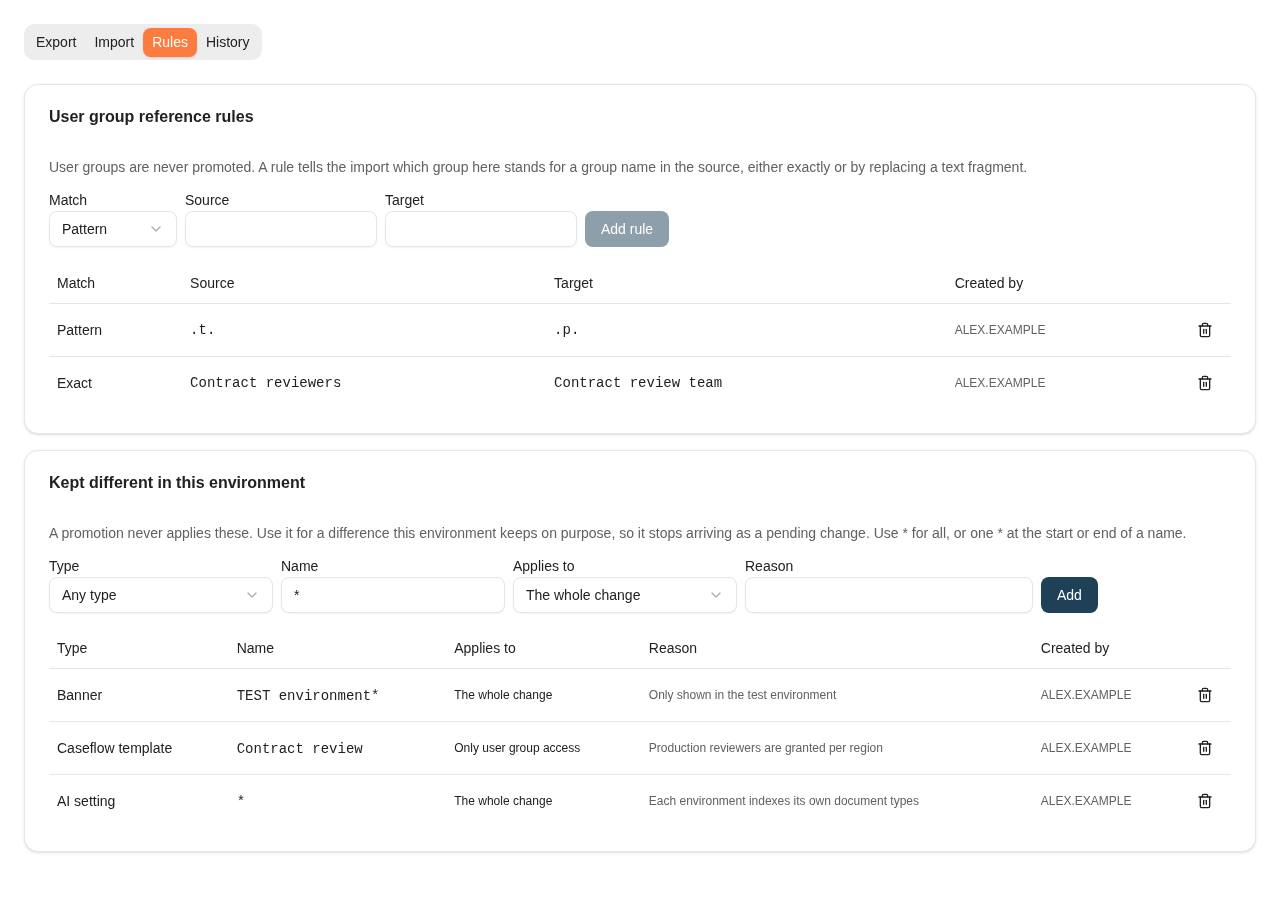
The Rules tab: two reference rules, and three differences this environment keeps, one of them for user group access only. All names are fictional.
User group reference rules
A promotion never creates, copies or renames user groups, because each environment manages its own. Environments often name the same group differently, for exampleacl.t.Claims in test and acl.p.Claims in production. A reference rule tells this environment which of its groups a name from the export file means.
When an import meets a user group name, it resolves it in this order:
- A group here with the same name always wins, ignoring upper and lower case. No rule is needed, and no rule overrides it.
- Exact rules replace a name that matches the rule’s source value as a whole, ignoring case.
- Pattern rules replace a text fragment. When a name contains the source value, every occurrence is replaced with the target value, ignoring case.
Add a rule on the Rules tab by choosing Match, entering Source and Target, and selecting Add rule. You can also accept a proposal from the dialog that opens during an import; see Map user groups. Remove a rule with Remove rule.
Adding and removing rules needs Manage user groups in addition to Keyword configuration administration. Without it, the rules are shown but cannot be changed.
Two situations block a change until the rules are fixed:
- A name maps to more than one group here, for example because an exact rule and a pattern rule give different results. Remove one of the rules.
- Two groups from the source map to the same group here with different rights on the same configuration. Map them to different groups, or give them the same rights in the source.
Kept different in this environment
Use this list for a difference this environment keeps on purpose. Examples are a banner shown only in test, an automatic indexing choice for AI search, or a template that production grants to different groups. A promotion never applies a matching change. The review still lists it under changes are kept different in this environment, with your reason, so the difference stays visible. Each entry has four fields:
Names are those the review shows. For example, a Caseflow class is named Application/Class, and a banner is named by its message text. Select Stop keeping this different to remove an entry.
Adding and removing entries needs permission to change and delete the type concerned. For an entry that applies to Any type, you need that permission for every type.
The whole change
Matching creates, updates and deletes are never ticked. Other changes that depend on a kept difference are held back too:- A change that needs a kept update is blocked.
- A change that needs a kept create is left out, with the reason on the row.
Only user group access
The rest of the configuration is promoted, and this environment keeps its own list of user groups for it. For templates, it also keeps the precedence. The row on the review says that user group access is not promoted for this change.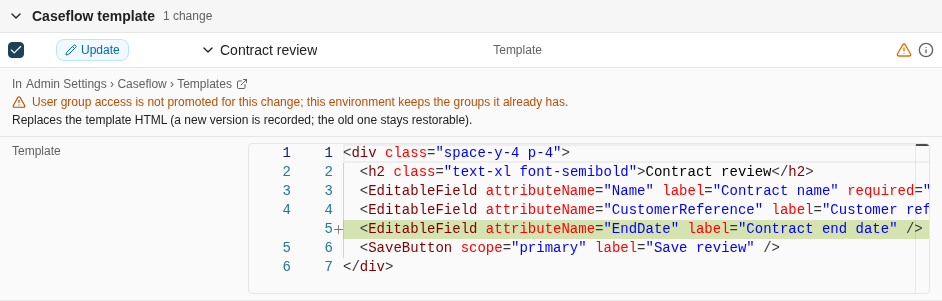
A Caseflow template whose user group access this environment keeps: the new template HTML is promoted, the groups and precedence here stay as they are.
- document types, through their access rights
- Caseflow classes
- Caseflow and form templates
- autofill keyword sets
- custom document actions
- folder trees
- shared saved searches and their folders
- dashboards
- retention policies, whose groups are the approvers
Where to read next
History and environment status
See every promotion applied to an environment, what it changed, and what has changed since.
Users and groups
Maintain the user groups each environment manages for itself.