

Before you change the archive policy
You needmailbox-importer.manage or mailbox-importer.admin. Open Admin settings → Mailbox importer → Mailboxes → Settings for the mailbox. Prepare the document types and service-account access first.
Document types and keyword types are environment-specific. The names and IDs below are examples, not built-in types. Select document types and keyword types by name in their dropdowns; every option shows the name with its ID, such as Supplier mail (#30). Confirm every mapping belongs to its destination document type and satisfies that type’s required fields, data types, masks, and keyword permissions.
Choose how the email is stored
Example: keep ordinary mail, split supplier invoices
Prepare these example destinations:Set the default
Add a rule
Set the matching conditions
supplier.example in Sender contains. In Subject contains, enter invoice on the first line and faktura on the second: a condition matches when any of its lines occurs in the message. Leave Recipient contains and Attachment name contains empty to accept any recipient and any attachments.Choose the split format
Map metadata to both destinations
subject, and choose Mail subject (#101). Under Attachment keyword mappings, choose Mail subject (#202) for Mail subject and Attachment filename (#203) for Attachment filename. These example keyword types must exist on the corresponding destination types.Expand zip attachments
pdf, .Docx; the rule saves the normalized list pdf and docx. Skip this step if the sender never delivers zip archives.Save and verify
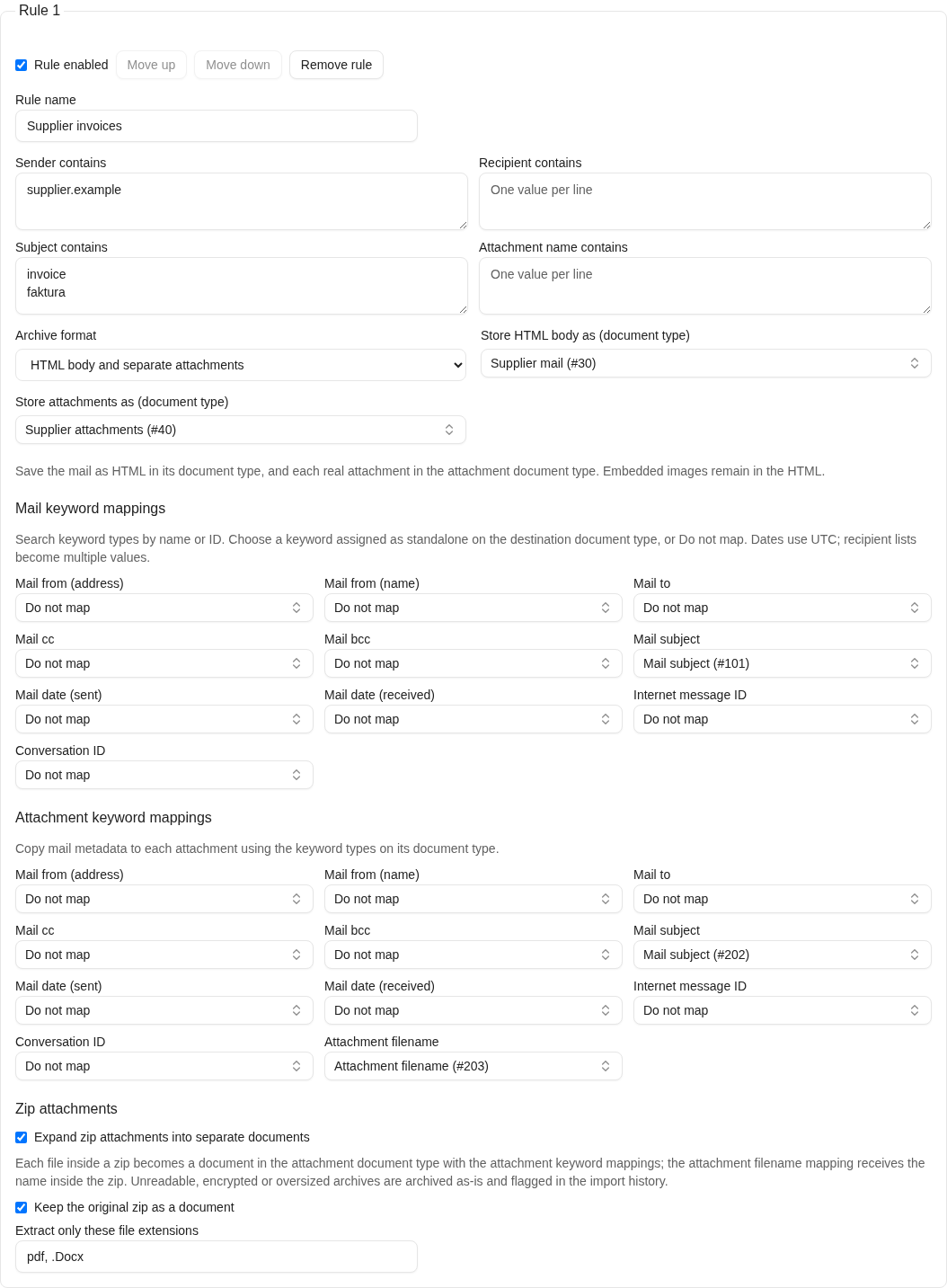
Supplier invoices matches sender supplier.example and a subject containing invoice or faktura, then stores the HTML body as Supplier mail (#30) and each attachment as Supplier attachments (#40). The mapping dropdowns show Mail subject (#101) for the mail, Mail subject (#202) for each attachment, and Attachment filename (#203) for its filename. Under Zip attachments, expansion is on, the original zip is kept, and the extension list shows pdf, .Docx exactly as typed before saving. This is the actual rule editor with fictional configuration.
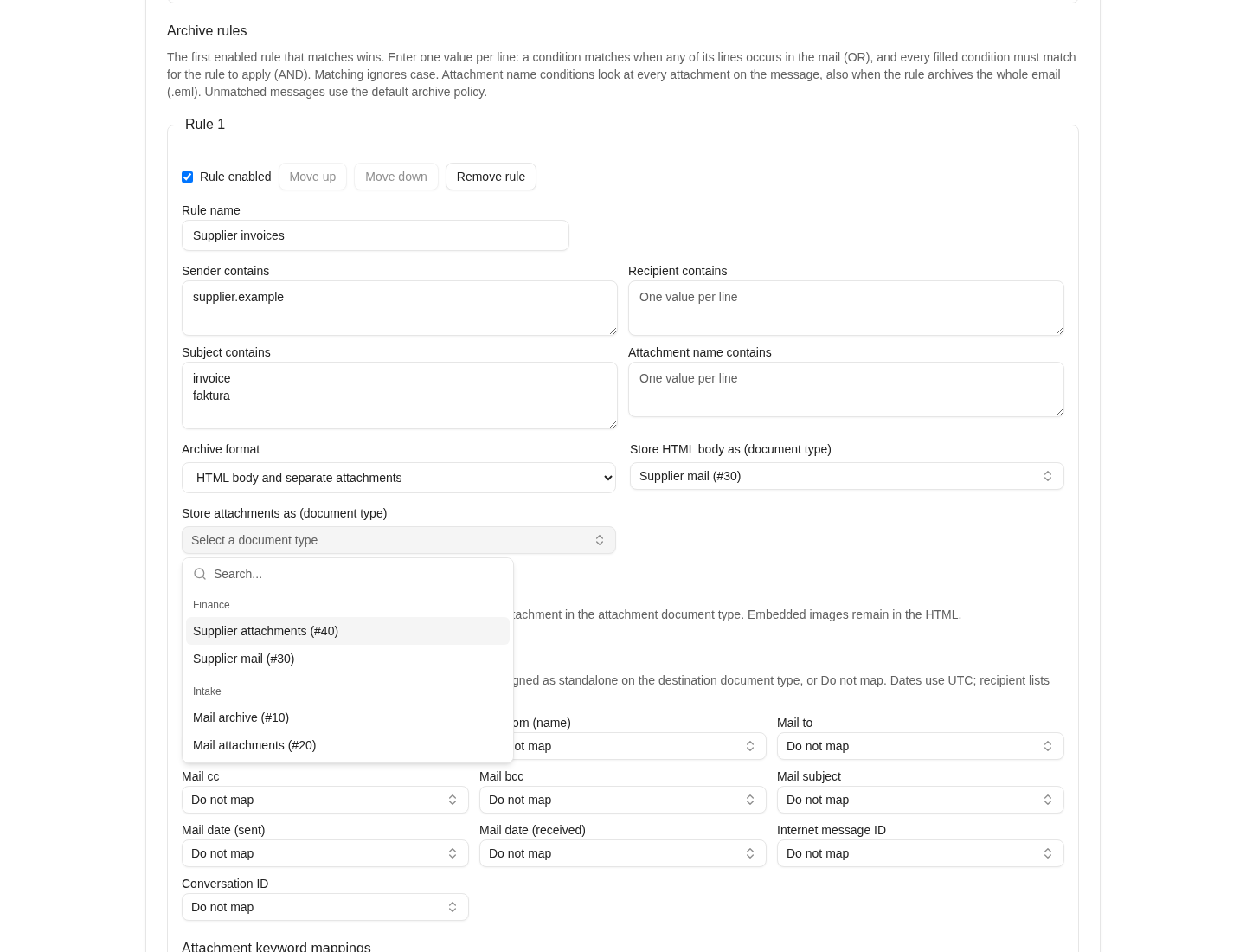
Document types are chosen from a searchable dropdown grouped by document type group. Typing supplier narrows the list to the Finance types. This is the actual picker with fictional document types.
How matching and order work
- Rules run from top to bottom; the first enabled match wins. You can add up to 25 rules.
- Every filled condition must match (AND). Leaving a condition empty makes it unrestricted.
- Within one condition, enter one value per line; the condition matches when any line occurs (OR). Use this instead of duplicating a rule for spelling or ordering variants, such as
INSPECTION REPORT TCMandTCM INSPECTION REPORT. Blank lines and surrounding spaces are dropped when you save; a condition takes up to 20 lines. - Sender contains checks the sender address, Recipient contains checks any To/Cc/Bcc address present in the message metadata, and Subject contains checks the subject.
- Attachment name contains checks the file name of every real attachment on the message and matches when any of them contains a value. Images embedded in the body do not count. It applies in both archive formats, so a rule can route messages with a particular attachment to a whole-email (.eml) policy. It only selects the rule; storing the file name on the archived attachment is the separate Attachment filename keyword mapping.
- Matching uses case-insensitive substrings. Conditions are not regular expressions, exact domain checks, or sender-authentication checks.
- Use Move up and Move down to order specific rules before general ones. An enabled rule with all four conditions empty matches every message and prevents later rules from being selected.
- Uncheck Rule enabled to retain a rule without using it. Remove rule removes it from the configuration when you save.
inspection report in Attachment name contains, only messages carrying a file such as Inspection Report TCM.pdf would match; the same message without that attachment would fall through to the default policy.
A sender such as billing@supplier.example.invalid also contains supplier.example. Use these rules for classification; they do not establish that a message is trustworthy.
Map standard mail parameters to keywords
Each mapping is a searchable keyword dropdown, both in the default archive policy and in every rule. The label above the dropdown is the mail parameter; the selected option is the destination keyword type. You select where the parameter is stored, rather than entering a fixed keyword value.- Open the dropdown for the mail parameter, such as Mail subject.
- Type part of a keyword name or its ID in Search…. Search ignores case. Options show the name and ID, such as Mail subject (#101); use the ID to distinguish keyword types with the same name.
- Select the keyword type assigned as standalone on the destination document type. Repeat for each parameter you need, then select Save settings.
- To remove an optional mapping, open its dropdown, clear any search text, and choose Do not map. Save settings to apply the removal.
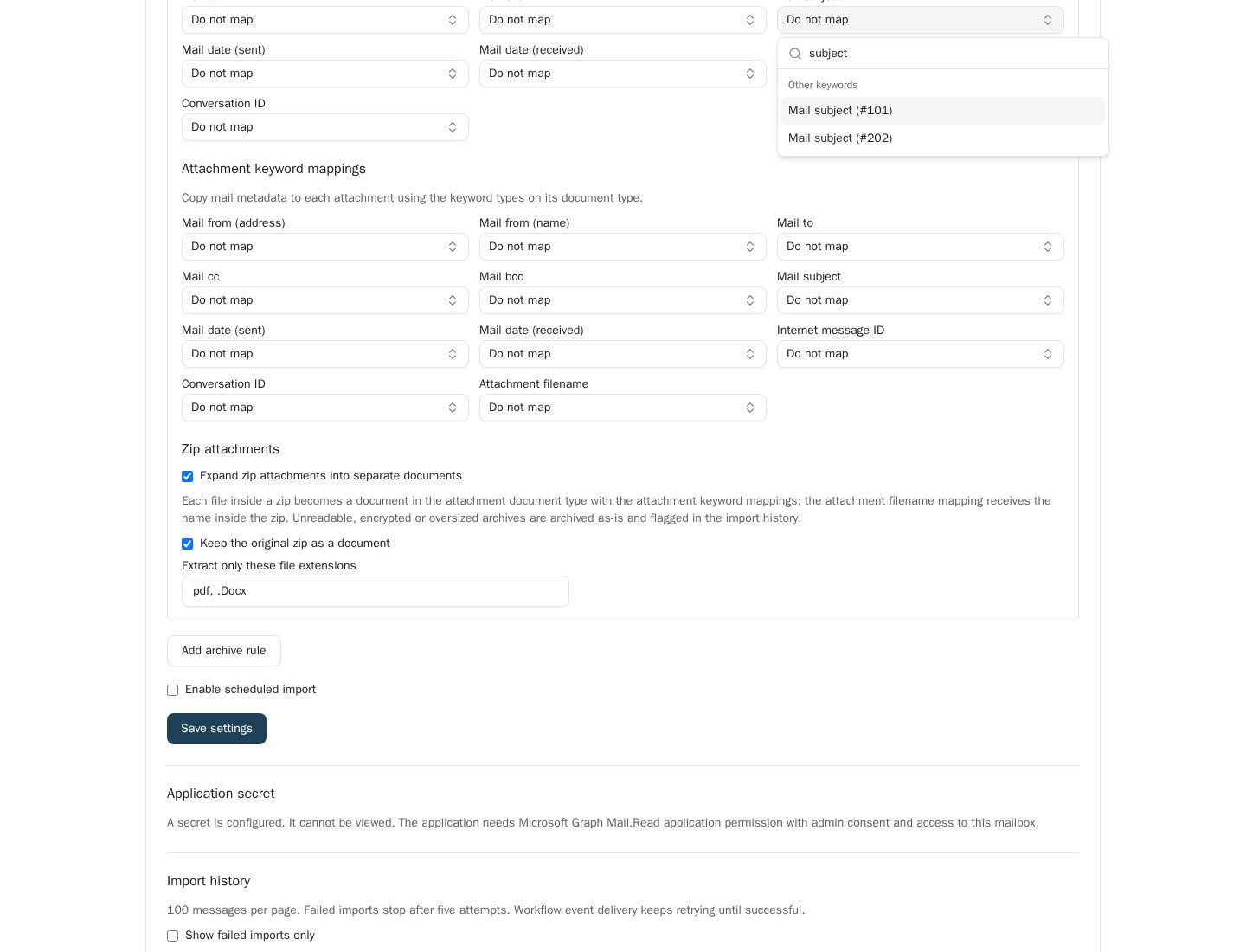
Searching for subject shows two keyword types with the same name. Choose the ID that belongs to the intended destination: #101 for Supplier mail, or #202 for Supplier attachments. This is the actual dropdown with fictional keyword types.
Extend the screenshot’s mappings
Suppose Supplier mail and Supplier attachments have the following additional standalone keyword types. Select these named options in the corresponding dropdowns:billing@supplier.example to intake@example.com, received at 2026-09-09T08:00:00Z, the mail document gets the sender in keyword 102, recipient in 103, and received time in 104. Each attachment gets the same metadata in 204, 205, and 206, alongside its own filename in 203.
The importer supplies date mappings in UTC using yyyy-MM-ddTHH:mm:ss, for example 2026-09-09T08:00:00, even though the start-time picker shows local time. Multiple recipients become multiple keyword values. Mapping several mail fields to the same keyword combines distinct values; check that this cardinality is suitable for the target keyword.
A missing source field does not manufacture a value for a required keyword. If a document type requires data that mail metadata cannot provide, resolve that requirement in the destination configuration before enabling import. A workflow starts after archiving and cannot repair a keyword validation failure that prevents document creation.
Inline images and real attachments
The importer uses the same mail parsing foundation as normal mail upload. Like the Office add-in’s treatment of embedded images, it distinguishes body resources from attached documents.Expand zip attachments
Some senders deliver several business documents inside one zip archive. In HTML body and separate attachments mode, every archive policy, the default policy and each rule, can additionally expand zip attachments so that the files inside become documents you can classify, search, and route individually. Whole EML mode keeps the archive inside the message and does not offer this option..zip filename or zip content type; other archive formats are saved as ordinary attachments. Folder paths inside the archive are reduced to the file’s own name, and an archive inside the archive is saved as one document rather than expanded further. Extracted files count toward the same 100-part limit as attachments, and the files from all zips of one message share a 100 MiB budget after decompression.
For example, a matching message with report.zip containing three PDFs and one spreadsheet, under the supplier rule that extracts only pdf, becomes the HTML mail, the zip document, and three PDF documents in type 40. Each PDF carries the mapped mail metadata and its own filename in Attachment filename (#203). Extracted files are then validated like any attachment: a file type your environment does not accept fails the import in the same way an unsupported attachment does, so use the extension list when a mailbox receives mixed archives.
Expansion never fails a message because of the archive itself. If a zip is damaged, password-protected, or too large to expand safely, the message is still imported with the zip saved as an ordinary attachment, and the import row shows a warning code so you can handle its content manually. A file with an unsafe name is skipped while the other files are extracted; the zip is kept in that case regardless of the setting. Automatic retries reuse the import’s fixed plan, including its extracted files. A manual retry applies a corrected expansion policy only while no document of that import has been saved; once any part is saved, the original plan stands.
The extracted documents appear in instance.mailDocuments with kind archiveEntry, so a workflow can process each extracted file separately.