

Prerequisites
You neediam.user-groups.manage to create user groups and iam.permissions.manage to grant permissions. The matching view permissions let you inspect both without changing them.
How a person gets access
1
Their identity provider group
The person is a member of a group in your identity provider, for example
ContentFlow Administrators.2
A ContentFlow user group of the same name
Under User groups, a group with the same name exists. When the person signs in, ContentFlow matches the group names their identity provider sends against these user groups.
3
Permissions granted to that group
Under Permissions, the user group holds the permissions for the work the person does. Someone in several groups gets the combination of all their groups’ permissions.
Create a user group
Open User groups and choose the + button. In New User Group, enter the User group name exactly as your identity provider names the group, and a Description of who belongs in it. A new group has no permissions until you grant them.Grant permissions
Open Permissions. The page has three tabs:- Matrix shows every permission as a row and every user group as a column, grouped by area. A cell that is granted through a broader permission is dimmed and says which grant includes it.
- By group shows one group’s permissions as a list of checkboxes. Use it when you set up a new group.
- Audit shows who granted or revoked what, when, and why, for the last 60 days.
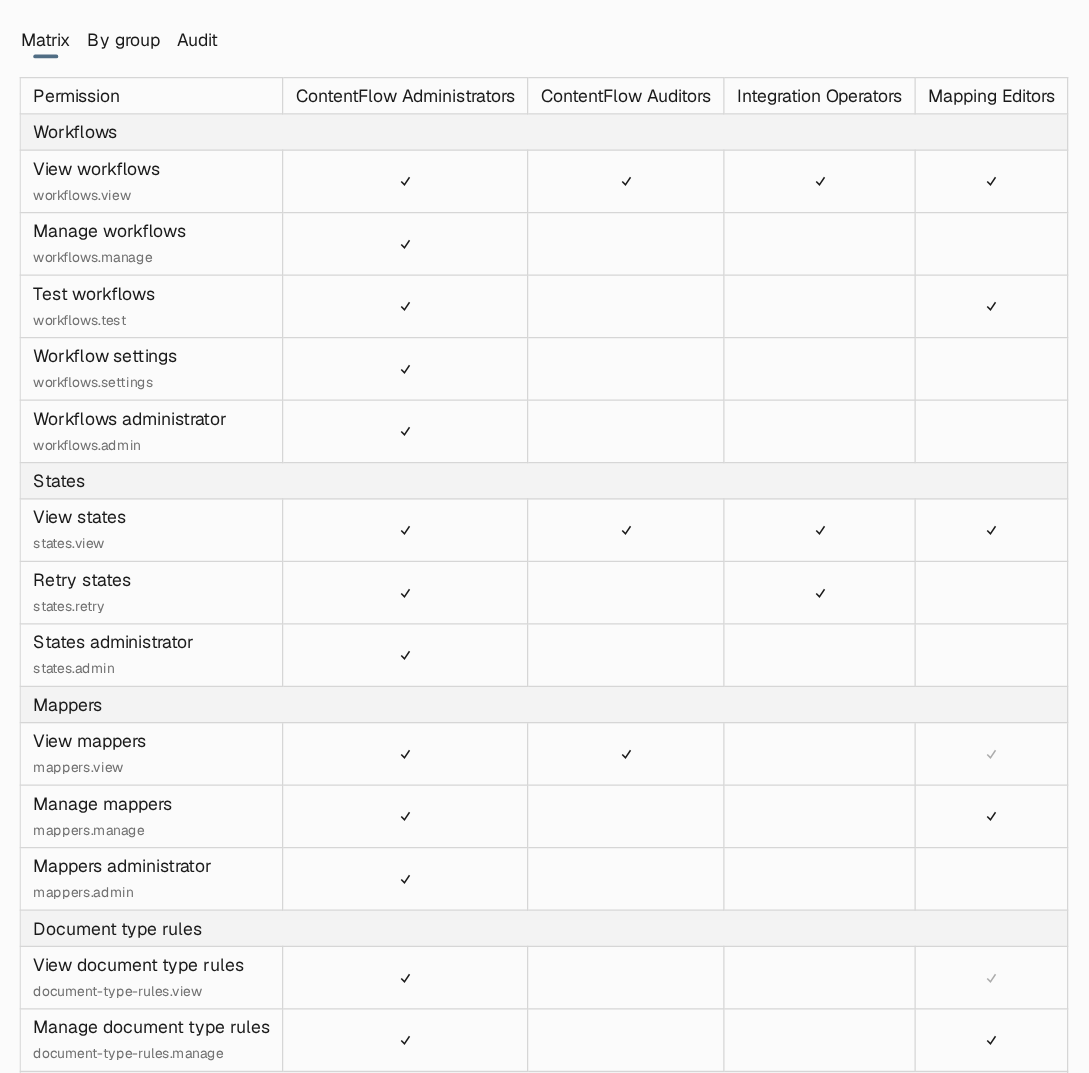
The top of the Permissions matrix. Integration Operators may follow and rerun runs; Mapping Editors maintain mappings and shared tables and may run workflow tests; ContentFlow Auditors have read access only.
iam.permissions.manage cannot lose it, so ContentFlow always keeps someone who can administer permissions.
Permission catalogue
A
manage permission includes view in the same area, and an admin permission includes every permission in its area. workflows.test, workflows.settings and states.retry are separate grants: workflows.manage does not include them, and states.retry does not include states.view.
Typical groups
A mapping editor in this example can publish mappings, which changes what every workflow using them sends. If mapping changes need a second pair of eyes, grant
mappers.view and workflows.test instead, and let a smaller group publish.
Where to read next
Incoming items
What a sending system delivers to ContentFlow, and how to confirm that an item was processed.