

Prerequisites
Open Admin settings → Search → Folder views. You needclient.folder-trees.view to inspect definitions or client.folder-trees.manage to maintain them.
Folder views group existing documents by a driving keyword, such as Customer number. They are a way to browse related content, not a separate copy of the documents.
Configure the root folders
Create a view with a name, description, enabled state, and at least one visibility group. Choose the driving keyword and the document-type scope. Pick a value shared by related documents; a unique invoice number can create an impractically large set of one-document folders. Users browse a view by scrolling its folders or by searching for a folder’s value or name. A view with more than 50 root folders is not listed: users see There are more than 50 folders here and must search for the folder they want. The limit is fixed. A driving keyword with a value per person or case, such as a national identity number, therefore makes a search-first view. Prefer a coarser keyword if users need to browse. Configure the folder name and where its name values come from. A reference document type can resolve disagreements when several document types carry different names for the same grouping value. If the driving keyword has an input mask, folders are named the way the value is displayed with its mask, and users can find a folder by typing the value with or without the mask’s fixed characters. Visibility groups decide who is offered the view; underlying document permissions still apply. A security-masked keyword used to drive or label a folder can hide the whole view from users without the Access Encrypted Keywords privilege, because the folder’s value is also its address.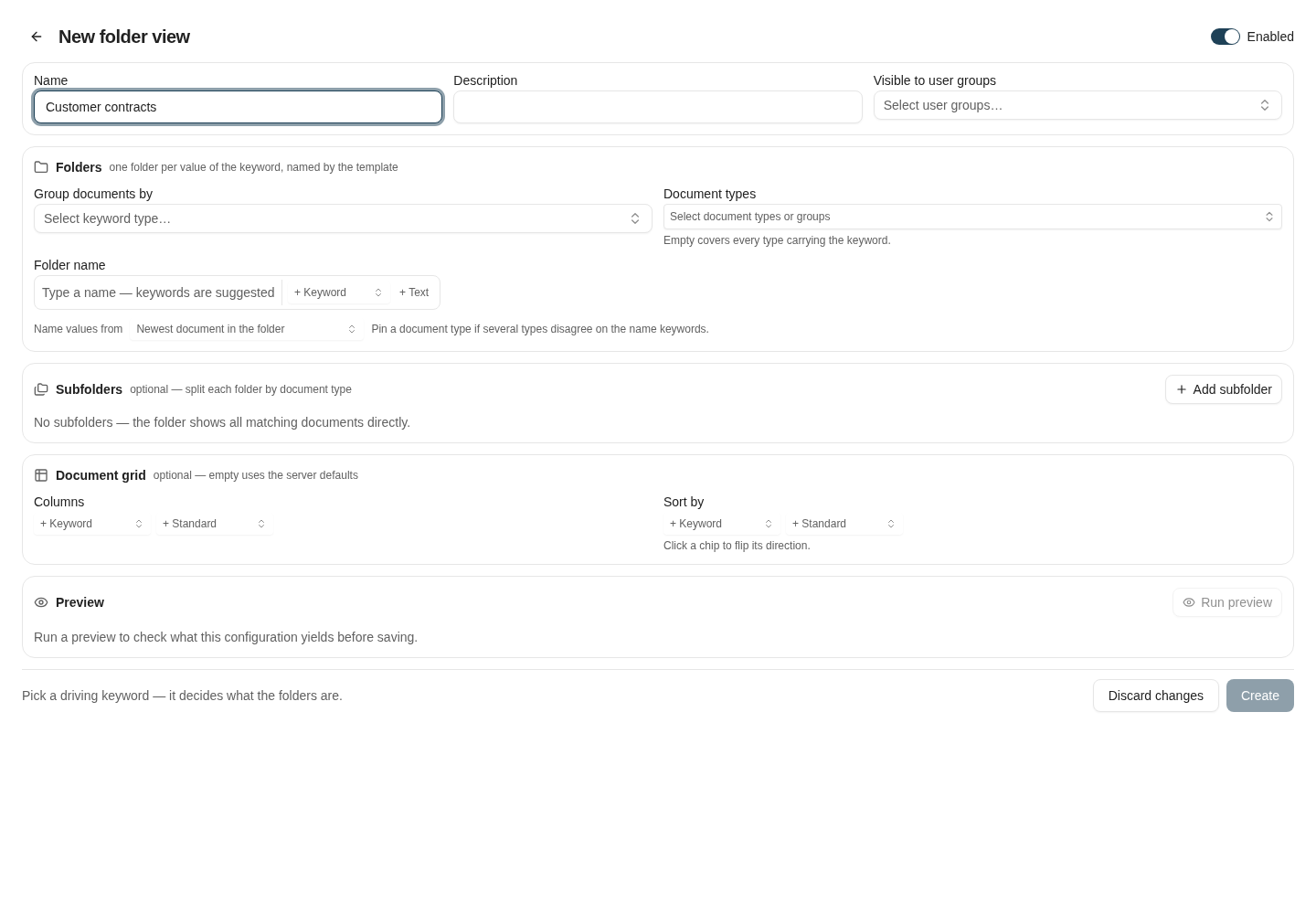
Start a folder view by selecting its driving keyword and document scope; then configure subfolders and preview.
Add subfolders and relationships
A subfolder narrows the root folder to selected document types. Give each one a name and review how its documents relate to the driving value:- Direct match: use the same keyword as the root folder.
- Join keyword: use another keyword holding the same value, such as Buyer number instead of Customer number.
- Bridge via: select a document type connecting two keys. For example, an order confirmation holding both Customer number and Order number can connect a customer’s folder to delivery notes carrying only Order number.
Preview and save
Configure grid columns and sorting, then run Preview. Review the estimated folder count, sample names, and warnings. Resolve errors that would make the view unbrowsable before saving. Open the saved view as a member of one visibility group and verify root and subfolder contents. Also test an account outside the group. If results are missing, check document-type scope, join values, bridge documents, and document rights before changing the name rule. The administration list also offers synchronization of existing folder definitions. Review its confirmation and created/updated/skipped results before assuming it copied everything.Where to read next
AI Search introduction
Learn how Nobly AI Search works, how results are ranked and scored, and how to get the best results.
Document types and keywords
Maintain the metadata that searches and folder relationships depend on.