

Assigning keywords to a document type
A keyword type only appears on a document once it’s assigned to that document type. You manage assignments under Admin settings → Keywords → Keyword assignments: pick a document type to open its ordered list of keywords, then add, remove, reorder, and configure each one. A keyword reaches a document type in one of three ways — as a standalone keyword, through a single-instance group, or through a multi-instance group. Choosing the right model is the most important configuration decision for a document type’s metadata.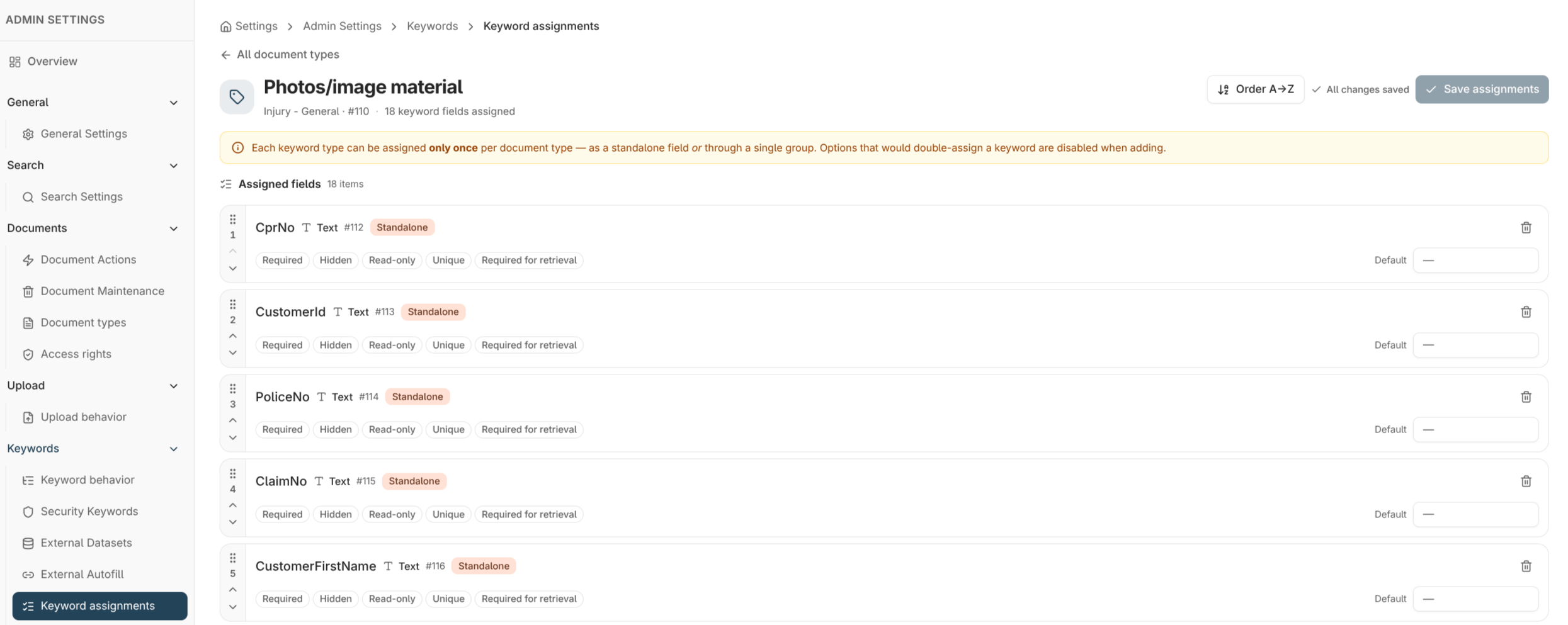
The three models
The difference between single- and multi-instance is repetition. A single-instance group is one row of grouped values; a multi-instance group is a table of rows, each row a complete set of the group’s keywords.
Keyword type groups
A keyword type group bundles related keyword types so you can assign them together and keep them consistent across document types. You create and manage groups from the Groups tab under Admin settings → Keywords → Keyword types.- Choose single-instance or multi-instance storage when you create the group — this fixes how it behaves wherever it’s assigned.
- Add the member keyword types in the order they should appear.
- You can add members to an existing group later; you can also remove members, though removing one is destructive (see below).
Ordering
Assignments are an ordered list — the order here is the order users see on the indexing form. Drag to reorder, or use Order alphabetically to sort the list by name in one step.The no-duplicate rule
A keyword type can be represented only once on a given document type. You can’t assign the same keyword both standalone and through a group, or through two different groups, on the same document type. This keeps each piece of metadata unambiguous. If an assignment would duplicate a keyword, Nobly Insight blocks it and explains the conflict.Bulk editing
When a document type has many keywords, use the bulk edit action to set a single behaviour — such as required or read-only — across several assignments at once, instead of opening each one. The available behaviours are covered in Keyword behaviour.Where to read next
Keyword behaviour on a document type
Make a keyword required, read-only, hidden, or unique, and give it a default value.
Autofill keyword sets
Fill several assigned keywords automatically from one look-up value.