

The Permissions screen
You grant and revoke application permissions under Admin settings → Access → Permissions. To open it, click your profile at the bottom-left of the sidebar, choose Admin settings, then go to the Access group. The screen shows every permission in the catalogue and every user group, and lets you decide which groups hold which permissions.- You need View permissions to open the screen.
- You need Manage permissions to make changes. Without it, the screen is read-only.
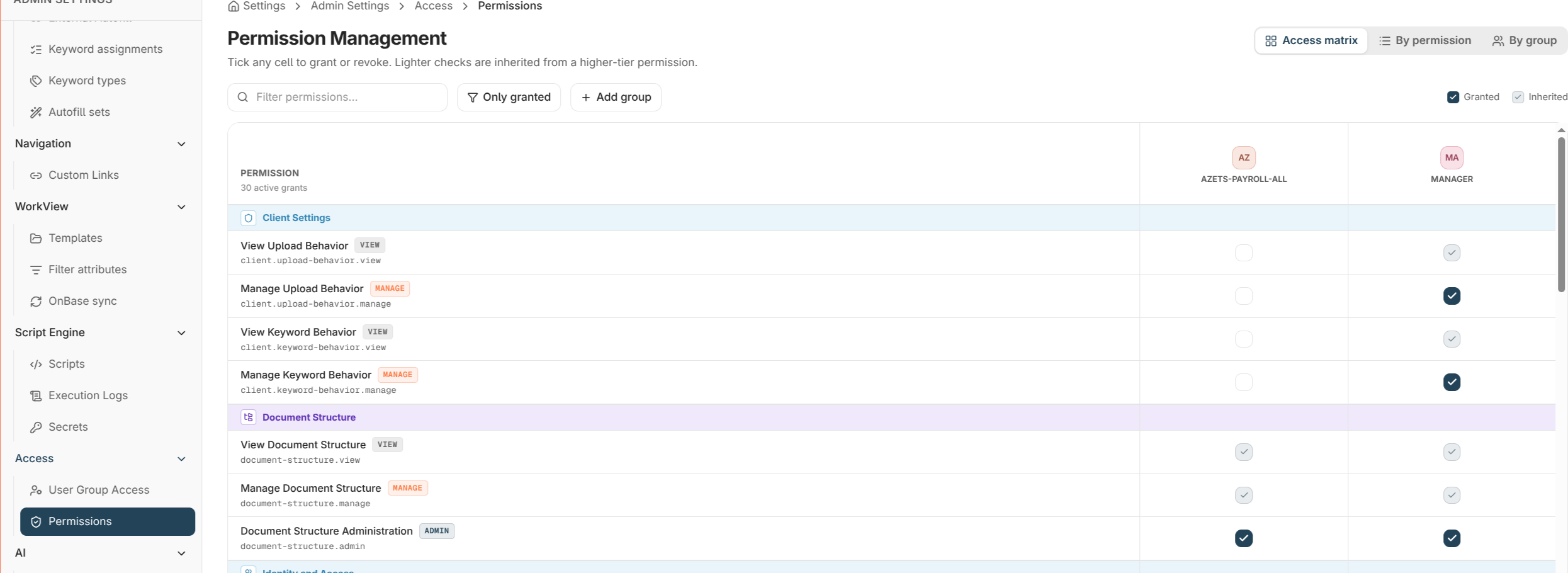
Three ways to view it
The same grants are shown three ways — pick whichever fits the task:Staged changes and saving
Edits are staged — nothing is sent until you save. As you grant and revoke, a save bar appears summarising the pending changes.- Make your changes in any of the three views — they accumulate as pending.
- Optionally add a reason, recorded with the change for audit.
- Save to apply everything at once, or Discard to drop all pending changes.
Cells that a group holds indirectly — through a higher tier, such as View included by Manage — are shown as inherited and can’t be toggled on their own. Change the tier that grants them instead. See Permission tiers.
Audit trail
Every grant and revoke is recorded — what changed, who changed it, when, and any reason you supplied — so permission changes are fully auditable alongside the rest of the platform’s governance logging.Getting the first administrator set up
Permissions are granted to groups by someone who already holds Manage permissions — so the very first administrator has to be established when Nobly Insight is set up for your organisation. From there, that administrator uses this screen to grant every other capability to the appropriate user groups. If you’re standing up a new environment and no one can open the Permissions screen, contact your Nobly implementation team or support@nobly.dk.Where to read next
Single sign-on & federation
Sign in with your own identity provider, and drive the user group membership these grants apply to from your directory.
Application permissions
The full catalogue of what you can grant here, and what each tier means.
Document access rights
The separate layer that controls what users can do with documents themselves.