

What this does
An autofill keyword set normally fills related keywords during indexing. Autofill on edit extends that to the whole life of a document: when an autofill set is bound to a keyword group, editing any keyword in that group re-runs the look-up and re-applies the set’s values, so the group stays coordinated. Without this, someone could change one field after a document is filed — the Park name but not the Park ID, for example — and quietly break the link between them. With a binding in place, Nobly Insight re-coordinates the group on every save.How it behaves
- Edit the primary keyword — the group is looked up by the new primary value and the related keywords are refilled, exactly like indexing.
- Edit a member keyword — the set is looked up by the value you changed, and the rest of the group (including the primary) is re-applied from the matching record.
- One match — the group’s values update automatically when you save.
- Several matches — when the value you entered could belong to more than one record, Nobly Insight asks you to pick which one before the edit is saved. Choose the record and the group fills from it.
- No match — the edit is rejected so the group can’t be left in an inconsistent state. Correct the value and try again.
Coordination is enforced by Nobly Insight when the document is saved, not only in the screen you’re editing. The values stay consistent however the edit is made.
Review one related-information decision
When an edit will coordinate related fields, the Update related information? dialog explains which fields will change. Review the selected record and affected fields before continuing. The acknowledgement belongs to the current editing session; a later edit can ask again after you save or close the form. Adding a fresh instance to a repeating group does not ask to overwrite an existing instance’s values. Verify the new row’s values independently.Multi-instance groups
When a keyword group repeats on a document (several instances of the same group), only the instance you edited is re-coordinated. Editing one instance never disturbs the others.Internal and external sets
Autofill on edit works for both internal and external sets. For external sets, the matching record is fetched from the source at edit time, so the group always reflects the latest values there.An external set only coordinates on a member edit if its backing integration supports look-ups by member value, not just by the primary. If editing a member leaves the group unchanged, the set’s script needs to handle member (reverse) look-ups. Internal sets support this automatically.
Setting up a binding
You need the keyword configuration permission that allows managing autofill bindings. Open Settings → Admin → Keywords → Autofill Bindings and select the set, such as Customer directory.- Confirm the primary keyword and member keywords match the values you want to coordinate.
- Under Bind a keyword group, select a compatible group and add the binding. The group must share at least one keyword with the set and cannot already belong to another set.
- Review the upload child-edit warning option on the binding. This controls the warning during upload; it does not disable coordination when a document is saved.
- Test a primary edit, a member edit, an ambiguous match, and a missing match on a sample document. Check all affected values after each save.
- A keyword group can be bound to at most one autofill set.
- The keywords that get coordinated are the group’s members that are also part of the bound set.
- Hidden or read-only keywords in the group follow the document type’s keyword rules — they’re protected from being overwritten on an existing document unless the editor has rights to change restricted keywords.
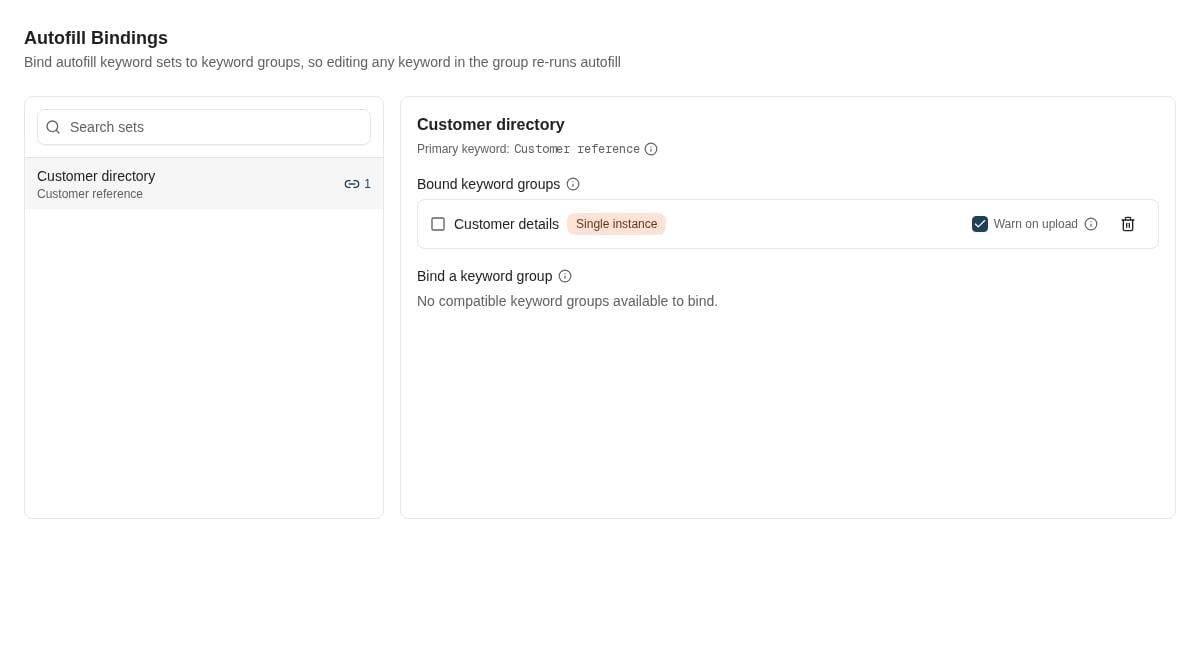
Customer directory is bound to Customer details. Warn on upload is enabled for child edits.
Where to read next
Cascading datasets
Chain keyword values across levels so choosing a value narrows the options on the next keyword — and manage the dataset’s levels, values, and document types.
Autofill keyword sets
Build the look-up table that an edit-time binding draws its values from.
Keyword behaviour
Control how keywords validate, hide, and carry over across edits.