

What you will build
Someone uploads an Injuryreport whose ClaimNo keyword is still empty. Before the document is stored, they are asked whether a claim case should be created. On Yes, a workflow creates a Caseflow object and writes its ID into ClaimNo. On No, the document is stored and nothing else happens. Everything here is configuration: an interaction rule and a workflow definition. No script is involved. The names come from a claims-handling setup; substitute your own document type, keyword, and Caseflow class.Prepare the configuration
You need a tenant with the workflow engine switched on, andinteraction-rules.manage and workflow-engine.manage. Have ready:
- A document type — this example uses Injuryreport — with a single-value keyword for the case reference, here ClaimNo.
- A Caseflow class for the case object — here Case — and the attributes you want set on creation. Note the class’s ID and each of those attributes’ IDs: under Settings → Admin Settings → Caseflow → Applications & classes, the class list shows each class’s ID as
#and a number below its name, and the class’s Attributes table shows each attribute’s ID the same way. Opening that page takescaseflow-configuration.view. - A test document and an account that can upload to the document type.
Build the workflow
-
Open Settings → Admin Settings → Workflow → Designer and create a definition named
Create claim case. - Choose the Document anchor and scope it to the Injuryreport document type. The rule is checked against this scope: it cannot match a document type the workflow would not start for.
- Add an initial node named Create case and a terminal node named Done.
-
On Create case, add three actions:
Caseflow.CreateObject— the Case class’s ID inClassId, oneAttributesrow per attribute with its ID and value, and anIntoVariableofclaimCaseId.Keyword.Update— the ClaimNo keyword, with the value{{instance.claimCaseId}}.Document.AddNote— the textClaim case {{instance.claimCaseId}} created. The uploader answered: {{instance.uploadAnswer}}.
ClassIdand eachAttributeIdare number fields, and you type the IDs you noted. The hints under them — Set the workflow’s Caseflow application first and Set the workflow’s Caseflow class first — do not apply to a document workflow, which cannot have a Caseflow application or class in its scope. - Draw an automatic transition from Create case to Done.
uploadAnswer must appear somewhere in the definition. Here it gives the document a record of what the uploader chose.
On the definition’s Triggers tab, add a document.created trigger with this filter:
$interaction is null unless an answered interaction rule named this definition, so the filter means start only when someone answered Yes to the question this workflow belongs to. Every other upload of an injury report is ignored.
Type
$ in the filter to pick $interaction.value from the editor’s suggestions; a document.created trigger offers it. The editor does not check "yes" against the rule’s choices, so make sure it matches the value you give Yes, create on the rule’s Prompt tab below.Create the interaction rule
Open Settings → Admin Settings → Workflow → Interaction rules, choose New interaction rule, and fill in the four tabs. General — name the rule, keep the trigger point Document upload, set the order to10, and leave it enabled.
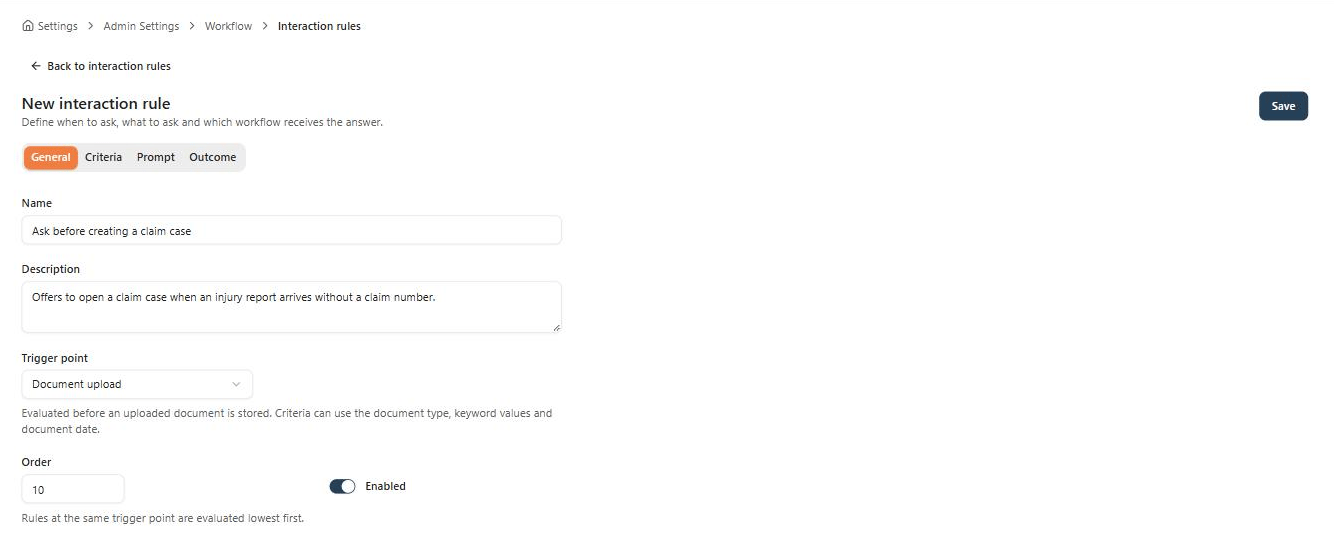
General: the rule's name, trigger point, and evaluation order.
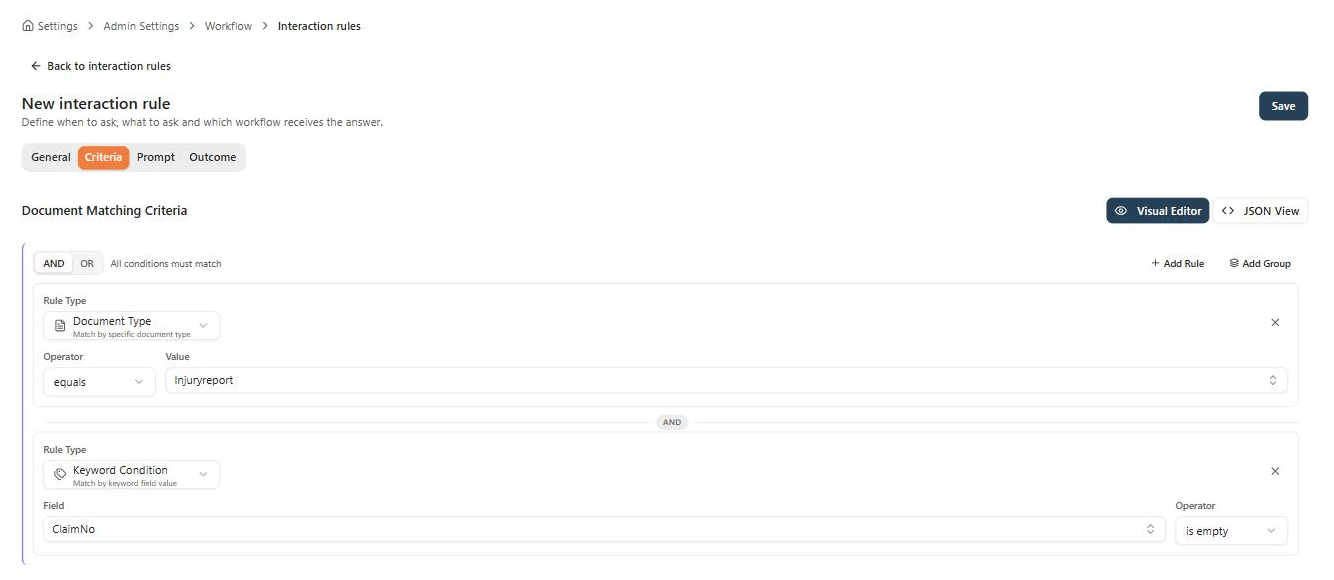
Criteria: ask only for injury reports that arrive without a claim number.
Create a claim case?, a message explaining what happens, choices Yes, create (value yes) and No (value no), and Allow cancel off.
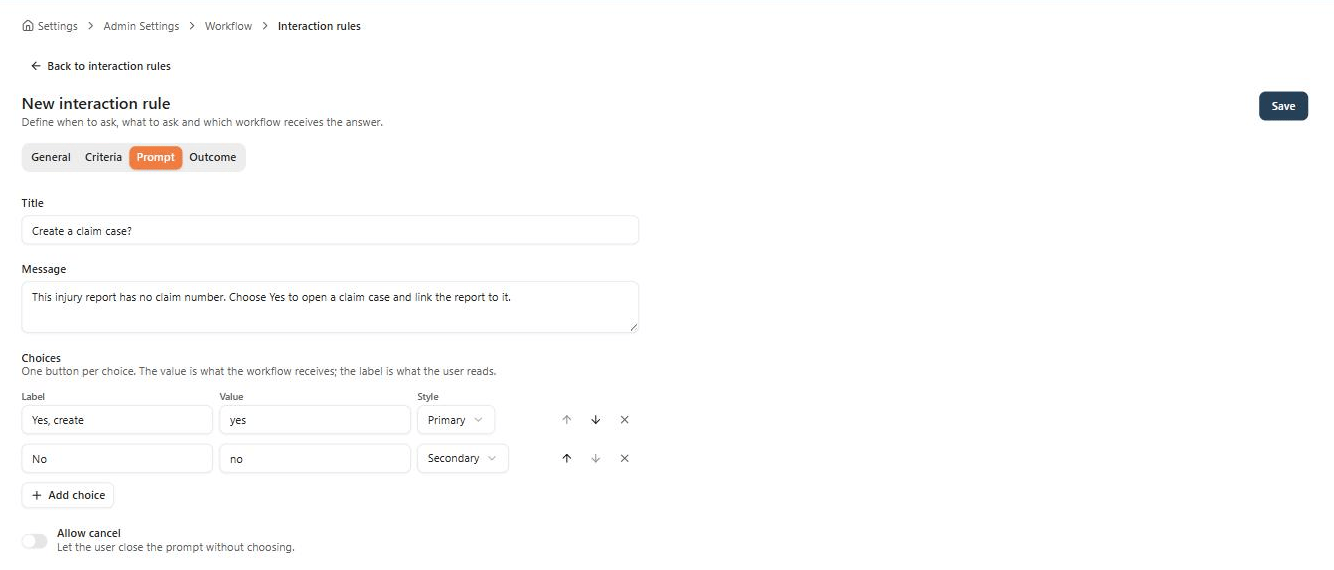
Prompt: the label is what the uploader reads, the value is what the workflow tests.
Create claim case, and one mapping row: variable uploadAnswer receives the choice label.
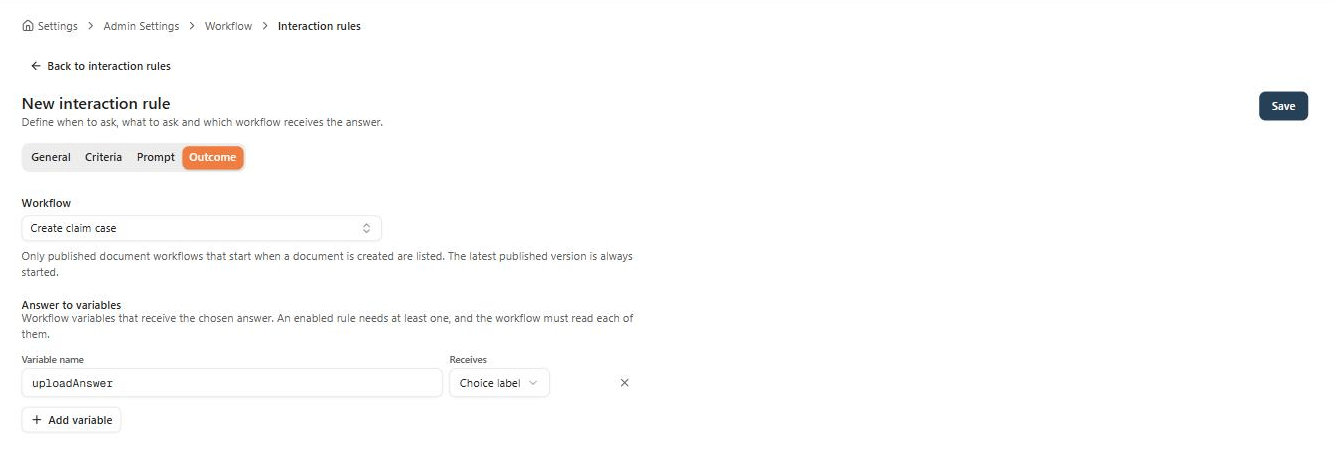
Outcome: the workflow that receives the answer, and the variable it arrives in.
uploadAnswer.
Two details decide how this behaves later:
- The value is what the workflow tests, the label is what the person reads. The filter above compares against
yes, so that value has to stayyeseven if the button is later reworded. The note records the label, so it reads the way the uploader saw it. - Allow cancel off means every injury report is stored, and No is how the uploader declines the case. With it on, cancelling skips storing that document altogether.
Verify the whole path
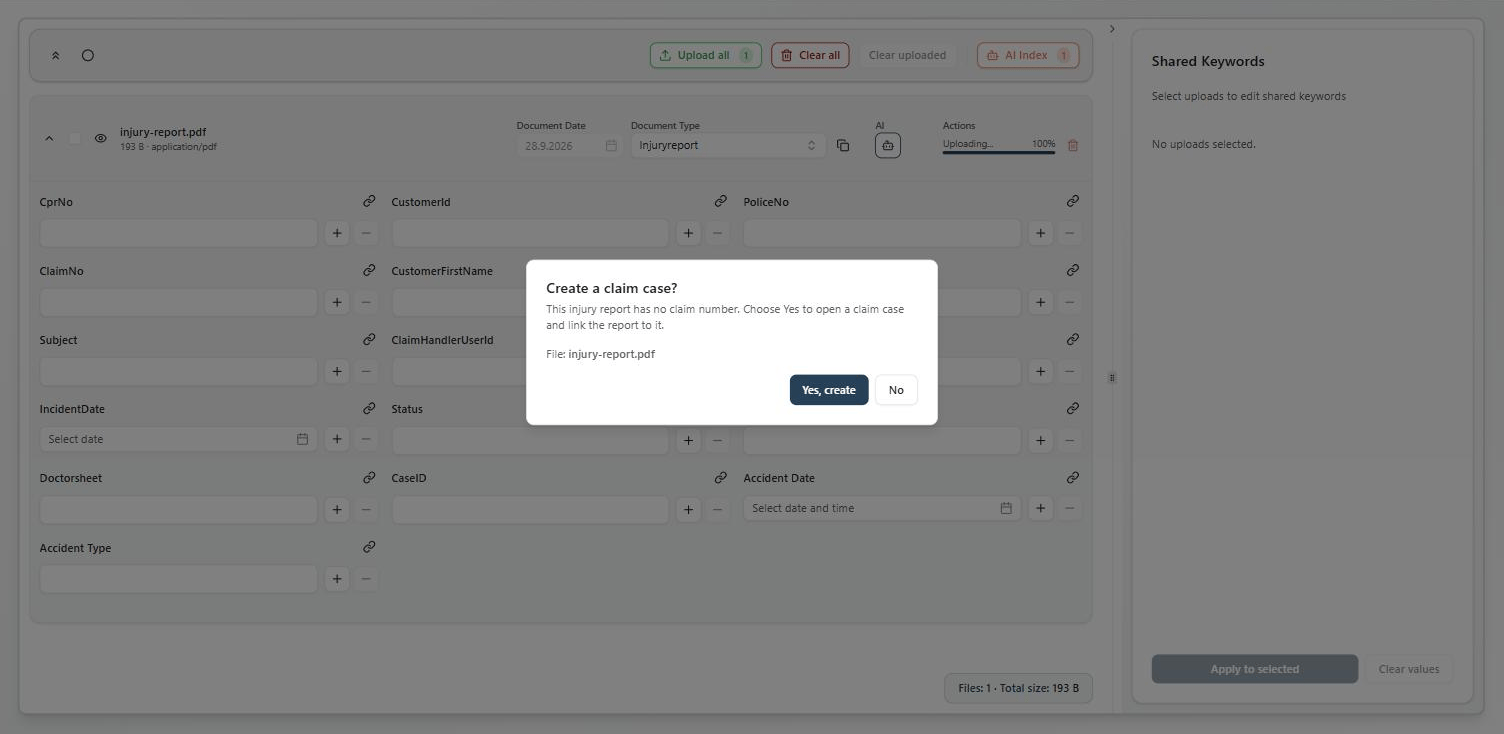
The question as the uploader sees it, before the injury report is stored.
When it does not fire
The writes this workflow makes do not start workflows. The keyword update does not start
Create claim case again, and the new Caseflow object does not fire Caseflow triggers either. A script doing the same writes behaves differently — see choosing between a workflow trigger and a script hook.Where to read next
Workflow trigger or script hook
Which extension point to reach for when a content event should cause something, and what changes if you pick the other one.
Interaction rules
Every field of a rule — criteria limits at upload, prompt choices, and the outcome mapping.
Action reference
The Caseflow, keyword, and note actions used on the node above, with their parameters.