

Prerequisites
Open Admin settings → Access → Users or User groups. You neediam.users.view to inspect users and iam.users.manage to change them. Group administration uses iam.user-groups.view and iam.user-groups.manage respectively. Granting application permissions is a separate capability, described in Managing permissions.
Choose the account lifecycle
Use federation for new people. Creating a service user in Users does not by itself create an OAuth client or issue client credentials.
Inspect a user
Search Users by the available identity fields. The list initially excludes disabled accounts; include them when investigating an account that appears to be missing. Open a user to inspect:- Profile: full name, email, and phone details.
- Account status: active/disabled, lockout and password-expiry indicators, failed sign-ins, and last sign-in where available.
- Group membership: the groups the account belongs to.
- Effective permissions: permissions combined from its groups.
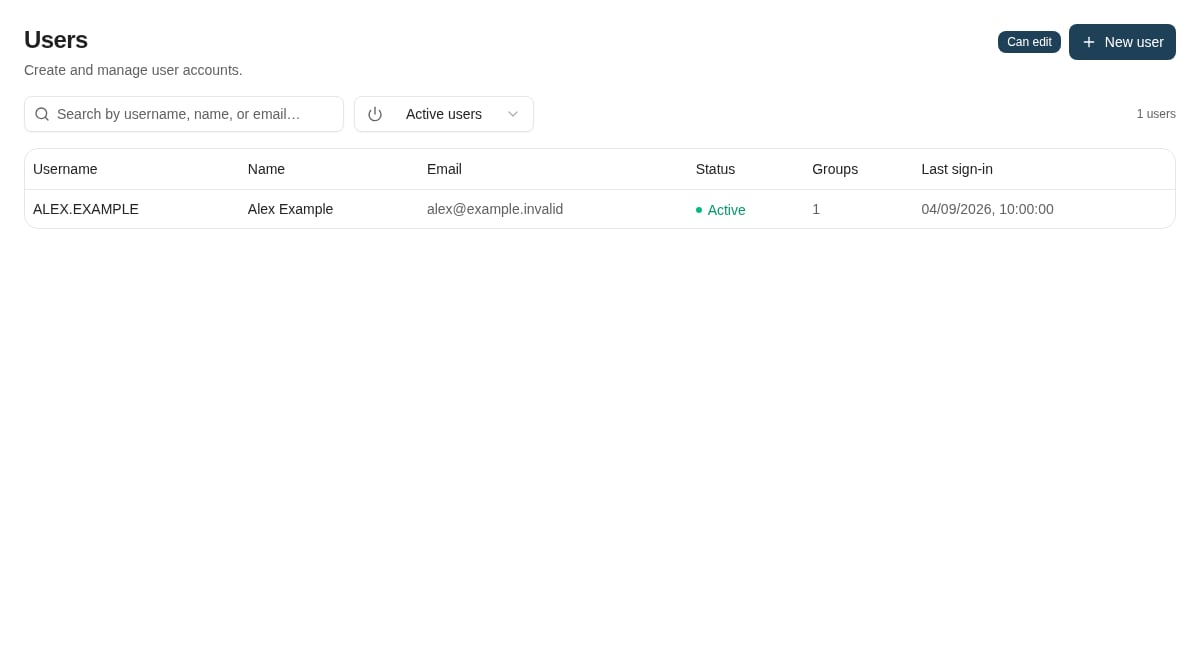
The user list exposes account status, group count, and last sign-in before you open a user.
Maintain membership
Add the user to an appropriate existing group, or remove an obsolete membership. Review the combined permissions after the change: removing one group does not remove a capability still granted by another group. For federated people, make durable membership changes in the identity provider’s role assignments. Sign-in synchronization can replace a manual Insight membership change. Profile fields synchronized from the provider can also be refreshed at sign-in. Do not assume an already open browser or an issued integration token refreshes immediately. Sign in again and recheck the effective access when validating a change; coordinate urgent access removal with the identity administrator.Local account actions
Use New user only when local creation is appropriate. Choose Service user (M2M) for an independently provisioned integration account, or Interactive user for a supported password-sign-in case. Select the required groups. The service-user mode generates a password required by account creation, but client-credentials sign-in uses the integration’s client credentials instead. Use Unlock for a locked account after investigating the failed sign-ins. Reset password changes the locally managed credential; it does not reset a federated user’s work-account password. A user created by the admin assistant or over AI assistant access has a random password that nobody sees, unlike one created here or through the API: use Reset password to give it one. Use Disable to stop a locally managed account’s access and Enable to restore it when appropriate. The Users UI deliberately provides disabling instead of permanent account deletion. A change that would remove the last effective permission administrator is blocked; establish another valid administrator before removing that access. You cannot disable your own account or remove it from a group, so you cannot lock yourself out by mistake. Another administrator has to make that change. The same applies through the API and the admin assistant, and the assistant does not add your own account to a group either.Maintain user groups
Create groups around a concrete access responsibility and review both their members and their permission grants. Granting an application permission does not automatically grant document access rights. Deleting a group can be blocked by members, document-type assignments, autofill sets, security-keyword references, or the last-administrator safeguard. Read the conflict details and remove or replace the dependencies deliberately before retrying. Do not treat a dependency conflict as an instruction to delete the underlying business configuration.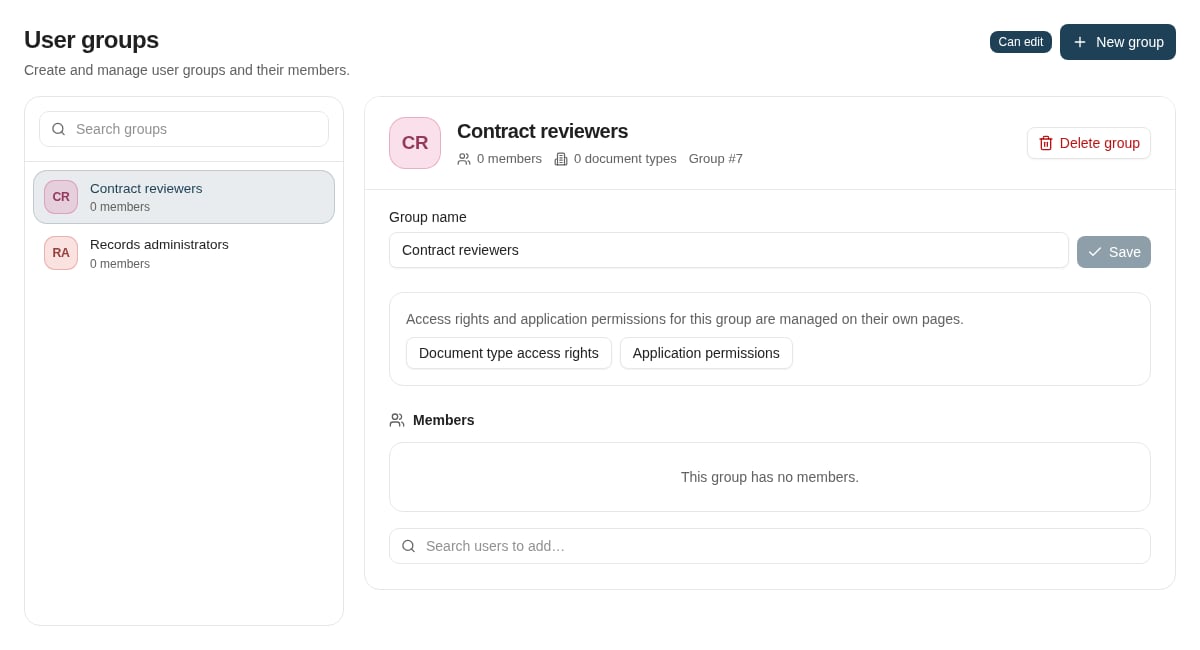
User groups provide the membership boundary used by permission grants.
Where to read next
Single sign-on & federation
Sign in to Nobly Insight with your organisation’s own identity provider over OpenID Connect — Microsoft Entra ID, Okta, Auth0, and other OIDC-compliant providers.