

Prerequisites
You needmappers.view to try and check a mapping, and mappers.manage to publish it or restore a version. Expression rows only run in Try it if you hold mappers.manage or workflows.manage; see Expression rows.
Try a sample document
The Try it tab at the bottom of the editor runs a sample through the draft as it is on screen, on every edit. Nothing is saved, and nothing is sent to Nobly Insight.1
Load a sample
Paste a sample into the text box and choose Load properties. You can paste the document payload of a run from States, the body of a submission, or
Name=Value lines. Property groups, the sender’s document type, and its date are kept. Add the properties this mapping reads adds an empty row for each property the mapping uses.2
Adjust the values
Edit, add or clear properties in the sample table. When the document type or date comes from the sender, fields for those values appear as well.
3
Read the result
Document Nobly Insight receives lists the document type, the document date and every keyword, each with the reason it got its value. The rule that matched is flagged in the document type section. Select a keyword to jump to its row.
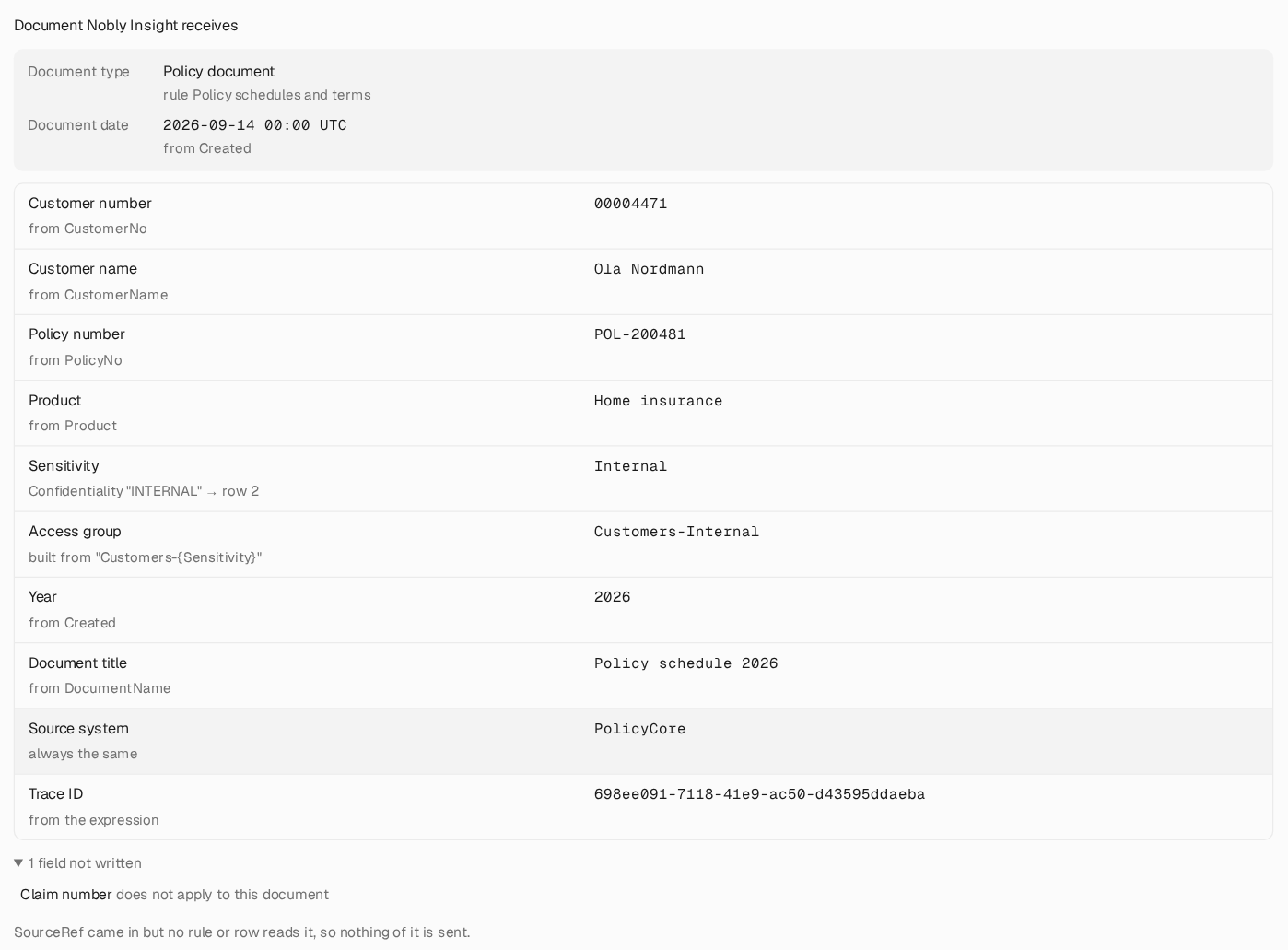
The result for a sample policy schedule. Each value shows where it came from; Claim number was not written because its row does not apply, and the incoming SourceRef property is read by no row.
- Fields not written, each with the reason. A reason can be that the incoming property is empty, or that the row does not apply to this document type.
- Incoming properties that no rule or row reads. With pass-through off, nothing of them is sent. Check this list for a property that the sender renamed.
- This document would stop before upload when a row’s empty policy, a validation, or the document type rules stop the document. In a workflow, the run then fails with that explanation, and nothing is sent.
Expression rows
An expression row runs C# code with the environment’s identity, and it can read secret global variables. For that reason, expression rows are only evaluated in Try it for people who may already put code into live runs: holders ofmappers.manage or workflows.manage. For anyone else, the result notes that expression rows were not evaluated, and those rows show as stopped.
Check against Nobly Insight
Below the result, Check against Nobly Insight compares the mapping with what Nobly Insight reports for a document type, before any upload is tried. Leave Document type empty to check the type your sample resolved, or enter another type. Then choose Check.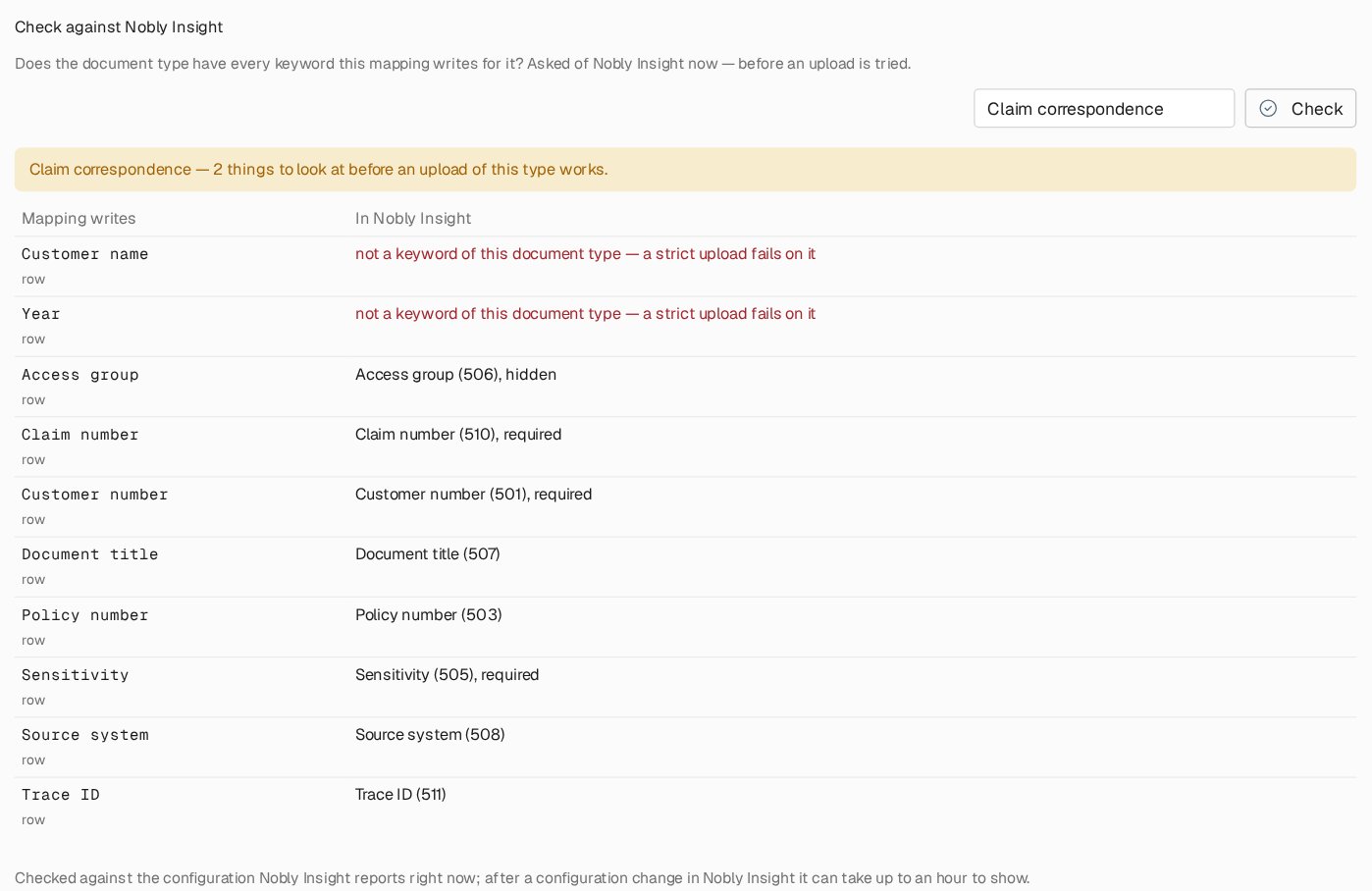
Checking the mapping against Claim correspondence. Customer name and Year are not keywords of that document type, so a strict upload would fail on them.
- keywords the type requires that nothing in the mapping writes, because every upload of that type would stop on them
- the same keyword written under two names
The check uses the configuration Nobly Insight reports at that moment. After a document type or keyword change in Nobly Insight, it can take up to an hour before the check reflects it.
Publish
Workflows run a mapping’s published version. Saving only changes the draft. To make the draft live, choose Publish and confirm. From then on, every workflow that names the mapping uses the new version. A run picks up the published version when it reaches its Map to Insight document step.- Publish a mapping before the workflow that starts naming it. A Map to Insight document step whose mapping has never been published fails every document, unless a classic mapper of the same name exists (see Classic mappers).
- A run in the batch named
Testingruns mapping drafts. That is what guided tests use, so you can test a draft end to end. Don’t useTestingas a batch name for production submissions. - If someone else saved the mapping after you opened it, saving or publishing is refused, and the message names who changed it. Reload the page and apply your changes again.

The Versions tab: version 2 runs now, and version 1 can be copied back into the draft.
Use the mapping in a workflow
Add a Map to Insight document step before the upload step, and choose the mapping in itsMappingName list. Below the step description, Open the mapping opens it in a new tab. The panel also says which version workflows run and whether the draft has unpublished changes.
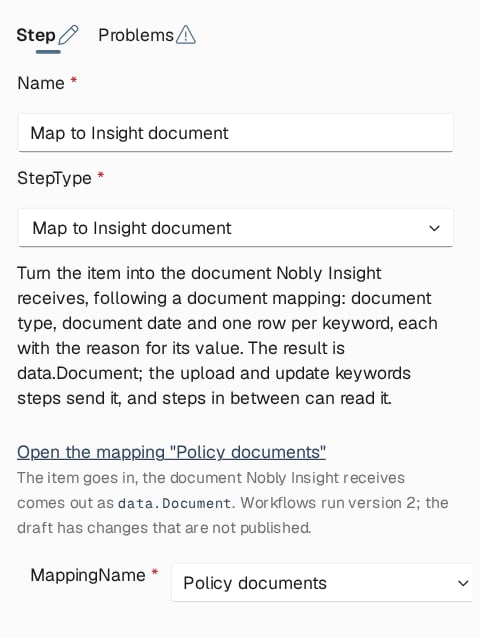
The step panel of a Map to Insight document step names the mapping, links to it, and says which version workflows run.
When the mapping stops a document, the step fails with the explanation and the workflow takes its exception path. The run in States shows the partial result on its Document tab, so you can see which row stopped it. See States and recovery.
By default, the upload is strict when pass-through is off. A keyword the document type does not have fails the upload instead of being dropped. The upload step’s setting for unmapped keywords can override this per workflow.
Classic mappers
Mappers created before document mappings existed are listed as Classic mapper. They still run where workflows use them, and nothing is converted automatically.- Open shows a classic mapper read as a mapping. Each keyword becomes one copy row, pass-through is on, and the document type comes from the sender. Save as a mapping creates a mapping with the same name. From then on, the list shows the mapping instead of the classic mapper.
- A Map to Insight document step that names the classic mapper keeps running the classic mapper until the mapping of that name is published.
- An upload step that names a classic mapper itself, without a Map to Insight document step, keeps working as before.
- Classic mapper editor at the top of the list opens the old editor, for workflows that still depend on it.
Where to read next
Building workflows
Build the pipeline in the workflow editor: steps, decisions, the exception flow, validation and publishing.
Testing workflows
Run a sample through the draft workflow and its draft mappings, and compare the result with what you expect.