

Before you begin
You need the View form configuration permission to open the list and the Manage form configuration permission to create, edit, restore or delete templates. See administration for the whole permission family and for which document types qualify.Template types
A document type can hold any number of templates of three types. Each type covers one situation; a document type needs at least a create template before anyone can create form documents in it, and a preview template to show existing ones the way you want.
A document type without a template of a given type still works: the product falls back to a generic layout — every visible keyword as a field or value, keyword groups as sections — so a form document is never blank. The generic layout is a safety net, not a design; give every type you use a template.
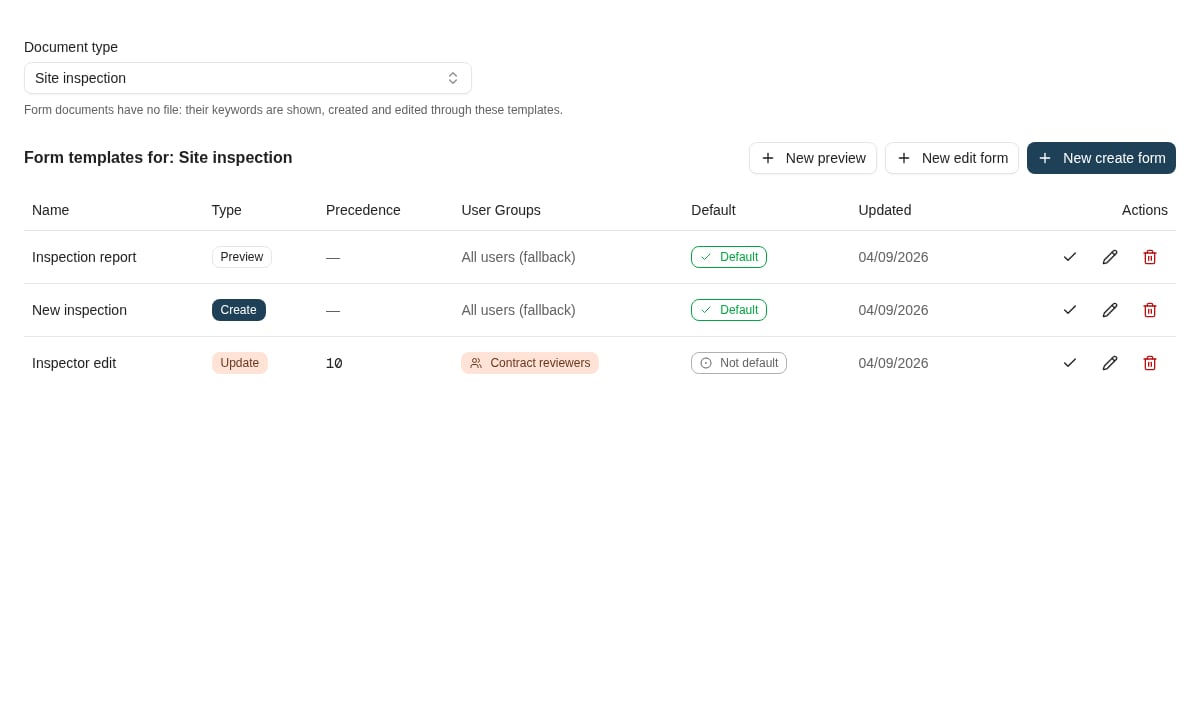
The Form templates page lists a document type's templates by type, precedence, user groups and default.
Template selection
Selection works per type exactly as for Caseflow templates:- Group match first — templates assigned to user groups are considered for a user in those groups; the highest precedence wins.
- Default fallback — if no group template matches, the template marked Default for that type is used.
- Nothing selectable — the generic layout is used for previewing and editing, and the document type is not offered on New form.
The designer
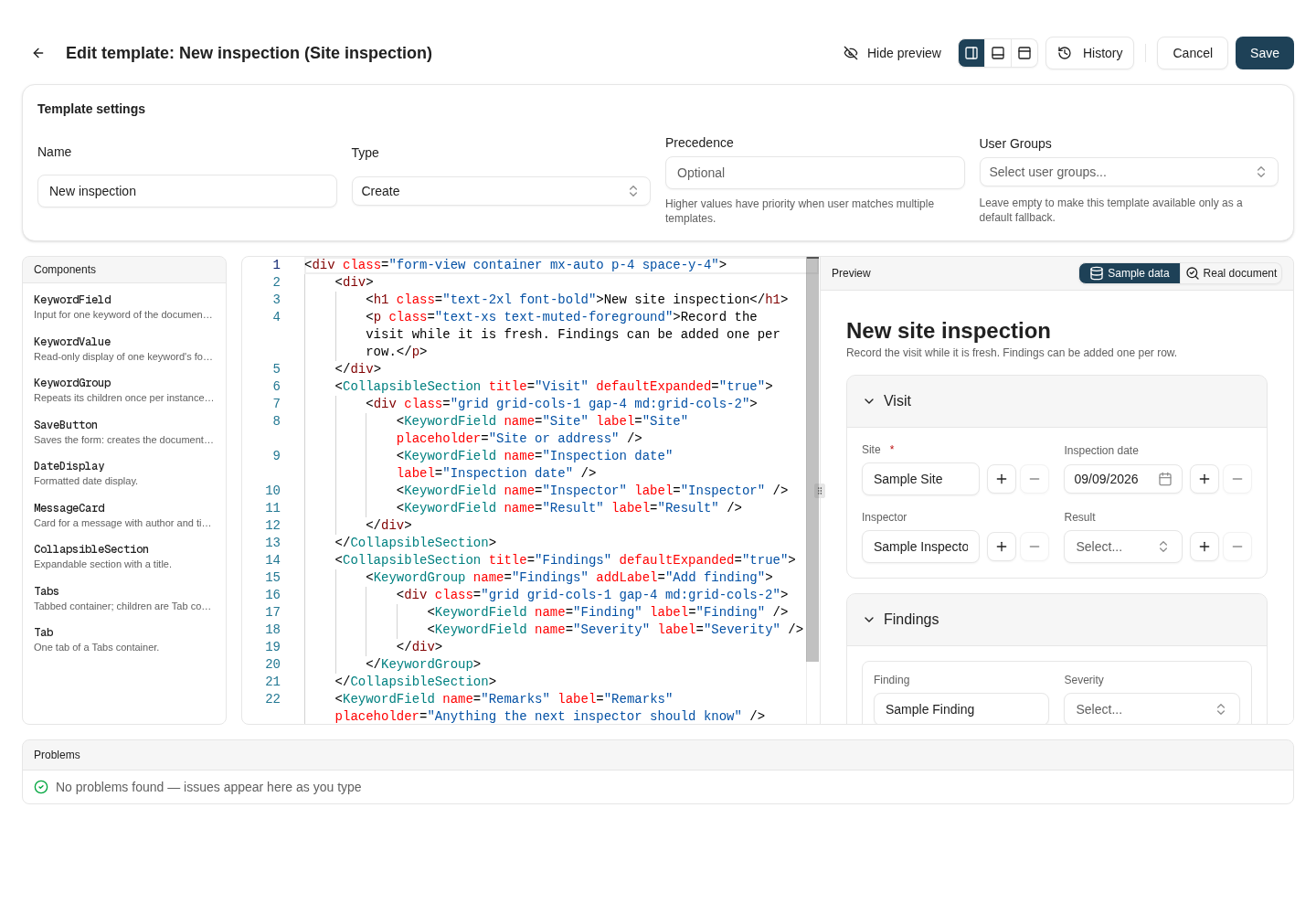
The template designer: settings, the component reference, the source with live lint, and a preview that renders the template against sample data or a real document.
- Start from — a new template offers three starting points: Scaffold from keywords generates a field (or value, for preview templates) for every keyword of the document type, grouped the way its keyword configuration is; the starters are small generic layouts with placeholder keyword names; Blank is empty.
- Components — the palette lists the form components with their props; select one to insert it.
- Problems — the template is linted as you type: unknown components and props, a keyword component without a binding, keywords the document type does not have, malformed tags. Findings do not block saving, so clear the errors before you make the template the default: an unknown keyword, for example, renders as Unknown keyword on the form.
- Preview — renders the template as it will look. Sample data fills every keyword with a plausible value and lets you type into fields without saving anything; Real document loads an existing form document of the type by ID and shows the template read-only against its stored keywords, including group rows.
- History — every save stores a version. Open a version to compare it with the current source, load it into the editor, or restore it.
- AI assistant — where the AI template generation feature is enabled, describe the form you want or the change to make; the assistant knows the document type’s keywords and the form components, and its suggestion is shown as a diff you accept or discard.
Writing a template
A template is HTML. Tailwind utility classes are available for layout, and the form components are written as tags:name="Site") or by keyword type ID (keywordTypeId="201"). Use the ID when a keyword name contains characters the template grammar cannot carry — quotes, >, / — or looks like a number or true/false; the scaffold does this for you.
The render scope
Placeholders resolve against the document being shown:
Keywords hidden by configuration, or hidden for the current values by a conditional keyword rule, are left out of the scope and out of the form: neither a placeholder nor a component shows them.
What the form enforces for you
A form template describes the layout; the keyword rules come from the document type and apply whether or not the template mentions a keyword:- Required keywords must be filled before saving, including ones the template does not show.
- Masks, lengths and datasets come from the keyword type; cascading children follow their parent and read-only cascading children are derived automatically.
- Autofill keyword sets run when their primary keyword is entered, with the same choice and confirmation dialogs as the keyword panel.
- Keyword defaults of the document type pre-fill a new form.
- Revision comments: if the document type forces a comment, the save button asks for it first.
- Duplicates: if similar documents exist, the create asks before storing anyway.
Where to read next
Form components
Every component a form template can use, with props and examples.
Administration
Permissions, what users need, and how form documents behave in search, the viewer and integrations.
Templates and syntax
The shared template engine: variables, conditionals, loops and expressions.