

Export from the source environment
Open the Export tab
Choose what to include
Export
config-<date and time>.json, and each type shows how many entries it contributed.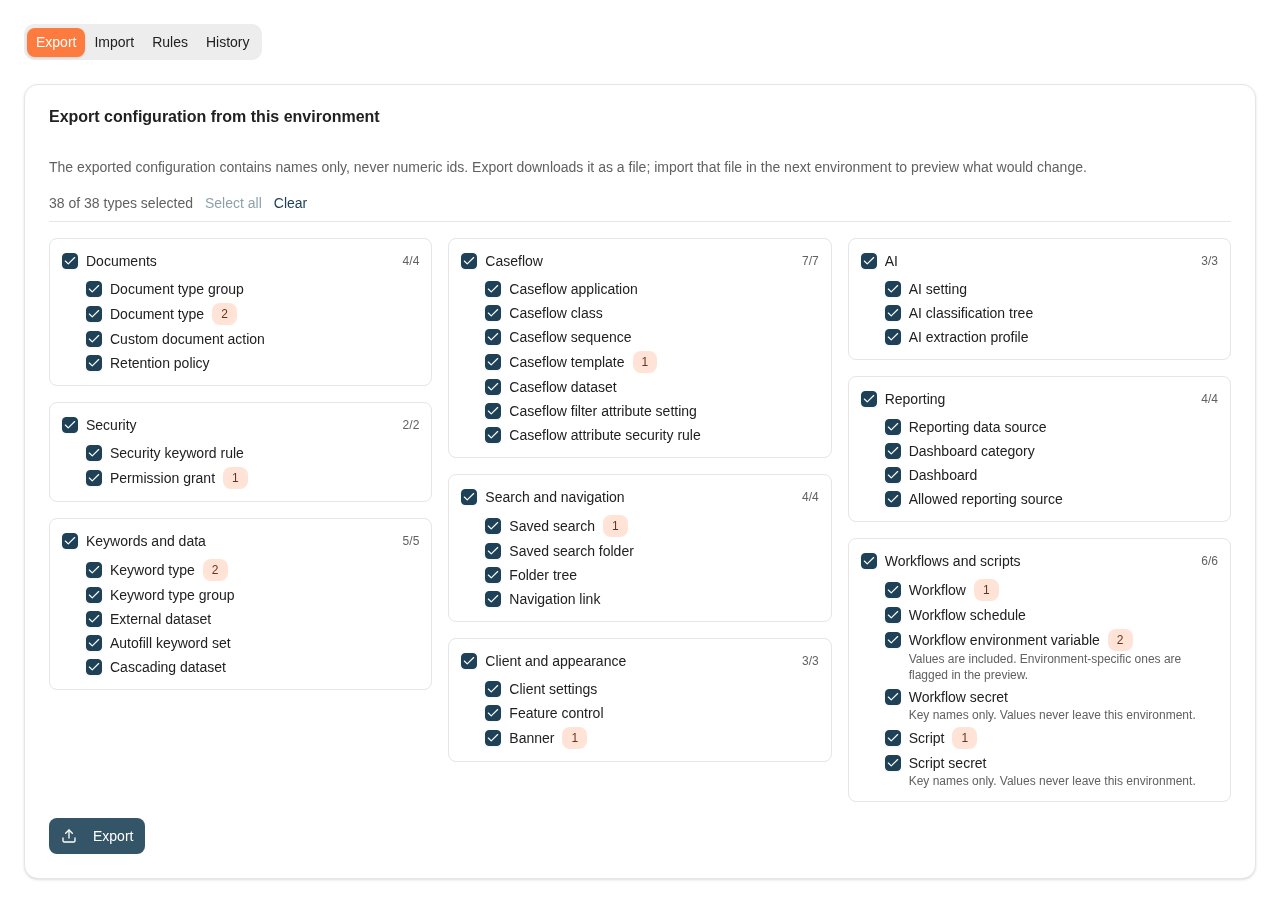
The Export tab after an export: types are grouped as in the admin settings, and each type shows how many entries went into the file. All names are fictional.
Import in the target environment
In the target environment, open Configuration promotion → Import and select Choose file. The file name appears with the number of entries it holds, when it was exported and by whom. The comparison starts at once. Nothing is written to the environment until you apply. If the import cannot be compared, Import refused gives the reason and no changes are listed. The usual reasons are:- The file holds a configuration type you cannot view.
- The file was changed after export.
- The file holds a type this environment does not have.
- Two entries in the environment share a name.
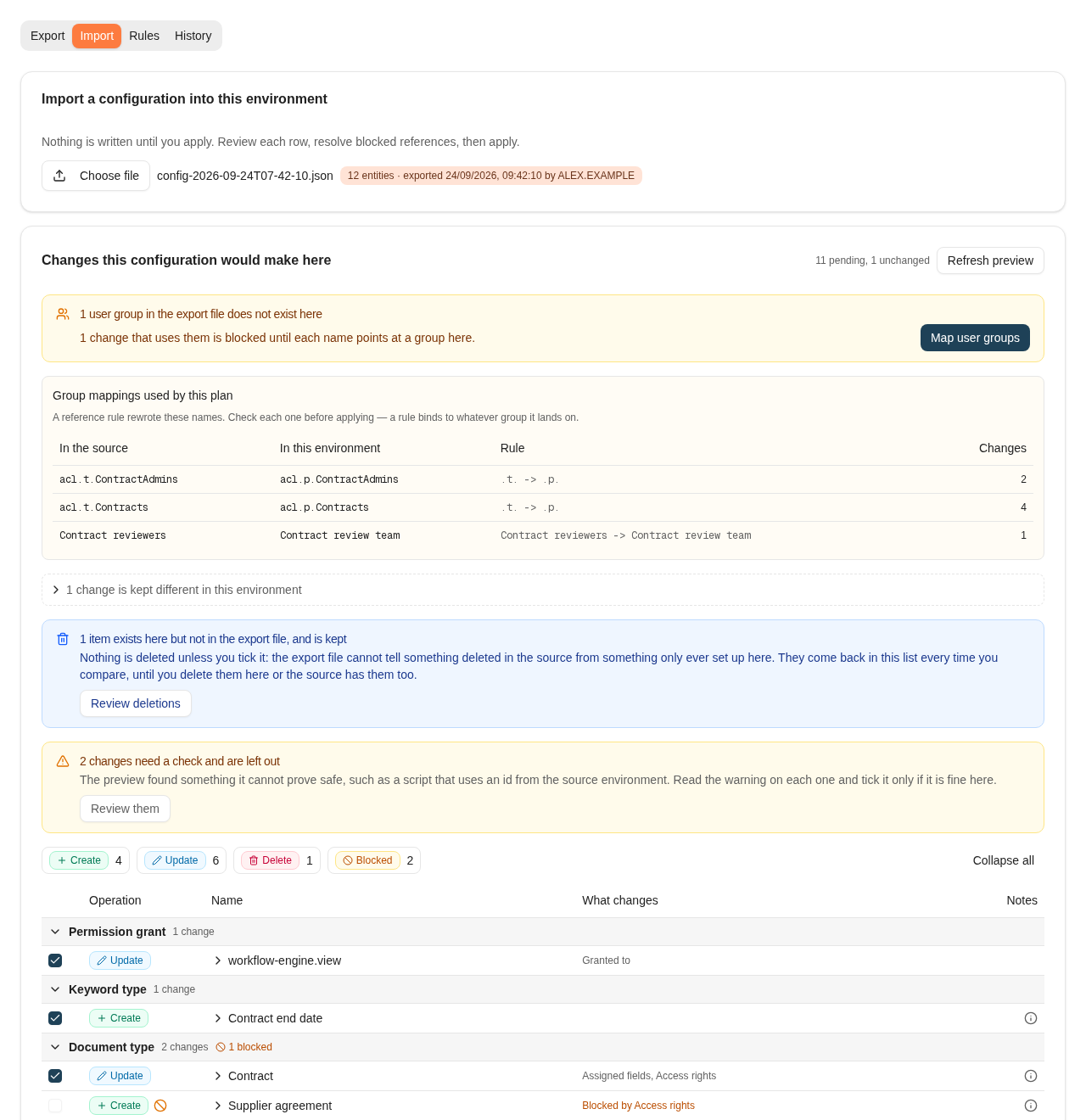
The review of an imported file after two reference rules were added. Group mappings, kept differences, deletions and changes that need a check are summarized above the list of changes.
Read the review
Changes this configuration would make here lists every difference, grouped by configuration type in the order the changes are saved. The heading shows how many changes are pending and how many entries are already identical. Identical entries are counted but not listed.- where the configuration lives, with a link to its admin screen
- what the change does, and any warnings or reasons it is blocked
- which other changes it depends on
- every setting that changes, labelled the way its admin screen labels it. Added values are green and removed values are red and struck through. Template and script code is shown side by side.
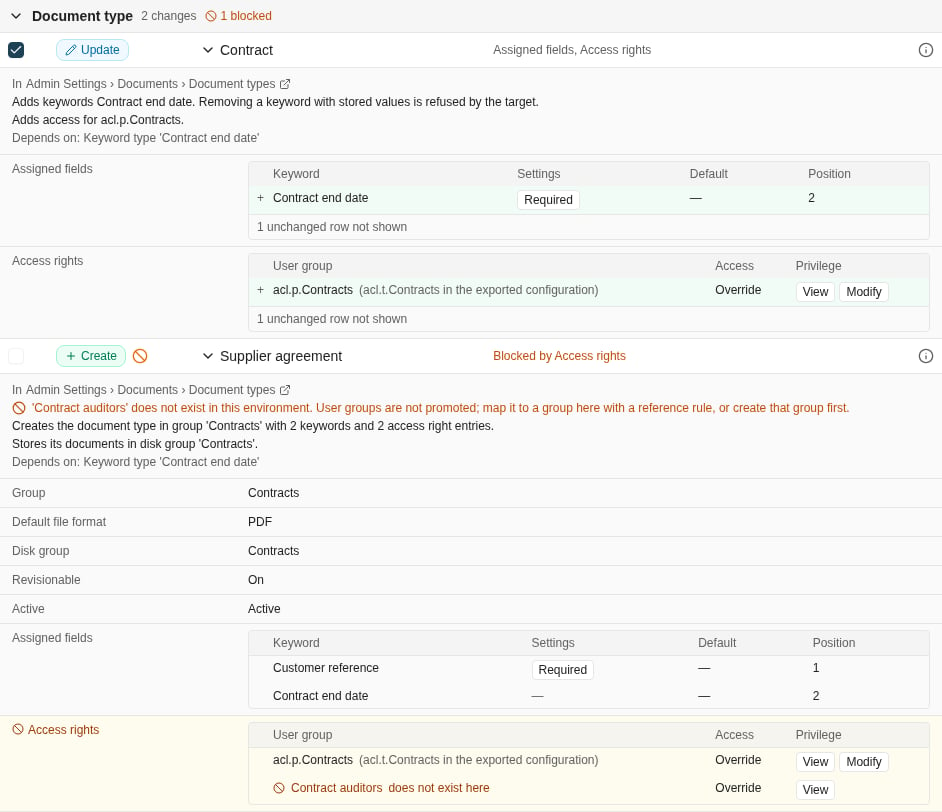
Two document types opened: an update that adds an assigned field and access for a mapped group, and a create that is blocked because one of its groups does not exist here.
Map user groups
User groups are never promoted. When the file names a user group this environment does not have, User groups that do not exist here opens by itself and offers one way to fix each name:- Suggested rule replaces a text fragment in every name that differs only in that fragment. Select Add rule to save it.
- Map a single name offers the groups here with a similar name. Select Map to a group to save an exact rule for that one name.
- Groups that have to be created here first have no similar group here, so no rule can fix them. Create the group in this environment and refresh the preview, or leave out the changes that use it.
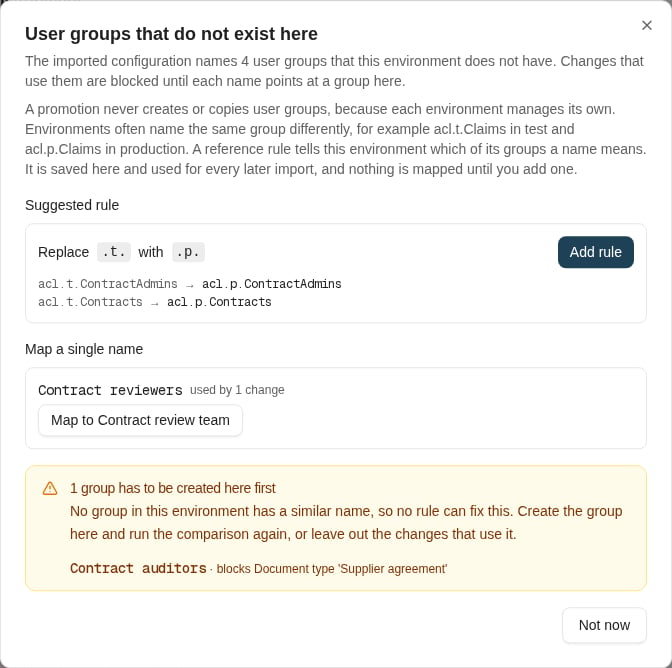
The group dialog proposes a pattern rule for names that differ only by environment, an exact mapping for a similar name, and lists the group that must be created first.
Changes left out until you tick them
Some changes arrive unticked, and a notice above the list counts them:- Deletions. A delete is never ticked for you. The file cannot tell something deleted in the source from something that was only ever set up here. These rows come back every time you compare until you delete them here, or the source has them too. Review deletions shows only these rows.
- Changes that need a check. The preview found something it cannot prove safe, and the warning on the row says what. Review them shows only these rows. Tick a row only if its warning is fine for this environment:
- A script uses a number that is the ID of a user group, document type, keyword type or other configuration in the source, and that ID is different here or missing. A promotion never edits script code, so change the script to look the configuration up by name, then promote it again.
- A workflow environment variable value looks environment-specific, such as a URL, host name, IP address or connection string.
- A workflow environment variable would overwrite a value here that looks like a credential.
- The AI search automatic indexing setting differs. Environments often index different document types on purpose.
- Changes whose dependency is not ticked. A change that needs another change you left out is left out too, and says so. For example, a document type that needs a new keyword type waits until you tick the keyword type as well.
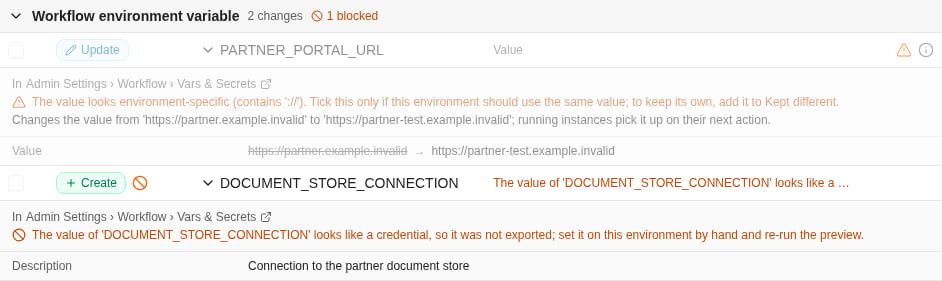
Workflow environment variables: an address that differs between environments waits for a tick, and a credential is never exported, so its row is blocked until the value is set here.
Resolve blocked changes
A blocked change cannot be ticked. The reason is shown in the What changes column and in full when you open the row. Fix the cause, then select Refresh preview.Apply
A tick changes what the rest of the plan can do, so every tick refreshes the preview. Apply waits until the refresh is done, and Updating the preview with your choices… shows while it runs. Before you apply, read If saving fails under the list. It shows the order the changes are saved in:- Changes stored in Nobly Insight are saved in steps. Within a step, either every change is saved or none is.
- Each workflow, script, workflow or script secret, workflow environment variable, workflow schedule and reporting data source is saved on its own.
- If a step fails, the steps before it stay saved and the rest are skipped. History then shows what was saved. To change it, promote again from the source environment.

The save order: the changes stored in Nobly Insight are saved together, and each workflow is saved on its own.
Select Apply
Add a comment
Confirm
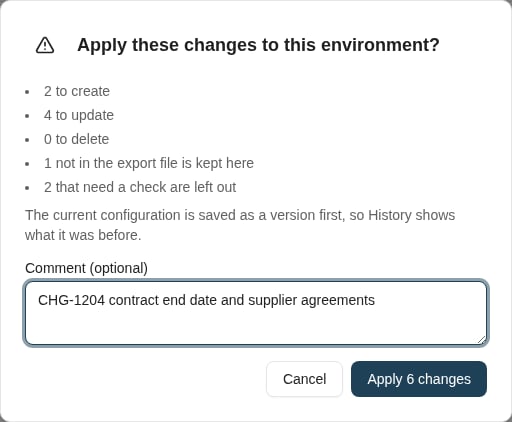
The confirmation counts the changes and takes an optional comment for History.