

Shared settings and personal overrides
Open Admin settings from the profile menu. Shared defaults and Personal settings are separate scopes. Some settings let you prevent personal overrides; without that restriction, a user’s existing personal choice may explain why they see different behavior. General settings exposes language, theme, an administrative date-format override, and whether Office downloads require confirmation. The download setting includes a control to prevent personal override. Distinguish shared settings from the personal screen and verify the effective result for another account; presentation choices do not change stored document dates. A user who has not chosen a language follows the shared language, including later changes to it. The Start page is personal only: each user chooses their own under Personal settings → General settings, and there is no shared default. After changing a shared default, test with both a user who has no personal override and one who has customized the setting.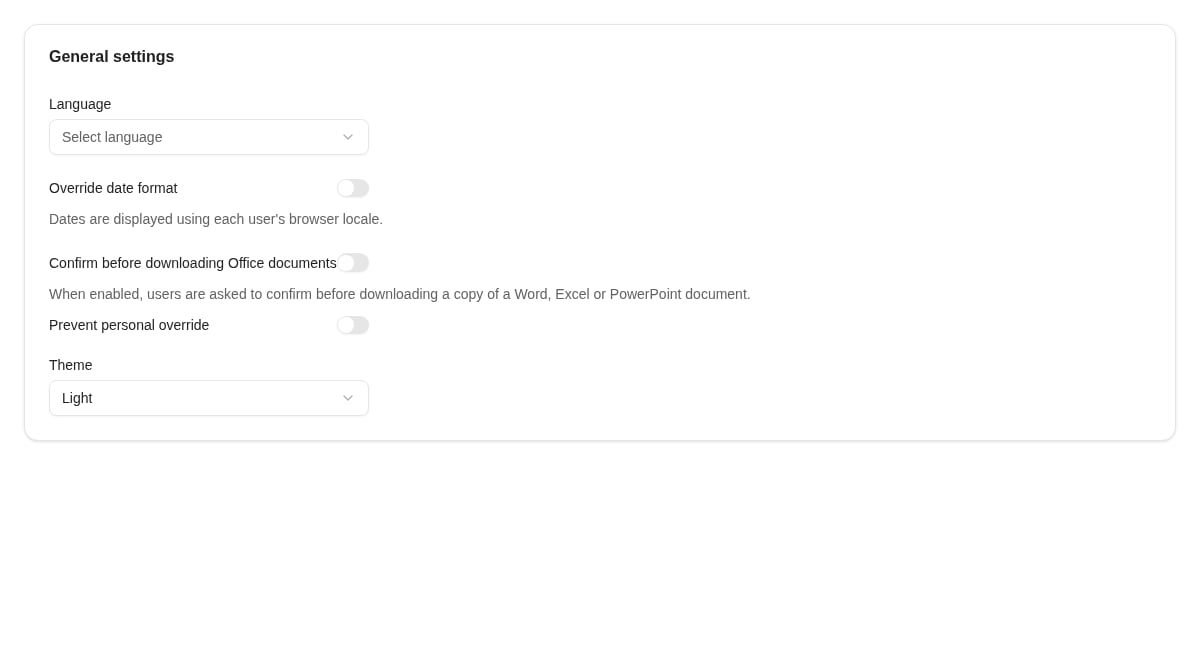
Shared settings include display preferences and Office-download confirmation, with a personal-override control.
Configure upload behavior
Open Upload → Upload behavior withclient.upload-behavior.view or client.upload-behavior.manage as appropriate. Review:
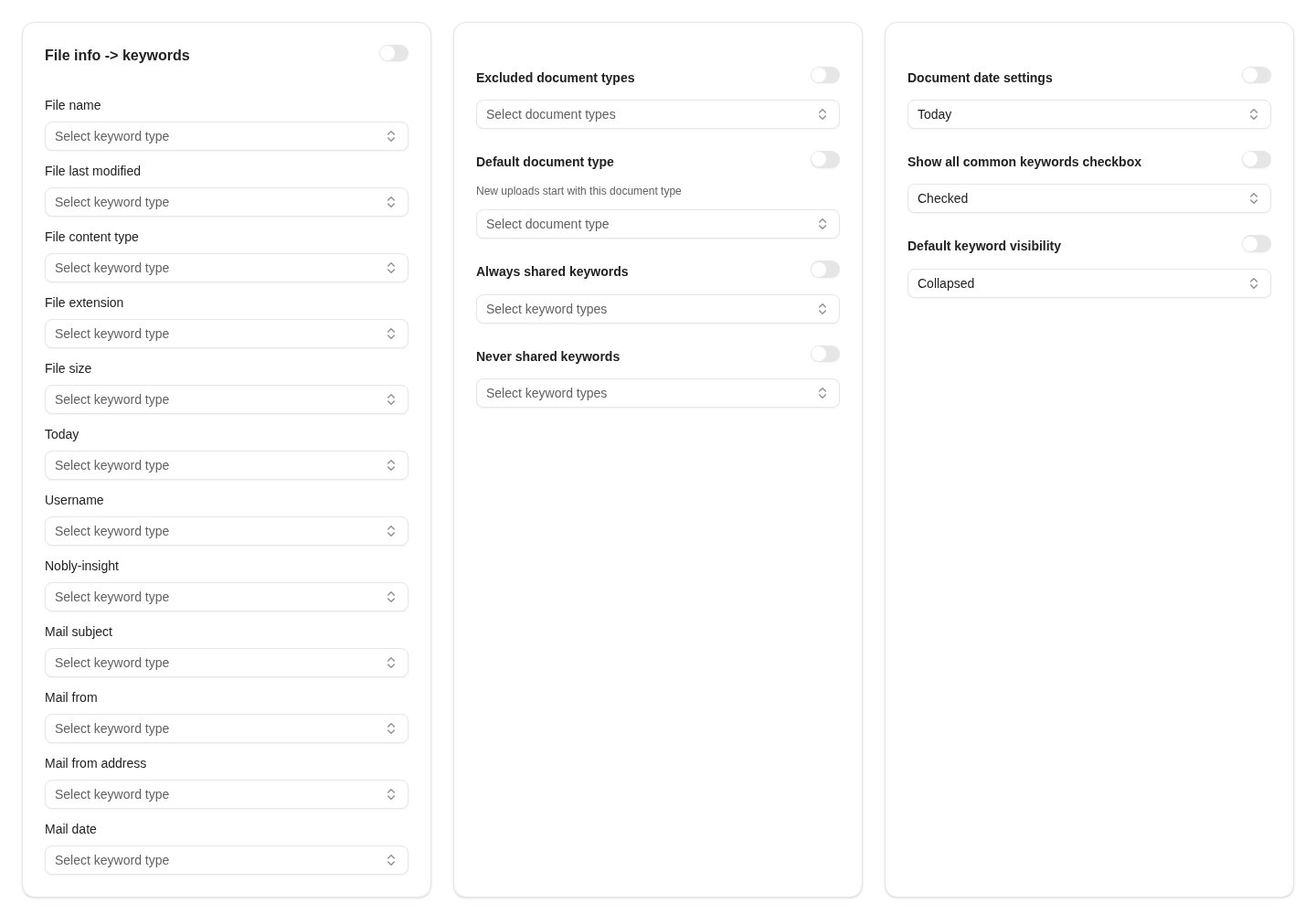
Upload settings group file-to-keyword mapping, document type defaults, and shared keyword behavior.
Configure document actions
Open Documents → Document actions with document configuration access. Create an action with a name, optional icon, order, active state, document-type scope, and user groups. Choose the action type:- A URL action uses a template and the supported document/keyword placeholders shown by the editor. Mark required values where the action cannot work without them. Review what metadata is sent in the resulting URL and to which destination.
- A workflow action selects a published document workflow. It starts the latest published version for the document on which it is invoked. The person who clicks becomes the run’s owner, and only one run of that workflow can be active on a document at a time.
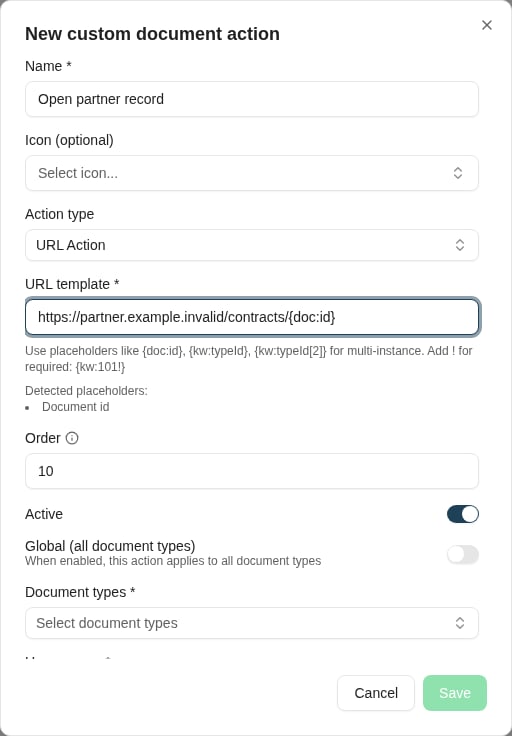
A URL action uses a document placeholder and must be scoped to the intended document types.
Who can configure and run a workflow action
Creating or changing a workflow action needsworkflow-engine.manage (or workflow-engine.admin) in addition to document configuration access. A workflow action lets its user groups start the workflow, so configuring one takes the right to start workflows. With workflow-engine.view alone, Workflow Action is shown as unavailable with Requires workflow permissions.
Running a workflow action needs no workflow permission. Four things decide who can run it:
- the action’s user groups — only members see and run it;
- its active state;
- the person’s own access to the document;
- the document type — it must be in the action’s type scope and in the workflow’s scope. When an action is Global or covers more types than its workflow, it is refused on a type outside the workflow’s scope with This action’s workflow does not apply to this document’s type.
Ask for confirmation
A workflow action can ask the person to confirm, or to choose between options, before the workflow starts. Under Confirmation, switch on Ask the user before the workflow starts. The title starts as the action’s name with a question mark, with one choice, Continue (valueconfirm); change them to describe what happens. Choose Preview to see the dialog as the person will.
withdraw, test) and put the wording in the label. Two choices cannot share a value, even with different capitalisation.
The variable name uses letters, digits, and underscores and starts with a letter, up to 100 characters. It cannot repeat a variable already stored in the action’s configuration, or be the name of one of JavaScript’s built-in object members, such as constructor or toString.
Cancel is always offered and starts nothing. Unlike an interaction rule’s prompt, there is no Allow cancel switch. If the confirmation is changed while a person has the page open, an answer that no longer fits it is refused rather than run.
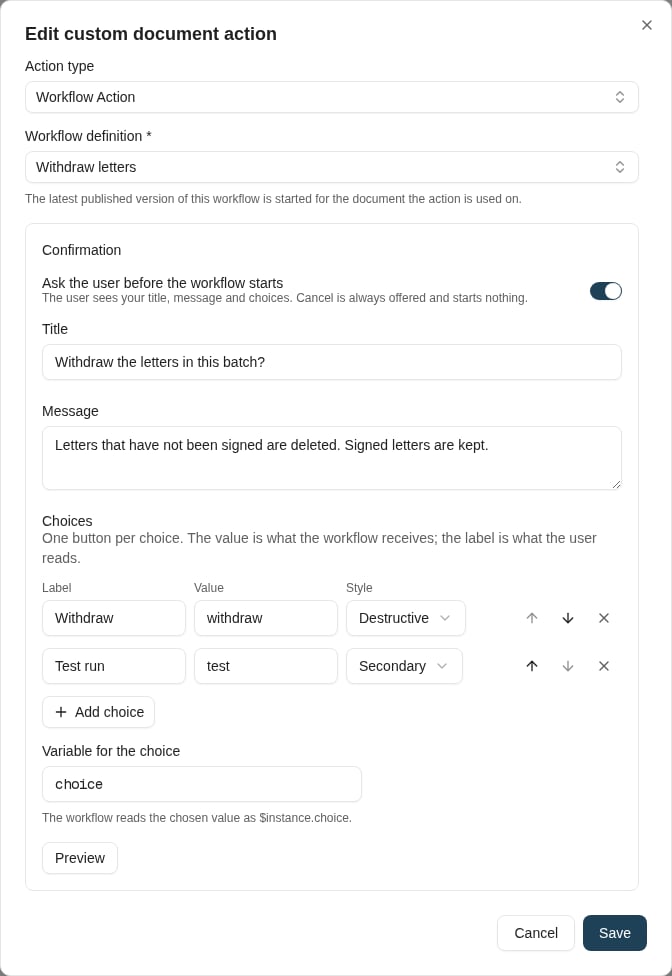
The Confirmation section of a workflow action: a title, a message, and one choice per button, each with the value the workflow receives.
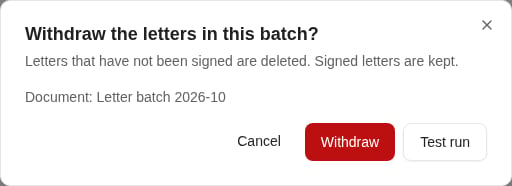
When the person chooses the action, the dialog shows the title, the message, the document, and one button per choice beside Cancel.
What the user sees
- With a confirmation, a dialog shows the title, message, document, choice buttons, and Cancel.
- The workflow starts. If it finishes straight away, the result appears at once.
- If it waits for background work, such as a background script, a progress dialog shows how long it has been running, with the latest message as progress text. The person can close it: the action keeps running, and a notification with Show appears when it ends, as long as Nobly Insight stays open in that browser tab. Reloading the page keeps the run followed, and its end is still reported in a notification. A run is followed for a little over half an hour, long enough for one background script to reach its 30-minute limit. A run still going after that, such as two background scripts in a row or a large batch, keeps running, but its result is not shown to the person. They are told This is taking longer than expected. The action keeps running; check the document later.
- The result shows the message the workflow wrote with
Workflow.SetMessage: its title, or a heading for its level, its text, and Open document for the document it names, unless the person is already on that document’s page. - Without a message, the person gets a short done notification. If the run stops to wait for a task or a timer, they get a started notification that says so, and no progress dialog. A message the workflow sets after that wait is not shown to them.
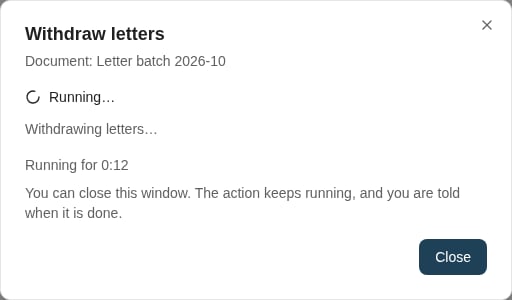
While the workflow waits for background work, the person sees its latest message and how long it has been running, and can close the dialog.
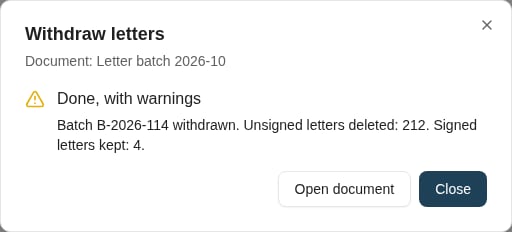
The result shows the message the workflow set, with Open document for the document it names.
workflow-engine.view, find the run under Workflow Instances by filtering on the document’s ID; a row’s menu has Copy id for comparing it with the reference.