Retention policies

A policy is the unit of “delete these documents after this long”. You’ll typically build the first few policies during setup, then leave day-to-day editing to your super-users.

What’s on a policy

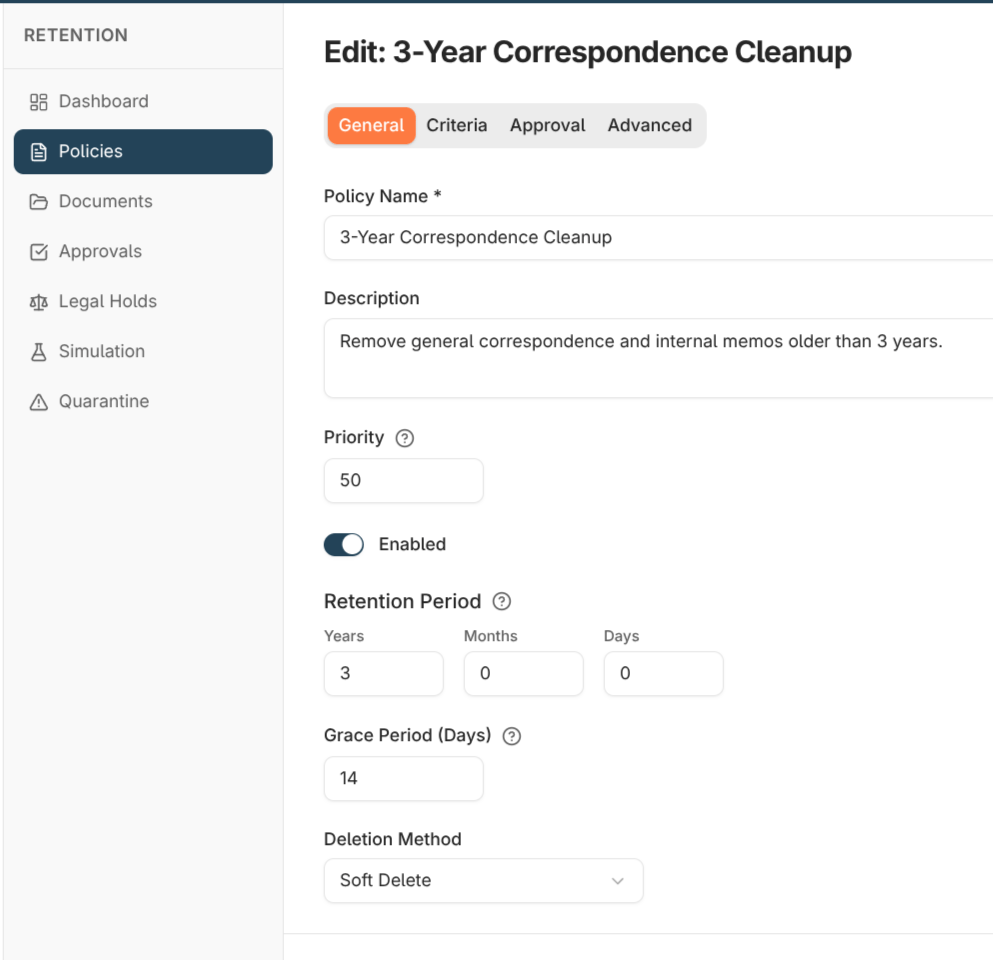
The policy editor is organised into General, Criteria, Approval, and Advanced tabs.
SettingWhat it does
Name / DescriptionIdentification for the policy. Agree a naming convention up front
PriorityWhen more than one policy matches a document, the highest-priority policy decides the outcome. Document the priority scheme per tenant
EnabledLeave off until the policy has been simulated and signed off
Retention periodHow long documents must be kept — years, months, and days — before they become eligible. Works together with the criteria to decide what to target
Grace periodA reprieve window, in days, after a document is tagged and before it becomes eligible for deletion. This is the window in which a document can still be rescued
Deletion methodSoft delete (recoverable, default) or Permanent purge (irreversible). Only use Permanent purge when a regulator requires content to be destroyed
Activity reset actionsDocument activities that restart the retention clock for a tagged document — viewed, modified, reindexed, keywords updated, notes added, new revision, workflow started, exported. Use these so documents in active use aren’t deleted
Requires approvalForces a human gate before any deletion under the policy. Recommended for any policy that hits more than a handful of documents per cycle
Approver groupsThe user groups whose members can approve or reject deletions for this policy. Map to existing user groups
CriteriaThe matching expression — see below
When Requires approval is on, always configure at least one approver group. A policy that requires approval but has no approver groups will accept approval from anyone who holds the approvals permission, which defeats the gate.

Matching criteria

The criteria editor builds a matching expression from these building blocks, either in a visual tree editor or as JSON. Combine them with AND, OR, and NOT groups.
Building blockMatches
Document typeA specific document type
Document type groupEvery type belonging to a group
KeywordA keyword value, compared with: equals, not equals, contains, starts with, ends with, greater/less than (or equal to), and is empty / is not empty
DateThe document date or stored date — an absolute date (2020-01-01) or a relative one (for example, today − 7 years)
Last activityThe most recent activity — viewed, modified, printed, emailed, retrieved, or created — older than a threshold, optionally limited to specific activity types
All documentsEvery active document, with optional document-type or group exclusions
An All documents rule must include at least one exclusion — a rule that would match every document with no exclusions is rejected, so you can’t accidentally target the whole archive. Validation runs as you build. Warnings (for example, “this matches every active document”) surface inline; hard errors block saving.

Editing a policy

Every save creates a new version of the policy, and previous versions are kept so you can see how a policy changed over time. When an edit changes the criteria, the editor asks how to treat documents the policy is already tracking:
  • Preserve existing document states — documents already tagged continue under the new version. Safe default.
  • Re-evaluate all documents — drop the policy’s currently tagged documents and let the next processing cycle re-tag against the new criteria.
Documents that have already moved past Tagged — pending approval, approved, deleted, rescued, excluded, or quarantined — are never re-evaluated either way, so an in-flight approval batch or a deletion history is never disturbed.
Retention policy editor showing the criteria tree with the Policy Criteria Changed prompt offering Re-evaluate or Preserve

Simulation

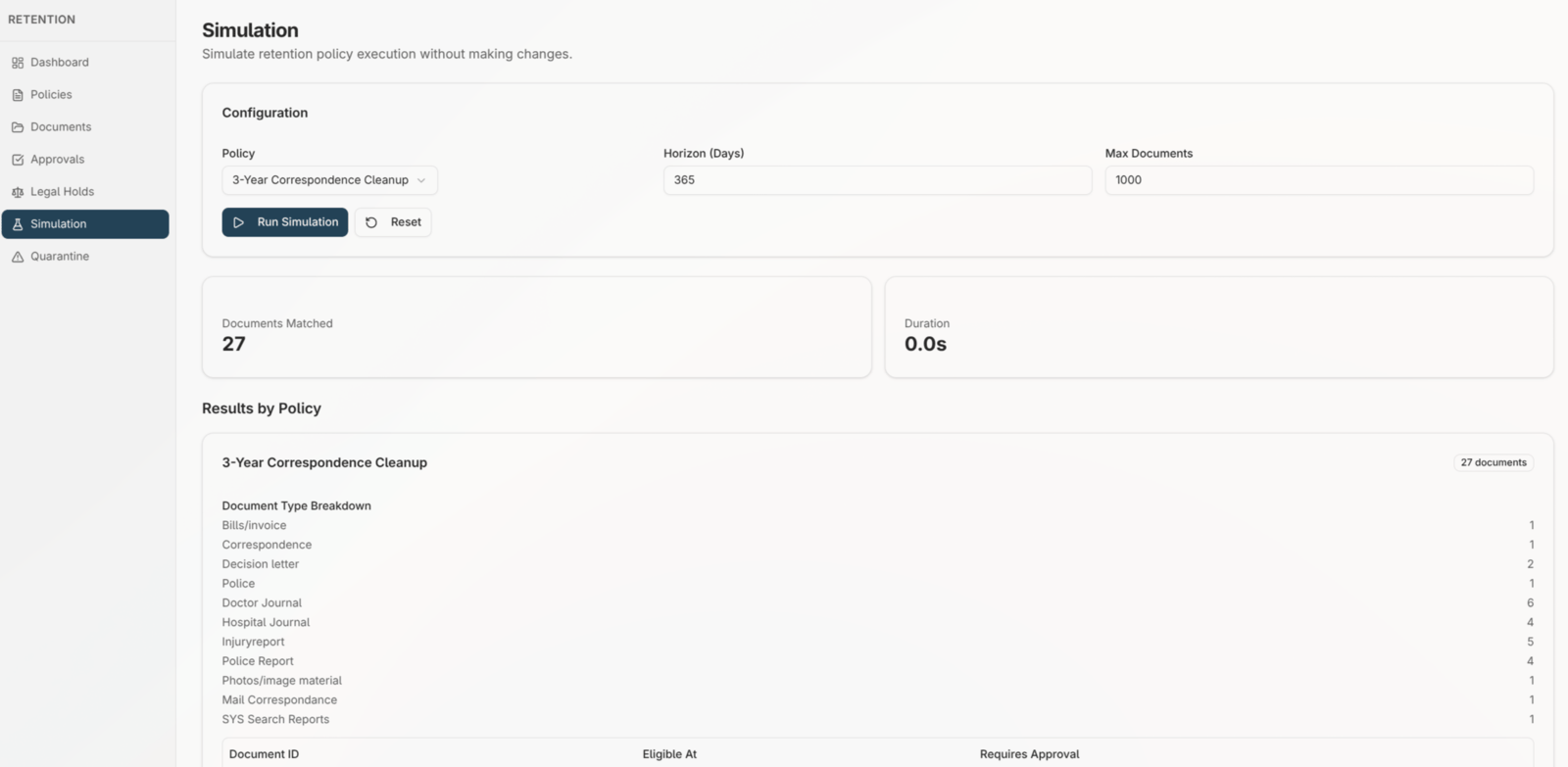
Run a simulation before enabling any new or materially changed policy. Simulations are read-only — they tag nothing and delete nothing. A simulation reports:
  • The total number of documents the policy would tag
  • A sample you can spot-check
  • A flag when the sample was capped
When the sample is capped, read the total to judge real impact, not the size of the sample. Review both before enabling the policy.
Retention simulation result showing the total number of matched documents and a sample table

Approvals, holds & quarantine

How approval batches work, the three ways to stop a deletion, and what to do with quarantined documents.