

What you will build
An Update template for a Contract class with a required name, customer reference, review notes, and one explicit save button. Start with the form; add related objects, searches, and scripts after this version saves correctly.Prepare the class and access
You needcaseflow-configuration.manage to author templates. Prepare a class with these attributes and an existing test object:
Use the exact attribute names from your class. Template labels can be friendly text, but
attributeName must resolve to the configured attribute. The test account also needs permission to open and update the object.
Open the editor
Under Settings → Admin → Caseflow → Templates, select the application and class, then create an Update template. Name itContract review.
The editor combines template settings, source, component help, validation problems, and a preview. A starter or Scaffold from class gives you a starting point. Loading a starter changes the draft; it does not save it. Review its placeholder names against your class.
Add the form
Use this complete starting template:required rule improves the editing experience. It does not replace API validation or an access rule for other callers.
Preview and resolve problems
Use the preview to inspect spacing, labels, and the selected template type. Use the Problems panel to locate unknown attributes, misspelled component names, and invalid properties. Component help supplies the supported properties; do not assume an arbitrary HTML attribute is a component option. The preview offers Sample data and Real object. Saving, scripts, and other side effects are blocked in preview mode, even if a control is displayed. A preview is useful for layout and bindings. Verify saving on an actual test object as well: a good-looking form is not evidence that its user can update the class.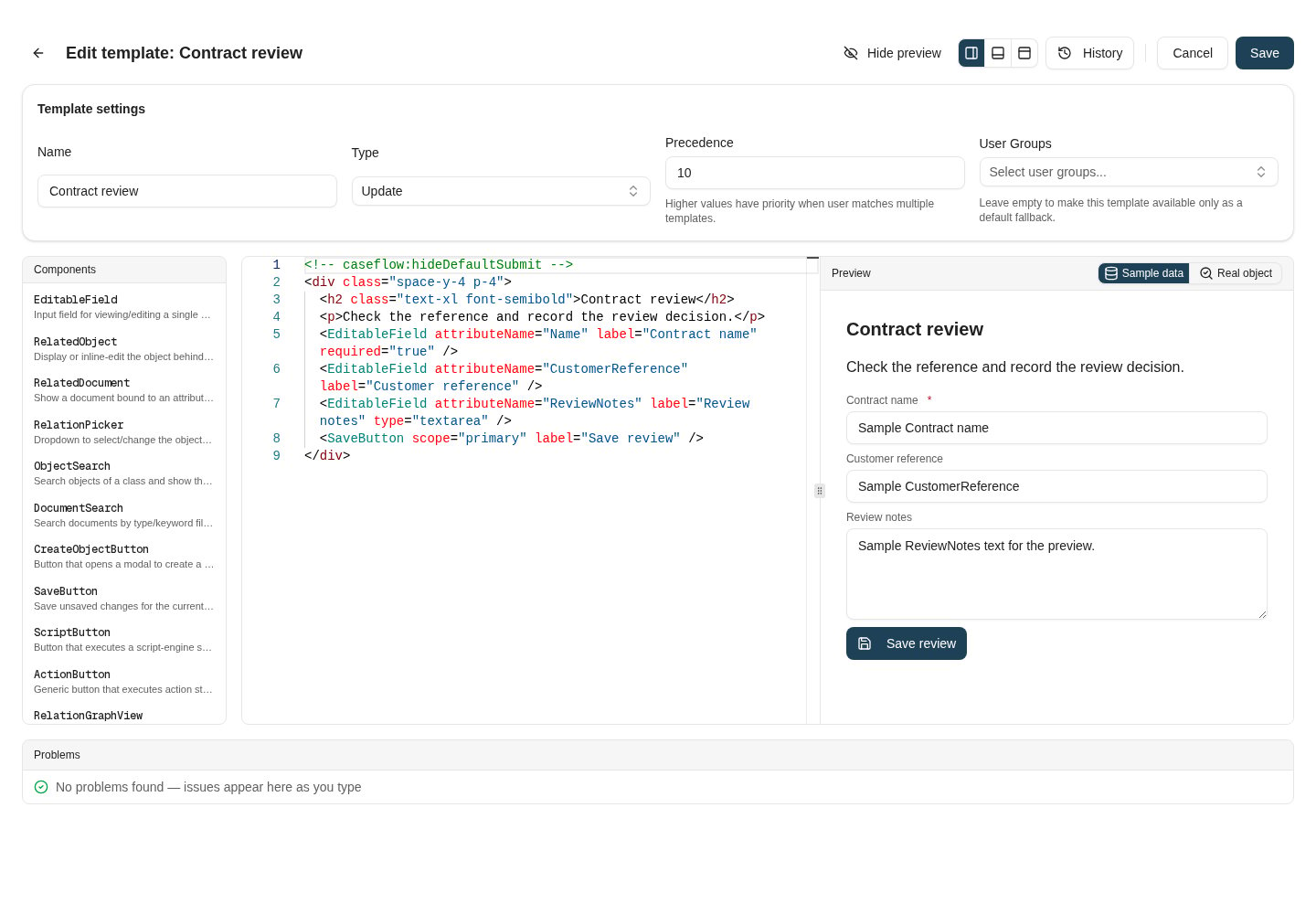
The complete example beside its generated sample-data preview. Save review is blocked in preview.
Save and verify selection
Save the template, then open the test object through the normal Caseflow surface. Check:- The intended Update template is selected for the account.
- Existing values appear in all three fields.
- Clearing Name prevents the form’s required-field validation from passing.
- Saving an edited review note persists it; reopening the object shows the new value.
- An account without update rights cannot gain write access through the template.
Compare and restore a saved version
Open History while editing an existing template. Select a saved version to compare it with the current draft.- Load into editor changes the draft only. Review the preview and save when ready.
- Restore is a server-side change: it overwrites the saved template with the selected version and creates a new history entry. Current group assignments remain unchanged. Read the confirmation before proceeding.
When someone else saved first
Two people can have the same template open. If someone saves it after you opened it, your Save is refused instead of replacing their work, and This template has changed asks what to do:- Reload loads their version. Your unsaved changes are discarded.
- Overwrite saves your changes on top of their version. Only the settings you changed are applied: name, type, template HTML, precedence or user groups. Everything else keeps their version. The template HTML counts as one setting, so if you changed it, yours replaces theirs completely.
- Keep editing closes the dialog without saving, for example so you can compare your work with theirs in History first.
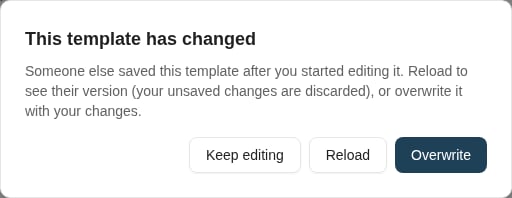
Saving a template someone else saved after you opened it.
Unsaved changes
Leaving the editor with unsaved changes asks first. If the editor closes without you choosing to discard them, for example after a reload or the browser’s Back button, the changes are kept in that browser tab for 24 hours. Open the template again in the same tab and choose Restore when Restore unsaved changes? appears; Save stays unavailable until you restore or discard them. Changes made before someone else saved the template cannot be restored. This applies to Caseflow and portal templates. The form template designer asks before you leave, but does not keep unsaved changes.Use the admin assistant for a bounded change
When the admin assistant is available to you, select Ask the admin assistant in the editor and describe the business form and the change you want. The assistant sees the template you have open, including edits you have not saved. You need Use AI Admin Assistant as well as permission to manage Caseflow templates. A useful request is: “Keep the current Contract form. Put the customer reference beside the contract name and move Review notes below them. Keep the existing attribute bindings and Save review action.” The assistant proposes the change as a card in its panel. Select Preview in editor to load the proposal into the editor as unsaved edits, then inspect the Problems panel and preview. Approve saves the proposal as the template’s next version; Reject puts the editor back as it was. See Preview in the editor. After approving, verify saving with a real test object. Generated code can need further correction even after syntax checks pass. Begin with a starter or Scaffold from class when a standard layout is sufficient.Extend one behavior at a time
- Add a RelationPicker when the customer is a related object rather than text.
- Add an ObjectSearch for child records, with an explicit filter linking them to the current object.
- Add a script-backed autofill to normalize the reference, then verify the script’s target attributes and published version.
- Add an
onBeforeSavehook for a form business rule, and test both the successful and rejected paths.
Where to read next
Templates and syntax
Learn how Caseflow templates work — types, selection, syntax for variables, conditionals, loops, and the scope model.