

Access and monitoring
Withmailbox-importer.view, open Admin settings → Mailbox importer → Mailboxes. Each card shows whether intake is Enabled, whether a secret is configured, the last poll time, and the latest polling error when one exists. Open View settings, or Settings if you have Manage.
Import history has its own page: Admin settings → Mailbox importer → Import history. Each mailbox card’s Import history link opens it with that mailbox preselected; use the Mailbox dropdown to switch. The mailbox cards and the history refresh every 30 seconds while the page is active. These updates preserve unsaved settings in the editor.
For every message the history shows the received time, the time archiving completed, the status, the Rule that selected the archive policy (Default policy when no rule matched), the number of Attachments stored as separate documents, including files extracted from zip attachments, the attempt count, an error code, and a warning code for messages whose zip attachment could not be fully expanded although archiving completed. It displays 100 messages per page. Use Previous imports, Next imports, and Show failed imports only to find older failures.
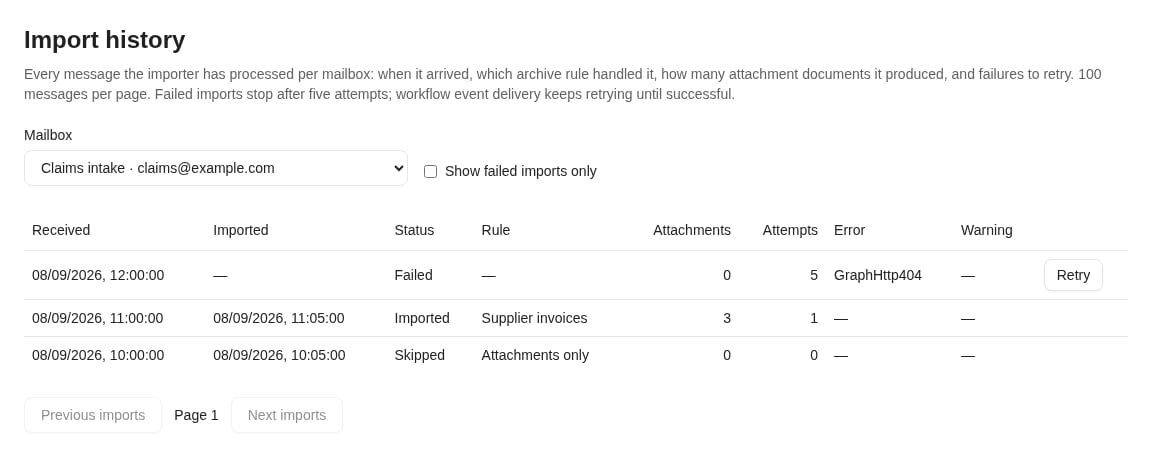
Import history for the Claims intake mailbox. Supplier invoices stored three attachment documents, an attachments-only rule skipped a message without attachments, and a failed message offers Retry. This is the actual page with fictional data.
Warnings on imported messages
A warning does not stop an import: archiving completes with the zip attachment saved as an ordinary document, and the row reaches Imported once the mail event has been published. Warnings occur only for policies with zip expansion enabled.
The history screen intentionally omits mail subjects, recipient lists, and document IDs. Viewing importer settings does not reveal document content. Use ordinary document access and workflow inspection permissions to examine the resulting archive.
Verify your first import
Use fictional content in a mailbox you are authorized to test. For the supplier rule example, send frombilling@supplier.example to your test intake mailbox with subject Invoice 1007, a signature PNG embedded in the body, and two real PDF attachments. Substitute addresses you actually control; the example domains cannot receive your test mail.
Finally, verify the source message is still present and its read state is unchanged. Record the mailbox, test time, chosen policy, resulting documents, and workflow instance for your handover.
Pause and resume intake
With Manage or Admin, clear Enable scheduled import and Save settings. Re-enable and save to resume. Pausing does not delete previously archived documents or undo work already in progress. Already saved documents can still complete their pending notifications and start workflows while intake is disabled. Pausing the mailbox is therefore not a way to cancel a workflow or erase a queued event. Manage existing instances through Workflow administration.Rotate the application secret
You needmailbox-importer.admin and access to create a secret on the existing Microsoft Entra application.
- Create a replacement client secret on the same app registration, following the credential setup procedure. Keep the old credential available until the replacement is verified.
- Open the mailbox’s Application secret section, enter the new Value in New client secret, and choose Save secret.
- Confirm the secret is reported as configured. Check a subsequent poll and representative import; the configured indicator means a value is stored, not that Microsoft has accepted it.
- After verification, retire the old secret in Microsoft Entra and record the replacement’s expiry. If several mailbox configurations use that application secret, update each one before retiring it.
Replace the application registration
If you change Application (client) ID, save the configuration disabled first. This clears the previous application’s secret. Then enter the new application’s secret, verify its mailbox access, and enable and save again. You cannot use the old application’s secret with the replacement client ID.Retry a failed import
Archiving retries automatically with increasing delays and normally reaches Failed after five attempts. Mail-event publication continues retrying independently after archiving has completed.- Read the mailbox-card error and the failed history row. Determine whether the cause is Microsoft 365 access, document configuration, permissions, or content.
- Correct that cause. Ensure the mailbox is enabled when you want archiving to resume.
- With Manage or Admin, select Retry on the failed row. It returns to the queue; Retry is not a second upload operation.
- Watch the row progress and verify the documents and workflow. If Microsoft Graph has imposed a retry delay, a manual retry does not bypass it.
Recover a partial split archive
One attachment can fail after the HTML mail or another attachment has already been saved. Saved parts remain valid documents; the import is not rolled back as a whole. They can be indexed before the complete message reaches Imported. Retries reuse the saved parts and create only the missing ones.Mail.Imported waits for the full archive. Repair access or the underlying document/storage problem and retry the existing import rather than manually uploading the same files.
If no part has been saved, a manual retry lets a corrected archive policy apply. Once any part has been saved, the selected targets, mappings, and source content are fixed for that import. Changing the configuration cannot redirect its remaining attachments to another document type. Changed source content is rejected with MailContentChanged.
Change a source or policy
The importer recognizes a message by its Microsoft 365 source identity. Ordinary repeated polls and folder moves within the same mailbox do not create another archive of the same recognized message. Copying or reimporting mail can create a new identity, so do not use mailbox copies as a retry mechanism. Microsoft’s immutable message ID guidance describes identity changes such as movement to an archive mailbox and export/reimport.
For a new folder configuration, disable the old one when it should no longer collect mail. For historical reprocessing or a partial import that requires a different archive design, agree a recovery plan with support. Do not remove import tracking records to force a retry.
Audit and support handover
The integration records three different kinds of evidence:
Import history is an operational status list, not a configuration-change viewer. For a configuration audit investigation, supply the mailbox configuration identifier; records are associated with
Mailbox: followed by that identifier. Use your organization’s configuration-audit access or support process. The mailbox editor does not expose a dedicated configuration-audit button.
For support, collect the configuration name and identifier, mailbox/folder, received and failure times, status, error code, what changed, and any accessible document or workflow instance IDs. The stored rule name and instance.mailImportId help correlate completed archives with workflow history. Do not include secret values, tokens, or unnecessary message content.
Troubleshooting
Where to read next
Introduction to AI assistant access
Continue to the next integration area: connecting assistants with controlled access to Nobly Insight.
Configure a Microsoft 365 mailbox
Revisit access grants, source selection, credentials, and the initial activation sequence.
Workflow monitoring
Inspect and recover postprocessing after the mail archive has completed.