

What a cascading dataset does
A cascading dataset chains two or more keywords together so that choosing a value on one narrows the options on the next — pick a Customer and the Contract dropdown only offers that customer’s contracts; pick a contract and Policy narrows again. Each keyword in the chain is a level, and every value on a level is linked to the values it allows on the level below. Cascading datasets guide data entry and keep combinations valid. Like autofill keyword sets, they don’t change which keywords a document type has — they constrain the values offered for keywords that are already assigned. Manage them under Admin settings → Keywords → Cascading datasets (open Admin settings from your profile menu at the bottom-left of the sidebar). The list shows each dataset’s chain of keyword types and the document types it applies to.How a dataset is built
Cascading datasets and document types
A cascading dataset only takes effect on the document types it’s assigned to:- On an assigned document type, the chained keywords offer only the dataset’s values, narrowed by what’s chosen on the level above.
- On any other document type, the same keyword types are unaffected — users enter values as usual.
- A keyword type on a given document type can be governed by at most one cascading dataset. Nobly Insight blocks assignments that would make two datasets overlap on the same document type and keyword.
Creating a dataset
- Open Admin settings → Keywords → Cascading datasets and choose New cascading dataset.
- Name the dataset and pick the keyword types to chain, in order from the first (top) level to the last. A dataset needs at least two levels.
- Choose the document types it applies to.
- Open the dataset and add values to each level, then link each value to the values it should allow on the level below.
The levels — which keyword types are chained, and in what order — can’t be changed after creation. To restructure a cascade, create a new dataset and delete the old one.
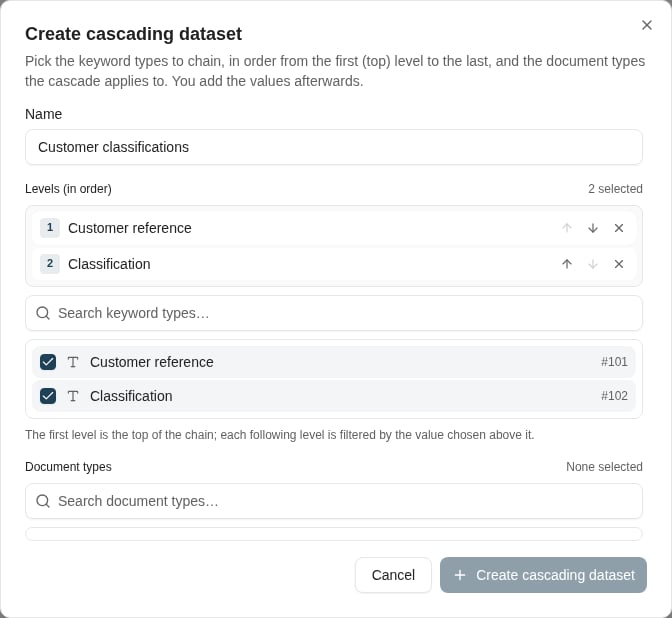
Choose the keyword levels in order before adding values to the cascade.
Managing values
From the dataset’s detail screen you can:- Add values to any level, and link a value to the values it allows on the next level. A value on a lower level that no parent links to is flagged — it can never be offered during entry until you link it.
- Rename a value. If documents already hold the old value, Nobly Insight offers to update those documents in the background as part of the rename; you can follow the job on the Mass value editing screen.
- Deactivate a value to stop offering it during entry without deleting it — useful for values that are obsolete but still present on existing documents.
- Delete a value, which also removes its links. Documents that already hold the value keep it.
Deleting a dataset
Deleting a cascading dataset removes the dataset itself — its levels, values, links, and document-type assignments; it requires the Keyword configuration administration permission, and you’re asked to confirm first. It does not delete the keyword types in the chain, the document types it was assigned to, any documents, or the keyword values already stored on documents. The only effect users see is that the chained keywords on the assigned document types stop being narrowed and behave like ordinary keywords again.Defaults must belong to the cascade
Set document-type defaults in Keyword assignments using values valid for that document type’s cascade. A child default must fit its parent path. A separate static dataset is not the authority for values governed by the cascade; do not duplicate the cascade into a static list to make a default save. Test the initial parent/child defaults on a new document, then change the parent and verify which child values remain valid. Normal text length, formatting, and other applicable validation still apply.Where to read next
Keyword behaviour on a document type
Control how each assigned keyword behaves — required, read-only, hidden, unique, default values — and conditional keyword rules.
Keyword types
Define the keyword types a cascading dataset chains together.
Keyword assignment models
Make sure the chained keywords are assigned to the document types the dataset covers.
Autofill keyword sets
Fill related keywords automatically from a single look-up value — a complement to cascading narrowing.