

Choose how to search
Open Search. Use a saved search under My searches or System searches when one matches your task. Otherwise choose the search configuration control to build a structured search, or use AI search when it is available.Search with known metadata
- Open Configure Search.
- Select the document type or group you need, such as Contract.
- Add keyword filters using the values you know. Choose the intended operator; an exact match and a contains match are different searches.
- Add a date range or preset when useful, and confirm which date it uses. At least one keyword or document-date filter is required to enable structured search; a document type alone is not enough.
- Run the search and check the result count and displayed metadata.
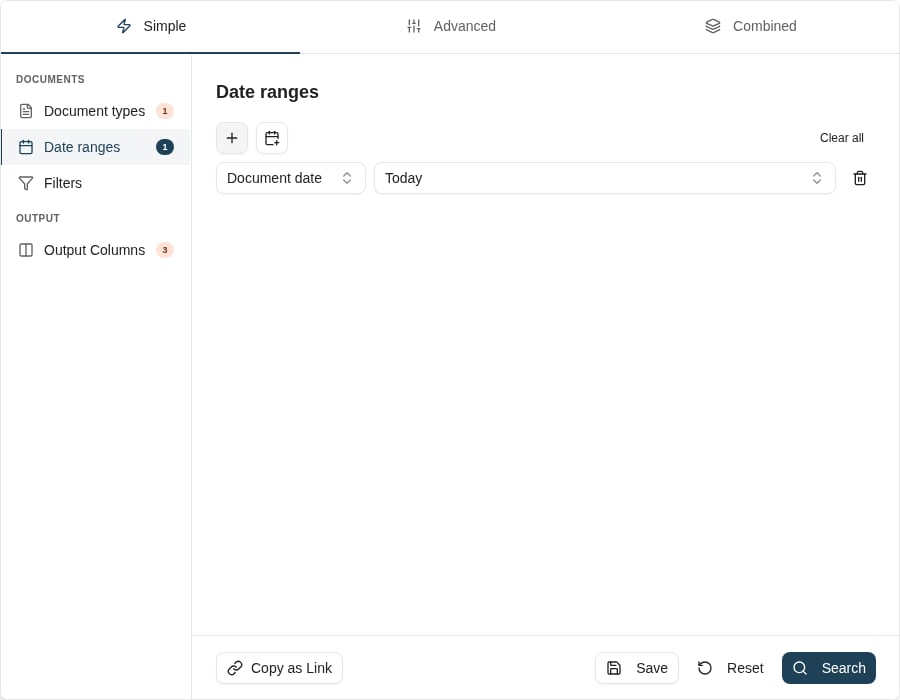
A structured search with a Contract document type and a document-date preset.
Search by subject
When AI search is available, enter a short, specific description in the AI search box and run it. Include the topic and distinguishing details, for exampletermination notice for a supplier agreement.
Use document-type and date restrictions to reduce unrelated results. Open a promising result and verify the document itself. A relevance score ranks the match to the query; it does not certify the document’s correctness or business status.
See AI search behavior for ranking, matching sources, and optional rewrite/rerank settings.
Inspect a result
Select a row to view the document in the preview pane. Switch to its keywords or notes when you need indexing metadata or the discussion attached to it. Use Find in results to narrow what is already displayed; it is not a new search of the whole archive. If a document is absent from AI search but accessible through a structured search, report the document ID and query to the person managing the AI search index.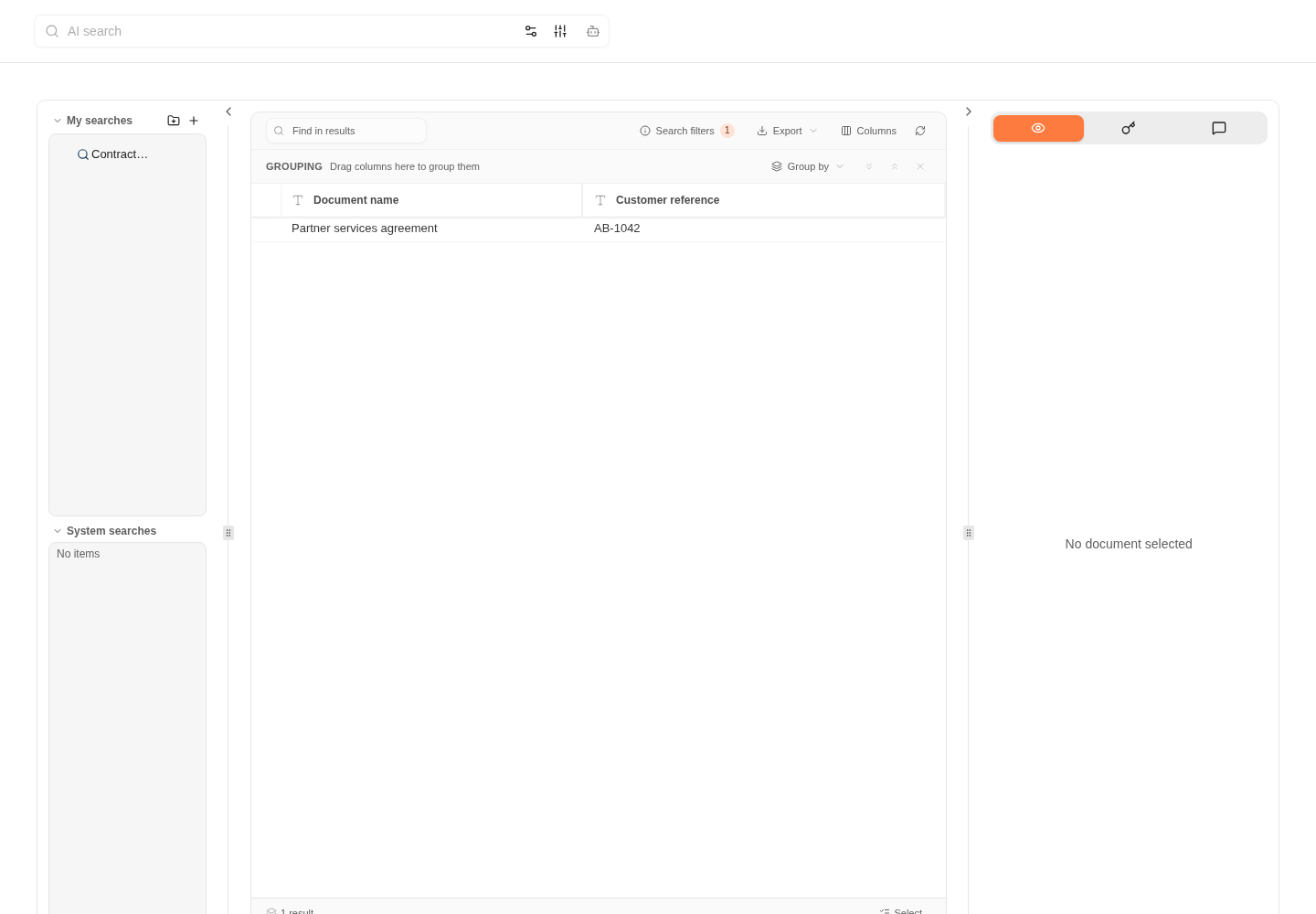
Results show the document name and customer reference so you can identify the correct contract.
Delete documents from the results
- Turn on selection mode and select the documents to delete.
- Choose Delete (n). The number counts only the selected documents you may delete; documents you may not delete stay selected and are left alone.
- Confirm in Delete documents. The documents are deleted a few at a time, and Stop ends the deletion after the ones in progress.
- Read the summary. It names any document that could not be deleted.
Repeat a recent lookup
Use Recent searches on the home page or search sidebar to run a previous lookup again. It runs against current data and your current access; it is not a saved copy of the previous results. Use search history settings to control the display window or clear your own history. To inspect the rows already returned, use Find in results. It searches displayed grid values, rather than searching the whole archive. Grouping, column visibility and pinning, and selection mode are available in both document and Caseflow result grids. Leaving selection mode clears the selected rows and their bulk actions.Keep a useful search
If you expect to repeat the task, save the search. Saving criteria lets you rerun them against current accessible documents; it does not preserve a fixed snapshot of today’s results.Where to read next
How to create a reusable search
Configure document filters and output columns, save the search in My searches, and reopen it for repeated work.