

Before you begin
You need New form in the sidebar. It appears when at least one document type has a create form available to you and you may create documents of that type. If it is missing, ask the person managing your access to check your rights on the document type or its form templates. A form document has no file: everything it records is what you enter here. Have the values ready that the form marks as required, and use the document type defined for the record rather than one that merely has fewer fields.Choose the document type
Open New form and pick the document type. The list holds only the types you can create form documents in. If you change the type after you started typing, the page asks before discarding the draft.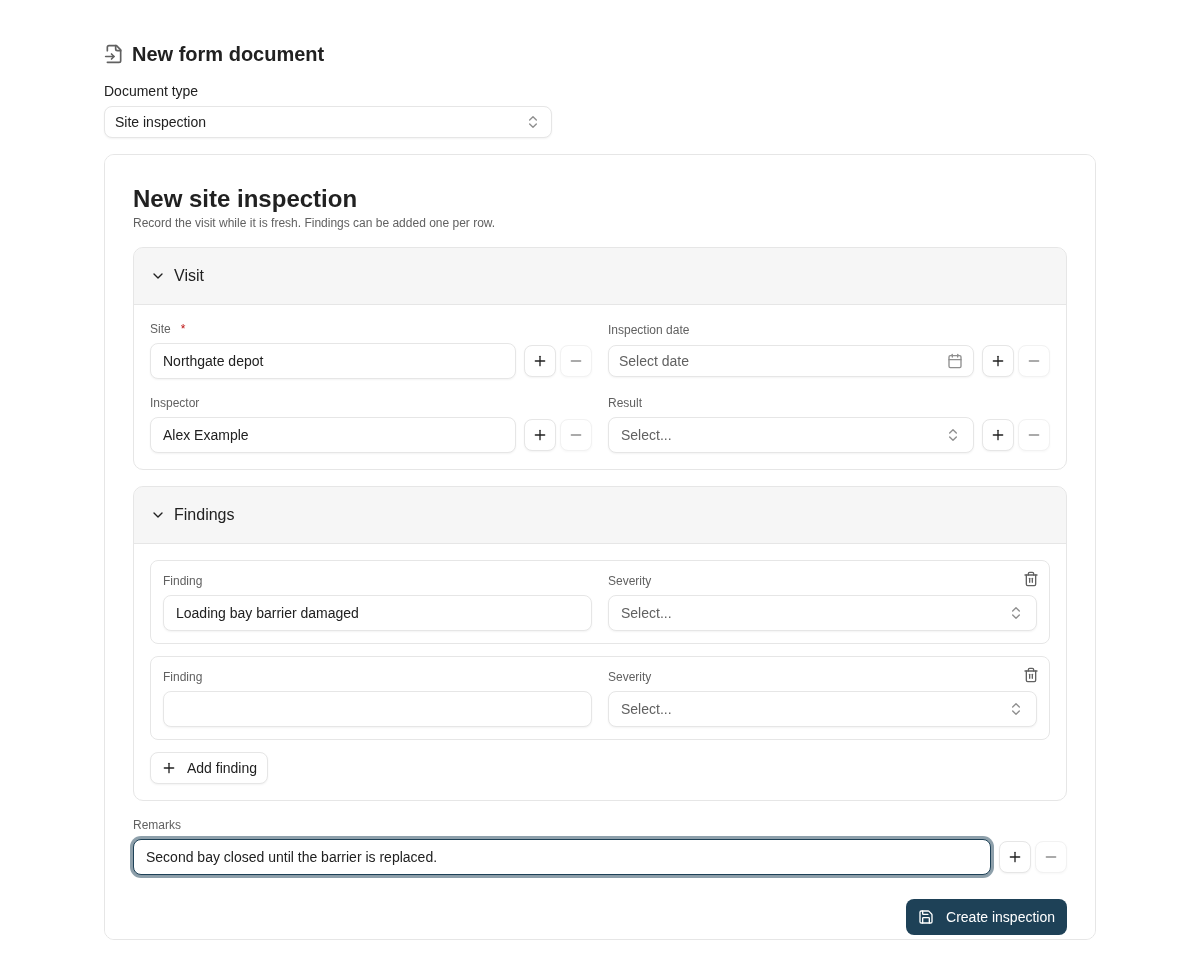
New form with a document type chosen. The form is the create template designed for that type; the required field is marked.
Fill in the form
- Required fields are marked. The form does not save until they have a value, including required keywords the form does not show.
- Where a field offers a value list, choose from it. A field that depends on another fills or narrows itself when its parent is set.
- Where autofill is configured, entering the primary value fills the related fields. If several records match, choose the right one in the dialog that opens.
- A repeating section records one row per item. Use the section’s add button for another row and the row’s remove button to drop one.
- A field that accepts more than one value shows + and − next to it to add or drop a value.
- Defaults from the document type are filled in already. Check them rather than accept them blindly.
Create the document
Choose the form’s create button. Two prompts can appear before the document is stored:- Similar documents exist — the values you entered match existing documents. Check the list and choose Create anyway only when this is genuinely a new document.
- Comment — the document type requires a comment when a document is stored. Enter one to continue.
Check the outcome
The viewer shows the new document through its preview form, with the keyword panel beside it. Compare what you entered with what was stored, including values that autofill or defaults supplied. To correct a value, choose Edit form when it is offered, change the field and save; otherwise edit in the keyword panel as described in How to update document keywords. Note the document ID from Document Information if you need support with the result.Where to read next
How to view and work with documents
Open the stored document, inspect its information and history, and choose the right document action.
How to update document keywords
Correct indexing values and check the saved result.