

Before you begin
You need upload access and permission to create documents of the intended type. Have the file and its required indexing values ready. Use the document type defined for the business content, rather than choosing a type merely because it has fewer required fields.Add files and choose a type
Open Upload and add the files using the file picker or drop area. Select a file in the upload list and choose its document type. Shared upload defaults may preselect a type or populate fields; review them before continuing. When uploading several files, inspect each file’s name, type, and status. Do not assume that selecting a type for one item gives every other item the same intended configuration.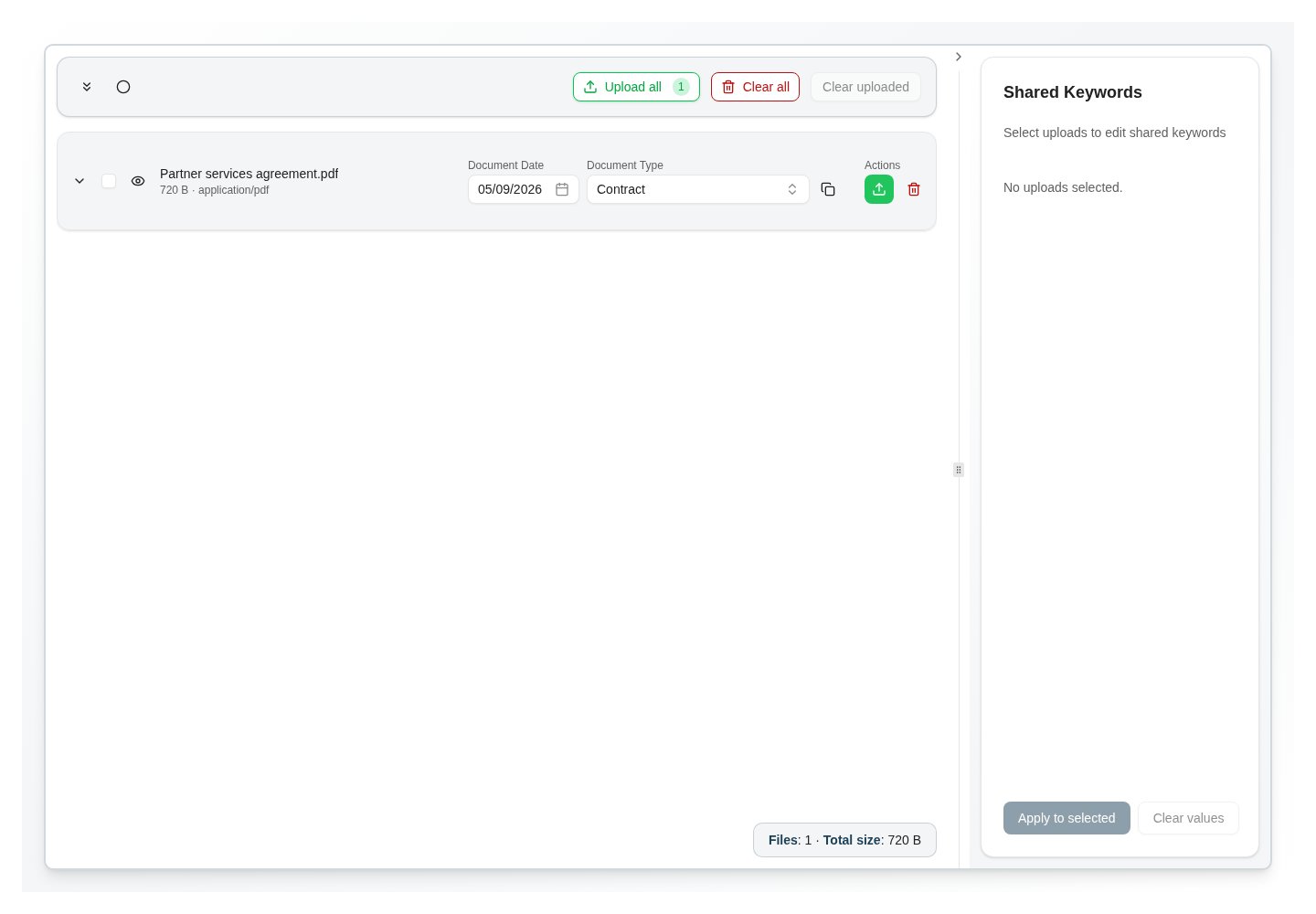
A selected file is staged for upload. Review its document type, date, and keywords before uploading.
Start from the pending uploads queue
Files from a scanner or another system can wait for you on the Pending uploads tab next to Upload. Choose Start upload on an item instead of adding files yourself. Its files load into the upload list as ordinary rows, and the item is marked as handled by you, so colleagues can see who has it. Index the files as described below; the item leaves the queue when all of its files are uploaded. The tab is shown only if you hold Handle Pending Uploads. To take over an item a colleague started, or to remove one that should not be archived, see working the pending uploads queue.Review indexing values
Fill in the required keywords. Where a value list or autofill is offered, choose the matching value and check the dependent fields it fills. Repeatable keyword groups represent separate related rows; keep values belonging together in the same row. If AI classification is available, treat its suggested type and keywords as proposals. Review the confidence, reasoning, and actual file, then correct any wrong value before accepting the suggestion. Check the document date as well as keywords. Your environment’s upload defaults can derive values from file properties or other sources.Resolve ambiguous dataset matches
If an AI suggestion shows Multiple matches, open the badge and compare the candidate values with the document. Choose the correct record before uploading. An ambiguous match is not a confirmed value, and extraction confidence does not prove that a particular dataset record is correct. If none of the candidates is correct, review the source values or ask for the dataset to be corrected. Do not choose an arbitrary candidate just to finish indexing.Upload and verify
Submit the prepared items and inspect the outcome for each file. Resolve validation or file errors on failed items rather than assuming the entire batch succeeded. Find a successfully uploaded document through Search. Open it and verify the file, document type, date, and keywords. Retain its document ID if you need support with a result that appears incomplete.When the defaults are wrong
Personal settings can affect upload behavior unless an administrator has prevented an override. For defaults that affect the whole team, refer to shared upload behavior.Where to read next
How to create a form document
Capture a record that has no file: choose a document type, fill in its form, and verify the stored document.
How to view and work with documents
Open the stored document, check pages and revisions, and choose the right document action.