

Open your tasks
Open Tasks in the main navigation. The list contains work your account is allowed to act on. Use workflow, step, and age filters to find the task; clear filters when you expect work that is not visible. Select a row and review its document or Caseflow object in the preview. Read the task and the underlying content before choosing a decision.Make the decision
Choose the appropriate task button. A task may ask for confirmation or open a form with required fields. Complete those fields and confirm once. For example, a configured Contract review task can offer Approve with a required review note. The exact buttons and form fields come from your environment’s workflow definition.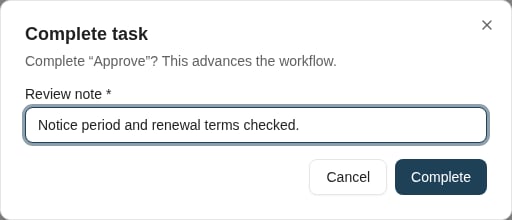
Completing Approve requires a review note and advances the workflow.
Check the result
After successful completion, the task disappears from the current work list as the workflow advances. That does not necessarily mean the whole business process is finished; later tasks or automated actions may remain. If another person completed the same task first, refresh and review its current state. If you receive an error or an uncertain result, check the list before trying again. Report the workflow name, document/object ID, time, and error when asking for help. The workflow owner can inspect instance history.Where to read next
How to use a reporting dashboard
Open a shared dashboard, filter its date range, explore results, and check how current the data is.