> ## Documentation Index
> Fetch the complete documentation index at: https://docs.insight.nobly.dk/llms.txt
> Use this file to discover all available pages before exploring further.
# Ask before creating a case object
> A worked example: when an injury report is uploaded without a claim number, ask the uploader whether to open a claim case, and let the answer decide whether the workflow runs.
## What you will build
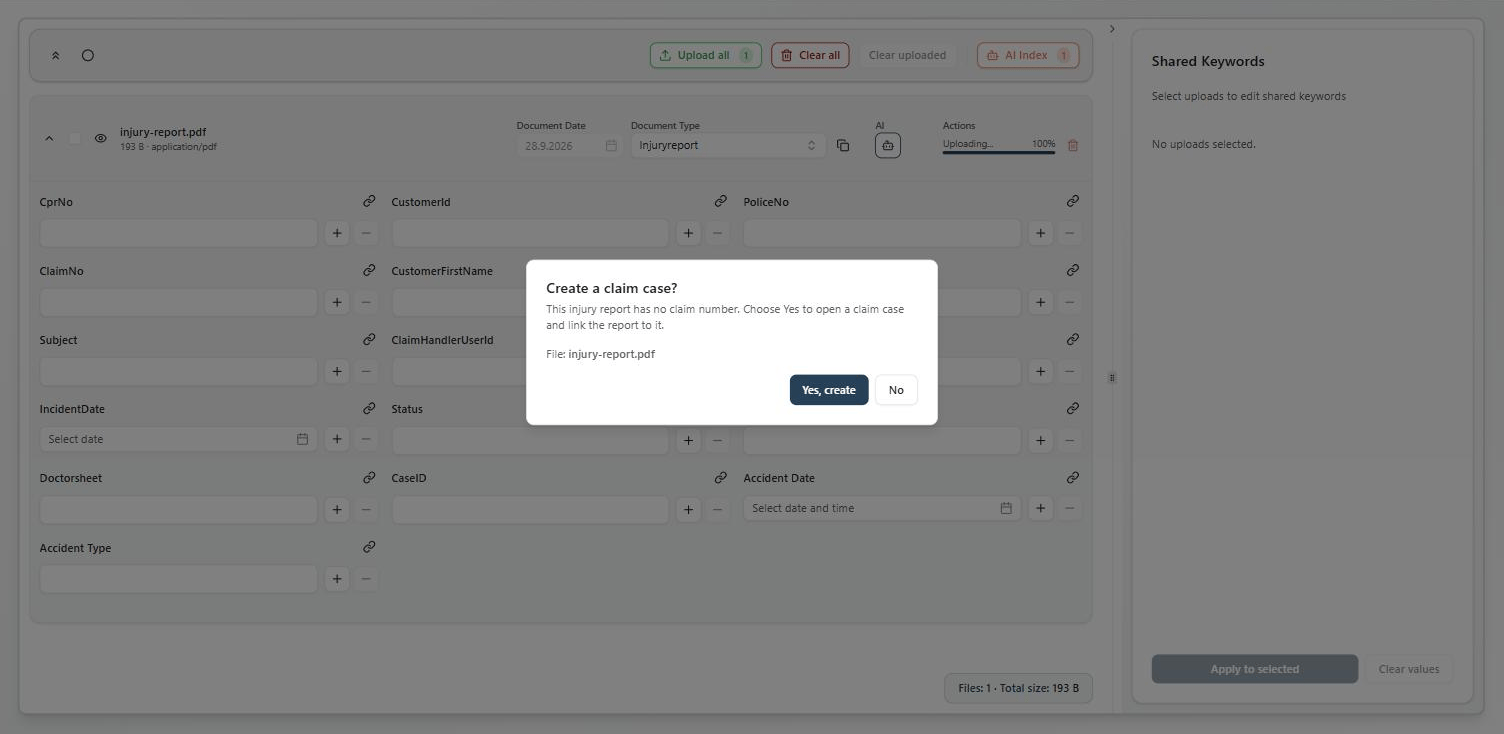
Someone uploads an **Injuryreport** whose **ClaimNo** keyword is still empty. Before the document is stored, they are asked whether a claim case should be created. On **Yes**, a workflow creates a Caseflow object and writes its ID into ClaimNo. On **No**, the document is stored and nothing else happens.
Everything here is configuration: an interaction rule and a workflow definition. No script is involved. The names come from a claims-handling setup; substitute your own document type, keyword, and Caseflow class.
## Prepare the configuration
You need a tenant with the workflow engine switched on, and `interaction-rules.manage` and `workflow-engine.manage`. Have ready:
* A document type — this example uses **Injuryreport** — with a single-value keyword for the case reference, here **ClaimNo**.
* A Caseflow class for the case object — here **Case** — and the attributes you want set on creation. Note the class's ID and each of those attributes' IDs: under **Settings → Admin Settings → Caseflow → [Applications & classes](/caseflow/applications-and-classes)**, the class list shows each class's ID as `#` and a number below its name, and the class's **Attributes** table shows each attribute's ID the same way. Opening that page takes `caseflow-configuration.view`.
* A test document and an account that can upload to the document type.
Build the workflow first. A rule's outcome can only name a workflow that is already published, and an enabled rule is checked against it when you save.
## Build the workflow
1. Open **Settings → Admin Settings → Workflow → Designer** and create a definition named `Create claim case`.
2. Choose the **Document** anchor and scope it to the **Injuryreport** document type. The rule is checked against this scope: it cannot match a document type the workflow would not start for.
3. Add an initial node named **Create case** and a terminal node named **Done**.
4. On **Create case**, add three actions:
* `Caseflow.CreateObject` — the **Case** class's ID in `ClassId`, one `Attributes` row per attribute with its ID and value, and an `IntoVariable` of `claimCaseId`.
* `Keyword.Update` — the ClaimNo keyword, with the value `{{instance.claimCaseId}}`.
* `Document.AddNote` — the text `Claim case {{instance.claimCaseId}} created. The uploader answered: {{instance.uploadAnswer}}`.
A document workflow's scope holds document types only, so the designer has no Caseflow class or attribute list to offer here: `ClassId` and each `AttributeId` are number fields, and you type the IDs you noted. The hints under them — *Set the workflow's Caseflow application first* and *Set the workflow's Caseflow class first* — do not apply to a document workflow, which cannot have a Caseflow application or class in its scope.
5. Draw an automatic transition from **Create case** to **Done**.
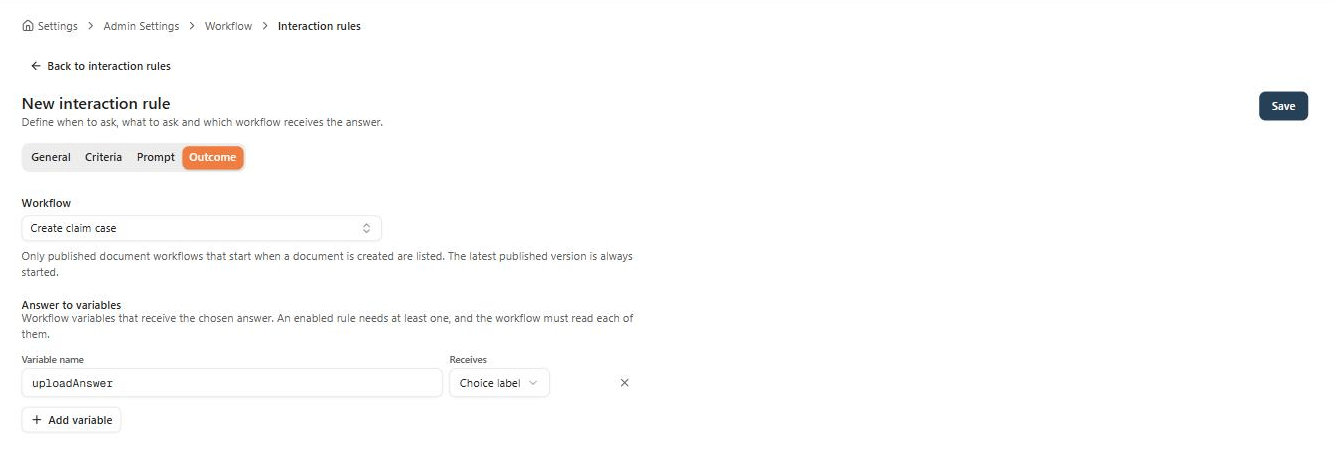
The note is where the answer lands in this workflow. A rule's outcome has to map the answer to at least one variable, and the workflow has to read every variable the rule maps, so `uploadAnswer` must appear somewhere in the definition. Here it gives the document a record of what the uploader chose.
On the definition's **Triggers** tab, add a `document.created` trigger with this filter:
```text theme={null}
$interaction.value == "yes"
```
`$interaction` is null unless an answered interaction rule named this definition, so the filter means *start only when someone answered Yes to the question this workflow belongs to*. Every other upload of an injury report is ignored.
Type `$` in the filter to pick `$interaction.value` from the editor's suggestions; a `document.created` trigger offers it. The editor does not check `"yes"` against the rule's choices, so make sure it matches the value you give **Yes, create** on the rule's **Prompt** tab below.
Validate, save, and publish. Publishing makes the definition selectable in the rule's outcome.
## Create the interaction rule
Open **Settings → Admin Settings → Workflow → Interaction rules**, choose **New interaction rule**, and fill in the four tabs.
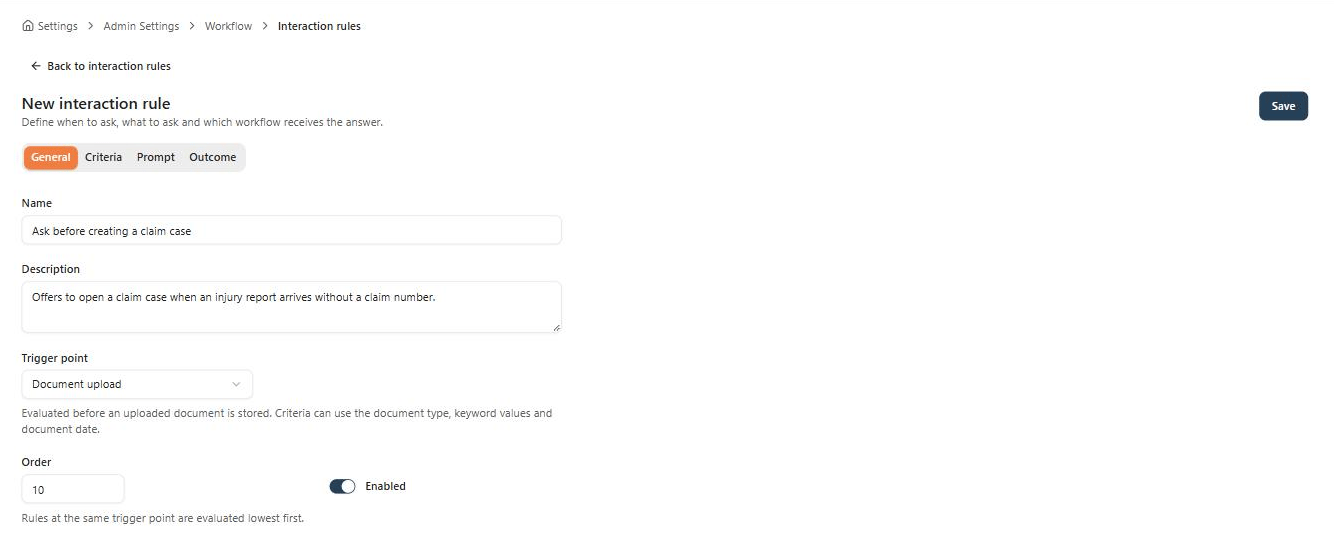
**General** — name the rule, keep the trigger point **Document upload**, set the order to `10`, and leave it enabled.
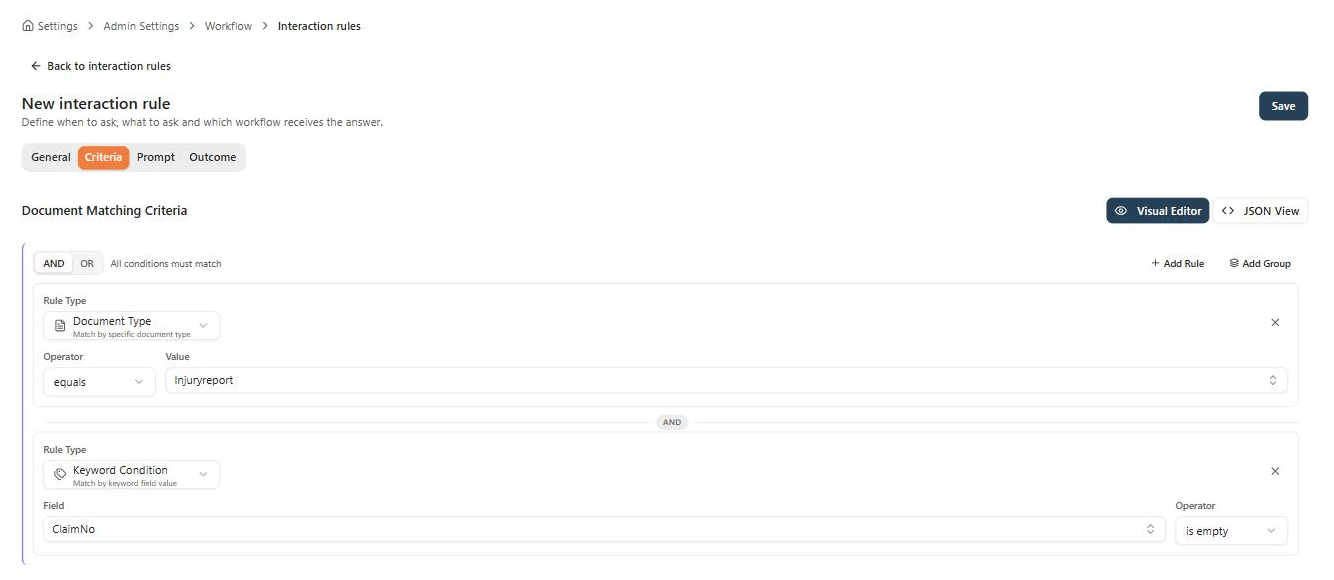
 **Criteria** — **Document Type** equals *Injuryreport* **AND** a **Keyword Condition** on ClaimNo with the operator *is empty*.
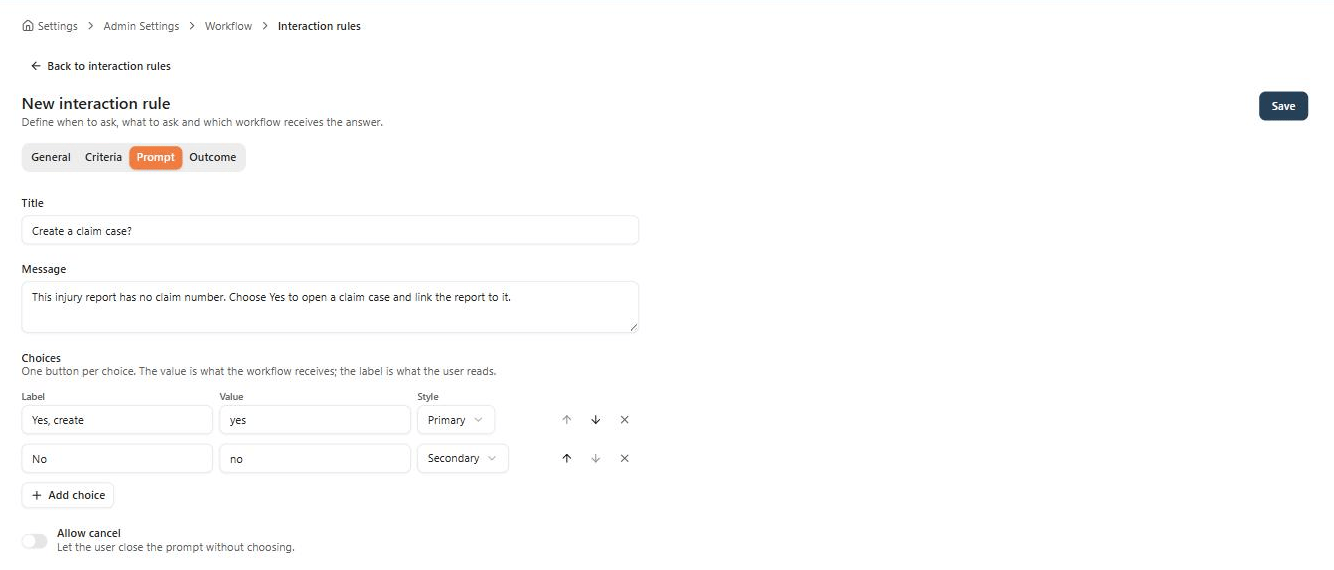
 **Prompt** — title `Create a claim case?`, a message explaining what happens, choices **Yes, create** (value `yes`) and **No** (value `no`), and **Allow cancel** off.
 **Outcome** — workflow `Create claim case`, and one mapping row: variable `uploadAnswer` receives the **choice label**.
 Save. Because the rule is enabled, saving checks it against the published workflow — its trigger, its scope, and that it reads `uploadAnswer`.
Two details decide how this behaves later:
* The **value** is what the workflow tests, the **label** is what the person reads. The filter above compares against `yes`, so that value has to stay `yes` even if the button is later reworded. The note records the label, so it reads the way the uploader saw it.
* **Allow cancel** off means every injury report is stored, and **No** is how the uploader declines the case. With it on, cancelling skips storing that document altogether.
## Verify the whole path
| Test | Expected outcome |
| - | - |
| Upload an injury report with ClaimNo empty | The question appears before the document is stored |
| Answer **Yes, create** | The document is stored, one instance of `Create claim case` runs, a Caseflow object exists, ClaimNo holds its ID, and the note reads *The uploader answered: Yes, create* |
| Answer **No** | The document is stored and no instance starts |
| Upload an injury report with ClaimNo already filled in | No question, no instance — the criteria did not match |
| Upload an injury report as a new revision of an existing one | No question — only a new document is asked |
| Upload a different document type | No question — the rule is scoped by its criteria |
Save. Because the rule is enabled, saving checks it against the published workflow — its trigger, its scope, and that it reads `uploadAnswer`.
Two details decide how this behaves later:
* The **value** is what the workflow tests, the **label** is what the person reads. The filter above compares against `yes`, so that value has to stay `yes` even if the button is later reworded. The note records the label, so it reads the way the uploader saw it.
* **Allow cancel** off means every injury report is stored, and **No** is how the uploader declines the case. With it on, cancelling skips storing that document altogether.
## Verify the whole path
| Test | Expected outcome |
| - | - |
| Upload an injury report with ClaimNo empty | The question appears before the document is stored |
| Answer **Yes, create** | The document is stored, one instance of `Create claim case` runs, a Caseflow object exists, ClaimNo holds its ID, and the note reads *The uploader answered: Yes, create* |
| Answer **No** | The document is stored and no instance starts |
| Upload an injury report with ClaimNo already filled in | No question, no instance — the criteria did not match |
| Upload an injury report as a new revision of an existing one | No question — only a new document is asked |
| Upload a different document type | No question — the rule is scoped by its criteria |
 Use [instance history](/workflows/monitoring) to confirm which version ran and what the instance's variables held.
## When it does not fire
| Symptom | Check |
| - | - |
| No question on upload | The rule is enabled, its trigger point is **Document upload**, and its criteria match what you typed — especially that the keyword really is empty, and was not filled in by autofill |
| The rule will not save | The message names what is missing: a published version, a `document.created` trigger, a variable the workflow never reads, or a document type outside the workflow's scope |
| The question appears but no workflow starts | The filter value matches the choice value exactly (`yes`, not `Yes`) |
| The workflow starts on every upload | The filter is missing or does not read `$interaction` — without it, every in-scope `document.created` event starts an instance |
| ClaimNo stays empty | `IntoVariable` on `Caseflow.CreateObject` matches the name the keyword value reads. A value that resolves empty is skipped, not written |
The writes this workflow makes do not start workflows. The keyword update does not start `Create claim case` again, and the new Caseflow object does not fire Caseflow triggers either. A script doing the same writes behaves differently — see [choosing between a workflow trigger and a script hook](/workflows/choosing-automation).
## Where to read next
Which extension point to reach for when a content event should cause something, and what changes if you pick the other one.
Every field of a rule — criteria limits at upload, prompt choices, and the outcome mapping.
The Caseflow, keyword, and note actions used on the node above, with their parameters.
Use [instance history](/workflows/monitoring) to confirm which version ran and what the instance's variables held.
## When it does not fire
| Symptom | Check |
| - | - |
| No question on upload | The rule is enabled, its trigger point is **Document upload**, and its criteria match what you typed — especially that the keyword really is empty, and was not filled in by autofill |
| The rule will not save | The message names what is missing: a published version, a `document.created` trigger, a variable the workflow never reads, or a document type outside the workflow's scope |
| The question appears but no workflow starts | The filter value matches the choice value exactly (`yes`, not `Yes`) |
| The workflow starts on every upload | The filter is missing or does not read `$interaction` — without it, every in-scope `document.created` event starts an instance |
| ClaimNo stays empty | `IntoVariable` on `Caseflow.CreateObject` matches the name the keyword value reads. A value that resolves empty is skipped, not written |
The writes this workflow makes do not start workflows. The keyword update does not start `Create claim case` again, and the new Caseflow object does not fire Caseflow triggers either. A script doing the same writes behaves differently — see [choosing between a workflow trigger and a script hook](/workflows/choosing-automation).
## Where to read next
Which extension point to reach for when a content event should cause something, and what changes if you pick the other one.
Every field of a rule — criteria limits at upload, prompt choices, and the outcome mapping.
The Caseflow, keyword, and note actions used on the node above, with their parameters.