> ## Documentation Index
> Fetch the complete documentation index at: https://docs.insight.nobly.dk/llms.txt
> Use this file to discover all available pages before exploring further.
# System searches
> Configure shared document and combined searches, organize them in folders, and verify their scope and access.
## Prerequisites
Open **Admin settings → Search → Search settings**. `client.system-search.view` allows inspection and `client.system-search.manage` allows maintaining system searches and their folders.
A system search is a reusable query configuration. It defines what to request and how to present it; it does not grant access to otherwise restricted documents or Caseflow objects.
## Configure a shared search
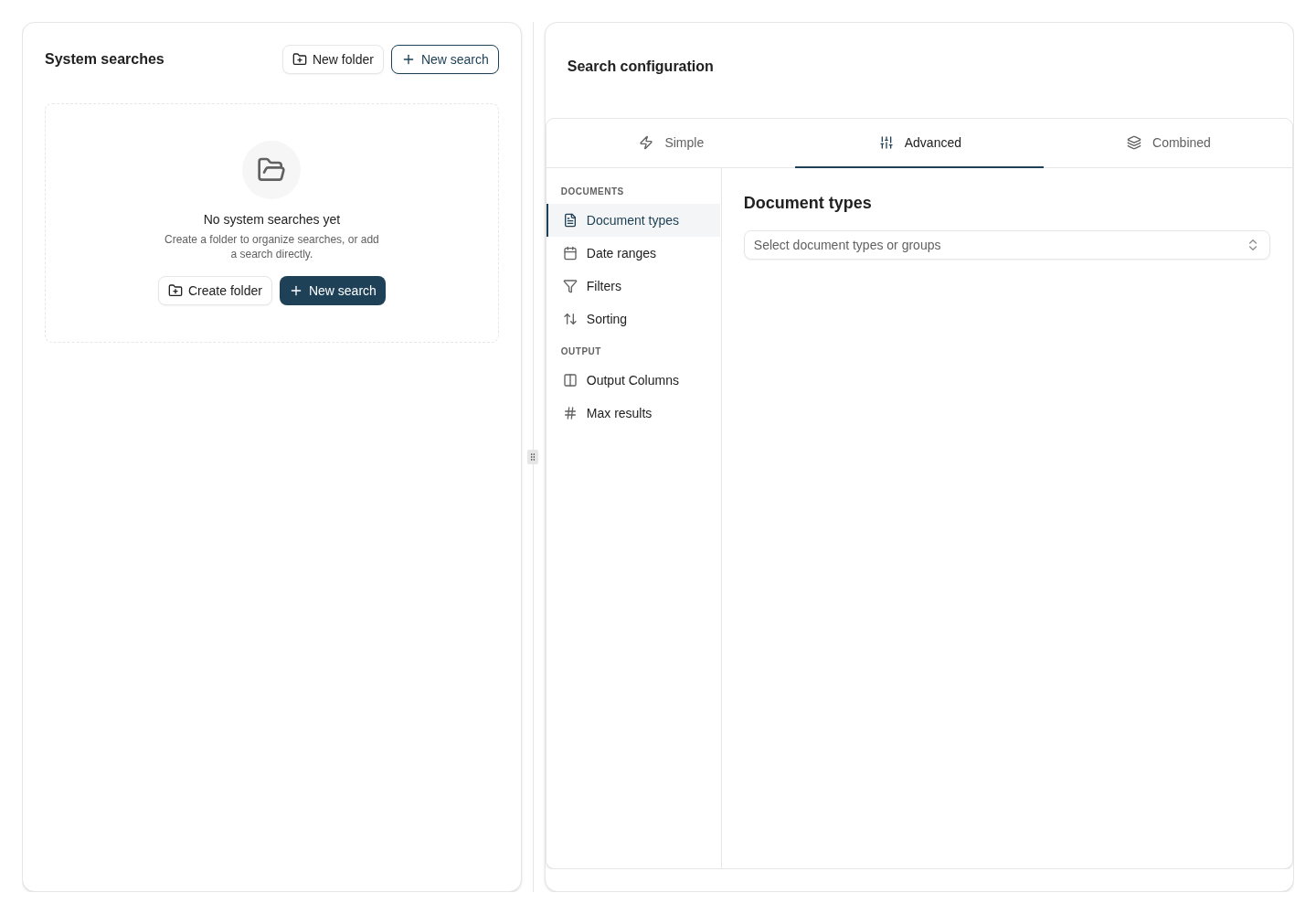
Create or select a search in the tree. Give it a clear purpose and name, then configure the document or combined-search criteria. Review document types, metadata filters, date constraints, displayed columns, sort order, and result limit.
For a combined search, review the Caseflow class and constraints as well as document criteria. Column mappings and dynamic-input mappings connect the two sides and the input controls. Check grouping parentheses before saving; an unbalanced expression is rejected by the configurator.
Organize related searches into folders and use the move control when changing the tree. A folder of saved searches is different from a dynamic [folder view](/search-administration/folder-views) built from document keywords.
## Example: a shared contract worklist
Create a search named **Contracts to review**, choose the Contract document type, and add the keyword filter that your environment uses to identify pending review. Include the contract name, customer reference, and review status in the output columns.
Make the intended group visibility explicit, then open the saved search with a member of that group. Confirm that a known pending contract is included and a completed contract is excluded. If a workflow consumes the same search, run its selection check under the workflow's execution identity as well.
A personal version of this task is covered in [How to create a reusable search](/how-tos/create-a-search). Use a system search when the query is centrally maintained for a team.
 ## Require the right input
A document filter configured as a prompt must be answered when that prompt is needed to satisfy the search's AND/OR grouping. Document prompts have no optional mode. For example, a search accepting either a contract reference or a customer-and-date combination must receive one complete alternative; half of the customer-and-date branch is insufficient.
Caseflow prompts can retain the optional state defined by their filter. Test document and Caseflow inputs separately when combining them.
**Copy link** only succeeds when all filtering keywords can be represented. If a keyword is unavailable in the current catalogue, copying the link or handing the search to AI chat can be refused. Resolve the unavailable keyword or access first; removing a filter changes the search's scope.
## Validate the saved configuration
Run it with a representative account and realistic input. Check that columns, sorting, optional filters, and empty results match the intended task. For a combined search, verify the relationship between document and Caseflow results instead of checking only the row count.
If a user cannot see an expected record, check content permissions before widening the query. Changing a result limit or removing filters can increase the workload without fixing access.
When a saved system search is also used by a [batch workflow](/workflows/schedules-and-batches), review its consumers before changing the selection. A small query edit can change which records receive automated actions.
## Where to read next
Distinguish personal recent searches from shared configuration history and execution auditing.
## Require the right input
A document filter configured as a prompt must be answered when that prompt is needed to satisfy the search's AND/OR grouping. Document prompts have no optional mode. For example, a search accepting either a contract reference or a customer-and-date combination must receive one complete alternative; half of the customer-and-date branch is insufficient.
Caseflow prompts can retain the optional state defined by their filter. Test document and Caseflow inputs separately when combining them.
**Copy link** only succeeds when all filtering keywords can be represented. If a keyword is unavailable in the current catalogue, copying the link or handing the search to AI chat can be refused. Resolve the unavailable keyword or access first; removing a filter changes the search's scope.
## Validate the saved configuration
Run it with a representative account and realistic input. Check that columns, sorting, optional filters, and empty results match the intended task. For a combined search, verify the relationship between document and Caseflow results instead of checking only the row count.
If a user cannot see an expected record, check content permissions before widening the query. Changing a result limit or removing filters can increase the workload without fixing access.
When a saved system search is also used by a [batch workflow](/workflows/schedules-and-batches), review its consumers before changing the selection. A small query edit can change which records receive automated actions.
## Where to read next
Distinguish personal recent searches from shared configuration history and execution auditing.