> ## Documentation Index
> Fetch the complete documentation index at: https://docs.insight.nobly.dk/llms.txt
> Use this file to discover all available pages before exploring further.
# Secrets and troubleshooting
> Manage script credentials and investigate execution results without confusing saved code with published behavior.
## Secret administration
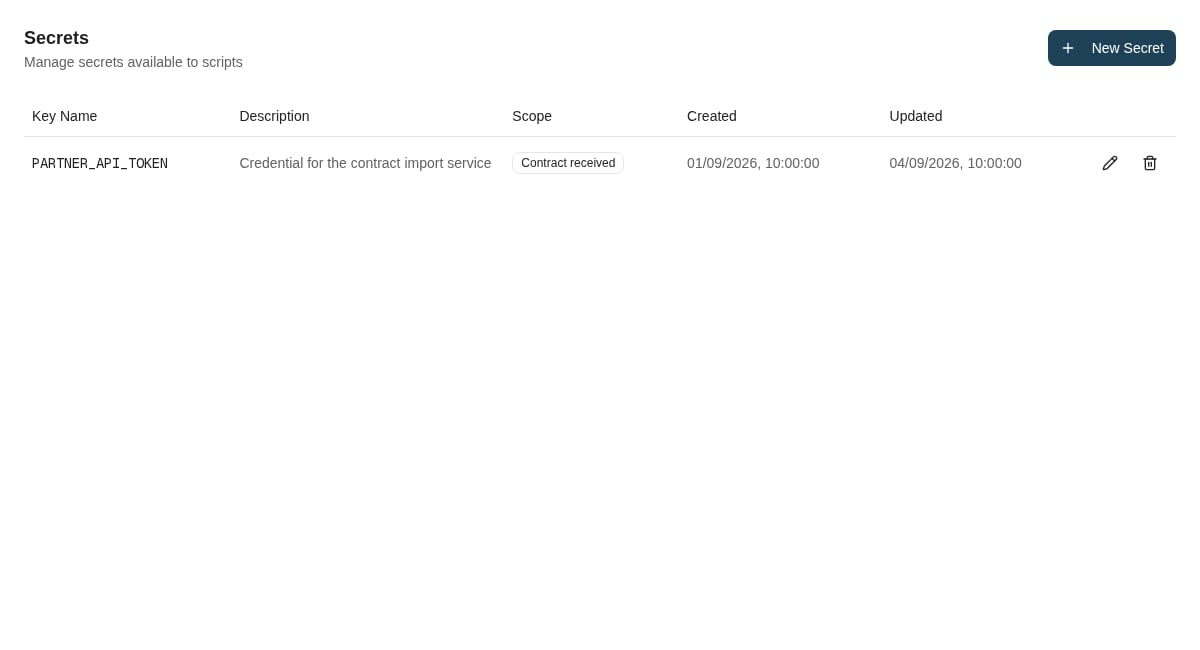
You need `script-engine.admin` to open **Admin settings → Script Engine → Secrets**. Script management alone does not allow secret administration.
Create a secret with a **Key Name**, value, description, and scope. Choose a specific script when only that script needs the credential; **Global** makes it available to all scripts. At runtime, scripts obtain the value from `context["secrets"]` using the key name.
The list returns secret metadata, not stored values. To rotate a value, edit the entry and supply its replacement. Key names are unique across the secret store, including script-scoped entries; use distinct names for distinct credentials.
Hiding values in the administration list is not a barrier against someone who can author code that receives those secrets. Treat script-authoring access as trusted integration access. Do not place secret values in source, commit messages, returned data, or log messages.
Deleting a secret removes it from future execution contexts. Review dependent scripts before deleting or changing its scope. Changing a credential here does not revoke it at the external provider.
 ## Inspect execution logs
With `script-engine.view` or a higher Script Engine permission, open **Admin settings → Script Engine → Execution Logs**.
Filter by success/failure, user, or date interval, then apply the filters. The current type dropdown offers the Caseflow types; leave it at **All** when investigating event hooks or workflow actions. Use **Load More** for older results.
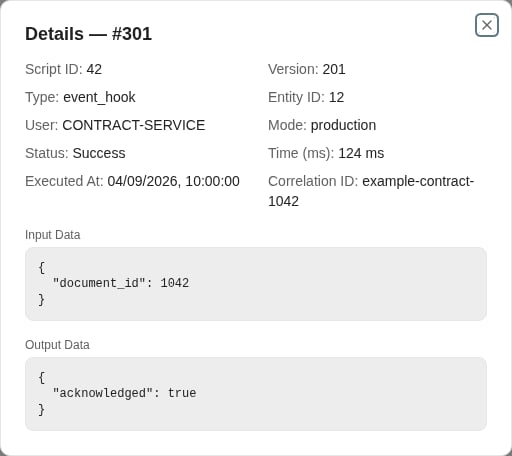
Open a row to inspect the script and version IDs, type, entity ID, execution mode, user, duration, time, error, and correlation ID when present. Input and output details appear only when payload capture is available; their absence does not mean the script received no input.
## Inspect execution logs
With `script-engine.view` or a higher Script Engine permission, open **Admin settings → Script Engine → Execution Logs**.
Filter by success/failure, user, or date interval, then apply the filters. The current type dropdown offers the Caseflow types; leave it at **All** when investigating event hooks or workflow actions. Use **Load More** for older results.
Open a row to inspect the script and version IDs, type, entity ID, execution mode, user, duration, time, error, and correlation ID when present. Input and output details appear only when payload capture is available; their absence does not mean the script received no input.
 ## Diagnose by symptom
| Symptom | What to check |
| -------------------------------------------- | ------------------------------------------------------------------------------------------------------------------------------------------------------------ |
| Script is saved but behavior has not changed | Compare the published version with the version you pushed. Save and publish are separate operations. |
| Publish is unavailable | Check manage access, syntax and contract validation, and whether the latest saved version is already published. |
| No script is found | Verify the caller's slug or binding, the script type, and that a version is published. Resolution failures can occur before an execution-log row is created. |
| External autofill returns nothing | Check the set binding, primary value, member keyword IDs, and the returned rows against the external-autofill contract. |
| Event hook does not run | Check document type, trigger event, publication, and whether the source operation emits that event. Ask support to investigate delivery if these match. |
| Access is denied during a callback | Check the actual calling identity: user, event-hook service account, or workflow service. |
| Execution fails or times out | Read the error and duration; check input/output contract, external destination availability, and the work done by the script. |
| A secret is missing | Check the key name and script/global scope. Have a secrets administrator replace an unreadable value rather than exposing it in a diagnostic. |
When escalating, include environment, time, script slug and executed version ID, entity ID, correlation ID if shown, and the operation that triggered it. Exclude credentials and unnecessary business data.
## Where to read next
Understand how the Nobly Insight workflow engine automates document and case processes — definitions, triggers, nodes, actions, and tasks.
## Diagnose by symptom
| Symptom | What to check |
| -------------------------------------------- | ------------------------------------------------------------------------------------------------------------------------------------------------------------ |
| Script is saved but behavior has not changed | Compare the published version with the version you pushed. Save and publish are separate operations. |
| Publish is unavailable | Check manage access, syntax and contract validation, and whether the latest saved version is already published. |
| No script is found | Verify the caller's slug or binding, the script type, and that a version is published. Resolution failures can occur before an execution-log row is created. |
| External autofill returns nothing | Check the set binding, primary value, member keyword IDs, and the returned rows against the external-autofill contract. |
| Event hook does not run | Check document type, trigger event, publication, and whether the source operation emits that event. Ask support to investigate delivery if these match. |
| Access is denied during a callback | Check the actual calling identity: user, event-hook service account, or workflow service. |
| Execution fails or times out | Read the error and duration; check input/output contract, external destination availability, and the work done by the script. |
| A secret is missing | Check the key name and script/global scope. Have a secrets administrator replace an unreadable value rather than exposing it in a diagnostic. |
When escalating, include environment, time, script slug and executed version ID, entity ID, correlation ID if shown, and the operation that triggered it. Exclude credentials and unnecessary business data.
## Where to read next
Understand how the Nobly Insight workflow engine automates document and case processes — definitions, triggers, nodes, actions, and tasks.