> ## Documentation Index
> Fetch the complete documentation index at: https://docs.insight.nobly.dk/llms.txt
> Use this file to discover all available pages before exploring further.
# Bindings and event hooks
> Attach published scripts to external autofill sets, Caseflow forms, workflows, and document events.
## Prerequisites
Publish a script of the matching type first. You need `script-engine.manage` or `script-engine.admin` to change Script Engine bindings, plus the relevant configuration permissions for the consuming form or workflow.
## Connect the right caller
| Caller | Configuration |
| --------------------- | ---------------------------------------------------------------------------------------------------------------------------- |
| External autofill set | **Admin settings → Keywords → External Autofill**: select an external-autofill script and associate the required keyword set |
| Caseflow field | Configure the field's `autofillScript` and target attributes; see [Actions and scripting](/caseflow/actions-and-scripting) |
| Caseflow operation | Use a [ScriptButton](/caseflow/data-components#scriptbutton) or `callScript` action with the script slug |
| Workflow | Configure [Script.Run](/workflows/actions) with a matching workflow-action script and input |
| Document event | Use **Admin settings → Script Engine → Event Hooks** as described below |
A script existing in the list is not enough. Check the published version, type, and consuming configuration when an operation does not invoke it.
## Configure an event hook
1. Create and publish an `event_hook` script in **Scripts**.
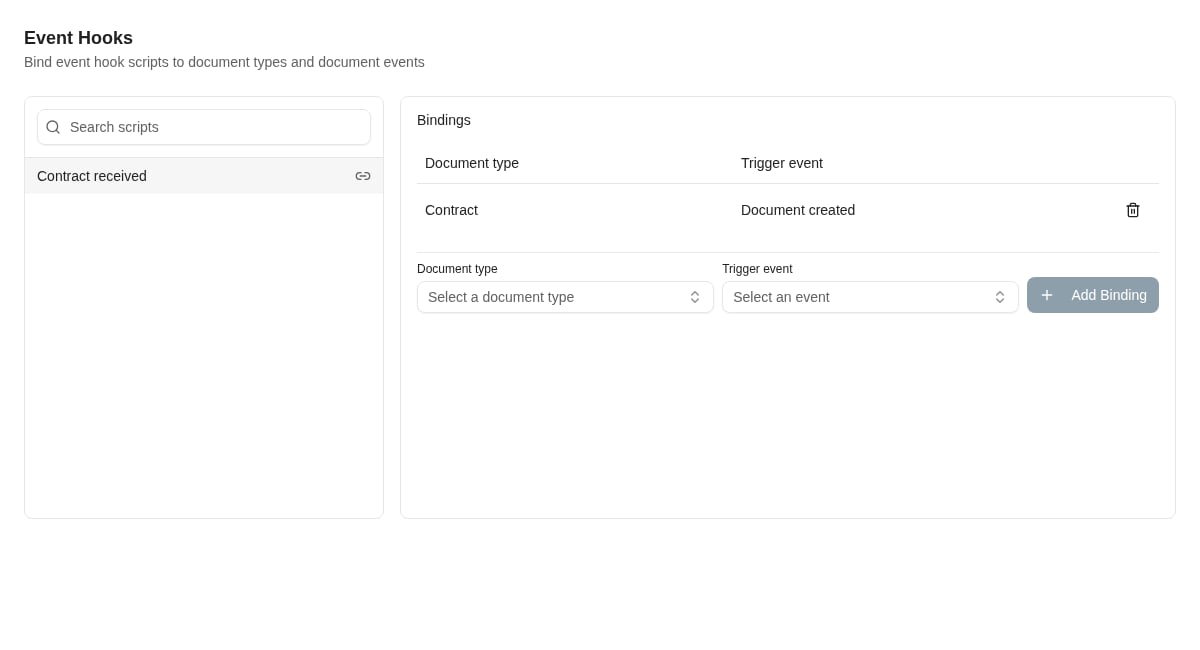
2. Open **Event Hooks** and select the script from the left-hand list.
3. Select a **Document Type** and **Trigger Event**, then choose **Add Binding**.
4. Perform the matching document operation in your test environment and inspect the execution log and downstream result.
The event choices cover document creation, update, deletion, reindexing, and keyword updates. **All document types** creates a broad subscription; prefer a specific type when the logic only applies to that type. The screen prevents adding the same type/event binding to the same script twice.
A script bound both to a specific type and to all types runs once for that event. Different matching scripts can each run. If the document type can no longer be resolved, only an all-types binding can match.
 ## Understand the execution identity
Caseflow and external-autofill scripts use the caller's identity for Insight callbacks. Document event hooks run in the background using a configured service account. Workflow script calls use the identity supplied by the workflow service.
The event still includes the triggering username for attribution. That name does not mean the background callback executes with that person's access. When a hook fails to read or update data, check the service account's permissions with the person responsible for that account.
## Design for background processing
An event-hook input contains the event type and ID, timestamp, entity ID and type, triggering username, and payload. It returns an acknowledgement such as `{"acknowledged": true}`. It does not return values to the form that caused the event, and a later hook failure does not roll back the original document operation.
Use the event ID or another business identifier to avoid duplicate downstream work when events are delivered again. If a hook updates the same documents it subscribes to, define a condition that prevents its own update from causing repeated work. Test that condition before enabling a broad binding.
## Remove a binding
Use the remove control beside the document type/event row and confirm. This disconnects that subscription; it does not delete the script, revert completed work, or cancel an execution already in progress.
## Where to read next
Manage script credentials and investigate execution results without confusing saved code with published behavior.
## Understand the execution identity
Caseflow and external-autofill scripts use the caller's identity for Insight callbacks. Document event hooks run in the background using a configured service account. Workflow script calls use the identity supplied by the workflow service.
The event still includes the triggering username for attribution. That name does not mean the background callback executes with that person's access. When a hook fails to read or update data, check the service account's permissions with the person responsible for that account.
## Design for background processing
An event-hook input contains the event type and ID, timestamp, entity ID and type, triggering username, and payload. It returns an acknowledgement such as `{"acknowledged": true}`. It does not return values to the form that caused the event, and a later hook failure does not roll back the original document operation.
Use the event ID or another business identifier to avoid duplicate downstream work when events are delivered again. If a hook updates the same documents it subscribes to, define a condition that prevents its own update from causing repeated work. Test that condition before enabling a broad binding.
## Remove a binding
Use the remove control beside the document type/event row and confirm. This disconnects that subscription; it does not delete the script, revert completed work, or cancel an execution already in progress.
## Where to read next
Manage script credentials and investigate execution results without confusing saved code with published behavior.