> ## Documentation Index
> Fetch the complete documentation index at: https://docs.insight.nobly.dk/llms.txt
> Use this file to discover all available pages before exploring further.
# Authoring and publishing scripts
> Create a script, save and validate its source, publish a version, and restore an earlier version.
## Prerequisites
You need `script-engine.manage` or `script-engine.admin`. Prepare the input and expected result for the extension point you chose, and use a test environment before changing live behavior.
## Create and edit
Open **Admin settings → Script Engine → Scripts**. Use the name search and type filter to find an existing script before creating another.
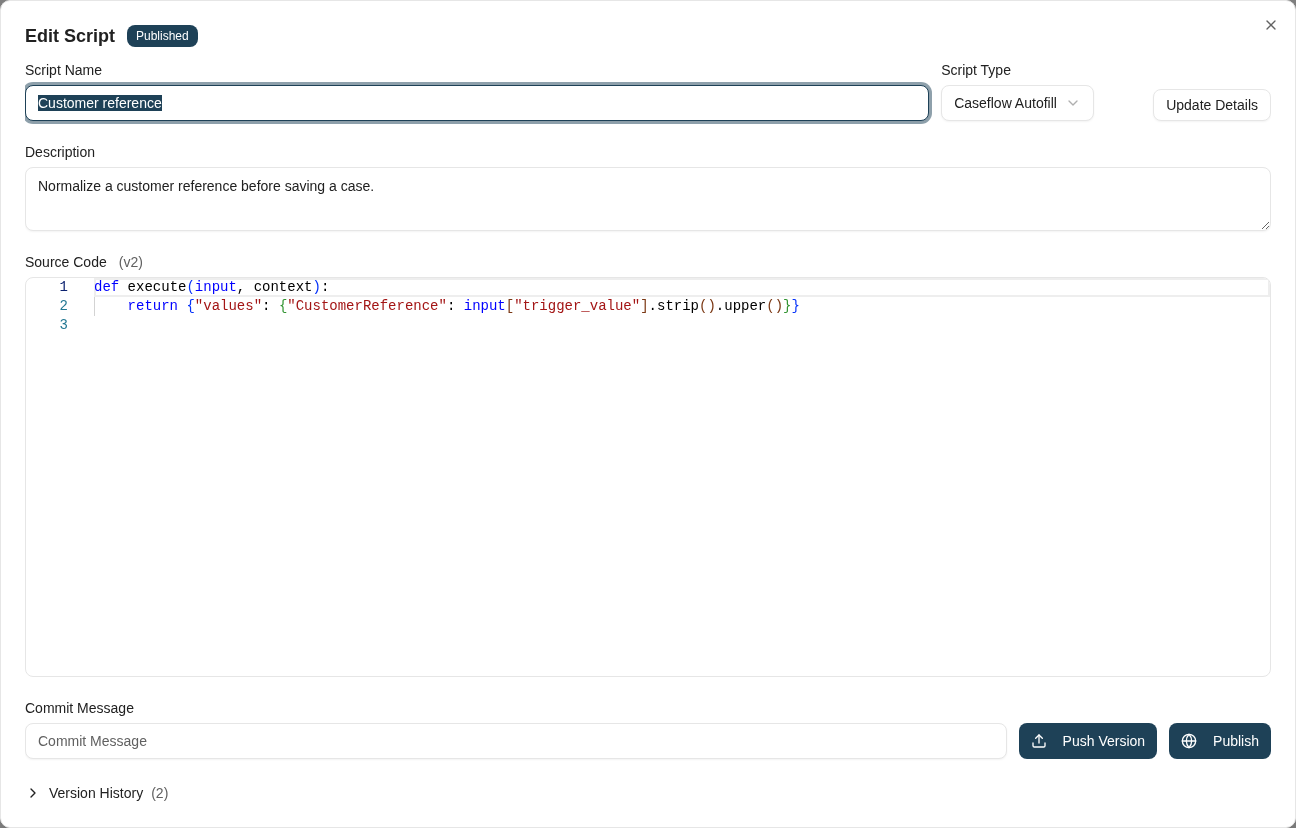
 Choose **New Script**, select the type, enter a name and description, and choose **Create Script**. The list shows its slug, status, and published version. Open the edit control to work on its source. **Update Details** saves the name, description, and type; **Push Version** saves source code separately.
Treat the script type as part of its contract. Changing it affects the input and output expected by callers and the script's bindings. Review those callers before changing an existing type.
Choose **New Script**, select the type, enter a name and description, and choose **Create Script**. The list shows its slug, status, and published version. Open the edit control to work on its source. **Update Details** saves the name, description, and type; **Push Version** saves source code separately.
Treat the script type as part of its contract. Changing it affects the input and output expected by callers and the script's bindings. Review those callers before changing an existing type.
 ## The Python contract
A script defines a synchronous `execute(input, context)` function and returns a dictionary matching its type's output contract. The editor supplies a starting template for the selected type.
For example, a Caseflow autofill script can normalize a customer reference:
```python theme={null}
def execute(input, context):
return {
"values": {
"CustomerReference": input["trigger_value"].strip().upper()
}
}
```
The example assumes the calling form has a `CustomerReference` attribute and includes it among the autofill targets. With a trigger value of `" ab-1042 "`, it returns `{"values": {"CustomerReference": "AB-1042"}}`.
| Context entry | Purpose |
| --------------------- | ------------------------------------------------------------------------------- |
| `context["username"]` | Identity recorded for the invocation |
| `context["api"]` | Managed client for Insight calls, when a callback identity is available |
| `context["http"]` | Managed external HTTP client, subject to the environment's allowed destinations |
| `context["secrets"]` | Global secrets and secrets scoped to this script |
| `context["log"]` | Script diagnostic logging |
Use the managed clients for integrations. Scripts run with restricted imports and execution time limits; they are not general-purpose Python applications with arbitrary installed packages.
## Save, validate, and test
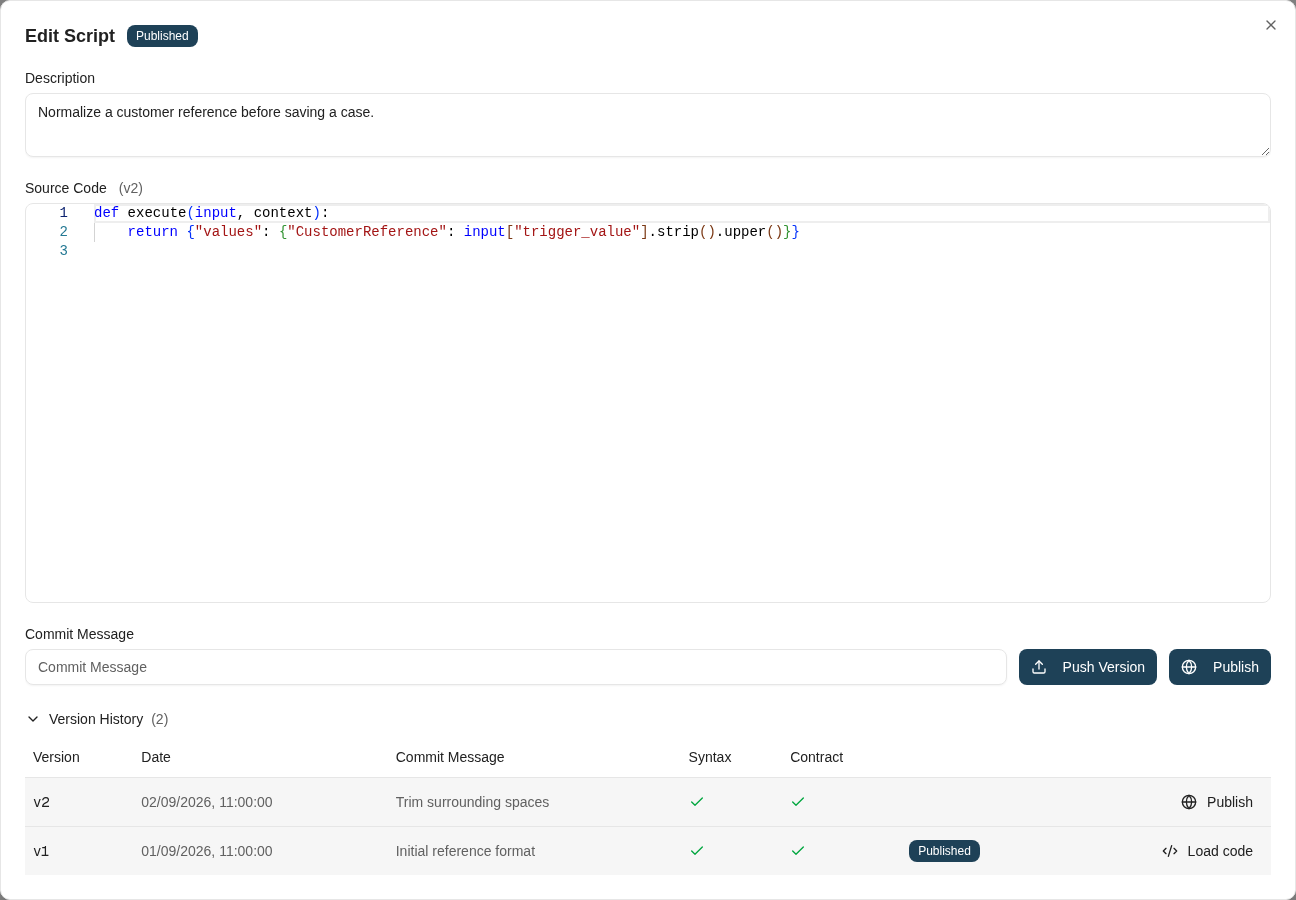
Enter a **Commit Message** describing the business change and choose **Push Version**. Open **Version History** to inspect the saved version's syntax and contract results. A failed validation can be saved for inspection, but cannot be published.
Validation does not prove that a lookup returns the right customer, that an external system accepts a request, or that the calling identity has access. Test the consuming form, indexing operation, workflow, or event with representative data in a test environment. Confirm both the returned result and any side effects.
The current Scripts editor has no test-execution button. Do not confuse **Push Version** with running the script. The engine's separate test API also must not be treated as a general dry run: external HTTP and secrets remain available, and background script types can obtain a service-account identity.
## Publish the intended saved version
The main **Publish** button publishes the **latest saved version** when its validation passes. Unsaved editor text is not published. Loading an older version into the editor does not change which version that main button selects.
To act on a specific version, expand **Version History** and use that row's **Publish** or **Rollback** control. Check the version number and commit message first. The published-version column in the list identifies what production execution will use.
## The Python contract
A script defines a synchronous `execute(input, context)` function and returns a dictionary matching its type's output contract. The editor supplies a starting template for the selected type.
For example, a Caseflow autofill script can normalize a customer reference:
```python theme={null}
def execute(input, context):
return {
"values": {
"CustomerReference": input["trigger_value"].strip().upper()
}
}
```
The example assumes the calling form has a `CustomerReference` attribute and includes it among the autofill targets. With a trigger value of `" ab-1042 "`, it returns `{"values": {"CustomerReference": "AB-1042"}}`.
| Context entry | Purpose |
| --------------------- | ------------------------------------------------------------------------------- |
| `context["username"]` | Identity recorded for the invocation |
| `context["api"]` | Managed client for Insight calls, when a callback identity is available |
| `context["http"]` | Managed external HTTP client, subject to the environment's allowed destinations |
| `context["secrets"]` | Global secrets and secrets scoped to this script |
| `context["log"]` | Script diagnostic logging |
Use the managed clients for integrations. Scripts run with restricted imports and execution time limits; they are not general-purpose Python applications with arbitrary installed packages.
## Save, validate, and test
Enter a **Commit Message** describing the business change and choose **Push Version**. Open **Version History** to inspect the saved version's syntax and contract results. A failed validation can be saved for inspection, but cannot be published.
Validation does not prove that a lookup returns the right customer, that an external system accepts a request, or that the calling identity has access. Test the consuming form, indexing operation, workflow, or event with representative data in a test environment. Confirm both the returned result and any side effects.
The current Scripts editor has no test-execution button. Do not confuse **Push Version** with running the script. The engine's separate test API also must not be treated as a general dry run: external HTTP and secrets remain available, and background script types can obtain a service-account identity.
## Publish the intended saved version
The main **Publish** button publishes the **latest saved version** when its validation passes. Unsaved editor text is not published. Loading an older version into the editor does not change which version that main button selects.
To act on a specific version, expand **Version History** and use that row's **Publish** or **Rollback** control. Check the version number and commit message first. The published-version column in the list identifies what production execution will use.
 ## Roll back
Choose **Rollback** on a valid earlier version in Version History. This changes the published version; it does not erase later saved versions or undo documents, messages, or external-system changes made by earlier executions.
After publishing or rolling back, repeat the consuming operation in your test environment and check [Execution logs](/scripts/secrets-and-troubleshooting). For a live change, verify a controlled representative operation and record the version used.
## Where to read next
Use tested examples for Caseflow autofill, workflow decisions, and event acknowledgements, with explicit input and output contracts.
## Roll back
Choose **Rollback** on a valid earlier version in Version History. This changes the published version; it does not erase later saved versions or undo documents, messages, or external-system changes made by earlier executions.
After publishing or rolling back, repeat the consuming operation in your test environment and check [Execution logs](/scripts/secrets-and-troubleshooting). For a live change, verify a controlled representative operation and record the version used.
## Where to read next
Use tested examples for Caseflow autofill, workflow decisions, and event acknowledgements, with explicit input and output contracts.