> ## Documentation Index
> Fetch the complete documentation index at: https://docs.insight.nobly.dk/llms.txt
> Use this file to discover all available pages before exploring further.
# Policies & simulation
> Configure retention policies — their fields, matching criteria, and versioned edits — and preview their impact with a read-only simulation.
## Retention policies
A policy is the unit of "delete these documents after this long". You'll typically build the first few policies during setup, then leave day-to-day editing to your super-users.
### What's on a policy
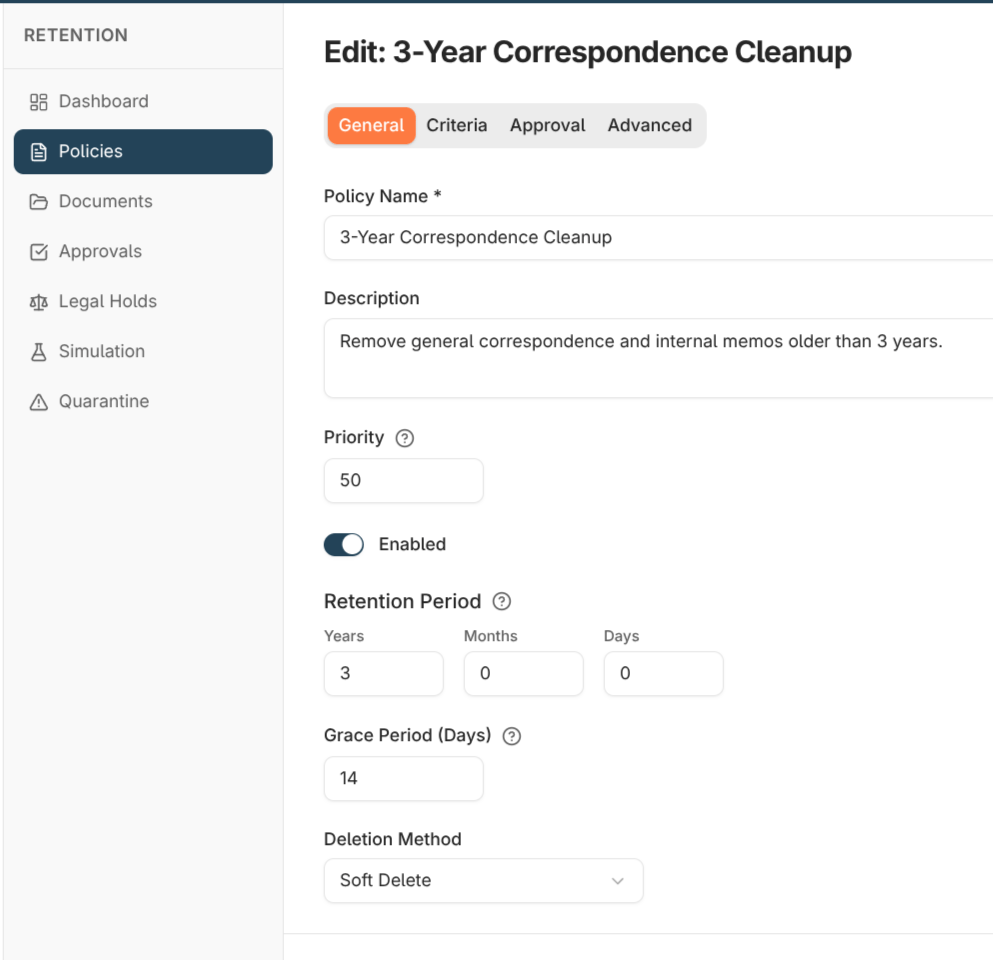
The policy editor is organised into **General**, **Criteria**, **Approval**, and **Advanced** tabs.
| Setting | What it does |
| -------------------------- | -------------------------------------------------------------------------------------------------------------------------------------------------------------------------------------------------------------------------------------- |
| **Name / Description** | Identification for the policy. Agree a naming convention up front |
| **Priority** | When more than one policy matches a document, the highest-priority policy decides the outcome. Document the priority scheme per tenant |
| **Enabled** | Leave off until the policy has been simulated and signed off |
| **Retention period** | How long documents must be kept — years, months, and days — before they become eligible. Works together with the criteria to decide what to target |
| **Grace period** | A reprieve window, in days, after a document is tagged and before it becomes eligible for deletion. This is the window in which a document can still be rescued |
| **Deletion method** | **Soft delete** (recoverable, default) or **Permanent purge** (irreversible). Only use Permanent purge when a regulator requires content to be destroyed |
| **Activity reset actions** | Document activities that restart the retention clock for a tagged document — viewed, modified, reindexed, keywords updated, notes added, new revision, workflow started, exported. Use these so documents in active use aren't deleted |
| **Requires approval** | Forces a human gate before any deletion under the policy. Recommended for any policy that hits more than a handful of documents per cycle |
| **Approver groups** | The user groups whose members can approve or reject deletions for this policy. Map to existing user groups |
| **Criteria** | The matching expression — see below |
When **Requires approval** is on, always configure at least one **approver group**. A policy that requires approval but has no approver groups will accept approval from *anyone* who holds the approvals permission, which defeats the gate.
### Matching criteria
The criteria editor builds a matching expression from these building blocks, either in a visual tree editor or as JSON. Combine them with **AND**, **OR**, and **NOT** groups.
| Building block | Matches |
| ----------------------- | ------------------------------------------------------------------------------------------------------------------------------------------------------------ |
| **Document type** | A specific document type |
| **Document type group** | Every type belonging to a group |
| **Keyword** | A keyword value, compared with: equals, not equals, contains, starts with, ends with, greater/less than (or equal to), and is empty / is not empty |
| **Date** | The document date or stored date — an absolute date (`2020-01-01`) or a relative one (for example, `today − 7 years`) |
| **Last activity** | The most recent activity — viewed, modified, printed, emailed, retrieved, or created — older than a threshold, optionally limited to specific activity types |
| **All documents** | Every active document, with optional document-type or group exclusions |
An **All documents** rule must include at least one exclusion — a rule that would match *every* document with no exclusions is rejected, so you can't accidentally target the whole archive.
Validation runs as you build. Warnings (for example, "this matches every active document") surface inline; hard errors block saving.
### Editing a policy
Every save creates a new version of the policy, and previous versions are kept so you can see how a policy changed over time.
When an edit changes the **criteria**, the editor asks how to treat documents the policy is already tracking:
* **Preserve existing document states** — documents already tagged continue under the new version. Safe default.
* **Re-evaluate all documents** — drop the policy's currently *tagged* documents and let the next processing cycle re-tag against the new criteria.
Documents that have already moved past Tagged — pending approval, approved, deleted, rescued, excluded, or quarantined — are never re-evaluated either way, so an in-flight approval batch or a deletion history is never disturbed.
 ## Simulation
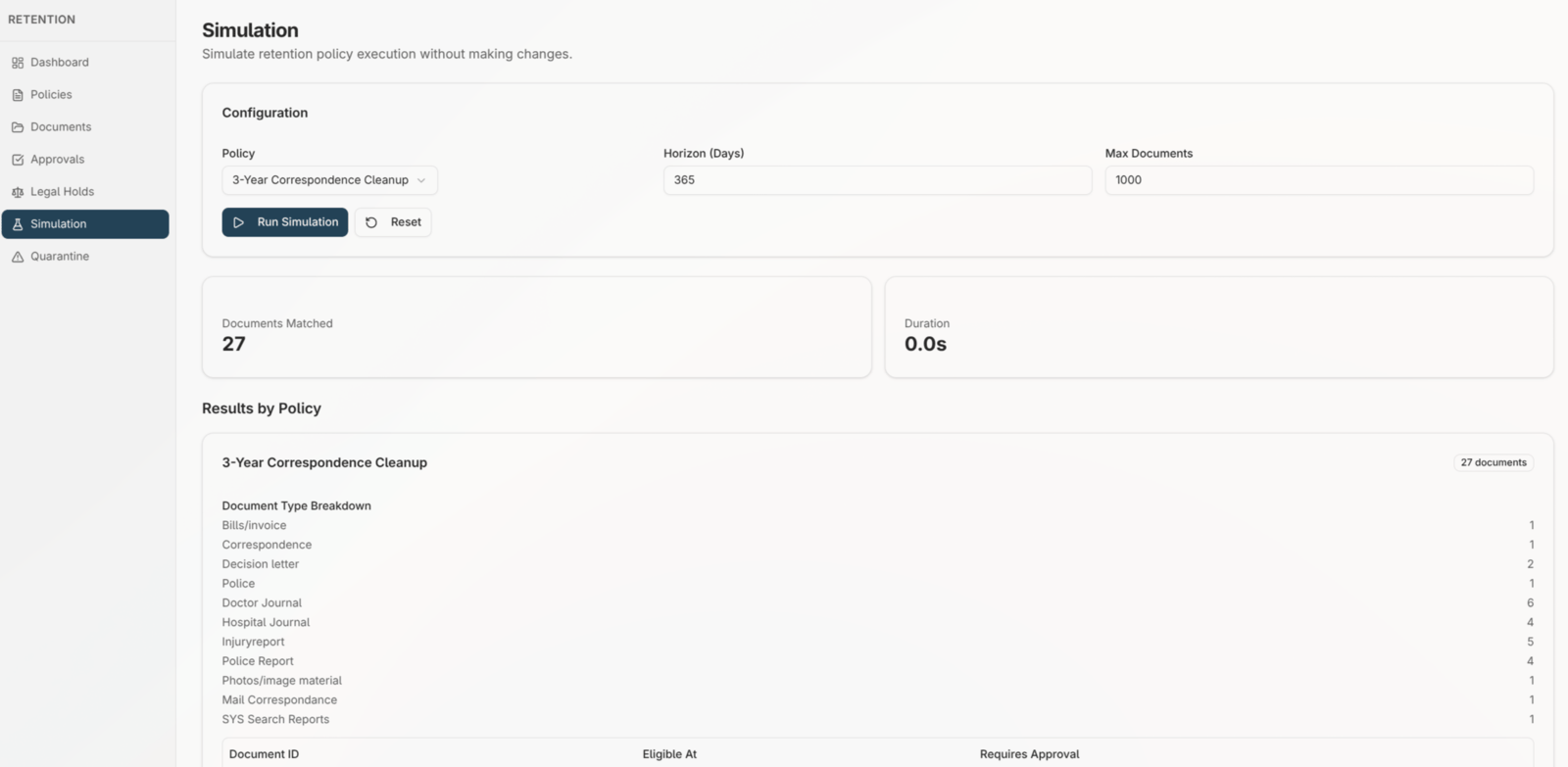
Run a simulation before enabling any new or materially changed policy. Simulations are **read-only** — they tag nothing and delete nothing.
A simulation reports:
* The total number of documents the policy would tag
* A sample you can spot-check
* A flag when the sample was capped
When the sample is capped, read the **total** to judge real impact, not the size of the sample. Review both before enabling the policy.
## Simulation
Run a simulation before enabling any new or materially changed policy. Simulations are **read-only** — they tag nothing and delete nothing.
A simulation reports:
* The total number of documents the policy would tag
* A sample you can spot-check
* A flag when the sample was capped
When the sample is capped, read the **total** to judge real impact, not the size of the sample. Review both before enabling the policy.
 ## Where to read next
How approval batches work, the three ways to stop a deletion, and what to do with quarantined documents.
## Where to read next
How approval batches work, the three ways to stop a deletion, and what to do with quarantined documents.