> ## Documentation Index
> Fetch the complete documentation index at: https://docs.insight.nobly.dk/llms.txt
> Use this file to discover all available pages before exploring further.
# Approvals, holds & quarantine
> How approval batches gate deletions, the three ways to stop a deletion — rescue, exclude, and legal hold — and how to handle quarantined documents.
## Approvals
When a policy requires approval, the documents it would delete are collected into an **approval batch** for the policy's approver groups to sign off.
* A policy can have only **one open batch at a time**.
* The policy's **approver groups** decide who can approve or reject the batch.
* Approvers can sign off the whole batch, or **exclude individual documents** from it without affecting the rest — useful when you want to keep one specific document.
* If a batch is **rejected**, its documents go back to Tagged and a fresh batch forms on the next cycle if they still match.
* A batch with nothing left to approve — because every document in it was since excluded or placed on hold — is **auto-rejected** on the next cycle.
## Escape valves
There are three ways to stop a document from being deleted. Each maps to a different need, so make sure your admins know which to use.
| Escape valve | Scope | Effect |
| -------------- | ------------ | ------------------------------------------------------------------------------------------------------------------------------------------------------------------------------------------------------------------------------------------------- |
| **Rescue** | This policy | Pulls a **tagged** or **pending-approval** document out of the policy's retention flow before it's deleted. The document won't be tagged again by the same policy. Other policies are unaffected. A rescue requires a reason, for the audit trail |
| **Exclude** | This policy | Exempts a document from the policy. Can be **time-bounded** (auto-expires) or permanent, and can be removed later to let the policy track the document again |
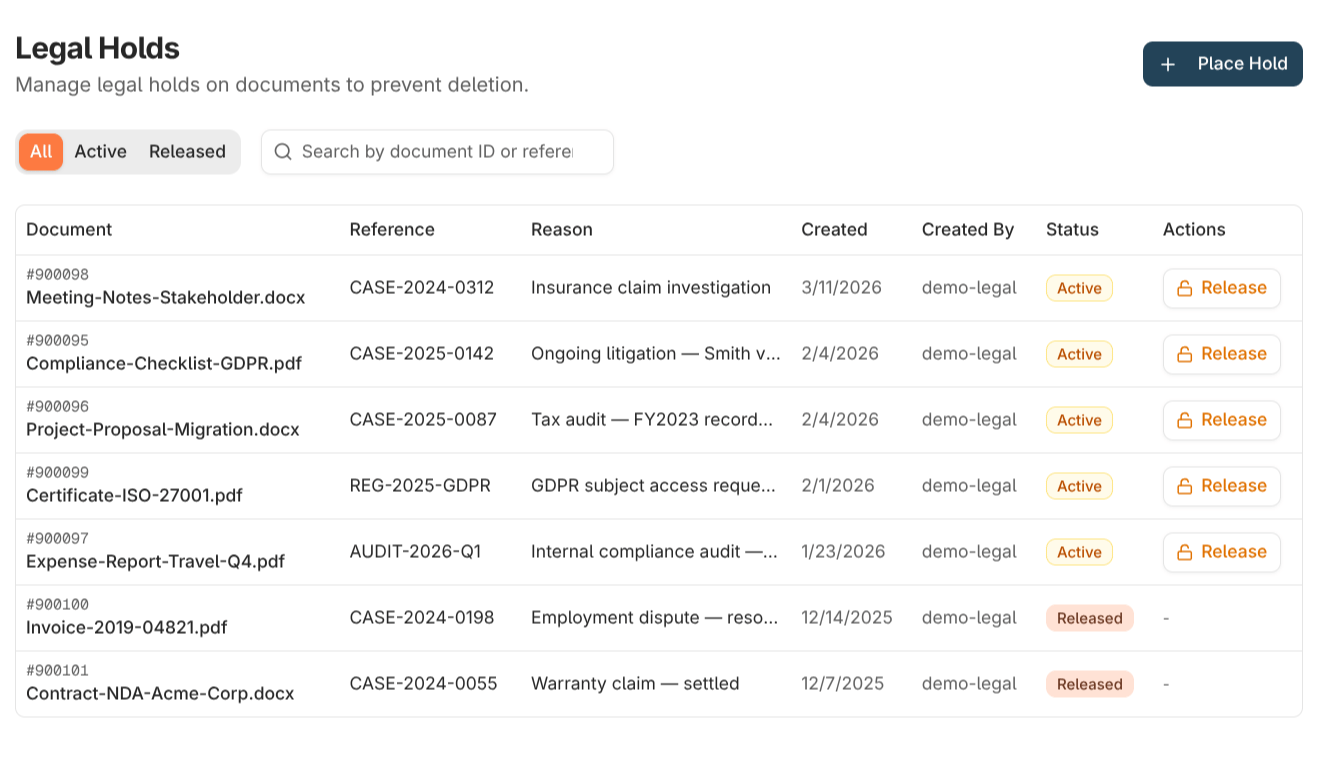
| **Legal hold** | All policies | Blocks deletion across **every** policy — current and future — until the hold is released or expires. Carries a reference (such as a case number) and a reason |
A legal hold takes effect immediately and is checked at the moment of deletion, so a document placed on hold is never deleted by a cycle that's already running. For blanket, cross-policy protection — a litigation hold, say — use a legal hold rather than rescuing or excluding under each policy individually.
 ## Quarantine
A document is **quarantined** when processing can't complete an operation on it — for example, storage is briefly unavailable, the document changed mid-process, or a legal hold landed between tagging and deletion. From the Quarantine view:
* **Retry** lets the next cycle pick the document up again, once the underlying issue is resolved.
* **Resolve** marks the entry as manually handled and records the decision, leaving the document's state untouched.
Resolved quarantine entries are cleaned up automatically after a retention period (90 days by default).
## Where to read next
When processing runs, and how to grant retention access to user groups.
## Quarantine
A document is **quarantined** when processing can't complete an operation on it — for example, storage is briefly unavailable, the document changed mid-process, or a legal hold landed between tagging and deletion. From the Quarantine view:
* **Retry** lets the next cycle pick the document up again, once the underlying issue is resolved.
* **Resolve** marks the entry as manually handled and records the decision, leaving the document's state untouched.
Resolved quarantine entries are cleaned up automatically after a retention period (90 days by default).
## Where to read next
When processing runs, and how to grant retention access to user groups.