> ## Documentation Index
> Fetch the complete documentation index at: https://docs.insight.nobly.dk/llms.txt
> Use this file to discover all available pages before exploring further.
# Archive rules and keyword mappings
> Choose whole EML or HTML with separate attachments, configure ordered routing rules, and map sender, recipients, dates, subject, and attachment names to keywords.
## Before you change the archive policy
You need `mailbox-importer.manage` or `mailbox-importer.admin`. Open **Admin settings → Mailbox importer → Mailboxes → Settings and history** for the mailbox. Prepare the [document types and service-account access](/mailbox-importer/setup#before-you-begin) first.
Document types and keyword types are environment-specific. The names and IDs below are examples, not built-in types. Enter document type IDs in their fields and select keyword types by name in the mapping dropdowns. Confirm every mapping belongs to its destination document type and satisfies that type's required fields, data types, masks, and keyword permissions.
## Choose how the email is stored
| Archive format | Documents created per message | Use it when |
| -------------------------------------- | ----------------------------------------------------------------------------------------------------------------------------- | ------------------------------------------------------------------------------------- |
| **Whole email (.eml)** | One document in **Document type ID**, containing the original MIME message with headers, body, inline images, and attachments | You want to retain the complete original email as one archive item |
| **HTML body and separate attachments** | One HTML document in **Document type ID**, plus one document for **each real attachment** in **Attachment document type ID** | You want the mail and attached business documents classified and processed separately |
The split format does not also save an EML copy. It does not combine attachments into one document, convert them to PDF, or unpack ZIP archives. Configure any additional supported processing in a [workflow](/mailbox-importer/workflows).
The **Default archive policy** applies when no enabled rule matches. It can use either format. Each rule has its own complete archive policy, including both sets of mappings where applicable.
## Example: keep ordinary mail, split supplier invoices
Prepare these example destinations:
| Example document type | ID | Purpose |
| --------------------- | ---- | -------------------------------------- |
| Mail archive | `10` | Whole emails that do not match a rule |
| Supplier mail | `30` | HTML body of matching invoice emails |
| Supplier attachments | `40` | Each real attachment from those emails |
Under **Default archive policy**, choose **Whole email (.eml)** and set **Document type ID** to `10`. Configure any keywords required by that type.
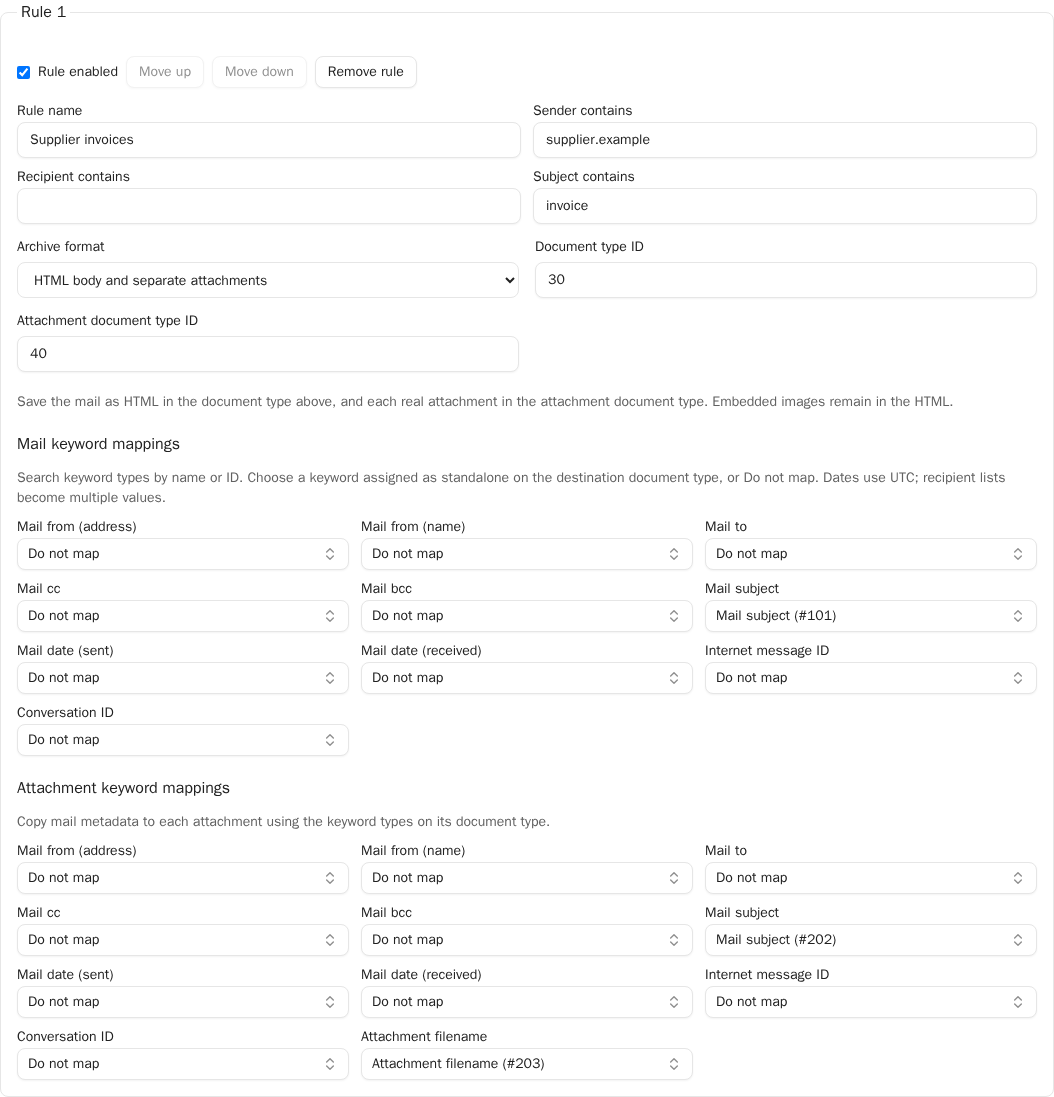
Select **Add archive rule** and name it **Supplier invoices**. Leave **Rule enabled** checked. A new rule copies the current default policy, so review its destinations and mappings before saving.
Enter `supplier.example` in **Sender contains** and `invoice` in **Subject contains**. Leave **Recipient contains** empty to accept any recipient.
Select **HTML body and separate attachments**. Set **Document type ID** to `30` and **Attachment document type ID** to `40`.
Under **Mail keyword mappings**, open **Mail subject**, search for `subject`, and choose **Mail subject (#101)**. Under **Attachment keyword mappings**, choose **Mail subject (#202)** for **Mail subject** and **Attachment filename (#203)** for **Attachment filename**. These example keyword types must exist on the corresponding destination types.
Select **Save settings**. Send matching and nonmatching test messages, then check the stored document types, files, and keywords. The rule editor does not provide a preview or simulation button.
 ### How matching and order work
* Rules run from top to bottom; **the first enabled match wins**. You can add up to 25 rules.
* All filled conditions must match. Leaving a condition empty makes it unrestricted.
* **Sender contains** checks the sender address, **Recipient contains** checks any To/Cc/Bcc address present in the message metadata, and **Subject contains** checks the subject.
* Matching uses case-insensitive substrings. Conditions are not regular expressions, exact domain checks, or sender-authentication checks.
* Use **Move up** and **Move down** to order specific rules before general ones. An enabled rule with all three conditions empty matches every message and prevents later rules from being selected.
* Uncheck **Rule enabled** to retain a rule without using it. **Remove rule** removes it from the configuration when you save.
For the example above:
| Test message | Outcome |
| -------------------------------------------------------- | ------------------------------------------------- |
| From `billing@supplier.example`, subject `Invoice 1007` | Split into Supplier mail and Supplier attachments |
| From `billing@supplier.example`, subject `Meeting notes` | Default EML in Mail archive |
| From `other@example.com`, subject `Invoice 1008` | Default EML in Mail archive |
| From `billing@supplier.example`, subject `INVOICE 1009` | Split; matching ignores case |
A sender such as `billing@supplier.example.invalid` also contains `supplier.example`. Use these rules for classification; they do not establish that a message is trustworthy.
## Map standard mail parameters to keywords
Each mapping is a **searchable keyword dropdown**, both in the default archive policy and in every rule. The label above the dropdown is the mail parameter; the selected option is the destination keyword type. You select where the parameter is stored, rather than entering a fixed keyword value.
1. Open the dropdown for the mail parameter, such as **Mail subject**.
2. Type part of a keyword name or its ID in **Search...**. Search ignores case. Options show the name and ID, such as **Mail subject (#101)**; use the ID to distinguish keyword types with the same name.
3. Select the keyword type assigned **as standalone on the destination document type**. Repeat for each parameter you need, then select **Save settings**.
4. To remove an optional mapping, open its dropdown, clear any search text, and choose **Do not map**. Save settings to apply the removal.
The catalogue includes keyword types across the environment; it is not filtered to the document type entered above. Group headings help you find keywords, but do not create keyword-group rows. Confirm that your chosen keyword is a standalone assignment on the destination. Keyword groups and repeating keyword-group rows are not targets for these mappings.
### How matching and order work
* Rules run from top to bottom; **the first enabled match wins**. You can add up to 25 rules.
* All filled conditions must match. Leaving a condition empty makes it unrestricted.
* **Sender contains** checks the sender address, **Recipient contains** checks any To/Cc/Bcc address present in the message metadata, and **Subject contains** checks the subject.
* Matching uses case-insensitive substrings. Conditions are not regular expressions, exact domain checks, or sender-authentication checks.
* Use **Move up** and **Move down** to order specific rules before general ones. An enabled rule with all three conditions empty matches every message and prevents later rules from being selected.
* Uncheck **Rule enabled** to retain a rule without using it. **Remove rule** removes it from the configuration when you save.
For the example above:
| Test message | Outcome |
| -------------------------------------------------------- | ------------------------------------------------- |
| From `billing@supplier.example`, subject `Invoice 1007` | Split into Supplier mail and Supplier attachments |
| From `billing@supplier.example`, subject `Meeting notes` | Default EML in Mail archive |
| From `other@example.com`, subject `Invoice 1008` | Default EML in Mail archive |
| From `billing@supplier.example`, subject `INVOICE 1009` | Split; matching ignores case |
A sender such as `billing@supplier.example.invalid` also contains `supplier.example`. Use these rules for classification; they do not establish that a message is trustworthy.
## Map standard mail parameters to keywords
Each mapping is a **searchable keyword dropdown**, both in the default archive policy and in every rule. The label above the dropdown is the mail parameter; the selected option is the destination keyword type. You select where the parameter is stored, rather than entering a fixed keyword value.
1. Open the dropdown for the mail parameter, such as **Mail subject**.
2. Type part of a keyword name or its ID in **Search...**. Search ignores case. Options show the name and ID, such as **Mail subject (#101)**; use the ID to distinguish keyword types with the same name.
3. Select the keyword type assigned **as standalone on the destination document type**. Repeat for each parameter you need, then select **Save settings**.
4. To remove an optional mapping, open its dropdown, clear any search text, and choose **Do not map**. Save settings to apply the removal.
The catalogue includes keyword types across the environment; it is not filtered to the document type entered above. Group headings help you find keywords, but do not create keyword-group rows. Confirm that your chosen keyword is a standalone assignment on the destination. Keyword groups and repeating keyword-group rows are not targets for these mappings.
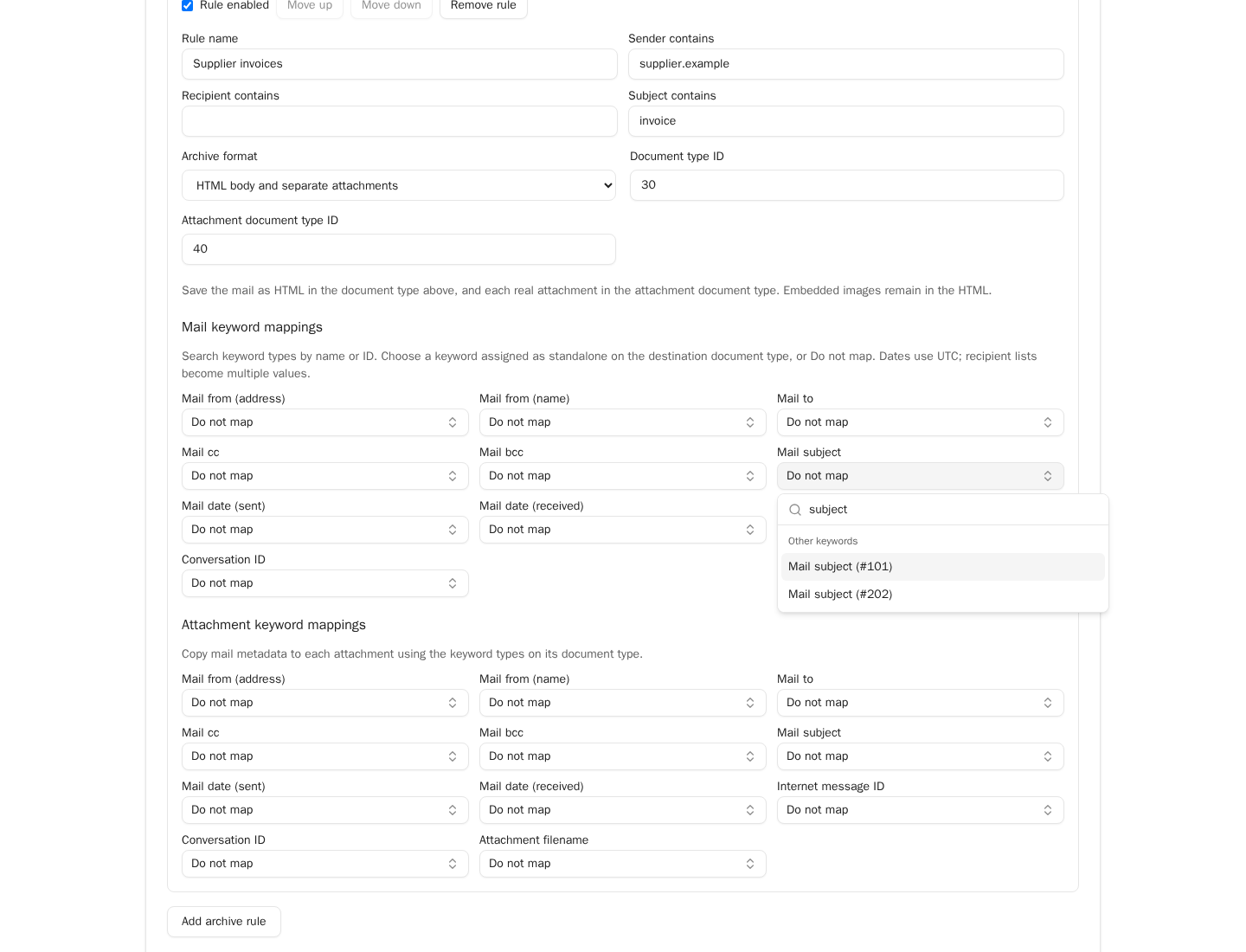 Existing mappings retain their saved keyword IDs and display the current catalogue names. If a saved ID is no longer in the catalogue, it appears as **Keyword type #999 (unavailable)**, with the actual ID in place of 999. It remains saved until you explicitly replace it or choose **Do not map**; saving another setting does not silently remove it. Check the destination configuration before continuing imports with an unavailable keyword.
While keyword types load, the mapping controls are disabled. If loading fails, the form shows **Could not load keyword types**, keeps saved mappings, and leaves these controls disabled. Save any other pending edits before reloading the page to try again. With View permission, the dropdowns display their selections but cannot be changed.
| UI field | Value written to the keyword |
| ------------------------ | ---------------------------------------------------------------------- |
| **Mail from (address)** | Sender email address |
| **Mail from (name)** | Sender display name, when present |
| **Mail to** | To addresses, as separate values |
| **Mail cc** | Cc addresses, as separate values |
| **Mail bcc** | Bcc addresses available in the received metadata; these may be absent |
| **Mail subject** | Message subject |
| **Mail date (sent)** | Sent timestamp in UTC; left empty if absent |
| **Mail date (received)** | Received timestamp in UTC |
| **Internet message ID** | Message's internet identifier |
| **Conversation ID** | Microsoft Graph conversation identifier |
| **Attachment filename** | The individual attachment's filename; available in attachment mappings |
Mail and attachment mappings are independent. For example, to make every supplier attachment searchable by the sender and subject, fill those fields in **Attachment keyword mappings** as well as in **Mail keyword mappings**. Filling them only for the HTML document does not populate the attachments.
### Extend the screenshot's mappings
Suppose Supplier mail and Supplier attachments have the following additional standalone keyword types. Select these named options in the corresponding dropdowns:
| Mail parameter | Supplier mail, type 30 | Supplier attachments, type 40 |
| -------------------- | ------------------------ | -------------------------------- |
| Mail from (address) | **Mail from (#102)** | **Attachment sender (#204)** |
| Mail to | **Mail to (#103)** | **Attachment recipients (#205)** |
| Mail date (received) | **Mail received (#104)** | **Attachment received (#206)** |
For a message from `billing@supplier.example` to `intake@example.com`, received at `2026-09-09T08:00:00Z`, the mail document gets the sender in keyword 102, recipient in 103, and received time in 104. Each attachment gets the same metadata in 204, 205, and 206, alongside its own filename in 203.
The importer supplies date mappings in UTC using `yyyy-MM-ddTHH:mm:ss`, for example `2026-09-09T08:00:00`, even though the start-time picker shows local time. Multiple recipients become multiple keyword values. Mapping several mail fields to the same keyword combines distinct values; check that this cardinality is suitable for the target keyword.
A missing source field does not manufacture a value for a required keyword. If a document type requires data that mail metadata cannot provide, resolve that requirement in the destination configuration before enabling import. A workflow starts after archiving and cannot repair a keyword validation failure that prevents document creation.
## Inline images and real attachments
The importer uses the same mail parsing foundation as normal mail upload. Like the Office add-in's treatment of embedded images, it distinguishes body resources from attached documents.
| Message content | Whole EML | HTML and separate attachments |
| -------------------------------------------------------------------------------- | -------------------------------- | -------------------------------------------------------------------- |
| Body and standard mail headers | Retained in the original message | Body becomes HTML; selected metadata is stored through your mappings |
| CID-referenced inline image, such as a signature logo | Retained inside the EML | Embedded in the HTML when it can be safely included |
| Ordinary PDF, Word file, or other real attachment | Retained inside the EML | Saved as its own attachment document |
| PDF or another non-image file marked “inline” by the sender | Retained inside the EML | Still saved as a separate attachment |
| Image that cannot be embedded or is no longer referenced after HTML sanitization | Retained inside the EML | Preserved as a separate attachment |
For example, a message with an HTML body, one embedded signature PNG, and two attached PDFs normally becomes **three documents**: one HTML mail containing the logo, and two PDF documents. The same message in whole EML mode becomes **one document**.
HTML is sanitized, and external resources such as remote tracking images are blocked. The result may look different from the message in Outlook. Plain-text mail is escaped into HTML. Choose EML when retaining the original MIME representation is essential.
There are additional content limits for split archives: at most 100 real attachments, up to 256 embedded images, an 8 MiB budget for encoded inline-image data, and a 100 MiB generated HTML limit. Encoding increases image size, so the inline budget is not an 8 MiB allowance for original image files. Excessive expansion fails explicitly. Unsafe attachment filenames or unsupported content can also prevent archiving. See [Troubleshooting](/mailbox-importer/operations#troubleshooting) before retrying.
## Changing rules after imports have started
New imports use the saved configuration. A message that has already saved any document keeps its original selected policy and mappings on retry, even if you subsequently edit the rules. Previously imported documents are not reclassified. See [Change a source or policy](/mailbox-importer/operations#change-a-source-or-policy).
## Where to read next
Start postprocessing after the complete archive exists and use mail metadata and attachment document IDs.
Prepare standalone keyword types, data types, and validation for the values you map.
Existing mappings retain their saved keyword IDs and display the current catalogue names. If a saved ID is no longer in the catalogue, it appears as **Keyword type #999 (unavailable)**, with the actual ID in place of 999. It remains saved until you explicitly replace it or choose **Do not map**; saving another setting does not silently remove it. Check the destination configuration before continuing imports with an unavailable keyword.
While keyword types load, the mapping controls are disabled. If loading fails, the form shows **Could not load keyword types**, keeps saved mappings, and leaves these controls disabled. Save any other pending edits before reloading the page to try again. With View permission, the dropdowns display their selections but cannot be changed.
| UI field | Value written to the keyword |
| ------------------------ | ---------------------------------------------------------------------- |
| **Mail from (address)** | Sender email address |
| **Mail from (name)** | Sender display name, when present |
| **Mail to** | To addresses, as separate values |
| **Mail cc** | Cc addresses, as separate values |
| **Mail bcc** | Bcc addresses available in the received metadata; these may be absent |
| **Mail subject** | Message subject |
| **Mail date (sent)** | Sent timestamp in UTC; left empty if absent |
| **Mail date (received)** | Received timestamp in UTC |
| **Internet message ID** | Message's internet identifier |
| **Conversation ID** | Microsoft Graph conversation identifier |
| **Attachment filename** | The individual attachment's filename; available in attachment mappings |
Mail and attachment mappings are independent. For example, to make every supplier attachment searchable by the sender and subject, fill those fields in **Attachment keyword mappings** as well as in **Mail keyword mappings**. Filling them only for the HTML document does not populate the attachments.
### Extend the screenshot's mappings
Suppose Supplier mail and Supplier attachments have the following additional standalone keyword types. Select these named options in the corresponding dropdowns:
| Mail parameter | Supplier mail, type 30 | Supplier attachments, type 40 |
| -------------------- | ------------------------ | -------------------------------- |
| Mail from (address) | **Mail from (#102)** | **Attachment sender (#204)** |
| Mail to | **Mail to (#103)** | **Attachment recipients (#205)** |
| Mail date (received) | **Mail received (#104)** | **Attachment received (#206)** |
For a message from `billing@supplier.example` to `intake@example.com`, received at `2026-09-09T08:00:00Z`, the mail document gets the sender in keyword 102, recipient in 103, and received time in 104. Each attachment gets the same metadata in 204, 205, and 206, alongside its own filename in 203.
The importer supplies date mappings in UTC using `yyyy-MM-ddTHH:mm:ss`, for example `2026-09-09T08:00:00`, even though the start-time picker shows local time. Multiple recipients become multiple keyword values. Mapping several mail fields to the same keyword combines distinct values; check that this cardinality is suitable for the target keyword.
A missing source field does not manufacture a value for a required keyword. If a document type requires data that mail metadata cannot provide, resolve that requirement in the destination configuration before enabling import. A workflow starts after archiving and cannot repair a keyword validation failure that prevents document creation.
## Inline images and real attachments
The importer uses the same mail parsing foundation as normal mail upload. Like the Office add-in's treatment of embedded images, it distinguishes body resources from attached documents.
| Message content | Whole EML | HTML and separate attachments |
| -------------------------------------------------------------------------------- | -------------------------------- | -------------------------------------------------------------------- |
| Body and standard mail headers | Retained in the original message | Body becomes HTML; selected metadata is stored through your mappings |
| CID-referenced inline image, such as a signature logo | Retained inside the EML | Embedded in the HTML when it can be safely included |
| Ordinary PDF, Word file, or other real attachment | Retained inside the EML | Saved as its own attachment document |
| PDF or another non-image file marked “inline” by the sender | Retained inside the EML | Still saved as a separate attachment |
| Image that cannot be embedded or is no longer referenced after HTML sanitization | Retained inside the EML | Preserved as a separate attachment |
For example, a message with an HTML body, one embedded signature PNG, and two attached PDFs normally becomes **three documents**: one HTML mail containing the logo, and two PDF documents. The same message in whole EML mode becomes **one document**.
HTML is sanitized, and external resources such as remote tracking images are blocked. The result may look different from the message in Outlook. Plain-text mail is escaped into HTML. Choose EML when retaining the original MIME representation is essential.
There are additional content limits for split archives: at most 100 real attachments, up to 256 embedded images, an 8 MiB budget for encoded inline-image data, and a 100 MiB generated HTML limit. Encoding increases image size, so the inline budget is not an 8 MiB allowance for original image files. Excessive expansion fails explicitly. Unsafe attachment filenames or unsupported content can also prevent archiving. See [Troubleshooting](/mailbox-importer/operations#troubleshooting) before retrying.
## Changing rules after imports have started
New imports use the saved configuration. A message that has already saved any document keeps its original selected policy and mappings on retry, even if you subsequently edit the rules. Previously imported documents are not reclassified. See [Change a source or policy](/mailbox-importer/operations#change-a-source-or-policy).
## Where to read next
Start postprocessing after the complete archive exists and use mail metadata and attachment document IDs.
Prepare standalone keyword types, data types, and validation for the values you map.