> ## Documentation Index
> Fetch the complete documentation index at: https://docs.insight.nobly.dk/llms.txt
> Use this file to discover all available pages before exploring further.
# Pending uploads queue
> Let a scanner or another system hand files to Nobly Insight, where they wait on the Pending uploads tab until someone indexes and archives them or removes them.
The pending uploads queue lets a scanner, a mailroom pipeline or another system hand files to Nobly Insight without indexing them itself. The files wait on the **Pending uploads** tab of the upload tool. Someone working the queue starts an item, indexes its files in the upload list as they would any other upload, and archives them. An item that should not be archived can be removed.
The queue is opt-in. Nobody holds its permissions until you grant them, and the tab is hidden from anyone without them.
## How the queue works
The source sends between 1 and 100 files in one call, with a label such as `Mailroom scanner` that tells people where they came from. Each call becomes one item on the queue.
The files are stored encrypted. Items do not expire and are never cleaned up automatically: an item stays until its files are archived or someone removes it. Everyone who works the queue sees every item, not only their own.
**Start upload** marks the item as handled by that person and loads its files into their upload list as ordinary rows.
Each file is indexed and uploaded like any other: document type, document date, keywords and AI suggestions work as usual. When the last file of an item is archived, the item leaves the queue.
Two permissions govern the queue, one for each side:
| Who | Permission | What it allows |
| - | - | - |
| The source | **Prepare Pending Uploads** (`pending-uploads.prepare`) | Put items on the queue. It does not show the queue or anything on it. |
| The people working the queue | **Handle Pending Uploads** (`pending-uploads.manage`) | See the **Pending uploads** tab and every item on it, start items, take items over, and remove them |
Neither permission includes the other. Handling the queue does not give access to any document type: archiving a file from the queue needs the same [document access rights](/configuration/document-access-rights) as any other upload of that type.
## Set up the queue
### Before you begin
* Confirm that **Upload** is available in your environment. The queue is a tab of the Upload page.
* To grant the permissions you need **Manage permissions**. To create the source's API client you need `iam.clients.manage`.
* Agree with the source's owner on the label the source will send and on the document types its files will be archived as.
Open **Admin settings → Access → API clients** and create one client per source. Creating it also creates a dedicated service user, and a dedicated user group that starts without rights. See [API clients and service accounts](/integrations/api-clients).
On the [Permissions screen](/permissions/managing-permissions), grant **Prepare Pending Uploads** to the client's dedicated group. The source needs no document access rights to queue files, because it never archives anything itself.
Grant **Handle Pending Uploads** to the user groups that index the delivered files. Check that those groups can create documents of the types the files will be archived as.
Give the source's owner the client ID and secret and the [contract below](#what-a-source-sends). The source signs in with client credentials, as described for [integration contracts](/integrations/contracts).
Have the source queue two test items. As a member of a handling group, open **Upload → Pending uploads**: both items are listed under the source's label. Start one, archive its files and choose **Refresh**: the item has left the queue. Remove the other.
### What a source sends
A source queues an item with `POST /api/v3/pending-uploads`, sent as a multipart form with these fields:
| Field | Required | What it holds |
| - | - | - |
| `source` | Yes | The label shown in the **Source** column, such as `Mailroom scanner`. Up to 200 characters. |
| `externalId` | No | The source's own ID for this delivery, up to 200 characters. While an item with the same source and ID from the same account is still waiting, sending it again returns that item instead of queueing the files twice. |
| `files` | Yes | 1–100 files, none of them empty, with names of up to 255 characters. Each file becomes its own row in the upload list. |
Send each file with its content type and a file name with the right extension. When the type is missing, the upload list goes by the extension.
| Answer | Meaning |
| - | - |
| **201 Created** | The item was queued. The answer is the item. |
| **200 OK** | An item with this source and `externalId` from this account is still waiting. It is returned and nothing was stored again. |
| **400 Bad Request** | The source is missing, there are no files or more than 100, a file is empty, or a value is too long or contains control characters such as line breaks |
| **403 Forbidden** | The account lacks **Prepare Pending Uploads** |
| **500** or **503** | The item could not be saved. Retry with the same `externalId`. A **503** without a `Retry-After` header means the queue is not available in this environment. |
Always send an `externalId` when the source has one, so that a retry after a timeout cannot queue the same delivery twice. The protection lasts only while the item waits: once it has been archived or removed, the same ID queues the files again.
Use the interactive API reference for your environment for the full request and response shapes.
## Work the queue
With **Handle Pending Uploads**, open **Upload** and choose the **Pending uploads** tab next to **Upload**. The number on the tab is how many items are waiting.
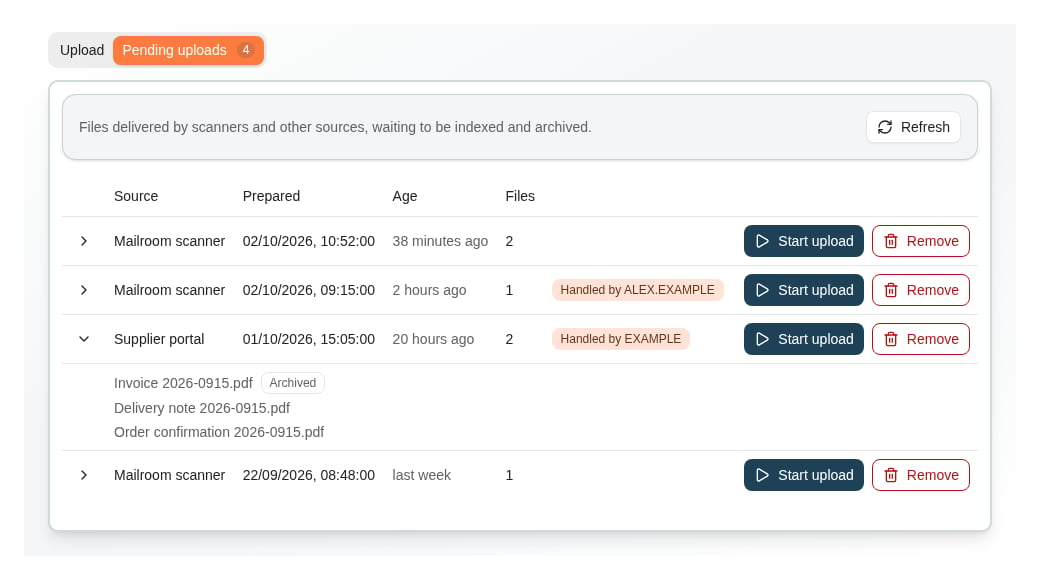 | Column | What it shows |
| - | - |
| **Source** | The label the source sent with the item |
| **Prepared** | When the source queued the item, in your local time |
| **Age** | How long the item has waited. Old items are not marked or removed automatically, so use this column to find items nobody has picked up. |
| **Files** | How many files are still to be archived. Expand the row to see their names; files already archived are marked **Archived**. |
| **Handled by** badge | Who last started the item. An item nobody has started has no badge. |
The list is loaded each time you open the tab, but it does not update while you watch it. Choose **Refresh** to see items queued since.
### Start an item
Choose **Start upload**. The item is marked as handled by you, its files load into the upload list, and the tool switches to the **Upload** tab. The bar above the list says how many files came from pending uploads, with **Back to queue** to return.
| Column | What it shows |
| - | - |
| **Source** | The label the source sent with the item |
| **Prepared** | When the source queued the item, in your local time |
| **Age** | How long the item has waited. Old items are not marked or removed automatically, so use this column to find items nobody has picked up. |
| **Files** | How many files are still to be archived. Expand the row to see their names; files already archived are marked **Archived**. |
| **Handled by** badge | Who last started the item. An item nobody has started has no badge. |
The list is loaded each time you open the tab, but it does not update while you watch it. Choose **Refresh** to see items queued since.
### Start an item
Choose **Start upload**. The item is marked as handled by you, its files load into the upload list, and the tool switches to the **Upload** tab. The bar above the list says how many files came from pending uploads, with **Back to queue** to return.
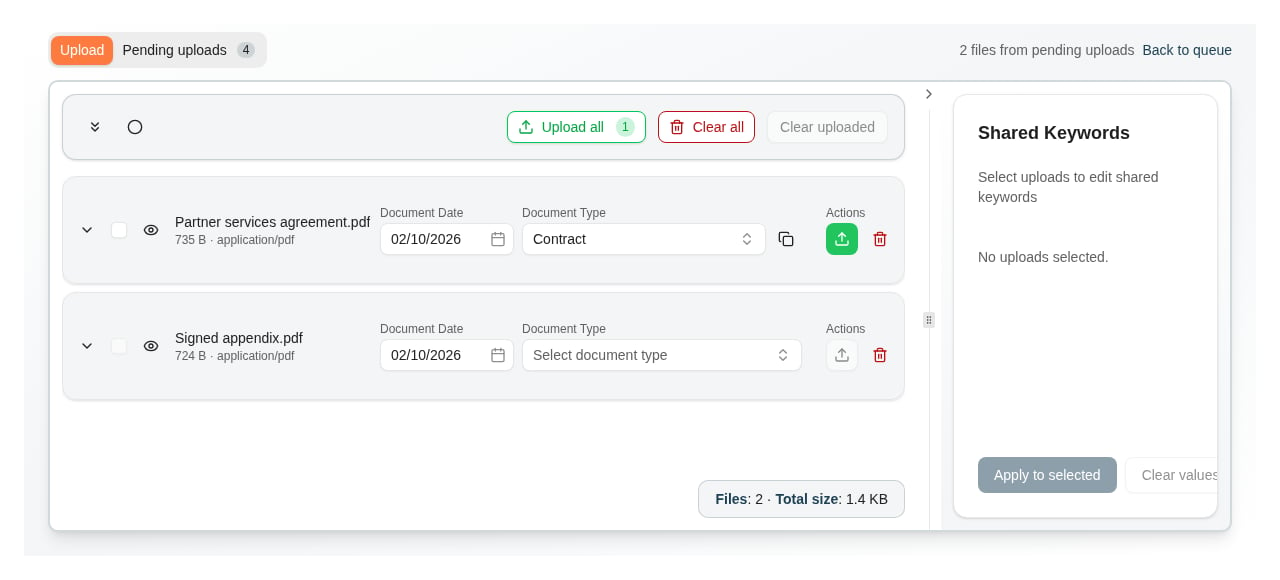 Index and upload the files as described in [How to upload and index documents](/how-tos/upload-documents). You can archive an item's files in several sittings: files already archived stay marked, and starting the item again loads only the files that are left. If your [upload defaults](/client-administration/defaults-and-actions#configure-upload-behavior) take the document date from the file's last-modified time, a file from the queue gets the time the source queued it.
### Take over an item
**Handled by** tells your colleagues who is working on an item, but it does not lock it, and it never expires. When you start an item someone else is handling, you are asked whether to take it over.
Index and upload the files as described in [How to upload and index documents](/how-tos/upload-documents). You can archive an item's files in several sittings: files already archived stay marked, and starting the item again loads only the files that are left. If your [upload defaults](/client-administration/defaults-and-actions#configure-upload-behavior) take the document date from the file's last-modified time, a file from the queue gets the time the source queued it.
### Take over an item
**Handled by** tells your colleagues who is working on an item, but it does not lock it, and it never expires. When you start an item someone else is handling, you are asked whether to take it over.
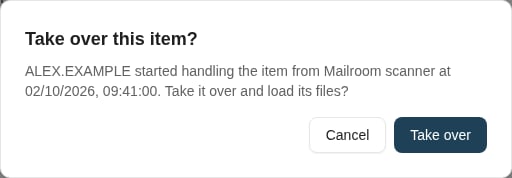 **Take over** loads the files for you and marks the item as yours. Rows your colleague loaded from that item and has not archived yet stop with a message that you have taken it over, instead of archiving the same file a second time. They can start the item again from the queue to take it back. The same happens to you when you start an item again in a second browser tab: the rows in the first tab stop.
Take over items that have been left, such as by a colleague who is away. Do not use it to work on one item together.
### Remove an item
Remove an item that should not be archived, such as a blank page, a duplicate scan or something sent by mistake. Choose **Remove** and confirm.
**Take over** loads the files for you and marks the item as yours. Rows your colleague loaded from that item and has not archived yet stop with a message that you have taken it over, instead of archiving the same file a second time. They can start the item again from the queue to take it back. The same happens to you when you start an item again in a second browser tab: the rows in the first tab stop.
Take over items that have been left, such as by a colleague who is away. Do not use it to work on one item together.
### Remove an item
Remove an item that should not be archived, such as a blank page, a duplicate scan or something sent by mistake. Choose **Remove** and confirm.
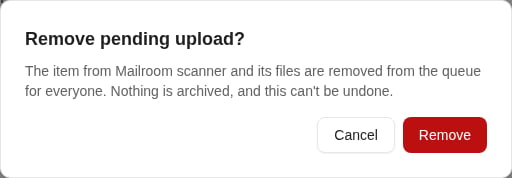 The item and its files are deleted for everyone. If the item's files are in your upload list, they are taken out of it too. Files of the item that were archived before stay archived: removing an item never deletes a document.
## What is kept and recorded
* **Encryption.** Files are stored encrypted while they wait and are deleted when their item leaves the queue.
* **No expiry.** Nothing leaves the queue on its own. Agree in your team who checks the **Age** column and removes what nobody will archive.
* **Audit.** Every item that leaves the queue is recorded in the configuration audit log as `PendingUpload:` followed by the item's ID, which the source received when it queued the item. The entry keeps the item as it was and how it left: for an archived item, the document each file became and who archived it when; for a removed item, who removed it and who was handling it at the time. Use your organization's configuration-audit access or support process to look one up.
* **Documents.** The queue shows whether each file has been archived, not which document it became. Find the documents through Search, or through the audit entry.
## Where the queue appears
The **Pending uploads** tab appears only on the main **Upload** page. It is not shown in the Office add-in's upload window, or where an upload is embedded in a Caseflow template.
## Troubleshooting
| Symptom | Likely cause | What to do |
| - | - | - |
| No **Pending uploads** tab | You lack **Handle Pending Uploads**, or you are not on the main **Upload** page | Grant the permission to one of your groups and reload the page |
| The source's call is refused with **403** | Its account lacks **Prepare Pending Uploads** | Grant it to the API client's group and retry |
| The source's call is refused with **503** and no `Retry-After` | The queue is not available in this environment | Contact Nobly support |
| A queued item does not appear | The list was loaded before the item arrived | Choose **Refresh** |
| *This item is no longer on the queue.* | A colleague archived its last file or removed it meanwhile | Refresh the list. Find archived files through Search. |
| Rows stop with a message that someone has taken over the pending upload | A colleague took the item over | Agree who finishes the item. Start it again to take it back. |
| *The item was marked as handled by you, but its files couldn't be loaded.* | Loading the files failed after the item was marked as yours | Choose **Retry** on the row |
| *Couldn't remove the pending upload* with a conflict | A file of the item was archived, or someone started the item, while you were removing it | Refresh the list, check the item, and remove it again if it should still go |
| *All files of this item are already archived.* | The item was completed but your list is older | Refresh, and remove the item if it is still listed |
| The same delivery is on the queue twice | The source retried without an `externalId`, or after the first item had left the queue | Remove the extra item, and have the source send an `externalId` |
## Where to read next
Connect a mailbox, choose how mail and attachments are archived, and start postprocessing workflows.
Choose document types, review keyword values and verify the archived result for the files you load from the queue.
Create the source's machine identity, grant its group access, and rotate its secret.
The permission catalogue, including the two pending uploads permissions.
This documentation is built and hosted on [Mintlify](https://mintlify.com), a developer documentation platform.
The item and its files are deleted for everyone. If the item's files are in your upload list, they are taken out of it too. Files of the item that were archived before stay archived: removing an item never deletes a document.
## What is kept and recorded
* **Encryption.** Files are stored encrypted while they wait and are deleted when their item leaves the queue.
* **No expiry.** Nothing leaves the queue on its own. Agree in your team who checks the **Age** column and removes what nobody will archive.
* **Audit.** Every item that leaves the queue is recorded in the configuration audit log as `PendingUpload:` followed by the item's ID, which the source received when it queued the item. The entry keeps the item as it was and how it left: for an archived item, the document each file became and who archived it when; for a removed item, who removed it and who was handling it at the time. Use your organization's configuration-audit access or support process to look one up.
* **Documents.** The queue shows whether each file has been archived, not which document it became. Find the documents through Search, or through the audit entry.
## Where the queue appears
The **Pending uploads** tab appears only on the main **Upload** page. It is not shown in the Office add-in's upload window, or where an upload is embedded in a Caseflow template.
## Troubleshooting
| Symptom | Likely cause | What to do |
| - | - | - |
| No **Pending uploads** tab | You lack **Handle Pending Uploads**, or you are not on the main **Upload** page | Grant the permission to one of your groups and reload the page |
| The source's call is refused with **403** | Its account lacks **Prepare Pending Uploads** | Grant it to the API client's group and retry |
| The source's call is refused with **503** and no `Retry-After` | The queue is not available in this environment | Contact Nobly support |
| A queued item does not appear | The list was loaded before the item arrived | Choose **Refresh** |
| *This item is no longer on the queue.* | A colleague archived its last file or removed it meanwhile | Refresh the list. Find archived files through Search. |
| Rows stop with a message that someone has taken over the pending upload | A colleague took the item over | Agree who finishes the item. Start it again to take it back. |
| *The item was marked as handled by you, but its files couldn't be loaded.* | Loading the files failed after the item was marked as yours | Choose **Retry** on the row |
| *Couldn't remove the pending upload* with a conflict | A file of the item was archived, or someone started the item, while you were removing it | Refresh the list, check the item, and remove it again if it should still go |
| *All files of this item are already archived.* | The item was completed but your list is older | Refresh, and remove the item if it is still listed |
| The same delivery is on the queue twice | The source retried without an `externalId`, or after the first item had left the queue | Remove the extra item, and have the source send an `externalId` |
## Where to read next
Connect a mailbox, choose how mail and attachments are archived, and start postprocessing workflows.
Choose document types, review keyword values and verify the archived result for the files you load from the queue.
Create the source's machine identity, grant its group access, and rotate its secret.
The permission catalogue, including the two pending uploads permissions.
This documentation is built and hosted on [Mintlify](https://mintlify.com), a developer documentation platform.