> ## Documentation Index
> Fetch the complete documentation index at: https://docs.insight.nobly.dk/llms.txt
> Use this file to discover all available pages before exploring further.
# How to view and work with documents
> Open documents, navigate pages and revisions, inspect information, and choose download, sharing, or editing actions.
Start with the document itself: check that you have the right record and version, then choose the tool for the work you need to do. Document actions depend on your permissions, the file format, and the features available to your account.
## Before you begin
You need access to the document. Viewing older revisions, changing keywords, uploading revisions, and editing content can require additional rights. A copied link does not grant access. For access problems, see [document access rights](/configuration/document-access-rights).
## Open the document
1. [Find the document in Search](/how-tos/search-for-documents) and select its row to show the preview.
2. Check the document name, ID, type, and keywords. Similar filenames can refer to different records.
3. Use **Open in new page** when you need more room; it opens the document in a new browser tab. Hover over an action icon to read its label.
4. Choose **Open in redaction** when you want to [redact](/how-tos/redact-a-document) or [annotate](/how-tos/annotate-a-document) the document. That viewer can also appear within a Caseflow document panel.
If a format cannot be previewed, use the offered download action and inspect it in an appropriate application. For redaction, use a supported rendition and review any conversion before marking content.
## Navigate pages and adjust the view
The exact controls depend on the preview format. In the redaction and annotation viewer:
| Control | What you do |
| ----------------------------- | ---------------------------------------------------------------------------- |
| **Toggle thumbnails** | Show or hide the left page rail; select a thumbnail to jump to that page. |
| **Previous page / Next page** | Move between pages. |
| **Go to page** | Type a page number and press Enter. |
| **Zoom in / Zoom out** | Increase or reduce magnification. |
| **Zoom** | Choose a percentage, **Fit to width**, or **Fit page**. |
| **Toggle sidebar** | Show document text search and the mark/annotation list. |
| **Search document** | Find recognised text within this document; select a match to navigate to it. |
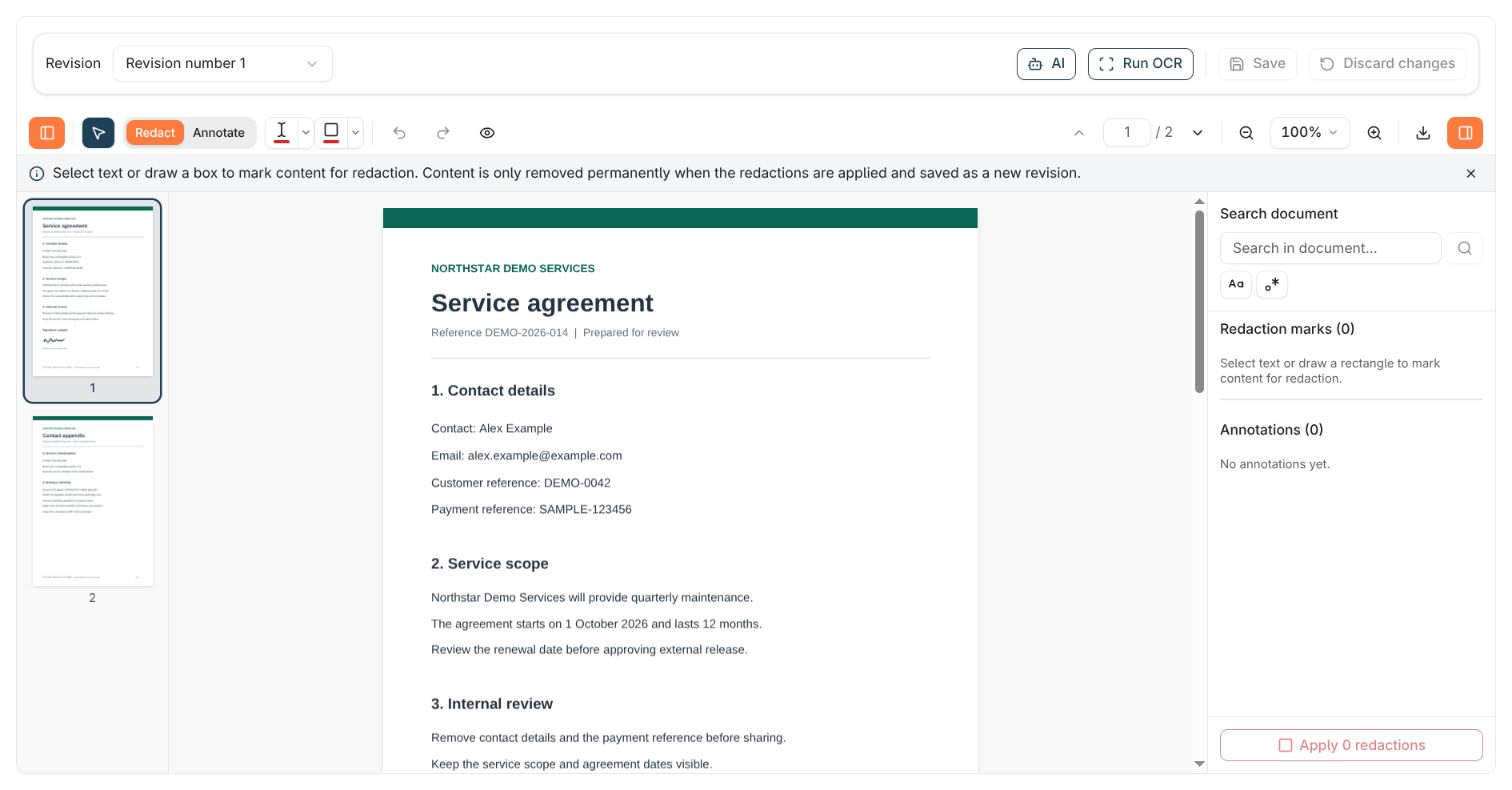 On a narrow window or embedded panel, toolbars wrap and side panels may start closed. Hide a panel to gain reading space, then reopen it when needed. Zoom out or use **Fit page** for an overview; zoom in again to check small text or redaction boundaries.
## Check revisions, renditions, and history
A **revision** is a stored version of the document. A **rendition** is a file representation of a revision, such as a PDF. Select the intended revision and, where available, its rendition before reviewing or downloading it.
Use **Show history** to inspect available revision and document-history information. Check the revision number, date, author, and comment to understand which version you are reading. Opening an older revision lets you inspect that version; it does not by itself restore it as the latest one.
The redaction viewer has its own **Revision** selector and opens the latest revision initially. Saving annotations, reviewable marks, or an applied redaction result creates a new revision. Earlier revisions remain available according to access rights. Save an applied working result before switching versions if you need to retain it.
If the viewer reports another active editor or a newly created revision, check whether loading it would discard your current work. See [leaving or changing revisions during redaction](/how-tos/redact-a-document#understand-the-different-ways-to-undo-or-leave).
## Choose the document action
| What you want to do | Action and checks |
| -------------------------------------------- | ----------------------------------------------------------------------------------------------------------------------------------------------------------------------------------------------------------------------------------------------------------- |
| Inspect file details | Choose **Document Information**. Use the document ID and revision details when reporting an issue. |
| Correct indexing metadata | Open **Keywords**, edit allowed fields, save, and verify. Follow [Update document keywords](/how-tos/update-keywords), especially for required values, autofill, and repeatable groups. |
| Add discussion or follow changes | Open **Notes**. Follow [Add a note and follow a document](/how-tos/notes-and-following) for replies, mentions, and notifications. These notes are separate from PDF annotations. |
| Remove sensitive content | Choose **Open in redaction**, mark the content, apply the marks, inspect, and save. Follow [Redact a document](/how-tos/redact-a-document). |
| Highlight or comment on a page | Choose **Open in redaction → Annotate**. Follow [Annotate a document](/how-tos/annotate-a-document). |
| Download a stored file | Choose **Download document**. Check which stored rendition the action targets, then inspect the downloaded file. Unsaved redaction edits are not included. |
| Export the redaction viewer's current result | Use its **Download** menu and choose with or without annotations. Read the [export rules](/how-tos/redact-a-document#download-and-check-a-release-copy) before sharing. |
| Point a colleague to the document | Choose **Copy link**, then share it through your normal process. The link preserves access rules and does not create a fixed, redacted-only file. |
| Edit an Office file | Use **Open in app** or **Open in Office Online** when enabled and supported. Complete the application's save/check-in flow, return to Nobly Insight, and verify the stored revision. Resolve active-editor warnings before making conflicting changes. |
| Store a revised source file | Choose **Upload New Revision**, select the replacement file, review any required revision comment, and complete the upload. Reopen the new revision to verify it belongs to the intended document. |
| Run an organisation-specific action | Use the configured document action when available. Its name and effect depend on your organisation's setup. Check what it will do before running it; see [shared document actions](/client-administration/defaults-and-actions#configure-document-actions). |
### OCR and document questions
In the redaction viewer, **Run OCR** can add recognised text to a PDF so you can select and search it. Check the result against the visible page; OCR is not a verification of the document's accuracy.
When **AI** redaction is available, you can ask questions about the open document or request text to be marked. Check answers against the source and review every suggested mark. See [AI-assisted redaction](/how-tos/redact-a-document#use-ai-assisted-redaction). AI search and chat elsewhere have their own [search workflow](/ai-search/introduction).
## Check the outcome
After changing content or metadata, reopen the relevant document or revision and verify what was stored. After downloading, open the actual file. After copying a link, remember that its recipient sees only what their own rights allow, which may include earlier revisions if they have revision access.
If an action is unavailable or fails, record the document ID, chosen revision, action name, and reported message. Check access and file-format support before repeating a write or upload; a successful save followed by a failed reload can otherwise produce duplicate revisions.
## Where to read next
Mark sensitive text and areas, apply the redactions, and save and verify a PDF before sharing.
On a narrow window or embedded panel, toolbars wrap and side panels may start closed. Hide a panel to gain reading space, then reopen it when needed. Zoom out or use **Fit page** for an overview; zoom in again to check small text or redaction boundaries.
## Check revisions, renditions, and history
A **revision** is a stored version of the document. A **rendition** is a file representation of a revision, such as a PDF. Select the intended revision and, where available, its rendition before reviewing or downloading it.
Use **Show history** to inspect available revision and document-history information. Check the revision number, date, author, and comment to understand which version you are reading. Opening an older revision lets you inspect that version; it does not by itself restore it as the latest one.
The redaction viewer has its own **Revision** selector and opens the latest revision initially. Saving annotations, reviewable marks, or an applied redaction result creates a new revision. Earlier revisions remain available according to access rights. Save an applied working result before switching versions if you need to retain it.
If the viewer reports another active editor or a newly created revision, check whether loading it would discard your current work. See [leaving or changing revisions during redaction](/how-tos/redact-a-document#understand-the-different-ways-to-undo-or-leave).
## Choose the document action
| What you want to do | Action and checks |
| -------------------------------------------- | ----------------------------------------------------------------------------------------------------------------------------------------------------------------------------------------------------------------------------------------------------------- |
| Inspect file details | Choose **Document Information**. Use the document ID and revision details when reporting an issue. |
| Correct indexing metadata | Open **Keywords**, edit allowed fields, save, and verify. Follow [Update document keywords](/how-tos/update-keywords), especially for required values, autofill, and repeatable groups. |
| Add discussion or follow changes | Open **Notes**. Follow [Add a note and follow a document](/how-tos/notes-and-following) for replies, mentions, and notifications. These notes are separate from PDF annotations. |
| Remove sensitive content | Choose **Open in redaction**, mark the content, apply the marks, inspect, and save. Follow [Redact a document](/how-tos/redact-a-document). |
| Highlight or comment on a page | Choose **Open in redaction → Annotate**. Follow [Annotate a document](/how-tos/annotate-a-document). |
| Download a stored file | Choose **Download document**. Check which stored rendition the action targets, then inspect the downloaded file. Unsaved redaction edits are not included. |
| Export the redaction viewer's current result | Use its **Download** menu and choose with or without annotations. Read the [export rules](/how-tos/redact-a-document#download-and-check-a-release-copy) before sharing. |
| Point a colleague to the document | Choose **Copy link**, then share it through your normal process. The link preserves access rules and does not create a fixed, redacted-only file. |
| Edit an Office file | Use **Open in app** or **Open in Office Online** when enabled and supported. Complete the application's save/check-in flow, return to Nobly Insight, and verify the stored revision. Resolve active-editor warnings before making conflicting changes. |
| Store a revised source file | Choose **Upload New Revision**, select the replacement file, review any required revision comment, and complete the upload. Reopen the new revision to verify it belongs to the intended document. |
| Run an organisation-specific action | Use the configured document action when available. Its name and effect depend on your organisation's setup. Check what it will do before running it; see [shared document actions](/client-administration/defaults-and-actions#configure-document-actions). |
### OCR and document questions
In the redaction viewer, **Run OCR** can add recognised text to a PDF so you can select and search it. Check the result against the visible page; OCR is not a verification of the document's accuracy.
When **AI** redaction is available, you can ask questions about the open document or request text to be marked. Check answers against the source and review every suggested mark. See [AI-assisted redaction](/how-tos/redact-a-document#use-ai-assisted-redaction). AI search and chat elsewhere have their own [search workflow](/ai-search/introduction).
## Check the outcome
After changing content or metadata, reopen the relevant document or revision and verify what was stored. After downloading, open the actual file. After copying a link, remember that its recipient sees only what their own rights allow, which may include earlier revisions if they have revision access.
If an action is unavailable or fails, record the document ID, chosen revision, action name, and reported message. Check access and file-format support before repeating a write or upload; a successful save followed by a failed reload can otherwise produce duplicate revisions.
## Where to read next
Mark sensitive text and areas, apply the redactions, and save and verify a PDF before sharing.