> ## Documentation Index
> Fetch the complete documentation index at: https://docs.insight.nobly.dk/llms.txt
> Use this file to discover all available pages before exploring further.
# How to redact a document
> Mark sensitive text and areas, review AI suggestions, apply redactions, and save and check a PDF before sharing.
Redaction removes selected content from a document so you can release a version with sensitive information concealed. In Nobly Insight, you first **mark** the content, then **apply** the redactions, review the result, and **save** a new revision.
This walkthrough uses a fictional service agreement. You will remove a contact name and email address on two pages, a payment reference, and a signature. Screenshots show the local document viewer with fictional sample data and English labels. Select a screenshot to enlarge it.
To ask AI to identify sensitive text, follow [Use AI-assisted redaction](#use-ai-assisted-redaction), then complete the same review, apply, save, and release checks.
## Before you begin
* You need access to the document and the redaction feature, plus permission to **view and create document revisions**. The document type must allow revisions. These requirements also apply when you only want to save annotations or reviewable marks.
* Open a supported rendition: a PDF, an Office document (`.doc`, `.docx`, `.xls`, `.xlsx`, `.ppt`, or `.pptx`), an image, or an `.eml` or `.msg` email. Conversion may be needed before you can work on it. Other Office variants, such as macro-enabled files or templates, may support Office editing without being supported for redaction.
* Decide what should be removed and what the recipient still needs to read. Check whether the release also includes attachments, related documents, or metadata.
If the viewer is unavailable, ask the person managing your access to check [document access rights](/configuration/document-access-rights) and feature availability.
A coloured mark, highlight, or rectangle does not by itself remove content. **Save** without **Apply** preserves reviewable marks. Apply every intended redaction before producing a release copy. Earlier revisions and original files remain accessible to people with the relevant rights.
## Open and prepare the document
[Find the document](/how-tos/search-for-documents), select it, and choose **Open in redaction** from the document actions. Hover over the pen icon to see its label. In Caseflow, the same viewer may appear inside a document panel.
Check the document name and **Revision** selector. The redaction viewer initially opens the latest revision; check it again even if you were viewing an older revision elsewhere.
Choose **Continue** in **Convert to PDF** to prepare a supported Office document, image, or email for the viewer. Inspect the converted pages before marking them: page breaks and layout can differ from the source application.
Image conversion includes OCR, which recognises text so it can be selected and searched. An email conversion includes the message but **excludes attachments**. Open and review each attachment separately if it is part of the release. Saving your work creates a PDF revision; it does not edit the original Office or email file in place.
Try selecting a known word or using **Search document** in the right sidebar. If a PDF is not searchable, the viewer offers **Run OCR on document**. You can also choose **Run OCR** in the top bar and confirm **Continue**.
Wait for OCR to finish, then check a known phrase again. OCR can miss handwriting, faint text, or unusual layouts. Use area marks for content you can see but cannot reliably select. Run OCR before applying redactions; if you already applied them, use **Undo apply** first.
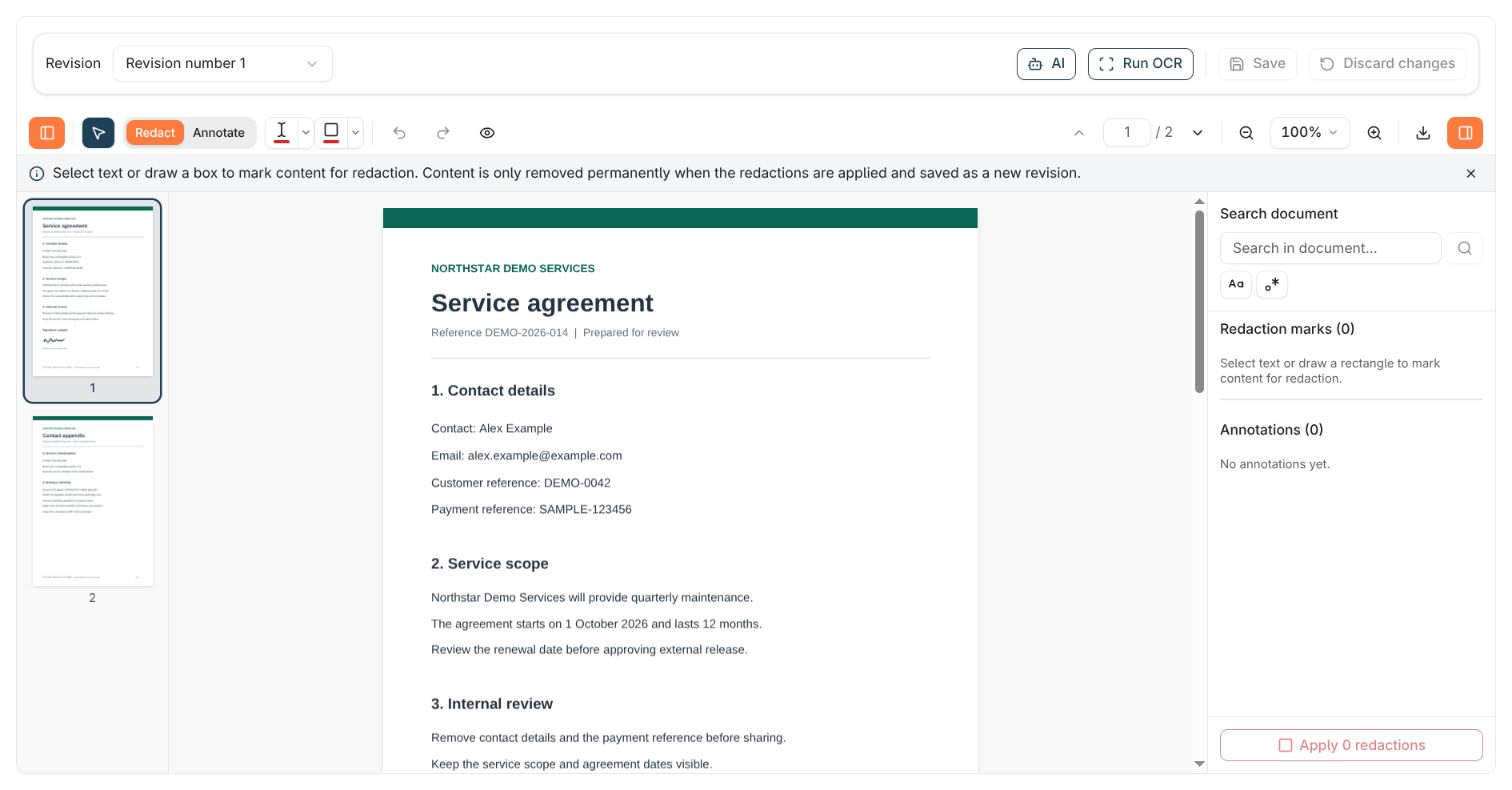 Use the thumbnail rail, **Previous page**, **Next page**, or **Go to page** to move through the document. The **Zoom** menu offers percentages, **Fit to width**, and **Fit page**. On a narrow panel, use **Toggle thumbnails** and **Toggle sidebar** to open the panels you need. See [viewing and document actions](/how-tos/work-with-documents) for revisions, metadata, and other tools.
## Mark text manually
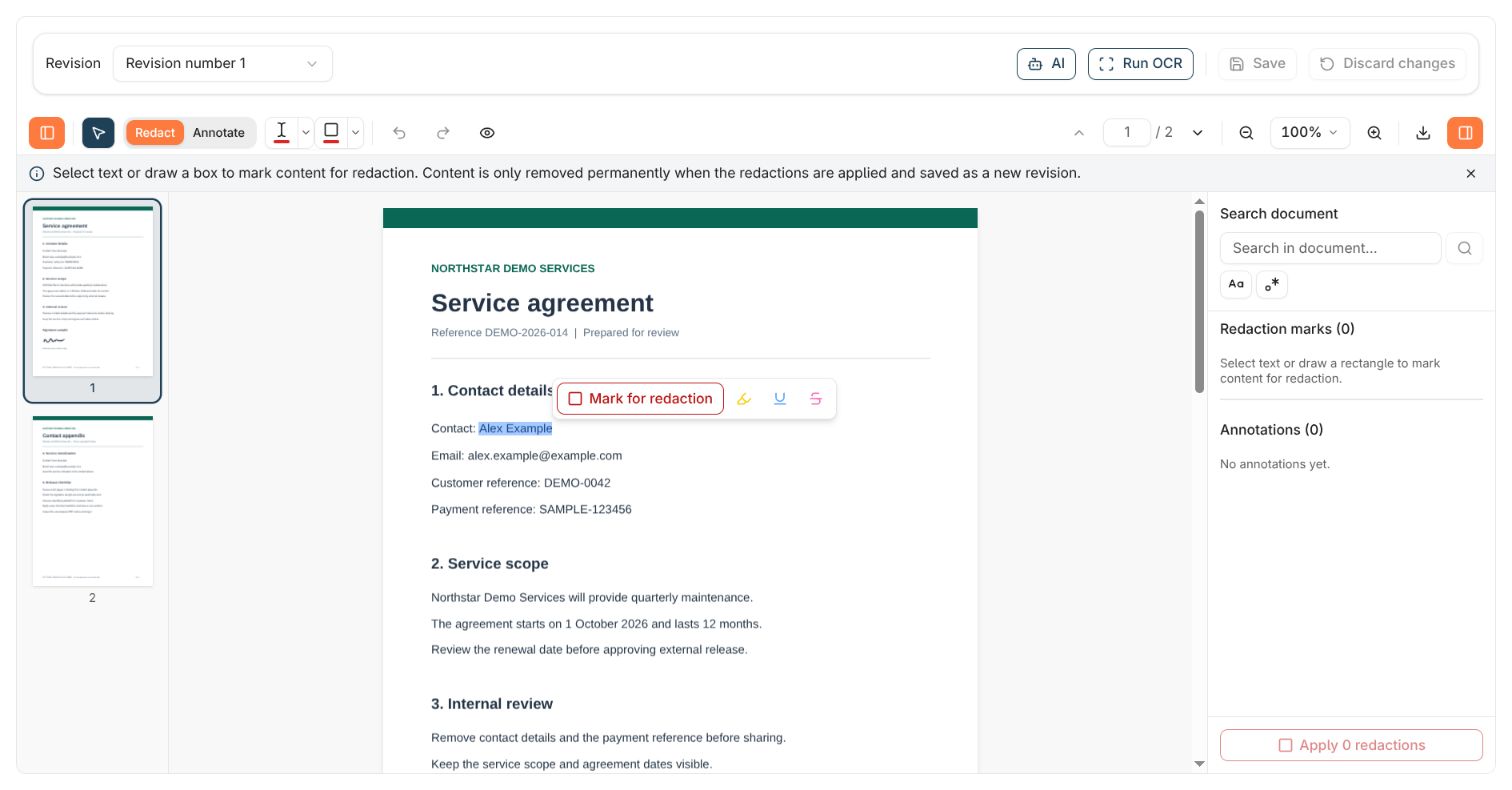
1. Choose **Select**, then drag across the exact text you want to remove. In the example, select `Alex Example` without the `Contact:` label.
2. Choose **Mark for redaction** from the selection popup. Alternatively, choose **Redact → Redact text** first; dragging across text then creates a mark directly.
3. Check the coloured overlay and the new entry in **Redaction marks**. Zoom in if necessary and check that the first and last characters are covered.
4. If the selection is wrong, use **Undo** or **Delete mark**, then select it again.
Use the thumbnail rail, **Previous page**, **Next page**, or **Go to page** to move through the document. The **Zoom** menu offers percentages, **Fit to width**, and **Fit page**. On a narrow panel, use **Toggle thumbnails** and **Toggle sidebar** to open the panels you need. See [viewing and document actions](/how-tos/work-with-documents) for revisions, metadata, and other tools.
## Mark text manually
1. Choose **Select**, then drag across the exact text you want to remove. In the example, select `Alex Example` without the `Contact:` label.
2. Choose **Mark for redaction** from the selection popup. Alternatively, choose **Redact → Redact text** first; dragging across text then creates a mark directly.
3. Check the coloured overlay and the new entry in **Redaction marks**. Zoom in if necessary and check that the first and last characters are covered.
4. If the selection is wrong, use **Undo** or **Delete mark**, then select it again.
 ### Catch repeated details
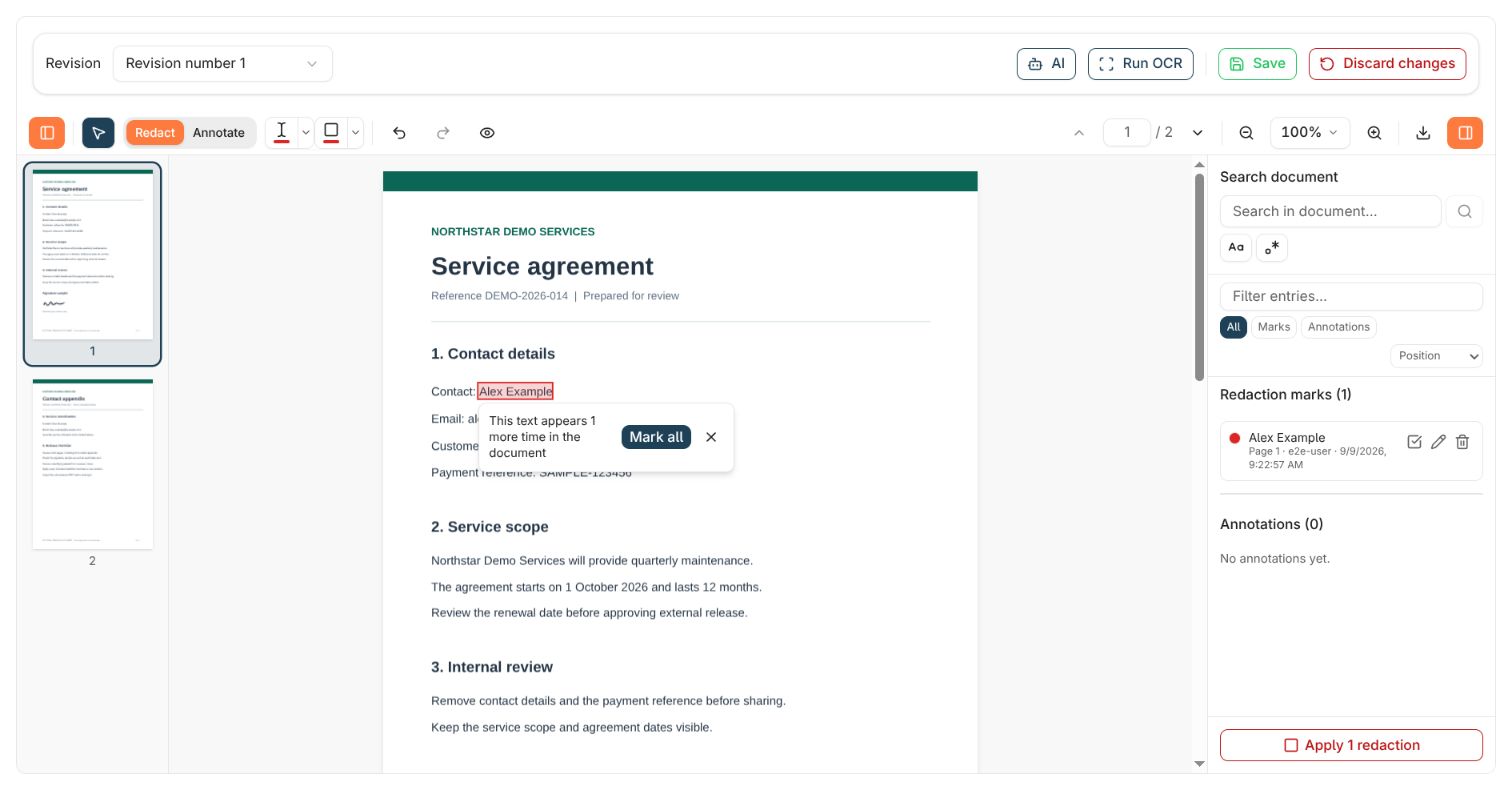
After you mark text, the viewer can report that it appears elsewhere. Choose **Mark all** in that message to mark the remaining matches. Review those locations: the same name or number may appear in a header, footer, or appendix.
### Catch repeated details
After you mark text, the viewer can report that it appears elsewhere. Choose **Mark all** in that message to mark the remaining matches. Review those locations: the same name or number may appear in a header, footer, or appendix.
 This finds matching text, not every way the same person or detail might be written. Search separately for initials, alternative spellings, and differently formatted identifiers. A successful apply does not prove you found everything that needs to be removed.
## Find and mark text across pages
1. Open the right sidebar with **Toggle sidebar** if needed.
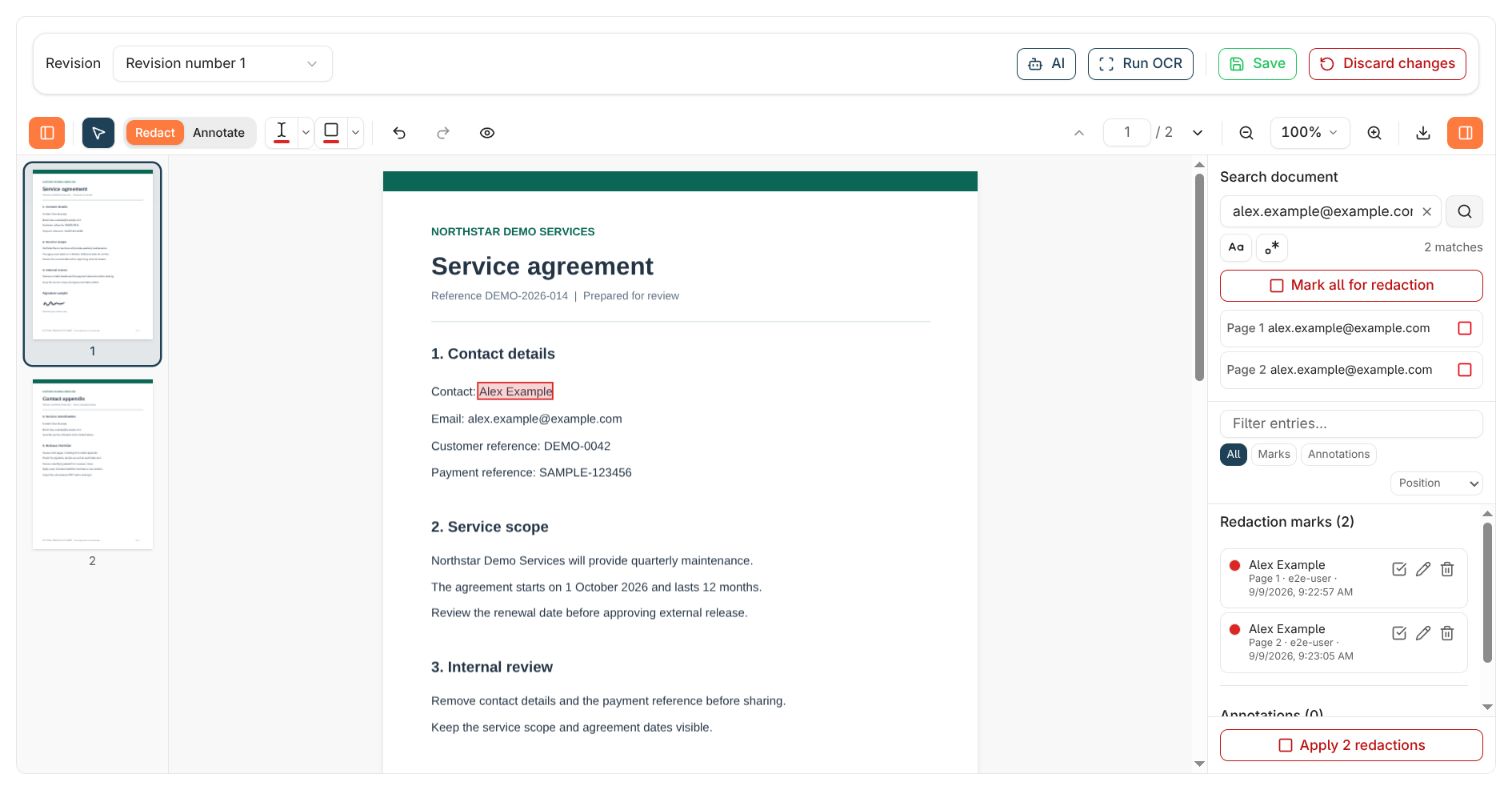
2. Under **Search document**, enter the exact text, such as `alex.example@example.com`, and press **Enter** or choose **Search**.
3. Review the match count and select a result to jump to its page.
4. Choose **Mark for redaction** beside an individual result, or **Mark all for redaction** to mark all listed matches.
5. Check the resulting **Redaction marks**. After all results are marked, the search box and result list clear. The marks remain.
This finds matching text, not every way the same person or detail might be written. Search separately for initials, alternative spellings, and differently formatted identifiers. A successful apply does not prove you found everything that needs to be removed.
## Find and mark text across pages
1. Open the right sidebar with **Toggle sidebar** if needed.
2. Under **Search document**, enter the exact text, such as `alex.example@example.com`, and press **Enter** or choose **Search**.
3. Review the match count and select a result to jump to its page.
4. Choose **Mark for redaction** beside an individual result, or **Mark all for redaction** to mark all listed matches.
5. Check the resulting **Redaction marks**. After all results are marked, the search box and result list clear. The marks remain.
 **Match case** restricts results by capitalisation. **Regular expression** lets you search a pattern instead of literal text. For example, with regular expressions enabled, `SAMPLE-[0-9]{6}` matches the example payment reference `SAMPLE-123456`. Check every result before marking a pattern's matches; it can match unrelated values and miss different formatting. Turn the mode off before returning to a literal search.
**Search document** searches the PDF's recognised text. **Filter entries...** only filters the marks and annotations already in your review list; it does not search for unmarked content.
## Mark a signature, image, or area
1. Choose **Redact → Redact area**.
2. Zoom in and drag a rectangle around the whole region to remove. For the example signature, include all pen strokes and a small margin.
3. Release the pointer and inspect the overlay. An area mark appears as **Rectangle — Page …** in the sidebar.
4. If it misses part of the content or covers too much, delete the mark and draw a new one.
**Match case** restricts results by capitalisation. **Regular expression** lets you search a pattern instead of literal text. For example, with regular expressions enabled, `SAMPLE-[0-9]{6}` matches the example payment reference `SAMPLE-123456`. Check every result before marking a pattern's matches; it can match unrelated values and miss different formatting. Turn the mode off before returning to a literal search.
**Search document** searches the PDF's recognised text. **Filter entries...** only filters the marks and annotations already in your review list; it does not search for unmarked content.
## Mark a signature, image, or area
1. Choose **Redact → Redact area**.
2. Zoom in and drag a rectangle around the whole region to remove. For the example signature, include all pen strokes and a small margin.
3. Release the pointer and inspect the overlay. An area mark appears as **Rectangle — Page …** in the sidebar.
4. If it misses part of the content or covers too much, delete the mark and draw a new one.
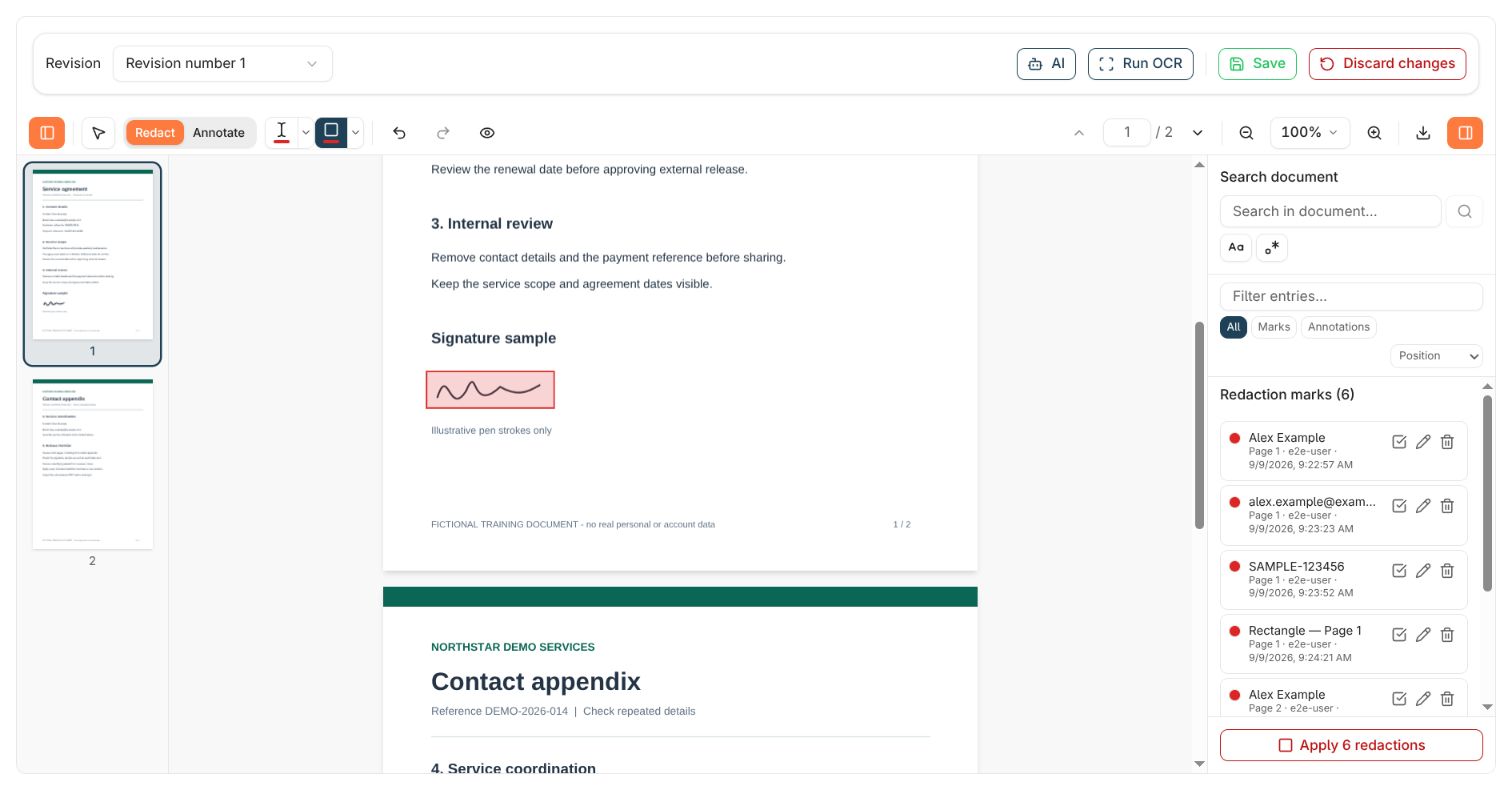 Use this approach for scanned text, handwriting, photographs, barcodes, or other visible regions. Check these areas visually even when text search returns no matches. **Annotate area**, on the Annotate tab, adds markup and does not redact the region.
The colour control beside a redaction tool changes the tint of its review marks. Applied redactions use black fill; choosing another review colour does not change the final fill.
## Use AI-assisted redaction
AI redaction helps you identify sensitive text in the open document and adds suggested redaction marks for you to review. You can also ask questions about the document. You decide which marks to keep and when to apply and save them.
Before starting, check that AI redaction is available to your account, that the correct **Revision** is open, and that known text can be found with **Search document**. [Run OCR](#open-and-prepare-the-document) first when needed. AI text suggestions depend on recognised text; signatures, images, and unreadable scans still need visual review.
### Ask AI to mark sensitive text
Choose **AI** in the top bar. The **AI redaction** chat opens over the viewer. You can drag its header or resize the window if it obscures the document.
In **Type your question here...**, name the categories or exact values you want marked. State which useful information should remain visible.
For the fictional agreement, enter:
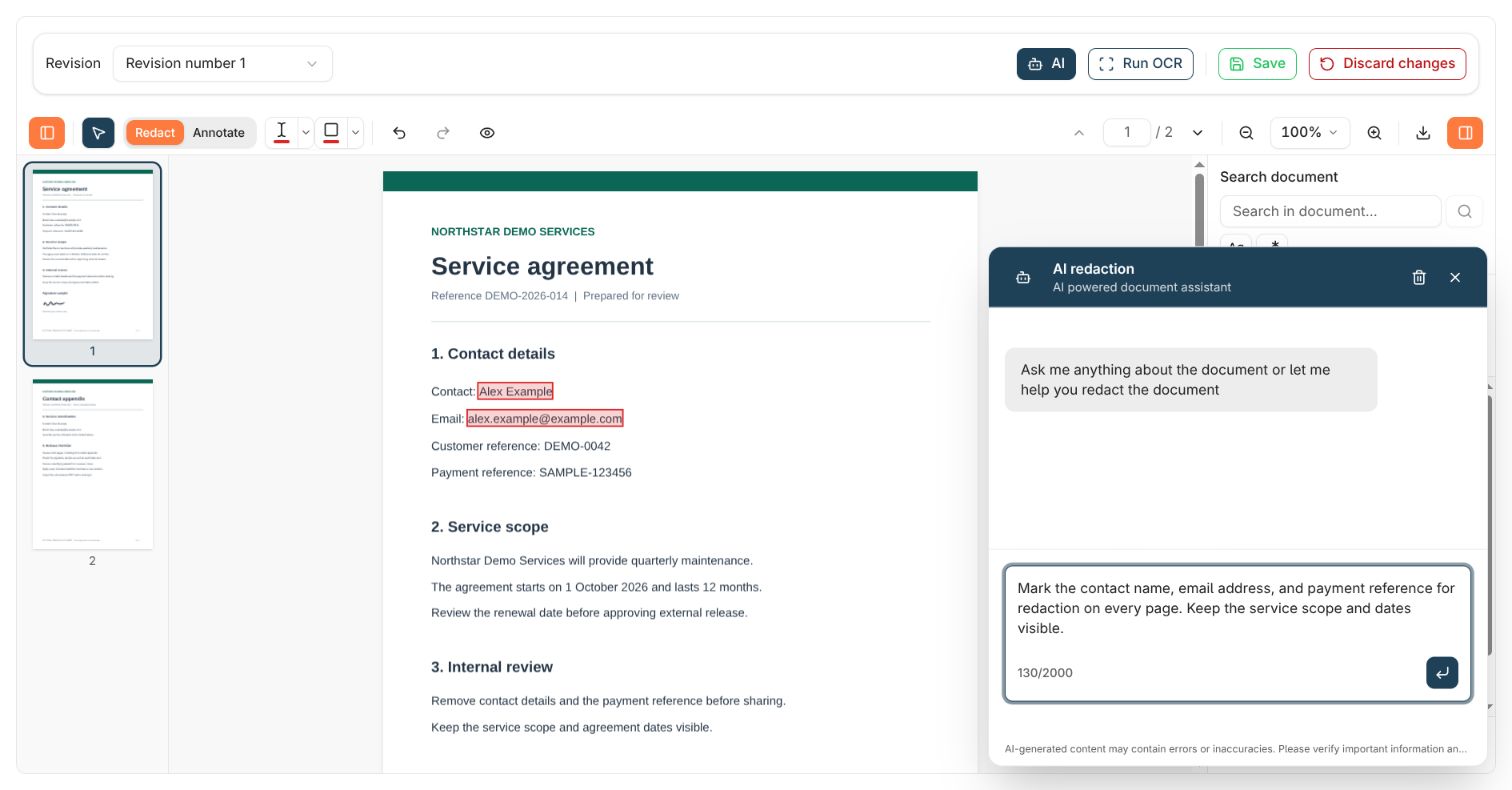
> Mark the contact name, email address, and payment reference for redaction on every page. Keep the service scope and dates visible.
Use a focused request that you can check against the document. A broad request such as “remove everything sensitive” leaves the selection criteria unclear.
Choose the arrow button (**Submit**) or press **Enter**. Use **Shift+Enter** for a new line in your prompt. Wait for the response before applying, saving, exporting, or changing revisions.
When the response includes text to redact, the viewer finds matching occurrences across the document and adds them to **Redaction marks**. A response may only answer your question and add no marks. Confirm the proposed redactions in the document and the list.
Close the chat with **Close** if it covers the sidebar. Select each mark to jump to its page and inspect the covered text. Closing the chat leaves the marks in place.
For this example, check the name and email on **both pages** and the payment reference on page 1: five intended text locations. Check that the service scope and dates remain unmarked. This is your review target for the sample, not a guaranteed AI result.
Use this approach for scanned text, handwriting, photographs, barcodes, or other visible regions. Check these areas visually even when text search returns no matches. **Annotate area**, on the Annotate tab, adds markup and does not redact the region.
The colour control beside a redaction tool changes the tint of its review marks. Applied redactions use black fill; choosing another review colour does not change the final fill.
## Use AI-assisted redaction
AI redaction helps you identify sensitive text in the open document and adds suggested redaction marks for you to review. You can also ask questions about the document. You decide which marks to keep and when to apply and save them.
Before starting, check that AI redaction is available to your account, that the correct **Revision** is open, and that known text can be found with **Search document**. [Run OCR](#open-and-prepare-the-document) first when needed. AI text suggestions depend on recognised text; signatures, images, and unreadable scans still need visual review.
### Ask AI to mark sensitive text
Choose **AI** in the top bar. The **AI redaction** chat opens over the viewer. You can drag its header or resize the window if it obscures the document.
In **Type your question here...**, name the categories or exact values you want marked. State which useful information should remain visible.
For the fictional agreement, enter:
> Mark the contact name, email address, and payment reference for redaction on every page. Keep the service scope and dates visible.
Use a focused request that you can check against the document. A broad request such as “remove everything sensitive” leaves the selection criteria unclear.
Choose the arrow button (**Submit**) or press **Enter**. Use **Shift+Enter** for a new line in your prompt. Wait for the response before applying, saving, exporting, or changing revisions.
When the response includes text to redact, the viewer finds matching occurrences across the document and adds them to **Redaction marks**. A response may only answer your question and add no marks. Confirm the proposed redactions in the document and the list.
Close the chat with **Close** if it covers the sidebar. Select each mark to jump to its page and inspect the covered text. Closing the chat leaves the marks in place.
For this example, check the name and email on **both pages** and the payment reference on page 1: five intended text locations. Check that the service scope and dates remain unmarked. This is your review target for the sample, not a guaranteed AI result.
 ### Write and refine your request
Adapt these example prompts to the document and your release requirements:
| Your aim | Example prompt |
| ------------------------------ | --------------------------------------------------------------------------------------------------------------------------------------------------- |
| Mark a category of information | “Mark personal contact names and email addresses for redaction throughout this document. Keep organisation names and service descriptions visible.” |
| Mark known values | “Mark every occurrence of Alex Example and [alex.example@example.com](mailto:alex.example@example.com) for redaction.” |
| Add a missed category | “Also mark the payment reference for redaction. Keep the customer reference and agreement dates visible.” |
A follow-up request can add marks to the existing list. If you change your mind about earlier suggestions, use **Delete mark** on the entries you want to remove. **Clear chat** clears the displayed messages; it does not remove document marks or undo an applied result.
Suggested text is matched across all pages. Asking AI to redact a value “only on page 1” does not restrict where matching marks are added. Review every occurrence and remove unwanted marks before applying, or use manual selection when you need precise control over individual locations.
### Correct and complete the AI suggestions
1. **Remove incorrect marks.** Check that names, dates, or numbers you intend to keep have not been marked. Delete incorrect entries you can edit. For an applied, unsaved result, use **Undo apply** before correcting it.
2. **Add missed text.** Use **Search document** for known values and alternative spellings, or select the text manually. In the sample, search for both the name and email and inspect both pages even if the reply says they were marked.
3. **Cover non-text content.** Use **Redact → Redact area** for the signature sample. AI text suggestions do not replace checking handwriting, photographs, barcodes, or other visible regions.
4. **Review the complete list.** Clear sidebar filters and check all pending marks, including any you added manually before using AI. The bulk apply action includes those marks too.
5. **Finish the redaction.** Follow [Apply, inspect, and save](#apply-inspect-and-save), then [download and check the release copy](#download-and-check-a-release-copy). AI suggestions do not apply redactions or save a revision for you.
### If AI does not add the expected marks
| What happens | What to do |
| --------------------------------------------- | --------------------------------------------------------------------------------------------------------------------------------------------------------------------------------------------------------------------------------------------- |
| **AI** is disabled | Wait for apply, save, or export to finish. If it remains disabled, ask the person managing your access to check AI redaction availability. |
| A reply appears but no new marks are visible | Clear sidebar filters, check whether the response actually proposed redactions, and search for the expected text. If search cannot find visible words, run OCR or use an area mark. Rephrase your request with specific values or categories. |
| The viewer reports that it is busy | Let the current operation finish, inspect the marks already present, and ask again if they were not added. Avoid starting apply, save, or export while waiting for suggestions. |
| The chat reports an error | Check that the document has finished loading and retry. If the error persists, continue with manual marking and report the document ID, revision, and displayed message. |
| You changed revisions during the conversation | Recheck the selected revision and review the current pages. Earlier replies are not evidence that the newly opened revision has the same content or marks. |
AI suggestions can miss sensitive information or select text you need to retain. A chat response alone does not mean the file has been redacted or saved. See [AI data and privacy](/ai/data-and-privacy) for how document content is handled.
## Review the marks
Select a sidebar entry to jump to its page and select the mark. Use **Edit note** to explain why it is marked, and **Delete mark** to remove an incorrect mark you can edit. Avoid copying the sensitive value into your note; write “Remove contact details” instead.
You can narrow the list to **Marks**, filter entries by text, and use author or colour filters when they are available. **Sort entries** offers **Position**, **Newest first**, **Author**, and **Type**. Clear filters for your final review.
Sidebar filters only change the list you see. They do not limit the bulk **Apply … redactions** action. Check its count before applying. Use **Apply this redaction mark** beside one entry when you intend to apply only that mark.
### Save marks for another reviewer
To hand off a reviewable version, choose **Save** before applying the marks. Add a revision comment if prompted, for example “Marked for review; redactions not yet applied.” A new revision stores the pending marks and annotations while retaining the underlying content.
The next reviewer needs access to the document and the revision rights described above. They open that revision, inspect the marks, and apply the intended redactions. Saving marks for review is not a release copy. The current viewer normally lets you edit or delete your own entries and entries without an author; another author's entry may be read-only.
## Apply, inspect, and save
Choose **Apply … redactions** at the bottom of the sidebar to apply all pending marks, or **Apply this redaction mark** beside one entry.
Wait for processing to finish. The viewer displays the redacted working result. Applying does **not** create a stored revision yet.
Check the blacked-out regions and the content around them. Confirm that useful information remains readable and that all intended regions have been removed. In the example, check both pages' contact details and the signature on page 1.
To revise an applied result before saving, choose **Undo apply**. Your marks and annotations remain available for adjustment. Add any missing marks and apply again. Marks added after an apply stay pending until you apply them too.
Choose **Save** in the top bar. If **Revision comment** opens, describe the change and choose **Save** in that dialog. Some document types require a comment.
Wait for the success message and check that the **Revision** number advances. Reopen the saved revision and inspect it before sharing. Saving an applied result preserves that result; any marks you left pending remain reviewable marks rather than becoming additional permanent redactions.
### Write and refine your request
Adapt these example prompts to the document and your release requirements:
| Your aim | Example prompt |
| ------------------------------ | --------------------------------------------------------------------------------------------------------------------------------------------------- |
| Mark a category of information | “Mark personal contact names and email addresses for redaction throughout this document. Keep organisation names and service descriptions visible.” |
| Mark known values | “Mark every occurrence of Alex Example and [alex.example@example.com](mailto:alex.example@example.com) for redaction.” |
| Add a missed category | “Also mark the payment reference for redaction. Keep the customer reference and agreement dates visible.” |
A follow-up request can add marks to the existing list. If you change your mind about earlier suggestions, use **Delete mark** on the entries you want to remove. **Clear chat** clears the displayed messages; it does not remove document marks or undo an applied result.
Suggested text is matched across all pages. Asking AI to redact a value “only on page 1” does not restrict where matching marks are added. Review every occurrence and remove unwanted marks before applying, or use manual selection when you need precise control over individual locations.
### Correct and complete the AI suggestions
1. **Remove incorrect marks.** Check that names, dates, or numbers you intend to keep have not been marked. Delete incorrect entries you can edit. For an applied, unsaved result, use **Undo apply** before correcting it.
2. **Add missed text.** Use **Search document** for known values and alternative spellings, or select the text manually. In the sample, search for both the name and email and inspect both pages even if the reply says they were marked.
3. **Cover non-text content.** Use **Redact → Redact area** for the signature sample. AI text suggestions do not replace checking handwriting, photographs, barcodes, or other visible regions.
4. **Review the complete list.** Clear sidebar filters and check all pending marks, including any you added manually before using AI. The bulk apply action includes those marks too.
5. **Finish the redaction.** Follow [Apply, inspect, and save](#apply-inspect-and-save), then [download and check the release copy](#download-and-check-a-release-copy). AI suggestions do not apply redactions or save a revision for you.
### If AI does not add the expected marks
| What happens | What to do |
| --------------------------------------------- | --------------------------------------------------------------------------------------------------------------------------------------------------------------------------------------------------------------------------------------------- |
| **AI** is disabled | Wait for apply, save, or export to finish. If it remains disabled, ask the person managing your access to check AI redaction availability. |
| A reply appears but no new marks are visible | Clear sidebar filters, check whether the response actually proposed redactions, and search for the expected text. If search cannot find visible words, run OCR or use an area mark. Rephrase your request with specific values or categories. |
| The viewer reports that it is busy | Let the current operation finish, inspect the marks already present, and ask again if they were not added. Avoid starting apply, save, or export while waiting for suggestions. |
| The chat reports an error | Check that the document has finished loading and retry. If the error persists, continue with manual marking and report the document ID, revision, and displayed message. |
| You changed revisions during the conversation | Recheck the selected revision and review the current pages. Earlier replies are not evidence that the newly opened revision has the same content or marks. |
AI suggestions can miss sensitive information or select text you need to retain. A chat response alone does not mean the file has been redacted or saved. See [AI data and privacy](/ai/data-and-privacy) for how document content is handled.
## Review the marks
Select a sidebar entry to jump to its page and select the mark. Use **Edit note** to explain why it is marked, and **Delete mark** to remove an incorrect mark you can edit. Avoid copying the sensitive value into your note; write “Remove contact details” instead.
You can narrow the list to **Marks**, filter entries by text, and use author or colour filters when they are available. **Sort entries** offers **Position**, **Newest first**, **Author**, and **Type**. Clear filters for your final review.
Sidebar filters only change the list you see. They do not limit the bulk **Apply … redactions** action. Check its count before applying. Use **Apply this redaction mark** beside one entry when you intend to apply only that mark.
### Save marks for another reviewer
To hand off a reviewable version, choose **Save** before applying the marks. Add a revision comment if prompted, for example “Marked for review; redactions not yet applied.” A new revision stores the pending marks and annotations while retaining the underlying content.
The next reviewer needs access to the document and the revision rights described above. They open that revision, inspect the marks, and apply the intended redactions. Saving marks for review is not a release copy. The current viewer normally lets you edit or delete your own entries and entries without an author; another author's entry may be read-only.
## Apply, inspect, and save
Choose **Apply … redactions** at the bottom of the sidebar to apply all pending marks, or **Apply this redaction mark** beside one entry.
Wait for processing to finish. The viewer displays the redacted working result. Applying does **not** create a stored revision yet.
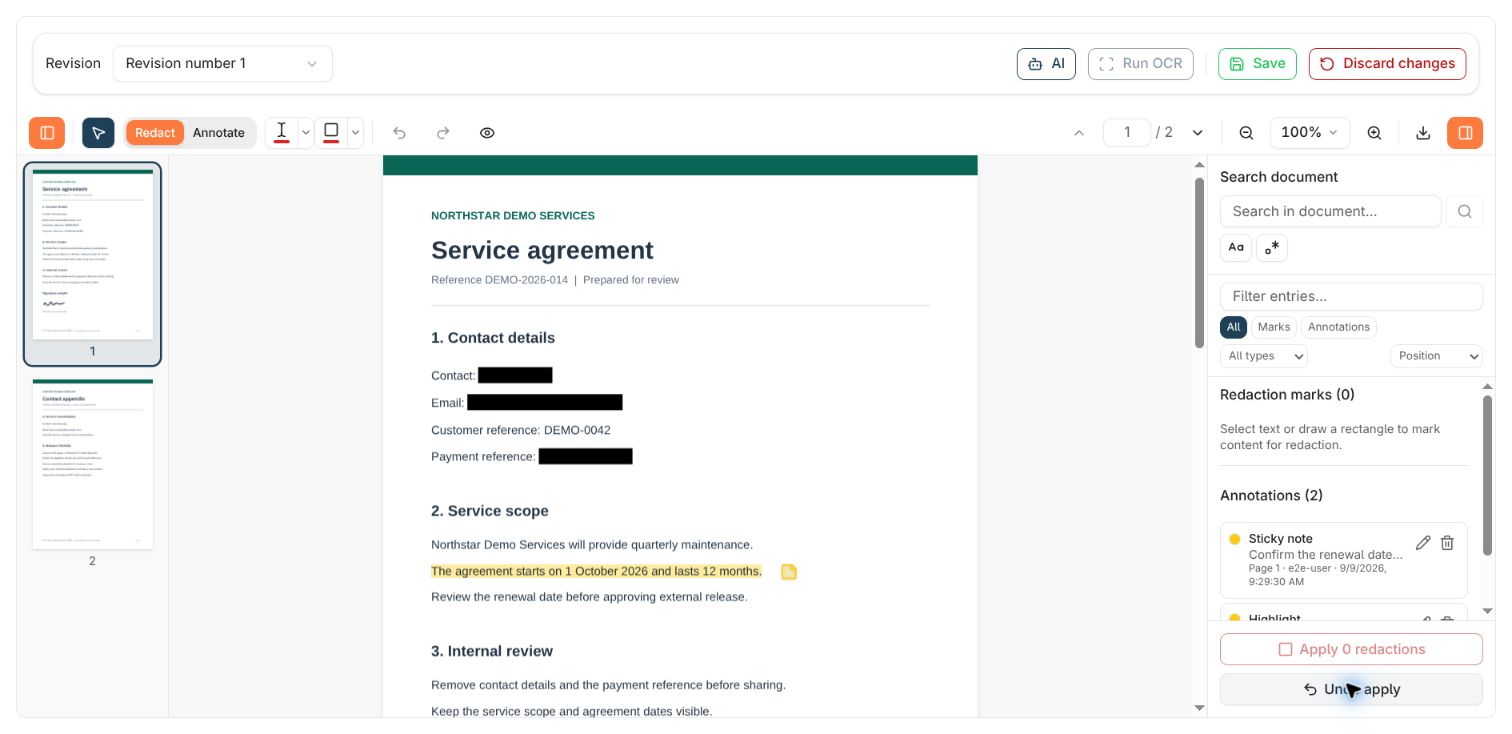
Check the blacked-out regions and the content around them. Confirm that useful information remains readable and that all intended regions have been removed. In the example, check both pages' contact details and the signature on page 1.
To revise an applied result before saving, choose **Undo apply**. Your marks and annotations remain available for adjustment. Add any missing marks and apply again. Marks added after an apply stay pending until you apply them too.
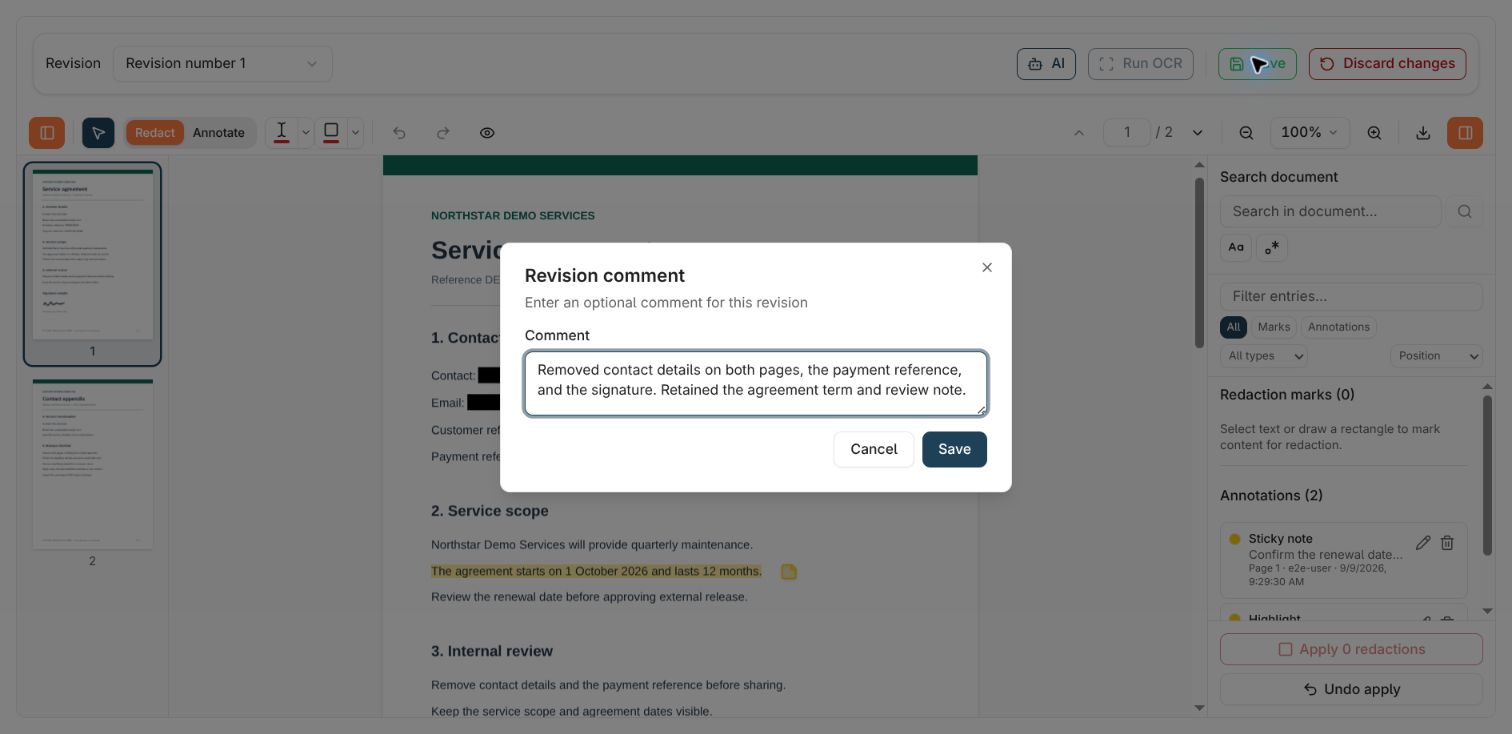
Choose **Save** in the top bar. If **Revision comment** opens, describe the change and choose **Save** in that dialog. Some document types require a comment.
Wait for the success message and check that the **Revision** number advances. Reopen the saved revision and inspect it before sharing. Saving an applied result preserves that result; any marks you left pending remain reviewable marks rather than becoming additional permanent redactions.
 ### Understand the different ways to undo or leave
| Action | What happens |
| ------------------------ | ----------------------------------------------------------------------------------------------------------------------------------------------------------------------------------------- |
| **Undo / Redo** | Reverses or restores local mark and annotation edits. |
| **Undo apply** | Returns an applied, unsaved result to its pre-apply state while keeping marks and annotations for further work. |
| **Discard changes** | After confirmation, drops unsaved edits and reloads the stored revision. It also discards an applied, unsaved result. |
| Change **Revision** | Opens another stored version. If you have an applied, unsaved result, the viewer asks before discarding that result; marks and annotations stay with the previous revision's local draft. |
| Close or refresh the tab | Can lose an applied, unsaved result. Local drafts are not a shared or durable handoff; save a revision when you need to keep the work. |
If another user saves a revision, the viewer may ask whether to load it. Finish or save your current work before accepting when you need to preserve an applied result. **Undo apply** cannot remove redactions already saved into the current revision's content; an accessible earlier revision is a separate version.
## Download and check a release copy
Use **Download** in the redaction viewer to export the current working result as a PDF:
| Option | What the PDF contains |
| -------------------------------- | ------------------------------------------------------------------------------------------------------------------------------------------------------------------------------- |
| **Download with annotations** | The current content, applied redactions, and your current annotations and pending marks. Useful for review; inspect comments and author information before sharing. |
| **Download without annotations** | The current content with markup annotations removed. Applied redactions remain. Pending marks are removed as markup, so content beneath those unapplied marks remains readable. |
### Understand the different ways to undo or leave
| Action | What happens |
| ------------------------ | ----------------------------------------------------------------------------------------------------------------------------------------------------------------------------------------- |
| **Undo / Redo** | Reverses or restores local mark and annotation edits. |
| **Undo apply** | Returns an applied, unsaved result to its pre-apply state while keeping marks and annotations for further work. |
| **Discard changes** | After confirmation, drops unsaved edits and reloads the stored revision. It also discards an applied, unsaved result. |
| Change **Revision** | Opens another stored version. If you have an applied, unsaved result, the viewer asks before discarding that result; marks and annotations stay with the previous revision's local draft. |
| Close or refresh the tab | Can lose an applied, unsaved result. Local drafts are not a shared or durable handoff; save a revision when you need to keep the work. |
If another user saves a revision, the viewer may ask whether to load it. Finish or save your current work before accepting when you need to preserve an applied result. **Undo apply** cannot remove redactions already saved into the current revision's content; an accessible earlier revision is a separate version.
## Download and check a release copy
Use **Download** in the redaction viewer to export the current working result as a PDF:
| Option | What the PDF contains |
| -------------------------------- | ------------------------------------------------------------------------------------------------------------------------------------------------------------------------------- |
| **Download with annotations** | The current content, applied redactions, and your current annotations and pending marks. Useful for review; inspect comments and author information before sharing. |
| **Download without annotations** | The current content with markup annotations removed. Applied redactions remain. Pending marks are removed as markup, so content beneath those unapplied marks remains readable. |
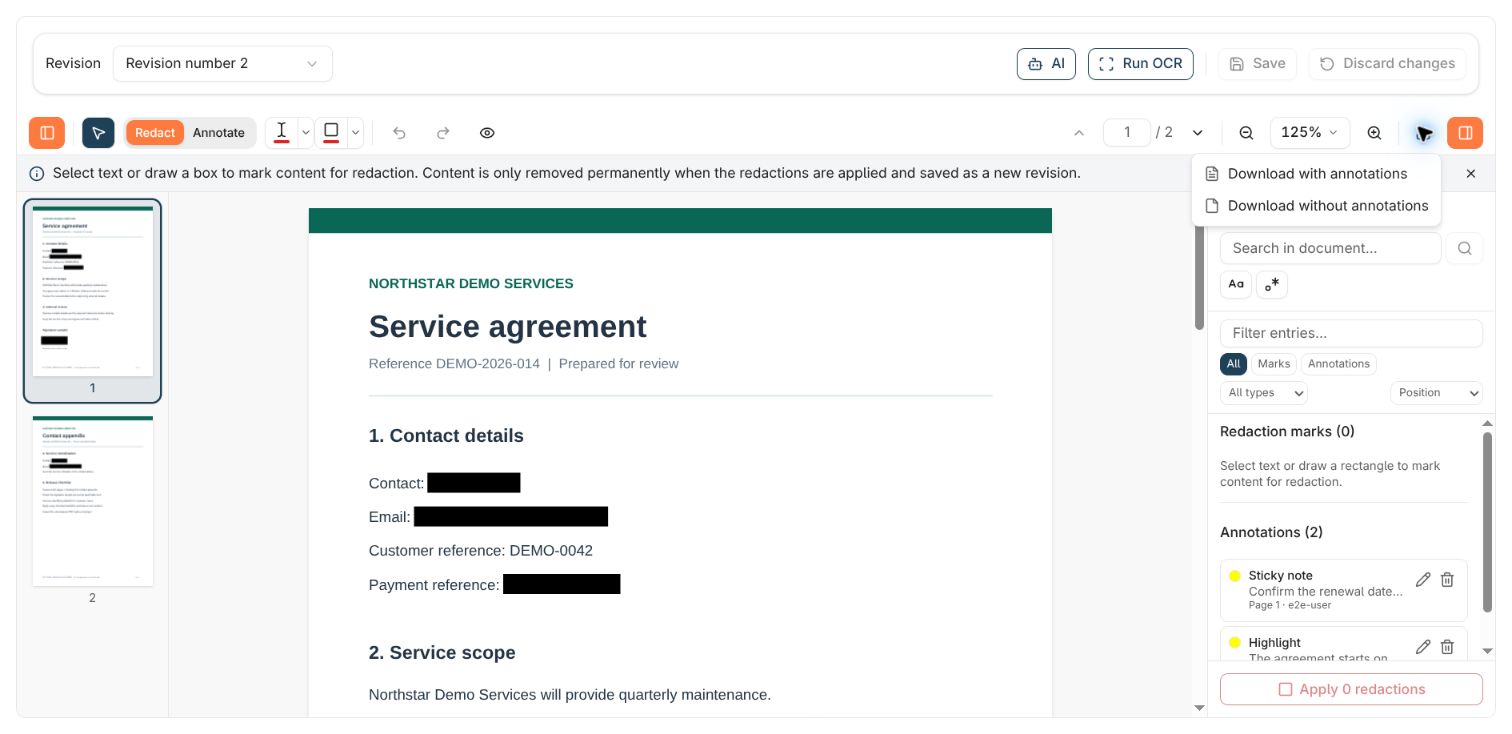 Downloading does not save a revision. You can export an applied working result before saving, but save first when you also need that result retained in Nobly Insight. The separate **Download document** action elsewhere retrieves a stored rendition; it does not include unsaved edits from this viewer.
Before releasing the file:
1. Open the actual downloaded PDF and review **every page**, including appendices.
2. Search for the removed names, addresses, and identifiers. Try selecting and copying text around the redacted areas. A search with no matches is useful evidence, but does not check images or missed OCR text.
3. Inspect the signature, images, and area marks visually. Check that the document is still understandable.
4. Inspect any included annotations and comments. Check the filename, document properties, links, form fields, and any separately shared keywords or notes for details you also need to remove. **Download without annotations** removes markup; these other surfaces still need review.
5. Check attachments and related files separately. Share the verified file through your organisation's approved process.
A **Copy link** action does not create a redacted-only copy or change the recipient's access. A recipient with access to earlier revisions may still see the original content. Use the verified PDF when the intended deliverable is a fixed redacted file.
## Troubleshooting
| What you see | What to check or do |
| ------------------------------------------------------------- | ----------------------------------------------------------------------------------------------------------------------------------------------------------------------------------------------------------------------------------- |
| **Open in redaction** is missing or disabled | Check feature access, view/create revision rights, whether the document type allows revisions, and whether a supported rendition exists. |
| Conversion fails or the rendition cannot be opened | Keep the reported message and document ID. Ask for a supported rendition or report the conversion problem; inspect converted layout before proceeding. |
| Text cannot be selected, or search misses visible words | Run OCR before applying, check spelling and search mode, or use an area mark. OCR is not reliable for every image or layout. |
| **AI** is disabled | Confirm AI redaction is available to your account. It is also temporarily disabled during apply, save, or export. |
| **Save** is disabled | There may be no unsaved changes, or processing is still running. An open revision-comment dialog may require a non-empty comment. |
| A mark cannot be edited or deleted | Check its author. Another user's entry may be read-only in the current viewer. |
| **Redaction could not be verified** | Read the message. The operation did not produce a verified result. Adjust coverage and retry. If **Find in document** is offered, use it to locate and mark remaining occurrences. |
| **Notes contain text that is being redacted** | Choose **Edit** and remove the sensitive text from the note or annotation. **Keep notes and continue** deliberately retains that text; do not use it for a release that must exclude it. An author-name conflict also needs review. |
| **Save completed** appears but the new revision does not load | The save may have succeeded while reloading failed. Reopen the document and inspect its latest revision before saving again and creating a duplicate revision. |
| An export is cancelled because the document changed | Wait for the current operation, recheck the revision and redactions, and download again. |
## Where to read next
Add highlights, drawings, notes, and callouts, and save a reviewable revision.
Navigate documents and revisions, inspect metadata, and choose the right download or editing action.
Downloading does not save a revision. You can export an applied working result before saving, but save first when you also need that result retained in Nobly Insight. The separate **Download document** action elsewhere retrieves a stored rendition; it does not include unsaved edits from this viewer.
Before releasing the file:
1. Open the actual downloaded PDF and review **every page**, including appendices.
2. Search for the removed names, addresses, and identifiers. Try selecting and copying text around the redacted areas. A search with no matches is useful evidence, but does not check images or missed OCR text.
3. Inspect the signature, images, and area marks visually. Check that the document is still understandable.
4. Inspect any included annotations and comments. Check the filename, document properties, links, form fields, and any separately shared keywords or notes for details you also need to remove. **Download without annotations** removes markup; these other surfaces still need review.
5. Check attachments and related files separately. Share the verified file through your organisation's approved process.
A **Copy link** action does not create a redacted-only copy or change the recipient's access. A recipient with access to earlier revisions may still see the original content. Use the verified PDF when the intended deliverable is a fixed redacted file.
## Troubleshooting
| What you see | What to check or do |
| ------------------------------------------------------------- | ----------------------------------------------------------------------------------------------------------------------------------------------------------------------------------------------------------------------------------- |
| **Open in redaction** is missing or disabled | Check feature access, view/create revision rights, whether the document type allows revisions, and whether a supported rendition exists. |
| Conversion fails or the rendition cannot be opened | Keep the reported message and document ID. Ask for a supported rendition or report the conversion problem; inspect converted layout before proceeding. |
| Text cannot be selected, or search misses visible words | Run OCR before applying, check spelling and search mode, or use an area mark. OCR is not reliable for every image or layout. |
| **AI** is disabled | Confirm AI redaction is available to your account. It is also temporarily disabled during apply, save, or export. |
| **Save** is disabled | There may be no unsaved changes, or processing is still running. An open revision-comment dialog may require a non-empty comment. |
| A mark cannot be edited or deleted | Check its author. Another user's entry may be read-only in the current viewer. |
| **Redaction could not be verified** | Read the message. The operation did not produce a verified result. Adjust coverage and retry. If **Find in document** is offered, use it to locate and mark remaining occurrences. |
| **Notes contain text that is being redacted** | Choose **Edit** and remove the sensitive text from the note or annotation. **Keep notes and continue** deliberately retains that text; do not use it for a release that must exclude it. An author-name conflict also needs review. |
| **Save completed** appears but the new revision does not load | The save may have succeeded while reloading failed. Reopen the document and inspect its latest revision before saving again and creating a duplicate revision. |
| An export is cancelled because the document changed | Wait for the current operation, recheck the revision and redactions, and download again. |
## Where to read next
Add highlights, drawings, notes, and callouts, and save a reviewable revision.
Navigate documents and revisions, inspect metadata, and choose the right download or editing action.