> ## Documentation Index
> Fetch the complete documentation index at: https://docs.insight.nobly.dk/llms.txt
> Use this file to discover all available pages before exploring further.
# How to create a reusable search
> Configure document filters and output columns, save the search in My searches, and reopen it for repeated work.
## Start from a working search
Open **Search** and choose **Configure Search**. Build and run a search that returns the records you intended before saving it. For example, select Contract and filter on a known customer reference. Alternatively, add a document-date preset such as Today. The configurator requires a keyword or document-date filter before Search and Save become available.
**Simple**, **Advanced**, and **Combined** offer different configuration depths. Combined can include Caseflow data when that feature is available; use a document-only search when that is all the task needs.
## Choose useful output
In **Output Columns**, select the fields you need to distinguish results, such as document name, type, and a customer reference. Include File size when you need to compare document sizes. Review sorting and maximum results. A narrow visible column set does not remove other metadata from the stored document.
## Save under My searches
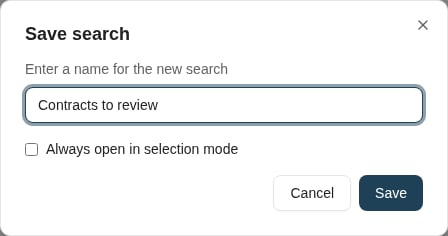
1. Choose **Save** in the configurator.
2. Give the search a recognizable name, such as `Contracts for customer AB-1042`.
3. Choose a destination folder when you use folders to organize My searches.
4. Confirm **Save**, then find it in My searches.
5. Select it again and verify that its filters and columns are preserved.
A saved search stores configuration. Running it later can return different results as documents or permissions change.
 ## Change an existing search
Open the saved search's configuration. Review the search name and criteria before saving: **Save** updates the selected search; **Save as new** creates a separate search when editing an existing one.
Use a separate saved search when you want to preserve the original for another task. Prefer names that describe the business purpose and any fixed filter values.
## Share the intent safely
A **Copy as Link** action can represent the search in a link where supported. The recipient still needs access to the feature and records. If the client cannot represent required filters, it can refuse to create the link; do not remove important filters merely to make sharing succeed.
For a managed search used by a whole team, ask someone with system-search management permission to configure a [system search](/search-administration/system-searches). A personal saved search and a system search have different ownership and visibility controls.
## Where to read next
Add files, choose their document types, review keyword values, and verify the archived result.
## Change an existing search
Open the saved search's configuration. Review the search name and criteria before saving: **Save** updates the selected search; **Save as new** creates a separate search when editing an existing one.
Use a separate saved search when you want to preserve the original for another task. Prefer names that describe the business purpose and any fixed filter values.
## Share the intent safely
A **Copy as Link** action can represent the search in a link where supported. The recipient still needs access to the feature and records. If the client cannot represent required filters, it can refuse to create the link; do not remove important filters merely to make sharing succeed.
For a managed search used by a whole team, ask someone with system-search management permission to configure a [system search](/search-administration/system-searches). A personal saved search and a system search have different ownership and visibility controls.
## Where to read next
Add files, choose their document types, review keyword values, and verify the archived result.