> ## Documentation Index
> Fetch the complete documentation index at: https://docs.insight.nobly.dk/llms.txt
> Use this file to discover all available pages before exploring further.
# How to annotate a document
> Add highlights, drawings, sticky notes, and callouts, then save or download a reviewable PDF.
Annotations let you point out text, draw on a page, or leave a review comment while keeping the document content readable. You use the **Annotate** tab in the same viewer as redaction.
## Before you begin
You need access to **Open in redaction**, permission to view and create revisions, and a document type that allows revisions. If your file needs conversion or OCR, follow [Open and prepare the document](/how-tos/redact-a-document#open-and-prepare-the-document) first. Screenshots below use the same fictional service agreement as the redaction walkthrough.
Annotations do not conceal information securely. A highlight, strikeout, drawing, or annotation rectangle leaves the underlying content in the document. Use [redaction](/how-tos/redact-a-document) when content must be removed.
## Choose an annotation tool
Open the document with **Open in redaction**, then choose **Annotate**. Hover over a tool to see its name and instructions. Use the colour button beside a tool to choose its colour before placing an annotation.
| Tool | How you use it | Typical purpose |
| ------------------- | ------------------------------------------------------------ | ------------------------------------------------------- |
| **Highlight** | Drag across selectable text. | Draw attention to a clause or date. |
| **Underline** | Drag across selectable text. | Emphasise a specific phrase. |
| **Squiggly** | Drag across selectable text. | Flag wording that needs checking. |
| **Strikeout** | Drag across selectable text. | Suggest that wording should be removed in a later edit. |
| **Ink** | Drag to draw freehand on the page. | Draw an arrow, circle, or other review mark. |
| **Ink highlighter** | Drag to draw a translucent freehand stroke. | Emphasise content that cannot be selected as text. |
| **Annotate area** | Drag a rectangle around a region. | Point out a table, image, or section. |
| **Sticky note** | Click a location, enter a comment, then choose **OK**. | Attach a comment at a small note marker. |
| **Callout** | Click the point to refer to, enter text, then choose **OK**. | Place a text callout connected to that point. |
| **Eraser** | Click an editable mark or annotation. | Remove an unwanted review item. |
The current toolbar does not offer a stamp tool. A handwritten ink mark or typed callout is an annotation, not a document approval or signature workflow.
## Highlight a clause and add a note
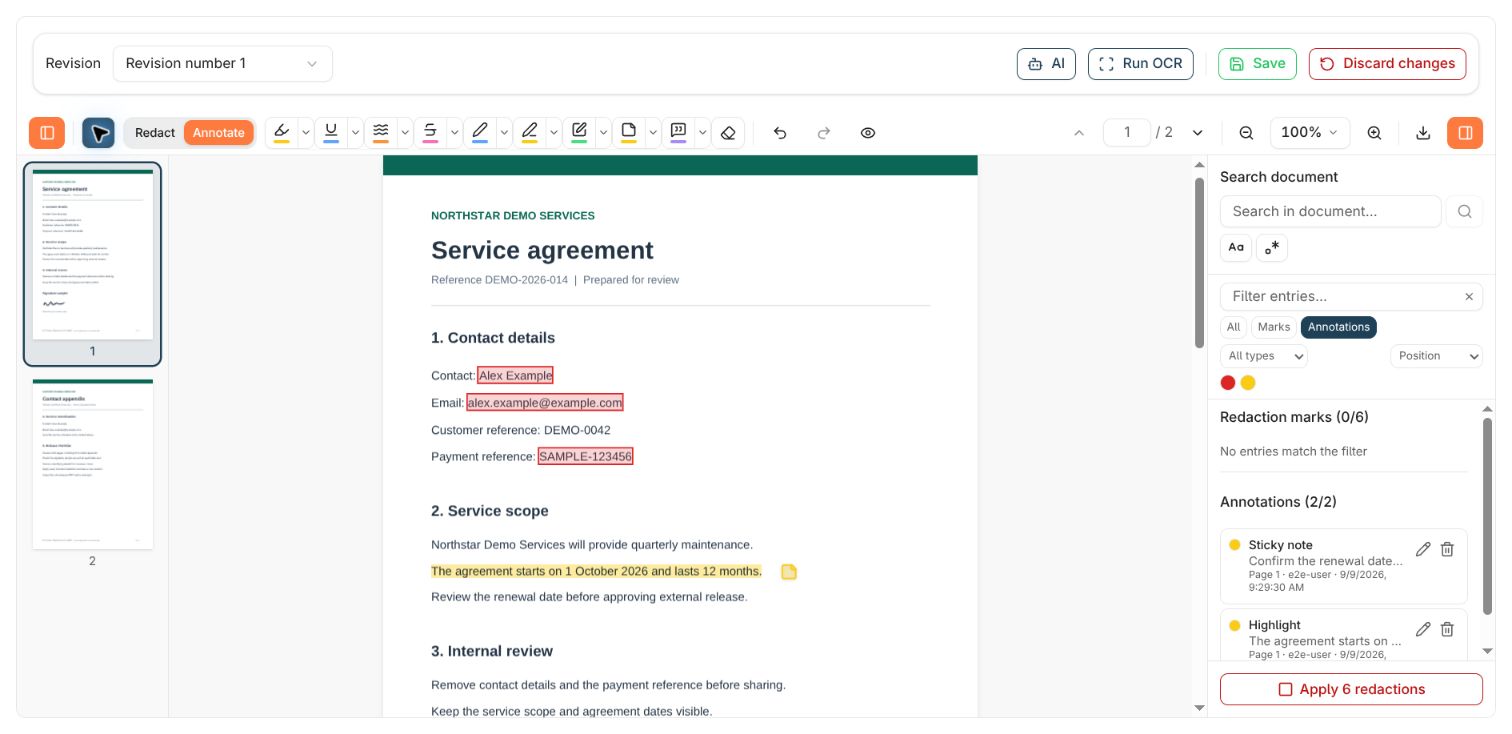
Choose **Highlight** and drag across the relevant words. In the example, highlight the sentence stating the start date and 12-month term. Check that the highlight covers the intended phrase.
You can also use **Select** and choose **Highlight**, **Underline**, or **Strikeout** in the selection popup. If the text cannot be selected, use OCR or an area/freehand tool.
Choose **Sticky note**, click beside the clause, and enter a useful instruction such as “Confirm the renewal date before external release.” Choose **OK** to place it.
Use a **Callout** instead when you want the comment shown as text connected to a point on the page. Place comments where they leave the underlying document easy to read.
Open the right sidebar and choose **Annotations** to focus the list. Select an entry to jump to its page. Check the highlighted clause and note together, then correct any mistake before saving.
 ## Edit comments, colours, and mistakes
Use **Select** and click an annotation to open its controls. You can also select its sidebar entry. Hovering over an item can show its comment and author information.
* Choose **Edit note**, change the comment, and choose the small **Save** button in the note editor. This updates the local note; use the top-bar **Save** afterwards to store the document revision.
* Use an annotation's colour controls when available. Tool colours apply to new annotations; select an existing annotation to change that item.
* Use **Delete annotation**, **Eraser**, or **Delete/Backspace** with the item selected to remove an editable item. In a text field, those keys edit text instead.
* Use **Undo** and **Redo** for local editing mistakes. If a drawing or area is in the wrong place, remove it and draw it again.
Outside a text field, **Ctrl+Z** (Windows/Linux) or **Cmd+Z** (macOS) undoes a local edit; add **Shift** to redo it. **Escape** clears the current selection or selection popup. These editing shortcuts do not undo redactions already saved into a revision.
The viewer normally allows you to change your own entries and entries with no author. Another author's entry may be read-only. Do not treat the absence of an edit button as a failed save.
## Review a document with many annotations
Use **Filter entries...** to find an existing entry by its comment, covered text, or author. **All**, **Marks**, and **Annotations** choose which kinds of entries you see. Author, annotation-type, and colour controls appear when relevant; combined filters narrow the list further.
**Sort entries** changes the list order to **Position**, **Newest first**, **Author**, or **Type**. Position follows the document's reading order. Selecting an item on the page keeps its entry reachable even when a filter would otherwise exclude it.
**Hide annotations** temporarily hides annotation overlays so you can read the page underneath; **Show annotations** brings them back. This does not delete the annotations or change which ones are saved or downloaded. Clear filters and restore visibility for the final review.
## Save or download the annotated version
1. Choose **Save** in the top bar.
2. Add a revision comment when prompted and confirm **Save**. A comment may be required by the document type.
3. Wait for **Annotations saved successfully** and check the new revision number.
4. Reopen that revision and check that the annotations are present.
Saving annotations creates a new PDF revision. Pending redaction marks are also saved as reviewable marks; their content is still present until you [apply them](/how-tos/redact-a-document#apply-inspect-and-save).
For a file copy, choose **Download → Download with annotations**. To omit markup, choose **Download without annotations**. This does not save a revision, and it does not remove content under pending redaction marks. Other PDF readers may display comments or callouts differently; check the actual exported file in the reader your recipient will use.
Local drafts help recover work in the same browser, but do not serve as a handoff to another person. Save before leaving when the next reviewer needs your changes. **Discard changes** reloads the stored revision after confirmation and drops your unsaved edits.
## Keep document notes and PDF annotations separate
A **Sticky note** or annotation comment belongs to the PDF review and can travel with **Download with annotations**. The document's **Notes** panel is a separate conversation in Nobly Insight, with features such as replies, mentions, and following. Use [document notes](/how-tos/notes-and-following) for team discussion and notifications.
Before sharing a redacted file, check annotation comments, callout text, and author information for sensitive details. Avoid repeating a value you are trying to remove. If saving reports **Notes contain text that is being redacted**, edit the offending content rather than retaining it in a release copy.
## Where to read next
Correct the indexing metadata stored with the document and verify the saved result.
Remove sensitive content, apply the marks, and check a release copy before sharing.
## Edit comments, colours, and mistakes
Use **Select** and click an annotation to open its controls. You can also select its sidebar entry. Hovering over an item can show its comment and author information.
* Choose **Edit note**, change the comment, and choose the small **Save** button in the note editor. This updates the local note; use the top-bar **Save** afterwards to store the document revision.
* Use an annotation's colour controls when available. Tool colours apply to new annotations; select an existing annotation to change that item.
* Use **Delete annotation**, **Eraser**, or **Delete/Backspace** with the item selected to remove an editable item. In a text field, those keys edit text instead.
* Use **Undo** and **Redo** for local editing mistakes. If a drawing or area is in the wrong place, remove it and draw it again.
Outside a text field, **Ctrl+Z** (Windows/Linux) or **Cmd+Z** (macOS) undoes a local edit; add **Shift** to redo it. **Escape** clears the current selection or selection popup. These editing shortcuts do not undo redactions already saved into a revision.
The viewer normally allows you to change your own entries and entries with no author. Another author's entry may be read-only. Do not treat the absence of an edit button as a failed save.
## Review a document with many annotations
Use **Filter entries...** to find an existing entry by its comment, covered text, or author. **All**, **Marks**, and **Annotations** choose which kinds of entries you see. Author, annotation-type, and colour controls appear when relevant; combined filters narrow the list further.
**Sort entries** changes the list order to **Position**, **Newest first**, **Author**, or **Type**. Position follows the document's reading order. Selecting an item on the page keeps its entry reachable even when a filter would otherwise exclude it.
**Hide annotations** temporarily hides annotation overlays so you can read the page underneath; **Show annotations** brings them back. This does not delete the annotations or change which ones are saved or downloaded. Clear filters and restore visibility for the final review.
## Save or download the annotated version
1. Choose **Save** in the top bar.
2. Add a revision comment when prompted and confirm **Save**. A comment may be required by the document type.
3. Wait for **Annotations saved successfully** and check the new revision number.
4. Reopen that revision and check that the annotations are present.
Saving annotations creates a new PDF revision. Pending redaction marks are also saved as reviewable marks; their content is still present until you [apply them](/how-tos/redact-a-document#apply-inspect-and-save).
For a file copy, choose **Download → Download with annotations**. To omit markup, choose **Download without annotations**. This does not save a revision, and it does not remove content under pending redaction marks. Other PDF readers may display comments or callouts differently; check the actual exported file in the reader your recipient will use.
Local drafts help recover work in the same browser, but do not serve as a handoff to another person. Save before leaving when the next reviewer needs your changes. **Discard changes** reloads the stored revision after confirmation and drops your unsaved edits.
## Keep document notes and PDF annotations separate
A **Sticky note** or annotation comment belongs to the PDF review and can travel with **Download with annotations**. The document's **Notes** panel is a separate conversation in Nobly Insight, with features such as replies, mentions, and following. Use [document notes](/how-tos/notes-and-following) for team discussion and notifications.
Before sharing a redacted file, check annotation comments, callout text, and author information for sensitive details. Avoid repeating a value you are trying to remove. If saving reports **Notes contain text that is being redacted**, edit the offending content rather than retaining it in a release copy.
## Where to read next
Correct the indexing metadata stored with the document and verify the saved result.
Remove sensitive content, apply the marks, and check a release copy before sharing.