> ## Documentation Index
> Fetch the complete documentation index at: https://docs.insight.nobly.dk/llms.txt
> Use this file to discover all available pages before exploring further.
# Variables and tools
> Keep shared values and secrets in global variables, try expressions in the expression tester, call other systems from a script, and adjust system-wide settings.
## Global variables
Global variables hold values that several workflows share, and the credentials workflows use to reach other systems: endpoints, client IDs, API keys, connection strings. Keeping them out of the workflow definition means you can change a value in one place, and a credential never appears in a workflow export.
You need `global-variables.view` to see global variables and `global-variables.manage` to change them.
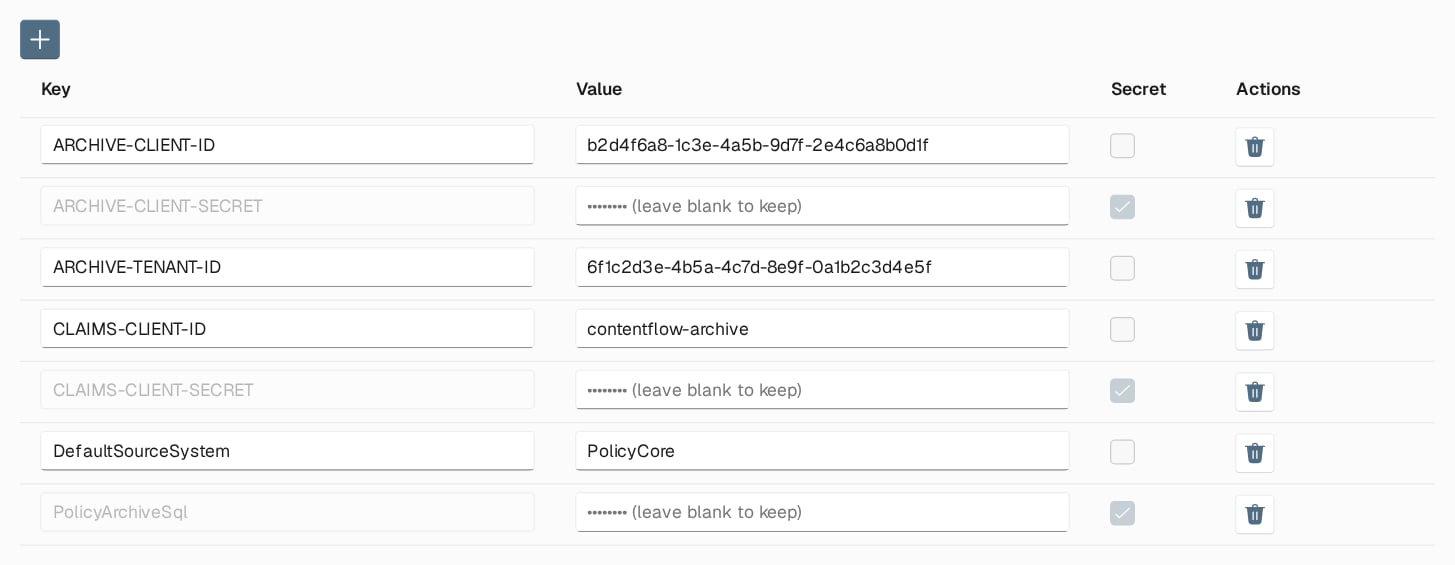 Open **Global variables**, add a row with the **+** button, enter its **Key** and **Value**, and choose **Save changes**. A saved change applies to the next lookup.
### Secret variables
Select **Secret** when you create a variable that holds a credential. A secret's value is stored in the environment's secret store, not in the ContentFlow database. It is never shown again or included in exports.
* You can only choose **Secret** when you create the variable. To change a plain variable into a secret, delete it and create it again.
* A secret's key can contain only letters, digits and `-`, and cannot be renamed.
* To change a secret's value, type the new value; leaving the field blank keeps the current one.
* Deleting a secret variable also deletes the stored secret.
Steps that take a credential, such as the client secret of a webhook callback, ask for the **name** of a global variable rather than the value. Make that variable secret. See [Authenticate with OAuth client credentials](/contentflow/steps#authenticate-with-oauth-client-credentials).
### Use a global variable
| Where | How |
| - | - |
| A step input in **Global variable** mode | Choose the variable from the list |
| An expression or script | `global["CLAIMS-CLIENT-ID"]` |
| An input that asks for a variable name, such as `ClientSecretVariable` | The name as text: `CLAIMS-CLIENT-SECRET` |
| A webhook callback URL, body or header | `{{global:CLAIMS-API-KEY}}` |
ContentFlow global variables, [Workflow Engine variables](/workflows/expressions#what-you-can-reference), and [Script Engine variables and secrets](/scripts/secrets-and-troubleshooting#variable-administration) are separate stores. A value added to one is not available to the others.
Anyone who can write an expression can read every global variable, secrets included, from inside a run. Treat `workflows.manage` and `mappers.manage` as access to the credentials stored here.
## Expression tester
The **Expression tester** runs a C# expression or script against a sample document, so you can work out an expression before you put it into a step. You need `playground.view` to open it.
Open **Global variables**, add a row with the **+** button, enter its **Key** and **Value**, and choose **Save changes**. A saved change applies to the next lookup.
### Secret variables
Select **Secret** when you create a variable that holds a credential. A secret's value is stored in the environment's secret store, not in the ContentFlow database. It is never shown again or included in exports.
* You can only choose **Secret** when you create the variable. To change a plain variable into a secret, delete it and create it again.
* A secret's key can contain only letters, digits and `-`, and cannot be renamed.
* To change a secret's value, type the new value; leaving the field blank keeps the current one.
* Deleting a secret variable also deletes the stored secret.
Steps that take a credential, such as the client secret of a webhook callback, ask for the **name** of a global variable rather than the value. Make that variable secret. See [Authenticate with OAuth client credentials](/contentflow/steps#authenticate-with-oauth-client-credentials).
### Use a global variable
| Where | How |
| - | - |
| A step input in **Global variable** mode | Choose the variable from the list |
| An expression or script | `global["CLAIMS-CLIENT-ID"]` |
| An input that asks for a variable name, such as `ClientSecretVariable` | The name as text: `CLAIMS-CLIENT-SECRET` |
| A webhook callback URL, body or header | `{{global:CLAIMS-API-KEY}}` |
ContentFlow global variables, [Workflow Engine variables](/workflows/expressions#what-you-can-reference), and [Script Engine variables and secrets](/scripts/secrets-and-troubleshooting#variable-administration) are separate stores. A value added to one is not available to the others.
Anyone who can write an expression can read every global variable, secrets included, from inside a run. Treat `workflows.manage` and `mappers.manage` as access to the credentials stored here.
## Expression tester
The **Expression tester** runs a C# expression or script against a sample document, so you can work out an expression before you put it into a step. You need `playground.view` to open it.
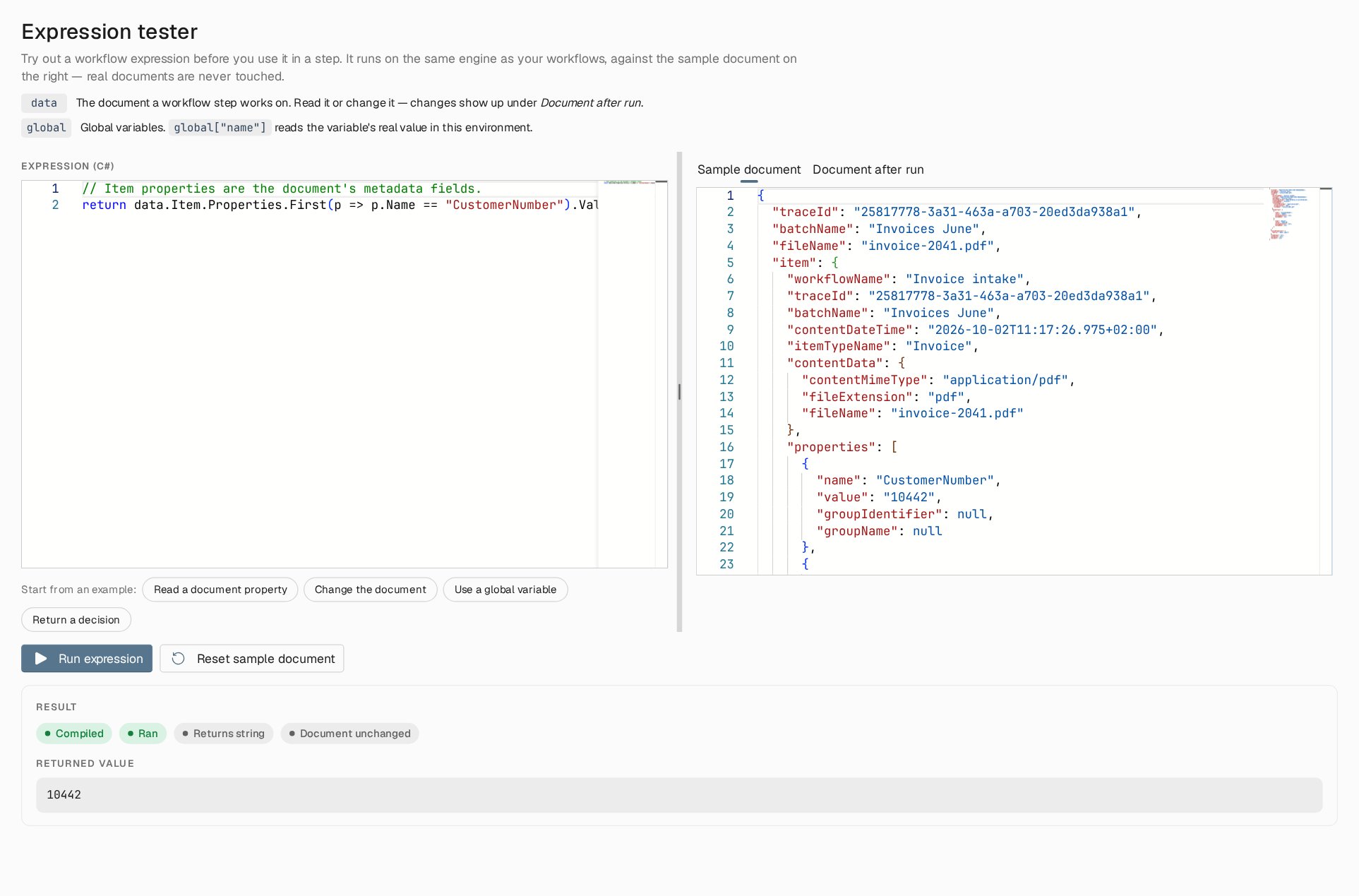 Start from an example, or write your own, and edit the sample document on the **Sample document** tab. **Run expression** shows whether the expression compiled and ran, its type, and its returned value. **Document after run** shows any change the expression made.
Running an expression needs `workflows.manage` or `mappers.manage`, because the code runs with the environment's identity. Without either, the tester only checks whether the expression compiles. The same compile check, completion and type information are available in the workflow editor's expression editor.
## Call other systems from a script
A **Script** step, and any expression, can call another system's API through the `http` helper. It reuses connections, and it caches OAuth client-credentials tokens across runs, so a large batch does not request a token per document. If the API answers 401, the helper fetches a fresh token and retries once.
| Member | Use |
| - | - |
| `http.GetWithClientCredentialsAsync(url, tokenEndpoint, clientId, clientSecret, scope)` | GET with a client-credentials token; returns the response body as text |
| `http.SendWithClientCredentialsAsync(request, credentials)` | Send any request, such as a POST with a body, with a token; returns the response for you to inspect |
| `http.ClientCredentials(...)` / `http.ClientAssertionCredentials(...)` | Build the credentials for `SendWithClientCredentialsAsync`, with a client secret or a signed client assertion |
| `http.CreateClient()` | A pooled HTTP client for calls without client credentials |
This script reads a customer's segment from a CRM API and stores it on the item for a later step. Every credential and endpoint comes from a global variable:
```csharp theme={null}
var customerNo = data.GetPropertyValue("CustomerNo");
var json = await http.GetWithClientCredentialsAsync(
global["CRM-API-BASE"].TrimEnd('/') + "/customers/" + Uri.EscapeDataString(customerNo),
global["CRM-TOKEN-ENDPOINT"],
global["CRM-CLIENT-ID"],
global["CRM-CLIENT-SECRET"]);
data.SetPropertyValue("CustomerSegment", GetValueFromJson(json, "segment"));
```
`GetWithClientCredentialsAsync` throws an error that fails the step on any other non-success response, while `SendWithClientCredentialsAsync` leaves the response for your script to inspect. When the call is a single request with a fixed shape, prefer the **Http Request** step: it is visible on the canvas and needs no code.
## System settings
The **System** page holds settings that apply to the whole environment. You need `system.view` to see them and `system.manage` to change them.
* **Clear cache** makes ContentFlow read global variables and system settings afresh. A saved change to a global variable already applies at once, so use this when values were changed outside the application.
* **Nobly Insight upload request limit** caps how many uploads all workflows together may run against Nobly Insight at the same time, from 1 to 30. Each workflow can have a lower limit of its own on its [Settings tab](/contentflow/design-and-publishing#workflow-settings). Agree on changes with the people responsible for Nobly Insight's capacity.
## Where to read next
Follow runs and batches, read what each run did and sent, and rerun failures once the cause is fixed.
This documentation is built and hosted on [Mintlify](https://mintlify.com), a developer documentation platform.
Start from an example, or write your own, and edit the sample document on the **Sample document** tab. **Run expression** shows whether the expression compiled and ran, its type, and its returned value. **Document after run** shows any change the expression made.
Running an expression needs `workflows.manage` or `mappers.manage`, because the code runs with the environment's identity. Without either, the tester only checks whether the expression compiles. The same compile check, completion and type information are available in the workflow editor's expression editor.
## Call other systems from a script
A **Script** step, and any expression, can call another system's API through the `http` helper. It reuses connections, and it caches OAuth client-credentials tokens across runs, so a large batch does not request a token per document. If the API answers 401, the helper fetches a fresh token and retries once.
| Member | Use |
| - | - |
| `http.GetWithClientCredentialsAsync(url, tokenEndpoint, clientId, clientSecret, scope)` | GET with a client-credentials token; returns the response body as text |
| `http.SendWithClientCredentialsAsync(request, credentials)` | Send any request, such as a POST with a body, with a token; returns the response for you to inspect |
| `http.ClientCredentials(...)` / `http.ClientAssertionCredentials(...)` | Build the credentials for `SendWithClientCredentialsAsync`, with a client secret or a signed client assertion |
| `http.CreateClient()` | A pooled HTTP client for calls without client credentials |
This script reads a customer's segment from a CRM API and stores it on the item for a later step. Every credential and endpoint comes from a global variable:
```csharp theme={null}
var customerNo = data.GetPropertyValue("CustomerNo");
var json = await http.GetWithClientCredentialsAsync(
global["CRM-API-BASE"].TrimEnd('/') + "/customers/" + Uri.EscapeDataString(customerNo),
global["CRM-TOKEN-ENDPOINT"],
global["CRM-CLIENT-ID"],
global["CRM-CLIENT-SECRET"]);
data.SetPropertyValue("CustomerSegment", GetValueFromJson(json, "segment"));
```
`GetWithClientCredentialsAsync` throws an error that fails the step on any other non-success response, while `SendWithClientCredentialsAsync` leaves the response for your script to inspect. When the call is a single request with a fixed shape, prefer the **Http Request** step: it is visible on the canvas and needs no code.
## System settings
The **System** page holds settings that apply to the whole environment. You need `system.view` to see them and `system.manage` to change them.
* **Clear cache** makes ContentFlow read global variables and system settings afresh. A saved change to a global variable already applies at once, so use this when values were changed outside the application.
* **Nobly Insight upload request limit** caps how many uploads all workflows together may run against Nobly Insight at the same time, from 1 to 30. Each workflow can have a lower limit of its own on its [Settings tab](/contentflow/design-and-publishing#workflow-settings). Agree on changes with the people responsible for Nobly Insight's capacity.
## Where to read next
Follow runs and batches, read what each run did and sent, and rerun failures once the cause is fixed.
This documentation is built and hosted on [Mintlify](https://mintlify.com), a developer documentation platform.