> ## Documentation Index
> Fetch the complete documentation index at: https://docs.insight.nobly.dk/llms.txt
> Use this file to discover all available pages before exploring further.
# Document mappings
> Define in one place what Nobly Insight receives for each incoming item: its document type, its document date, and one row per keyword.
A **document mapping** is the single definition of the document Nobly Insight receives: which document type it gets, which document date, and which value goes into each keyword. A workflow runs a mapping with its **Map to Insight document** step, and the upload and update steps then send exactly what the mapping produced.
A useful rule of thumb: **the workflow decides what happens to a document; the mapping decides what the document is.** Fetching a file, converting it, calling another system and branching stay workflow steps. Every decision about which value ends up in which field is a row in a mapping.
## Prerequisites
You need `mappers.view` to open mappings, try them, and check them against Nobly Insight. You need `mappers.manage` to create, save, publish and delete them. To change a [shared lookup table](#shared-lookup-tables), you also need `document-type-rules.manage`.
Before you start, agree on three things with the people who own the destination:
* the incoming properties the sending system delivers
* the Nobly Insight document types the documents should become
* each type's keywords and keyword groups
The Nobly Insight [document type and keyword configuration](/configuration/introduction) is maintained separately. A mapping can only write keywords that the document type already has.
## The mapping list
Open **Document mappings** in the menu. The list shows each mapping's name, how it decides the document type, how many field rows it has, and its status.
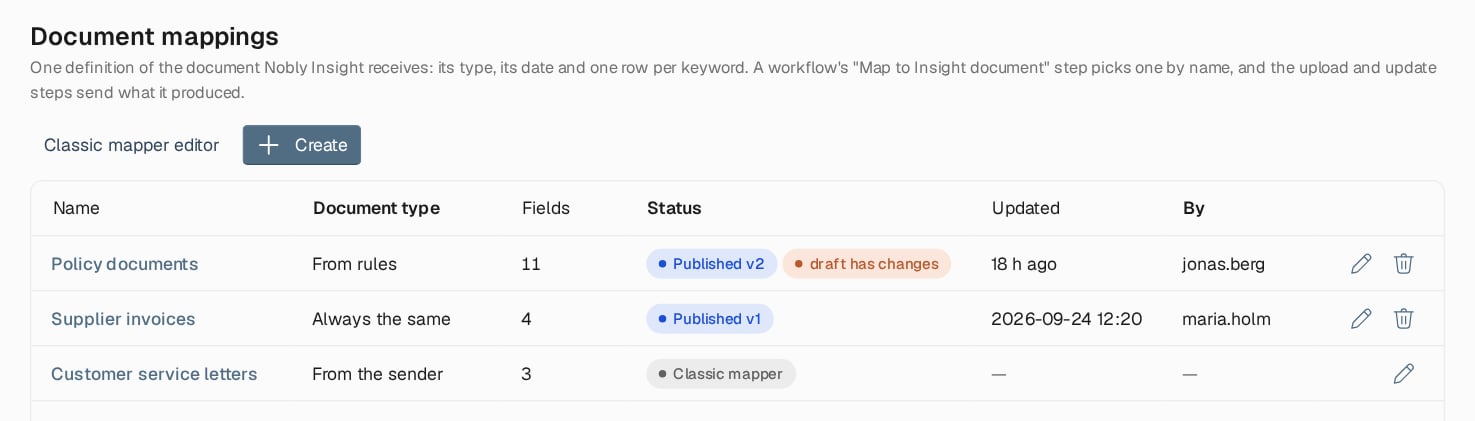 | Status | Meaning |
| - | - |
| **Draft, not published** | No workflow can run it yet. Only a [test run](/contentflow/testing-workflows) uses the draft. |
| **Published vN** | Workflows run version N. |
| **Published vN · draft has changes** | Workflows keep running version N until you publish the draft. |
| **Classic mapper** | A mapper from before document mappings existed. See [Classic mappers](/contentflow/testing-and-publishing-mappings#classic-mappers). |
Choose **Create** to start a new mapping. Give it a **Name** that workflows will refer to, and a **Description** saying which documents it is for. Once a workflow names a mapping, you can no longer rename it.
## The editor
The editor is laid out in the order a mapping is evaluated. The document type comes first, then the document date, then the field rows. Keyword records and the advanced settings sit below them. The **Try it**, **Versions** and **JSON** tabs follow at the end. Try it shows the result of a sample document as you edit. It is described in [Try, check and publish a mapping](/contentflow/testing-and-publishing-mappings).
| Status | Meaning |
| - | - |
| **Draft, not published** | No workflow can run it yet. Only a [test run](/contentflow/testing-workflows) uses the draft. |
| **Published vN** | Workflows run version N. |
| **Published vN · draft has changes** | Workflows keep running version N until you publish the draft. |
| **Classic mapper** | A mapper from before document mappings existed. See [Classic mappers](/contentflow/testing-and-publishing-mappings#classic-mappers). |
Choose **Create** to start a new mapping. Give it a **Name** that workflows will refer to, and a **Description** saying which documents it is for. Once a workflow names a mapping, you can no longer rename it.
## The editor
The editor is laid out in the order a mapping is evaluated. The document type comes first, then the document date, then the field rows. Keyword records and the advanced settings sit below them. The **Try it**, **Versions** and **JSON** tabs follow at the end. Try it shows the result of a sample document as you edit. It is described in [Try, check and publish a mapping](/contentflow/testing-and-publishing-mappings).
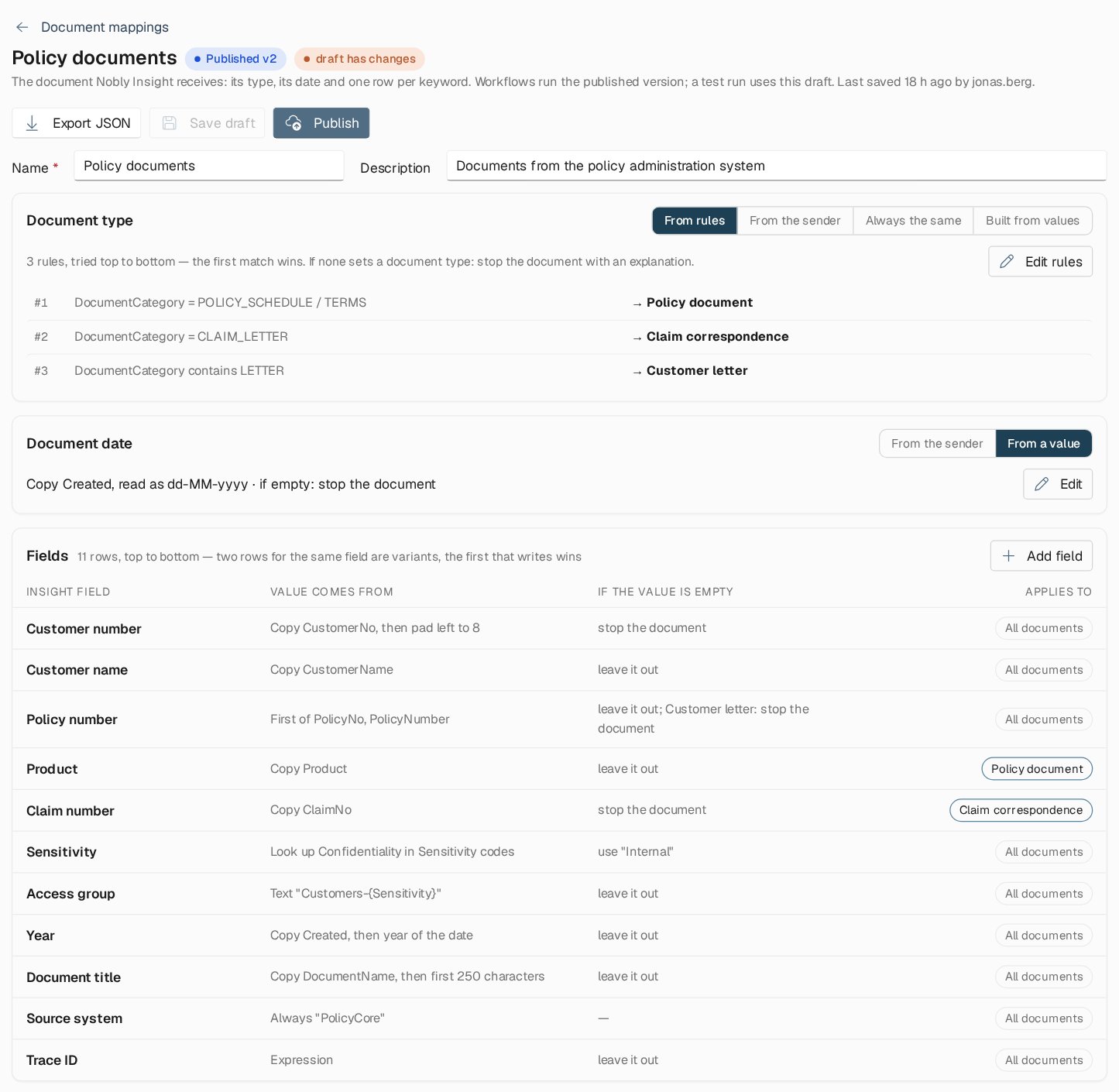 **Save draft** stores your changes without affecting any workflow. **Publish** makes the draft the version workflows run. If something is incomplete, a **Fix before saving** list names each problem, for example a row without a target keyword.
## Document type
Choose how the mapping decides the document type:
| Option | The document type is | Use it when |
| - | - | - |
| **From rules** | Decided by an ordered table of rules over the incoming properties | The type depends on one or more values, and the rules change over time |
| **From the sender** | The document type the sending system supplied with the item | The sender already knows the Nobly Insight type. A document without one stops. |
| **Always the same** | One fixed document type name or ID | Everything this mapping handles is one type |
| **Built from values** | A text with `{Property}` placeholders, such as `Policy - {DocumentName}` | The type name is composed from incoming values |
### Rules
Rules are tried from top to bottom, and the first rule that matches wins. Choose **Edit rules** to change them.
**Save draft** stores your changes without affecting any workflow. **Publish** makes the draft the version workflows run. If something is incomplete, a **Fix before saving** list names each problem, for example a row without a target keyword.
## Document type
Choose how the mapping decides the document type:
| Option | The document type is | Use it when |
| - | - | - |
| **From rules** | Decided by an ordered table of rules over the incoming properties | The type depends on one or more values, and the rules change over time |
| **From the sender** | The document type the sending system supplied with the item | The sender already knows the Nobly Insight type. A document without one stops. |
| **Always the same** | One fixed document type name or ID | Everything this mapping handles is one type |
| **Built from values** | A text with `{Property}` placeholders, such as `Policy - {DocumentName}` | The type name is composed from incoming values |
### Rules
Rules are tried from top to bottom, and the first rule that matches wins. Choose **Edit rules** to change them.
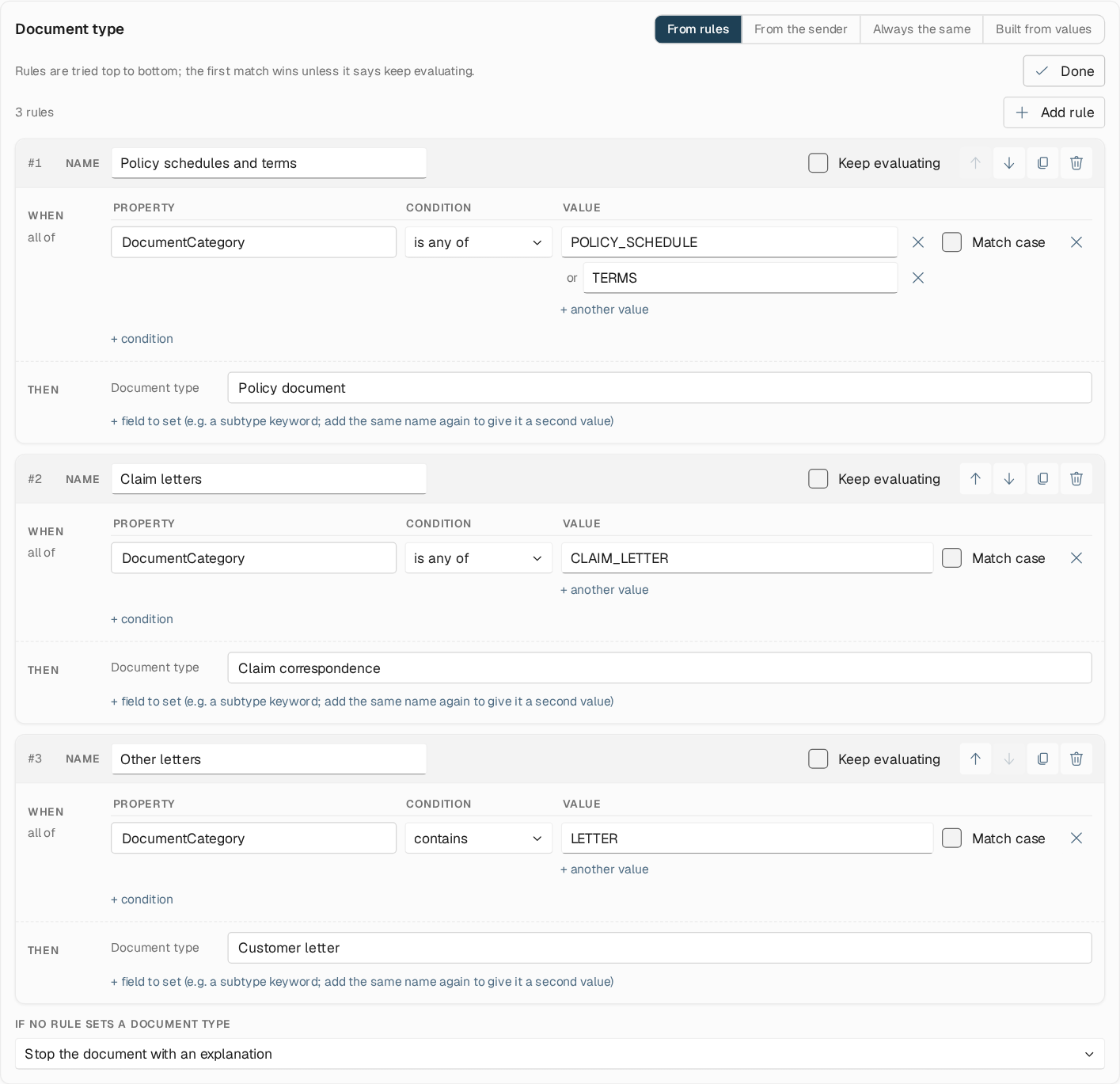 Each rule has these parts:
* **When all of** lists conditions on incoming properties. The operators are:
* **is any of** (one or more values, joined by *or*)
* **contains**
* **matches regex**
* **exists**, which checks whether a property is present or absent
Comparisons ignore letter case unless you select **Match case**. A rule without conditions always matches, so put a catch-all rule last.
* **Then** sets the **Document type**. It can also set field values directly with **Set field**, for example a subtype keyword that follows from the same decision. To give such a field several values, add the same field name again.
* **Keep evaluating** lets later rules match as well, so that they can add field values or override the document type.
**If no rule sets a document type** decides what happens when nothing matches. You can stop the document with an explanation, use the sender's document type, or use a default document type. Stopping is the safe choice for a migration: an unexpected value then fails visibly rather than being archived under the wrong type.
## Document date
| Option | The document date is |
| - | - |
| **From the sender** | The content date the sending system supplied, when there is one |
| **From a value** | Read from an incoming property, with the same row options as a field |
When you read the date from a value, set the exact formats the value can have, for example `dd-MM-yyyy`. Without formats, any ISO 8601 date is accepted. Set a **time zone** for values that carry no offset. Without one, they are read as UTC.
## Fields
Add one row per keyword the document should get. A row says:
* where the value comes from
* how it may be changed
* what happens when the value is empty
* which documents the row applies to
The collapsed table shows each row as a sentence. Select a row to edit it.
Each rule has these parts:
* **When all of** lists conditions on incoming properties. The operators are:
* **is any of** (one or more values, joined by *or*)
* **contains**
* **matches regex**
* **exists**, which checks whether a property is present or absent
Comparisons ignore letter case unless you select **Match case**. A rule without conditions always matches, so put a catch-all rule last.
* **Then** sets the **Document type**. It can also set field values directly with **Set field**, for example a subtype keyword that follows from the same decision. To give such a field several values, add the same field name again.
* **Keep evaluating** lets later rules match as well, so that they can add field values or override the document type.
**If no rule sets a document type** decides what happens when nothing matches. You can stop the document with an explanation, use the sender's document type, or use a default document type. Stopping is the safe choice for a migration: an unexpected value then fails visibly rather than being archived under the wrong type.
## Document date
| Option | The document date is |
| - | - |
| **From the sender** | The content date the sending system supplied, when there is one |
| **From a value** | Read from an incoming property, with the same row options as a field |
When you read the date from a value, set the exact formats the value can have, for example `dd-MM-yyyy`. Without formats, any ISO 8601 date is accepted. Set a **time zone** for values that carry no offset. Without one, they are read as UTC.
## Fields
Add one row per keyword the document should get. A row says:
* where the value comes from
* how it may be changed
* what happens when the value is empty
* which documents the row applies to
The collapsed table shows each row as a sentence. Select a row to edit it.
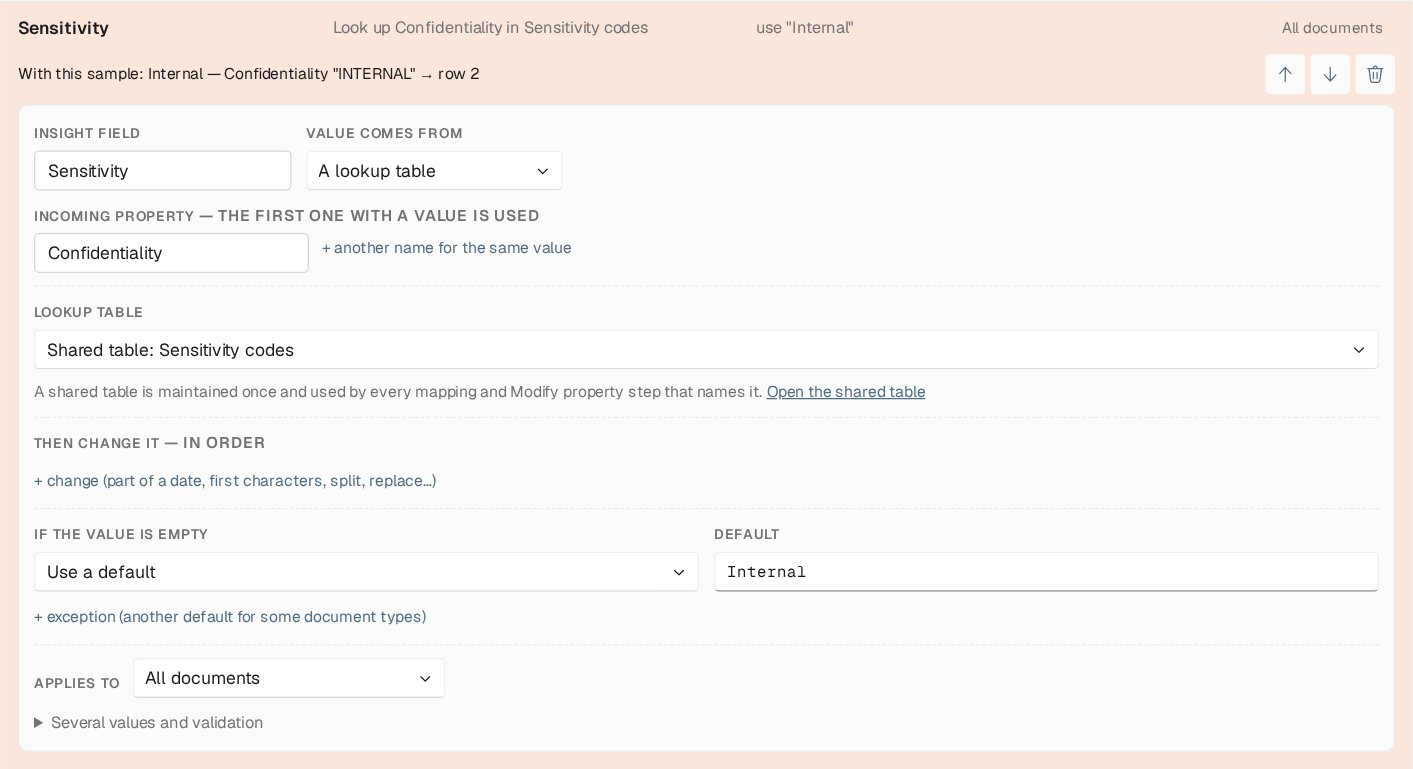 ### Where the value comes from
| Option | What it writes |
| - | - |
| **An incoming property, as it is** | The value of a property. List several names and the first one with a value is used, which helps when senders use different names for the same thing. |
| **Always the same value** | A fixed value |
| **A lookup table** | The incoming value translated through a table. A value without a row in the table comes out empty. |
| **Text built from other values** | A text with `{Name}` placeholders. A placeholder can name a field written by a row above, an incoming property, or `$documentType` (the resolved document type). For example, `Customers-{Sensitivity}`. |
| **An expression (advanced)** | A C# expression over the workflow data. Expression rows run as code with the environment's identity. |
### Changing the value
Under **Then change it — in order**, add changes that run one after the other:
| Change | Example |
| - | - |
| **Part of a date** | The year of `14-09-2026` is `2026` |
| **Reformat a date** | `14.09.2026` becomes `2026-09-14`, optionally converted to another time zone |
| **First characters** | Keep the first 250 characters of a long title |
| **Pad on the left** / **Pad on the right** | `4471` padded to 8 with `0` becomes `00004471` |
| **Split into several values** | `A1,B2` split on `,` writes two values |
| **Replace text** / **Replace by pattern** | Replace `,` with `.`, or use a regular expression |
| **Upper case** / **Lower case** | `inv-51020` becomes `INV-51020` |
A date change on a value that is not a date stops the document. Under **Several values and validation**, you can choose **Keep only the first** value, **Stop if longer than** a length, or **Stop unless it matches** a regular expression. These checks protect the destination from values it would reject or misfile.
### When the value is empty
**If the value is empty** has three choices:
* **Leave the field out**: the default
* **Use a default**: a value you enter
* **Stop the document with an explanation**: the run fails, and nothing is sent to Nobly Insight
An **exception** gives some documents a different policy. For example, a policy number can be optional on most documents but required on customer letters. An exception applies to chosen document types or to a custom condition.
Values listed under **Values that count as empty** in the advanced section are treated as empty everywhere, for example a placeholder such as `N/A` that a sender writes instead of leaving a field blank. A value that is only whitespace after the changes also counts as empty.
### Which documents a row applies to
**Applies to** limits a row to **Only these document types** or to **Custom conditions**. In a condition, `$documentType` is the document type the mapping resolved. Use it for keywords that only some of your document types have. A row that writes a keyword the type does not have makes the upload fail. The [check against Nobly Insight](/contentflow/testing-and-publishing-mappings#check-against-nobly-insight) shows such rows before anything is uploaded.
### Several rows for the same keyword
Two rows for the same keyword are **variants**. They are tried from top to bottom, and the first row that writes a value wins. A row that comes out empty and leaves the field out lets the next row try. Use variants for a fallback, such as a different source for one document type.
## Shared lookup tables
A lookup can use **Rows on this field**, or a **shared table** that several mappings and Modify property steps use. A shared table is maintained once: a change reaches every mapping that names it with the next document, without publishing the mappings again.
On a row that uses a shared table, choose **Open the shared table** to edit it. The table opens in the rule editor, with one rule per row: the rule matches an incoming value and sets the result. You need `document-type-rules.manage` to save changes, and a save takes effect at once, without a draft.
### Where the value comes from
| Option | What it writes |
| - | - |
| **An incoming property, as it is** | The value of a property. List several names and the first one with a value is used, which helps when senders use different names for the same thing. |
| **Always the same value** | A fixed value |
| **A lookup table** | The incoming value translated through a table. A value without a row in the table comes out empty. |
| **Text built from other values** | A text with `{Name}` placeholders. A placeholder can name a field written by a row above, an incoming property, or `$documentType` (the resolved document type). For example, `Customers-{Sensitivity}`. |
| **An expression (advanced)** | A C# expression over the workflow data. Expression rows run as code with the environment's identity. |
### Changing the value
Under **Then change it — in order**, add changes that run one after the other:
| Change | Example |
| - | - |
| **Part of a date** | The year of `14-09-2026` is `2026` |
| **Reformat a date** | `14.09.2026` becomes `2026-09-14`, optionally converted to another time zone |
| **First characters** | Keep the first 250 characters of a long title |
| **Pad on the left** / **Pad on the right** | `4471` padded to 8 with `0` becomes `00004471` |
| **Split into several values** | `A1,B2` split on `,` writes two values |
| **Replace text** / **Replace by pattern** | Replace `,` with `.`, or use a regular expression |
| **Upper case** / **Lower case** | `inv-51020` becomes `INV-51020` |
A date change on a value that is not a date stops the document. Under **Several values and validation**, you can choose **Keep only the first** value, **Stop if longer than** a length, or **Stop unless it matches** a regular expression. These checks protect the destination from values it would reject or misfile.
### When the value is empty
**If the value is empty** has three choices:
* **Leave the field out**: the default
* **Use a default**: a value you enter
* **Stop the document with an explanation**: the run fails, and nothing is sent to Nobly Insight
An **exception** gives some documents a different policy. For example, a policy number can be optional on most documents but required on customer letters. An exception applies to chosen document types or to a custom condition.
Values listed under **Values that count as empty** in the advanced section are treated as empty everywhere, for example a placeholder such as `N/A` that a sender writes instead of leaving a field blank. A value that is only whitespace after the changes also counts as empty.
### Which documents a row applies to
**Applies to** limits a row to **Only these document types** or to **Custom conditions**. In a condition, `$documentType` is the document type the mapping resolved. Use it for keywords that only some of your document types have. A row that writes a keyword the type does not have makes the upload fail. The [check against Nobly Insight](/contentflow/testing-and-publishing-mappings#check-against-nobly-insight) shows such rows before anything is uploaded.
### Several rows for the same keyword
Two rows for the same keyword are **variants**. They are tried from top to bottom, and the first row that writes a value wins. A row that comes out empty and leaves the field out lets the next row try. Use variants for a fallback, such as a different source for one document type.
## Shared lookup tables
A lookup can use **Rows on this field**, or a **shared table** that several mappings and Modify property steps use. A shared table is maintained once: a change reaches every mapping that names it with the next document, without publishing the mappings again.
On a row that uses a shared table, choose **Open the shared table** to edit it. The table opens in the rule editor, with one rule per row: the rule matches an incoming value and sets the result. You need `document-type-rules.manage` to save changes, and a save takes effect at once, without a draft.
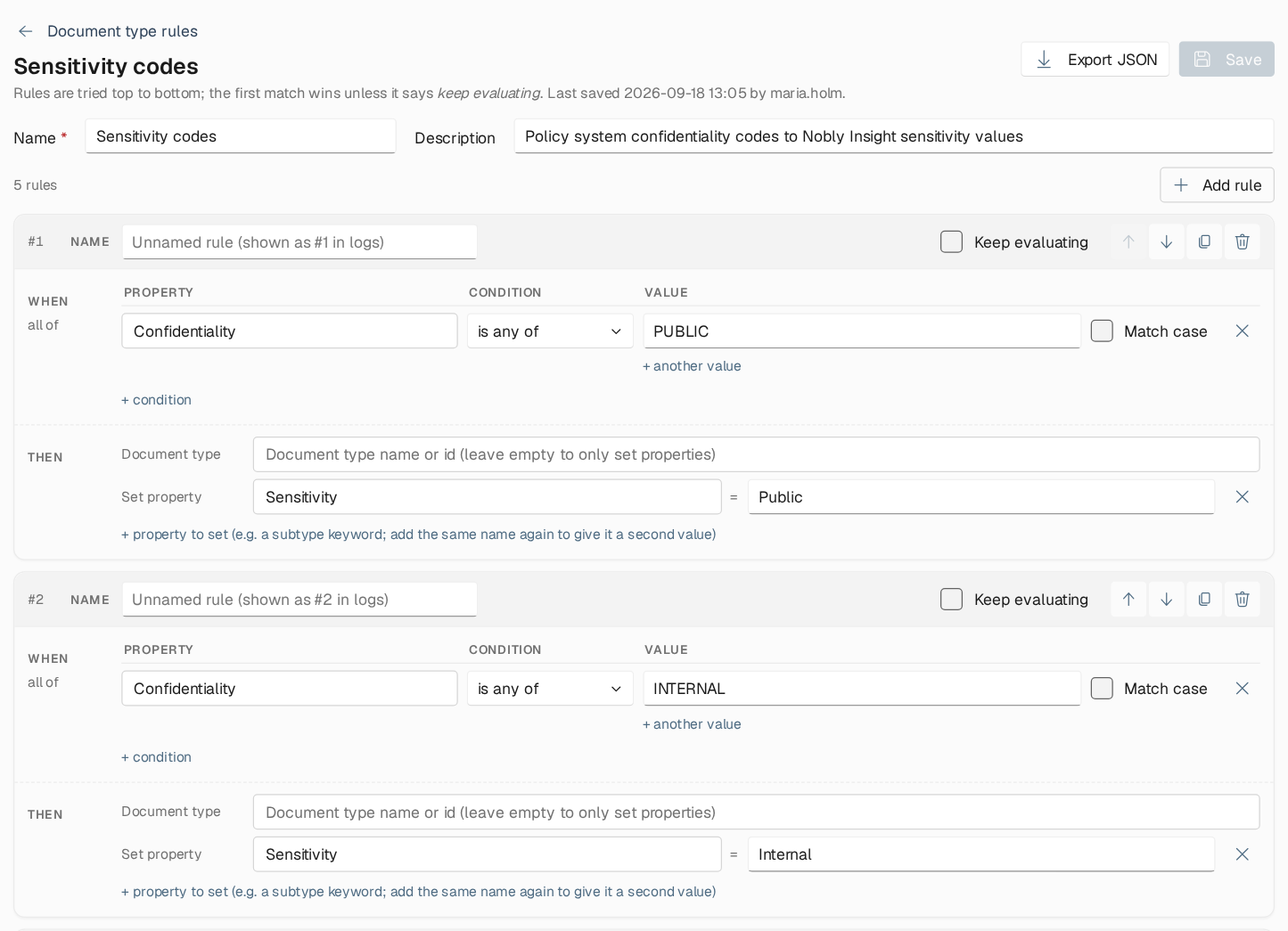 A table that a mapping uses must stay a plain translation table: one incoming property, an exact match, and one result property throughout. Saving it in another shape is refused, and the message names the mappings that read it, because the change would otherwise stop every one of their documents. Rows on a single field belong on that field. Use a shared table when several mappings need the same translation.
## Keyword records and pass-through
The **Keyword records and advanced** section holds three settings.
A table that a mapping uses must stay a plain translation table: one incoming property, an exact match, and one result property throughout. Saving it in another shape is refused, and the message names the mappings that read it, because the change would otherwise stop every one of their documents. Rows on a single field belong on that field. Use a shared table when several mappings need the same translation.
## Keyword records and pass-through
The **Keyword records and advanced** section holds three settings.
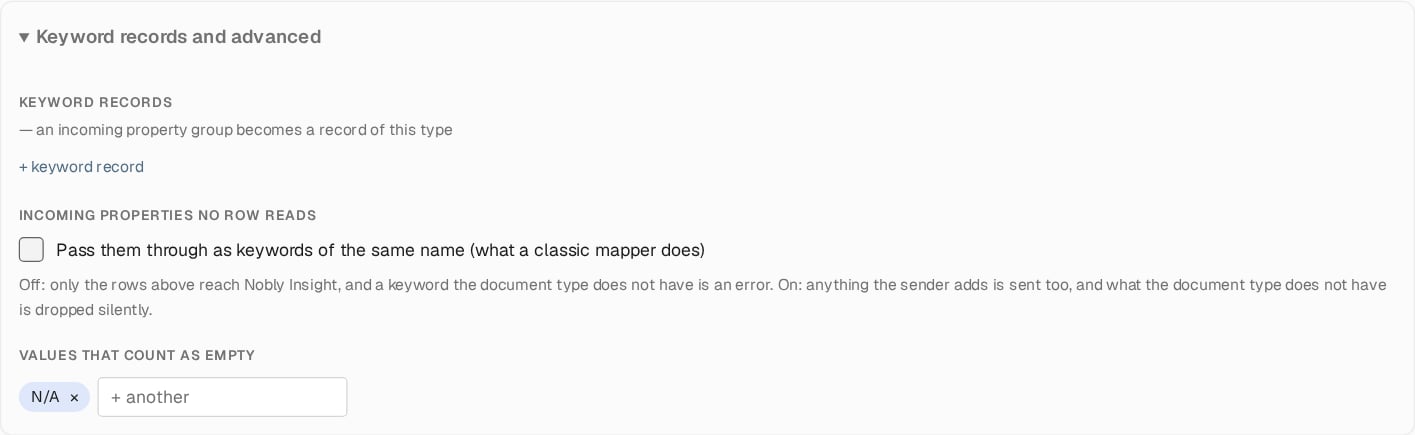 * **Keyword records**: an incoming property group becomes a keyword record of the type you choose. Name the keyword for each property in the group. A property without its own entry takes the name a field row gives it. Records only form from property groups the sender delivers; see [Incoming items](/contentflow/incoming-items#properties-and-property-groups).
* **Incoming properties no row reads**: with pass-through **off**, only your rows reach Nobly Insight. A keyword the document type does not have is then an error you get to see. With pass-through **on**, every unread incoming property is also sent as a keyword of the same name, and keywords the document type does not have are dropped silently. New mappings start with pass-through off. Classic mappers behave as if it were on.
* **Values that count as empty**: see [When the value is empty](#when-the-value-is-empty).
### Where each keyword goes
A mapping names keywords, not their place in the document type. When the document is uploaded, each keyword is placed where the target document type keeps it: standalone, in a single-instance group, or in a multi-instance keyword record. The same keyword can be standalone on one document type and part of a group on another, so one row serves every document type. You only need a keyword record for data that repeats, such as several policies on one document.
## How a mapping is evaluated
1. The incoming properties are read. The mapping never changes them.
2. The document type is decided.
3. The document date is decided.
4. Whatever the matching rules set is written. Then the field rows run from top to bottom, and a row may use the values of rows above it.
5. Pass-through, if switched on, and keyword records come last.
The same evaluation serves the Map to Insight document step, Try it, and test runs, so they cannot disagree. A mapping has limits that keep a single document from asking for unbounded work, such as 2,000 rows. A definition that exceeds a limit stops with a message naming it.
## JSON
The **JSON** tab shows the mapping as it is stored. You can paste an edited or exported mapping and choose **Apply JSON** to replace the whole definition, then save. **Export JSON** downloads the mapping, for example to move it to another environment. Unknown keys are rejected, so a typo fails when you apply it instead of silently doing nothing.
## Where to read next
Run sample documents through a draft, check it against Nobly Insight, publish it, and use it in a workflow.
The properties, property groups and document type a sending system delivers, which a mapping reads.
This documentation is built and hosted on [Mintlify](https://mintlify.com), a developer documentation platform.
* **Keyword records**: an incoming property group becomes a keyword record of the type you choose. Name the keyword for each property in the group. A property without its own entry takes the name a field row gives it. Records only form from property groups the sender delivers; see [Incoming items](/contentflow/incoming-items#properties-and-property-groups).
* **Incoming properties no row reads**: with pass-through **off**, only your rows reach Nobly Insight. A keyword the document type does not have is then an error you get to see. With pass-through **on**, every unread incoming property is also sent as a keyword of the same name, and keywords the document type does not have are dropped silently. New mappings start with pass-through off. Classic mappers behave as if it were on.
* **Values that count as empty**: see [When the value is empty](#when-the-value-is-empty).
### Where each keyword goes
A mapping names keywords, not their place in the document type. When the document is uploaded, each keyword is placed where the target document type keeps it: standalone, in a single-instance group, or in a multi-instance keyword record. The same keyword can be standalone on one document type and part of a group on another, so one row serves every document type. You only need a keyword record for data that repeats, such as several policies on one document.
## How a mapping is evaluated
1. The incoming properties are read. The mapping never changes them.
2. The document type is decided.
3. The document date is decided.
4. Whatever the matching rules set is written. Then the field rows run from top to bottom, and a row may use the values of rows above it.
5. Pass-through, if switched on, and keyword records come last.
The same evaluation serves the Map to Insight document step, Try it, and test runs, so they cannot disagree. A mapping has limits that keep a single document from asking for unbounded work, such as 2,000 rows. A definition that exceeds a limit stops with a message naming it.
## JSON
The **JSON** tab shows the mapping as it is stored. You can paste an edited or exported mapping and choose **Apply JSON** to replace the whole definition, then save. **Export JSON** downloads the mapping, for example to move it to another environment. Unknown keys are rejected, so a typo fails when you apply it instead of silently doing nothing.
## Where to read next
Run sample documents through a draft, check it against Nobly Insight, publish it, and use it in a workflow.
The properties, property groups and document type a sending system delivers, which a mapping reads.
This documentation is built and hosted on [Mintlify](https://mintlify.com), a developer documentation platform.