> ## Documentation Index
> Fetch the complete documentation index at: https://docs.insight.nobly.dk/llms.txt
> Use this file to discover all available pages before exploring further.
# Keyword types
> Define the metadata fields used across document types — data types, length, text case, input masks, and value lists.
## Keyword types
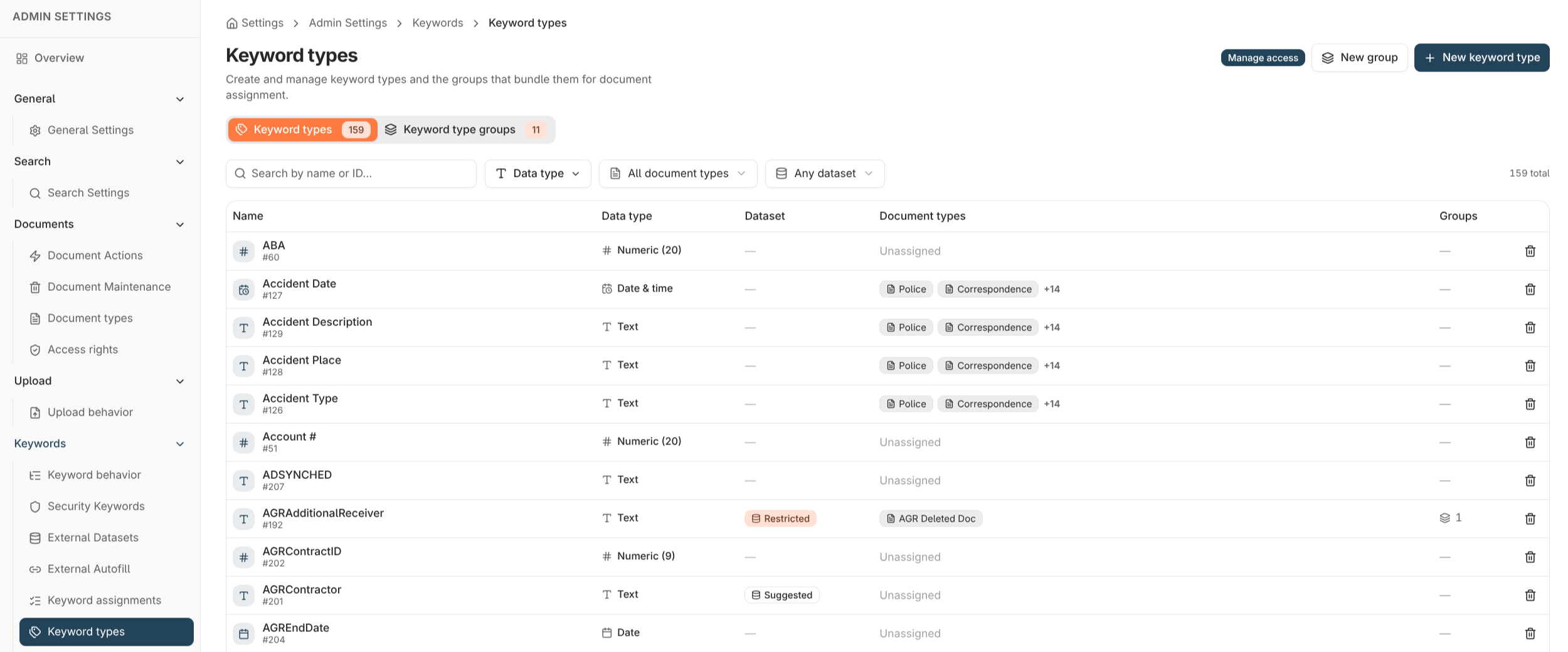
A keyword type is the reusable definition of a metadata field — *Invoice number*, *Customer name*, *Date received*. You define it once and assign it to as many document types as you need. Its data type and validation rules then apply everywhere it's used.
Manage keyword types under **Admin settings → Keywords → Keyword types** (open **Admin settings** from your profile menu at the bottom-left of the sidebar). The list shows every keyword type with its data type, length, any value list, and which document types use it. The same screen has a second tab for [keyword type groups](/configuration/keyword-assignment-models#keyword-type-groups).
 ## Data types
The data type fixes what kind of value a keyword accepts and how it's validated, sorted, and searched. Choose it when you create the keyword type.
| Data type | Use it for |
| ---------------- | ------------------------------------------------------------------------------------------------------------------------------------- |
| **Text** | Names, references, and codes — any free or formatted text. Text keywords have the most options: length, case, masks, and value lists. |
| **Whole number** | Counts and integer identifiers. |
| **Decimal** | Numbers with fractional precision. |
| **Currency** | Monetary amounts. A specific-currency variant pins the value to a defined currency format. |
| **Date** | A calendar date with no time. |
| **Date & time** | A precise moment in time. |
Pick the most specific data type that fits. It drives correct sorting and comparison (so dates sort as dates, not text), tighter validation, and better search — and the data type can't be changed later without recreating the keyword.
## Text keyword options
Text keywords support extra validation that the other data types don't:
| Option | What it does |
| ------------------------ | ------------------------------------------------------------------------------------------------------------------------------------------ |
| **Maximum length** | The longest value allowed, from 1 to 255 characters. |
| **Text case** | Whether values are stored as entered (**mixed case**) or forced to **upper** or **lower** case. Forcing case keeps look-ups consistent. |
| **Input mask** | A fixed format the value must follow — for example `99-AAA-99`. Fixed characters in the mask (such as the dashes) are part of the pattern. |
| **Value list (dataset)** | A defined set of allowed values — see [Value lists](#value-lists). |
### Lengthening a text keyword
You can **increase** a text keyword's maximum length later if values outgrow it. You cannot **shorten** it, because that would risk truncating values already stored. Plan a generous length up front for fields that might grow.
## Value lists
A value list (dataset) attaches a set of allowed values to a keyword, so users pick from a list instead of typing freely. There are two strengths:
| Mode | Behaviour |
| -------------- | ------------------------------------------------------------------------------------------------------------------- |
| **Suggested** | Users get a dropdown of the listed values but can still enter something else. Good for convenience and consistency. |
| **Restricted** | Users *must* choose a value from the list. Anything else is rejected. Good for controlled vocabularies. |
You enter the values one per line when creating or editing the keyword type. A restricted list must contain at least one value.
## Deleting a keyword type
Deleting a keyword type is permanent and requires the **Keyword Configuration Administration** permission (see [Application permissions](/permissions/application-permissions)).
A keyword type **cannot be deleted while it's still in use**. Nobly Insight blocks the delete and tells you what references it — for example:
* it's assigned to a document type,
* it's a member of a keyword type group or autofill keyword set,
* it's used by a security keyword rule or a retention policy,
* it still has stored values.
Remove those references first, then delete.
## Where to read next
Assign keyword types to document types as standalone fields or grouped together.
Fill related keywords automatically from a single look-up value.
## Data types
The data type fixes what kind of value a keyword accepts and how it's validated, sorted, and searched. Choose it when you create the keyword type.
| Data type | Use it for |
| ---------------- | ------------------------------------------------------------------------------------------------------------------------------------- |
| **Text** | Names, references, and codes — any free or formatted text. Text keywords have the most options: length, case, masks, and value lists. |
| **Whole number** | Counts and integer identifiers. |
| **Decimal** | Numbers with fractional precision. |
| **Currency** | Monetary amounts. A specific-currency variant pins the value to a defined currency format. |
| **Date** | A calendar date with no time. |
| **Date & time** | A precise moment in time. |
Pick the most specific data type that fits. It drives correct sorting and comparison (so dates sort as dates, not text), tighter validation, and better search — and the data type can't be changed later without recreating the keyword.
## Text keyword options
Text keywords support extra validation that the other data types don't:
| Option | What it does |
| ------------------------ | ------------------------------------------------------------------------------------------------------------------------------------------ |
| **Maximum length** | The longest value allowed, from 1 to 255 characters. |
| **Text case** | Whether values are stored as entered (**mixed case**) or forced to **upper** or **lower** case. Forcing case keeps look-ups consistent. |
| **Input mask** | A fixed format the value must follow — for example `99-AAA-99`. Fixed characters in the mask (such as the dashes) are part of the pattern. |
| **Value list (dataset)** | A defined set of allowed values — see [Value lists](#value-lists). |
### Lengthening a text keyword
You can **increase** a text keyword's maximum length later if values outgrow it. You cannot **shorten** it, because that would risk truncating values already stored. Plan a generous length up front for fields that might grow.
## Value lists
A value list (dataset) attaches a set of allowed values to a keyword, so users pick from a list instead of typing freely. There are two strengths:
| Mode | Behaviour |
| -------------- | ------------------------------------------------------------------------------------------------------------------- |
| **Suggested** | Users get a dropdown of the listed values but can still enter something else. Good for convenience and consistency. |
| **Restricted** | Users *must* choose a value from the list. Anything else is rejected. Good for controlled vocabularies. |
You enter the values one per line when creating or editing the keyword type. A restricted list must contain at least one value.
## Deleting a keyword type
Deleting a keyword type is permanent and requires the **Keyword Configuration Administration** permission (see [Application permissions](/permissions/application-permissions)).
A keyword type **cannot be deleted while it's still in use**. Nobly Insight blocks the delete and tells you what references it — for example:
* it's assigned to a document type,
* it's a member of a keyword type group or autofill keyword set,
* it's used by a security keyword rule or a retention policy,
* it still has stored values.
Remove those references first, then delete.
## Where to read next
Assign keyword types to document types as standalone fields or grouped together.
Fill related keywords automatically from a single look-up value.