> ## Documentation Index
> Fetch the complete documentation index at: https://docs.insight.nobly.dk/llms.txt
> Use this file to discover all available pages before exploring further.
# Keyword behaviour on a document type
> Control how each assigned keyword behaves — required, read-only, hidden, unique, default values — and conditional keyword rules.
## Per-assignment behaviour
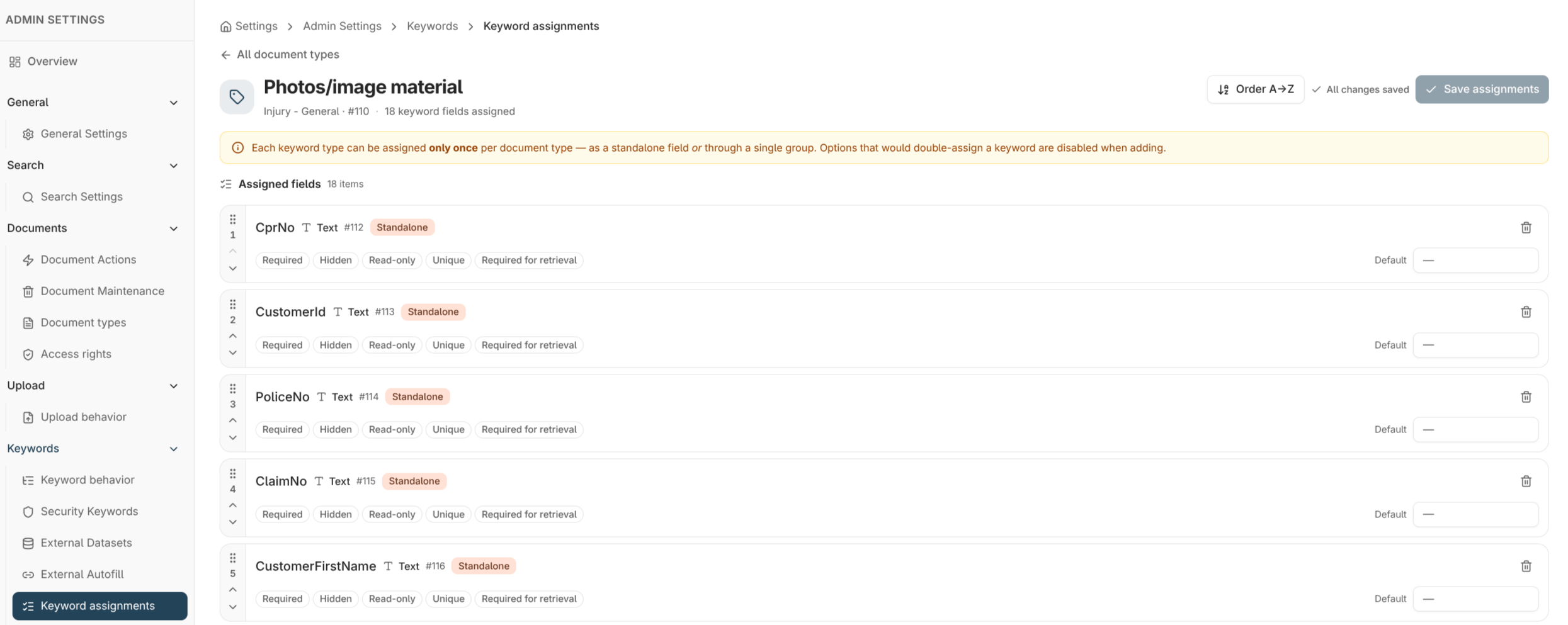
When you assign a keyword to a document type, you also control **how it behaves** on that type's indexing form. The same keyword type can behave differently on different document types — required on one, hidden on another — because behaviour is set on the *assignment*, not on the keyword type itself.
You set these on each keyword in the assignment editor under **Admin settings → Keywords → Keyword assignments**. To change one setting across many keywords at once, use [bulk edit](/configuration/keyword-assignment-models#bulk-editing).
 ## The behaviour flags
| Behaviour | Effect |
| -------------------------- | ------------------------------------------------------------------------------------------------------------------------------------------------ |
| **Required** | The keyword must have a value before a document can be stored. Use it for the fields a document can't be filed without. |
| **Required for retrieval** | The keyword must be supplied when *searching* for documents of this type — useful for narrowing large result sets. |
| **Read-only** | The keyword is shown but can't be edited on the form. Use it for values set by the system or by automation. |
| **Hidden** | The keyword isn't shown on the indexing form at all, while still existing on the document. Use it for values managed behind the scenes. |
| **Unique** | The keyword's value must be unique across documents of this type — no two documents can share it. Use it for identifiers like an invoice number. |
| **Default value** | A value pre-filled when a new document of this type is created. Users can change it unless the keyword is also read-only. |
**Read-only** and **hidden** are different: a read-only keyword is *visible but locked*, a hidden keyword is *not shown at all*. Combine **default value** with **read-only** to stamp a fixed value users can see but not change.
Be deliberate with **required** and **unique** on document types that already hold documents. Existing documents that don't satisfy a newly required or unique keyword can cause validation to fail the next time they're edited.
## Conditional keyword rules
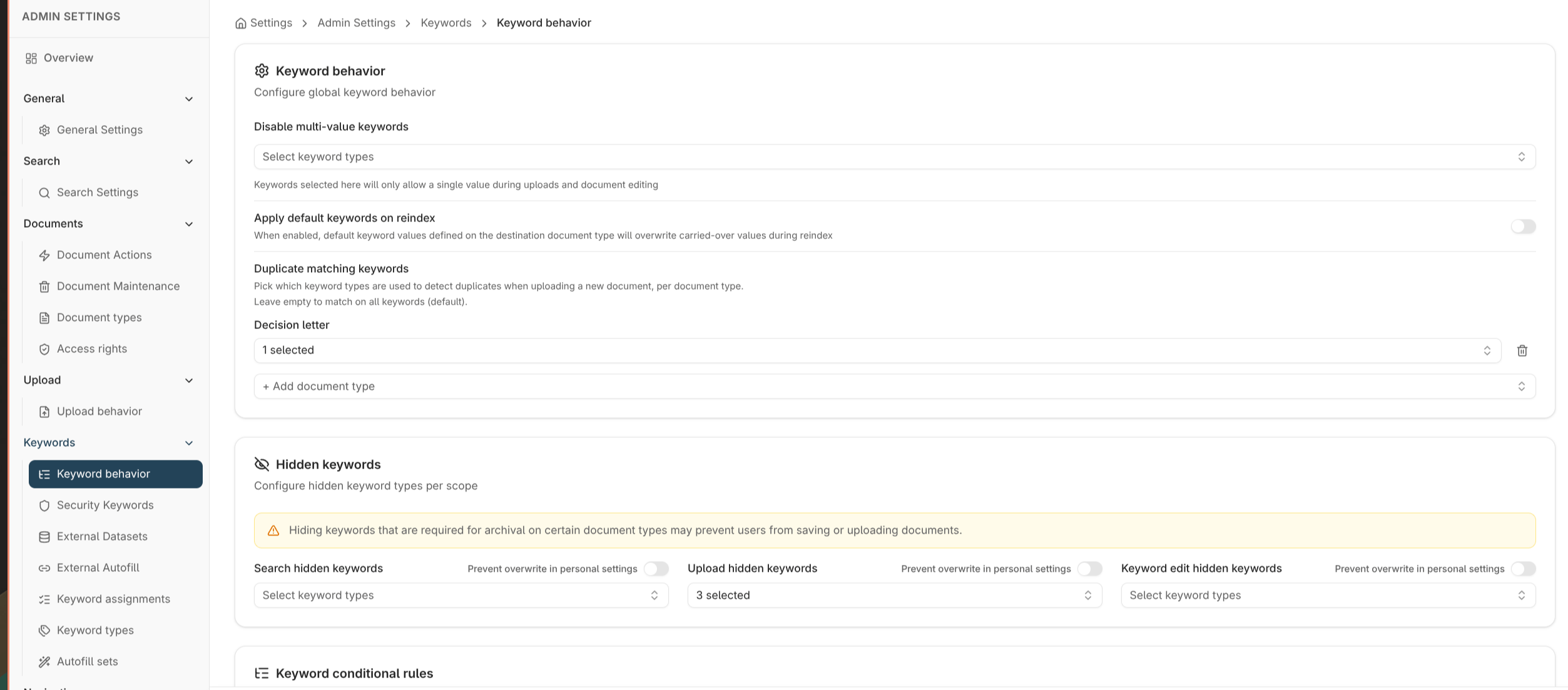
Beyond per-keyword flags, you can define **conditional rules** that change keyword behaviour based on other values — for example, show a keyword only when another keyword has a particular value, or set a default conditionally. Manage these under **Admin settings → Keywords → Keyword behavior**.
Conditional rules are scoped per document type and are evaluated live on the indexing form as users enter values. They're the tool to reach for when a static *required* or *hidden* flag isn't enough and the behaviour needs to depend on context.
## The behaviour flags
| Behaviour | Effect |
| -------------------------- | ------------------------------------------------------------------------------------------------------------------------------------------------ |
| **Required** | The keyword must have a value before a document can be stored. Use it for the fields a document can't be filed without. |
| **Required for retrieval** | The keyword must be supplied when *searching* for documents of this type — useful for narrowing large result sets. |
| **Read-only** | The keyword is shown but can't be edited on the form. Use it for values set by the system or by automation. |
| **Hidden** | The keyword isn't shown on the indexing form at all, while still existing on the document. Use it for values managed behind the scenes. |
| **Unique** | The keyword's value must be unique across documents of this type — no two documents can share it. Use it for identifiers like an invoice number. |
| **Default value** | A value pre-filled when a new document of this type is created. Users can change it unless the keyword is also read-only. |
**Read-only** and **hidden** are different: a read-only keyword is *visible but locked*, a hidden keyword is *not shown at all*. Combine **default value** with **read-only** to stamp a fixed value users can see but not change.
Be deliberate with **required** and **unique** on document types that already hold documents. Existing documents that don't satisfy a newly required or unique keyword can cause validation to fail the next time they're edited.
## Conditional keyword rules
Beyond per-keyword flags, you can define **conditional rules** that change keyword behaviour based on other values — for example, show a keyword only when another keyword has a particular value, or set a default conditionally. Manage these under **Admin settings → Keywords → Keyword behavior**.
Conditional rules are scoped per document type and are evaluated live on the indexing form as users enter values. They're the tool to reach for when a static *required* or *hidden* flag isn't enough and the behaviour needs to depend on context.
 ## Where to read next
Add the keywords whose behaviour you're configuring, as standalone fields or groups.
The document types these keyword behaviours apply to.
## Where to read next
Add the keywords whose behaviour you're configuring, as standalone fields or groups.
The document types these keyword behaviours apply to.