> ## Documentation Index
> Fetch the complete documentation index at: https://docs.insight.nobly.dk/llms.txt
> Use this file to discover all available pages before exploring further.
# Autofill keyword sets
> Fill related keywords automatically from a single look-up value, and manage the set's values, members, and visibility.
## What an autofill keyword set does
An autofill keyword set is a look-up table that fills several keywords at once during indexing. A user enters the **primary keyword** and Nobly Insight fills in the related keywords from the matching row — pick a *Customer number* and the *Customer name* and *Address* appear automatically.
Autofill sets speed up data entry and keep related values consistent. They don't change which keywords a document type has — they populate keywords that are already assigned.
Manage them under **Admin settings → Keywords → Autofill sets** (open **Admin settings** from your profile menu at the bottom-left of the sidebar). The list shows each set's primary keyword, its other members, the user groups that can use it, and how many value rows it holds.
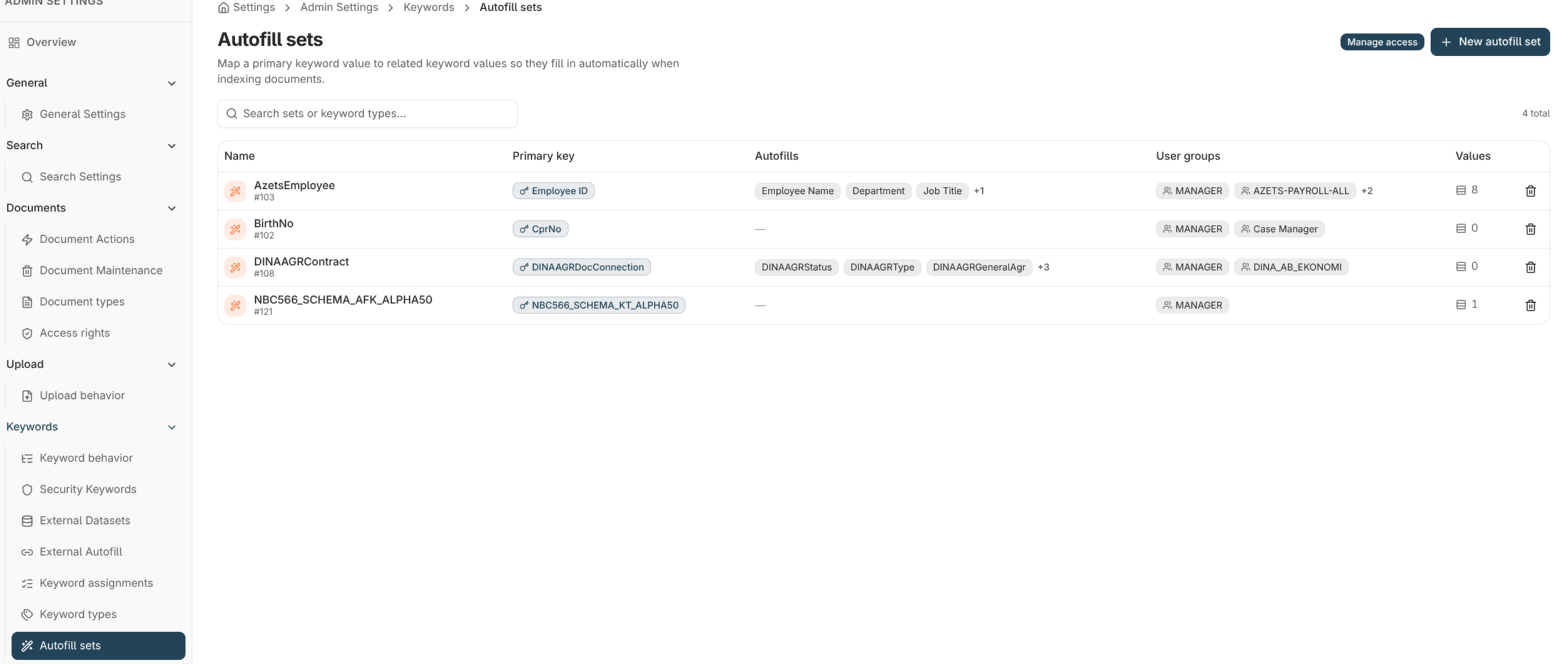 ## How a set is built
| Part | What it is |
| ------------------- | --------------------------------------------------------------------------------------------------------------- |
| **Primary keyword** | The keyword users enter to trigger the autofill. It's the look-up key, so its values are unique within the set. |
| **Member keywords** | The other keywords filled in from the matching row. |
| **Values** | The rows of the look-up table — one primary value mapped to its related values. |
| **User groups** | Which groups can use the set during indexing. A set is only offered to members of these groups. |
## Creating a set
1. Open **Admin settings → Keywords → Autofill sets** and choose **New autofill set**.
2. Name the set and choose the **primary keyword**, then the **member keywords** that will be filled in.
3. Choose the **user groups** that may use it.
4. Add **values** — each row pairs a primary value with the values for the members.
You can add, edit, and delete value rows at any time from the set's detail screen.
## Managing members and the primary keyword
* **Add or remove members** to change which keywords the set fills.
* **Change the primary keyword** to look the set up by a different field. Every row must already have a value for the new primary, so the look-up stays unique.
Removing a member permanently deletes the values stored for that member in the set. Nobly Insight asks you to confirm the data loss first. You can't remove the **primary keyword** or the **last remaining member** — change the primary or delete the whole set instead. Removing a member requires the **Keyword Configuration Administration** permission.
## Internal and external sets
Some autofill sets are **external** — their values come from an outside source rather than being typed in Nobly Insight. External sets are **read-only** here: you can see them and use them for indexing, but their values and membership are maintained at the source, not on this screen.
## Deleting a set
Deleting an autofill set removes the set and all its look-up values; it requires the **Keyword Configuration Administration** permission. A set can't be deleted while it's still assigned to a document type — remove the assignment first. Deleting a set does not delete the keyword values already stored on documents.
## Where to read next
Define the keyword types an autofill set looks up and fills in.
Make sure the keywords an autofill set fills are assigned to the document type.
## How a set is built
| Part | What it is |
| ------------------- | --------------------------------------------------------------------------------------------------------------- |
| **Primary keyword** | The keyword users enter to trigger the autofill. It's the look-up key, so its values are unique within the set. |
| **Member keywords** | The other keywords filled in from the matching row. |
| **Values** | The rows of the look-up table — one primary value mapped to its related values. |
| **User groups** | Which groups can use the set during indexing. A set is only offered to members of these groups. |
## Creating a set
1. Open **Admin settings → Keywords → Autofill sets** and choose **New autofill set**.
2. Name the set and choose the **primary keyword**, then the **member keywords** that will be filled in.
3. Choose the **user groups** that may use it.
4. Add **values** — each row pairs a primary value with the values for the members.
You can add, edit, and delete value rows at any time from the set's detail screen.
## Managing members and the primary keyword
* **Add or remove members** to change which keywords the set fills.
* **Change the primary keyword** to look the set up by a different field. Every row must already have a value for the new primary, so the look-up stays unique.
Removing a member permanently deletes the values stored for that member in the set. Nobly Insight asks you to confirm the data loss first. You can't remove the **primary keyword** or the **last remaining member** — change the primary or delete the whole set instead. Removing a member requires the **Keyword Configuration Administration** permission.
## Internal and external sets
Some autofill sets are **external** — their values come from an outside source rather than being typed in Nobly Insight. External sets are **read-only** here: you can see them and use them for indexing, but their values and membership are maintained at the source, not on this screen.
## Deleting a set
Deleting an autofill set removes the set and all its look-up values; it requires the **Keyword Configuration Administration** permission. A set can't be deleted while it's still assigned to a document type — remove the assignment first. Deleting a set does not delete the keyword values already stored on documents.
## Where to read next
Define the keyword types an autofill set looks up and fills in.
Make sure the keywords an autofill set fills are assigned to the document type.