> ## Documentation Index
> Fetch the complete documentation index at: https://docs.insight.nobly.dk/llms.txt
> Use this file to discover all available pages before exploring further.
# Promote configuration
> Export configuration from the source environment, review every difference in the target environment, and apply the changes you choose.
A promotion has two halves: an export in the source environment and an import in the target environment. You need **Keyword configuration administration** in both, plus the permissions of the configuration types you move; see [Permissions](/configuration-promotion/introduction#permissions).
## Export from the source environment
In the source environment, open **Admin settings → General → Configuration promotion**. **Export** is the first tab, with every type selected.
Tick or clear whole groups, or single types within a group. **Select all** and **Clear** change every type at once.
Select **Export**. A progress bar shows each type as it is read. The file then downloads as `config-.json`, and each type shows how many entries it contributed.
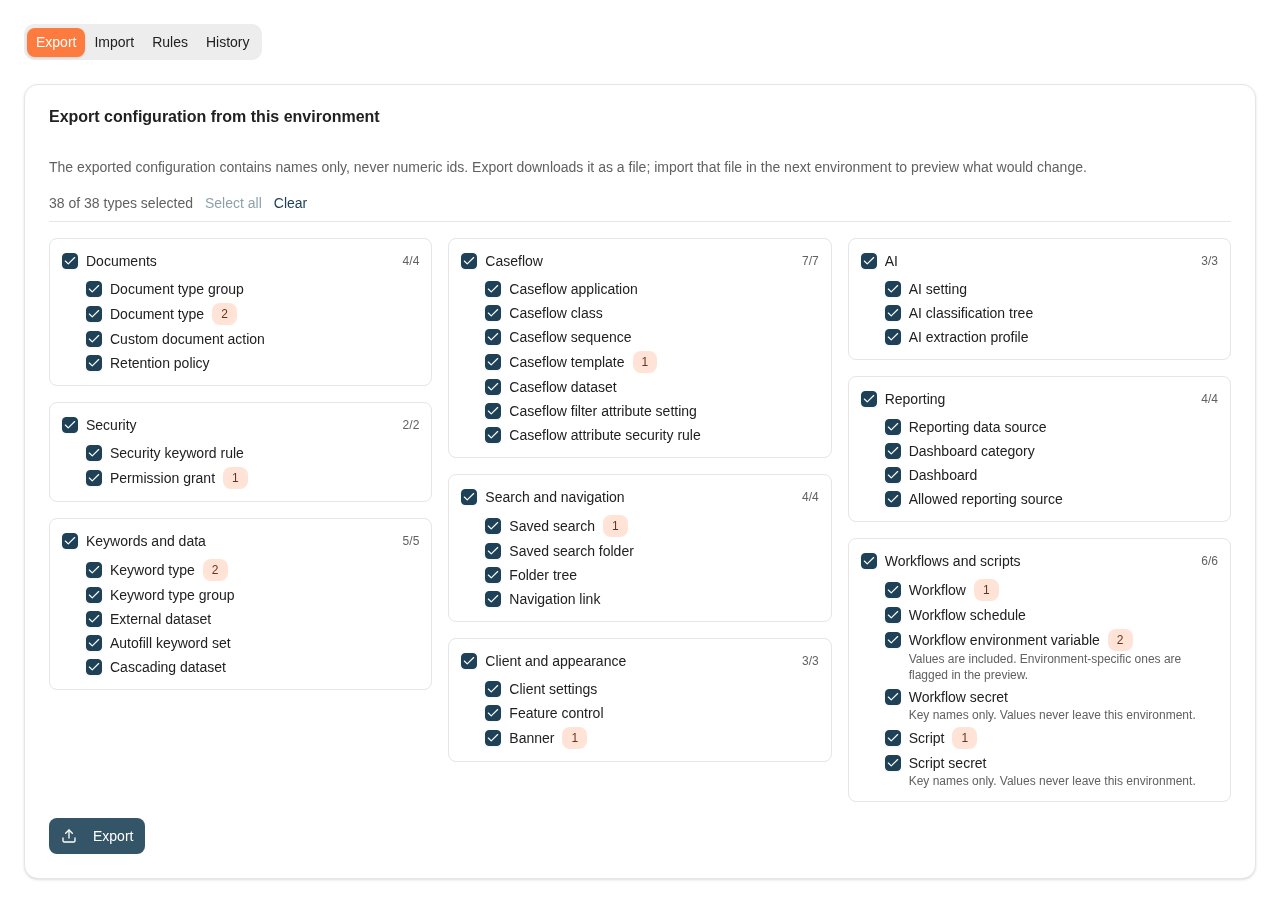 Only the types in the file are compared in the target. A type you leave out is neither changed nor deleted there. Exporting only the types you mean to move keeps the review short.
## Import in the target environment
In the target environment, open **Configuration promotion → Import** and select **Choose file**. The file name appears with the number of entries it holds, when it was exported and by whom. The comparison starts at once. Nothing is written to the environment until you apply.
If the import cannot be compared, **Import refused** gives the reason and no changes are listed. The usual reasons are:
* The file holds a configuration type you cannot view.
* The file was changed after export.
* The file holds a type this environment does not have.
* Two entries in the environment share a name.
See [Troubleshooting](/configuration-promotion/history-and-status#troubleshooting).
If the file names user groups that do not exist here, a dialog opens to map them first; see [Map user groups](#map-user-groups).
Only the types in the file are compared in the target. A type you leave out is neither changed nor deleted there. Exporting only the types you mean to move keeps the review short.
## Import in the target environment
In the target environment, open **Configuration promotion → Import** and select **Choose file**. The file name appears with the number of entries it holds, when it was exported and by whom. The comparison starts at once. Nothing is written to the environment until you apply.
If the import cannot be compared, **Import refused** gives the reason and no changes are listed. The usual reasons are:
* The file holds a configuration type you cannot view.
* The file was changed after export.
* The file holds a type this environment does not have.
* Two entries in the environment share a name.
See [Troubleshooting](/configuration-promotion/history-and-status#troubleshooting).
If the file names user groups that do not exist here, a dialog opens to map them first; see [Map user groups](#map-user-groups).
 ### Read the review
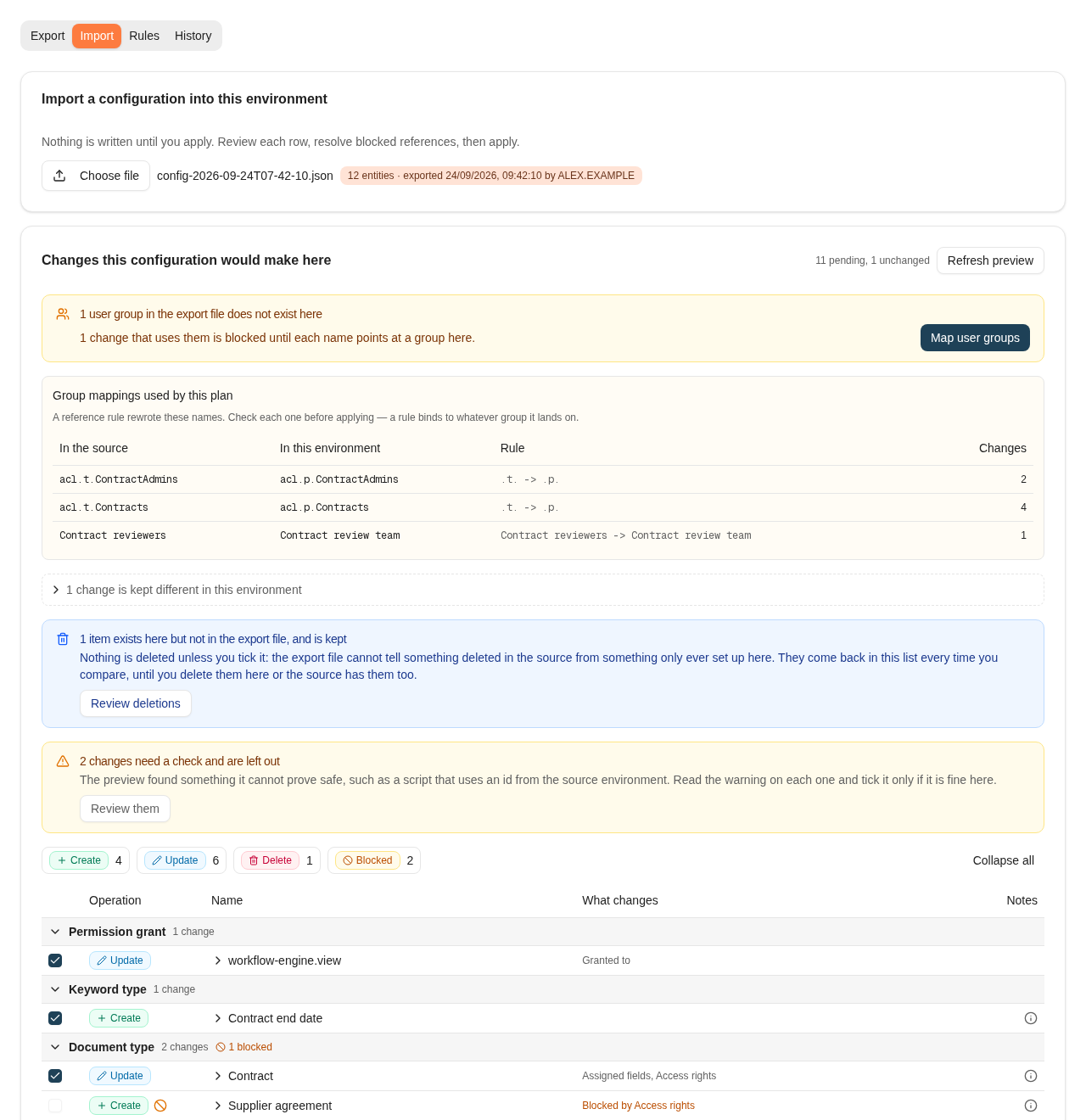
**Changes this configuration would make here** lists every difference, grouped by configuration type in the order the changes are saved. The heading shows how many changes are pending and how many entries are already identical. Identical entries are counted but not listed.
| Operation | Meaning |
| ----------- | ------------------------------------------------------------------------------------------ |
| **Create** | Does not exist here yet. It is created exactly as the file has it. |
| **Update** | Exists here with differences. It is changed to match the file. |
| **Delete** | Exists here but not in the file. Nothing is deleted unless you tick the row. |
| **Blocked** | Cannot be applied yet. The row still shows what it would do, and the reason is on the row. |
Select an operation above the list to show only those rows, and **Show all** to return. **Collapse all** and **Expand all** fold the type groups.
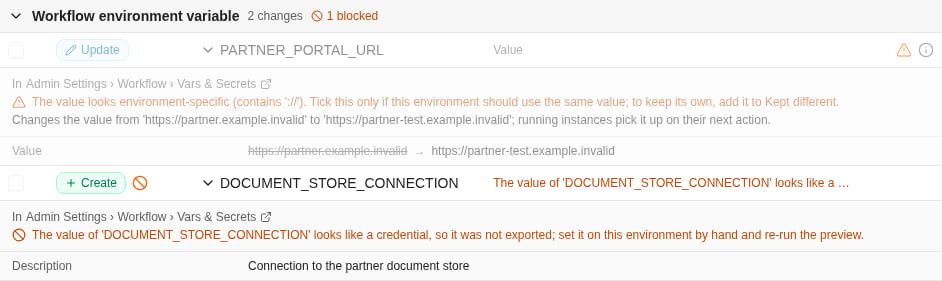
Each row has a tick box, the operation, the name, and a short summary of which settings change. On the right, a warning icon marks something to read before ticking, and an information icon lists what the change does. Open a row by its name to see:
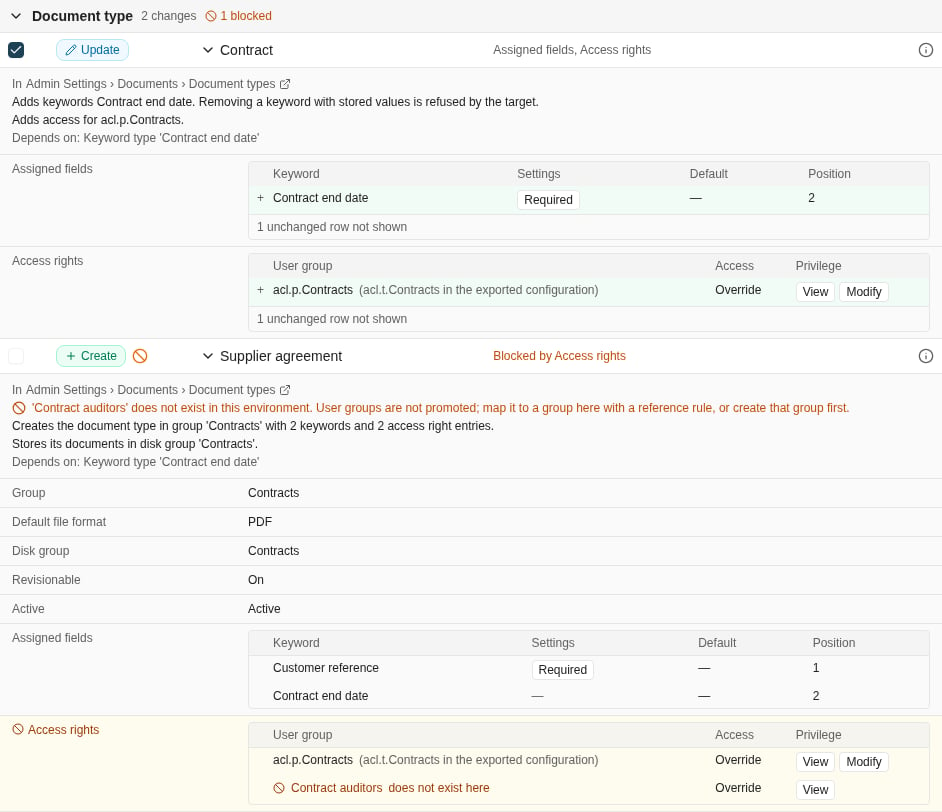
* where the configuration lives, with a link to its admin screen
* what the change does, and any warnings or reasons it is blocked
* which other changes it depends on
* every setting that changes, labelled the way its admin screen labels it. Added values are green and removed values are red and struck through. Template and script code is shown side by side.
A user group that a reference rule mapped is shown by its name here, followed by the name in the exported configuration. A name that does not exist here is marked **does not exist here**.
### Read the review
**Changes this configuration would make here** lists every difference, grouped by configuration type in the order the changes are saved. The heading shows how many changes are pending and how many entries are already identical. Identical entries are counted but not listed.
| Operation | Meaning |
| ----------- | ------------------------------------------------------------------------------------------ |
| **Create** | Does not exist here yet. It is created exactly as the file has it. |
| **Update** | Exists here with differences. It is changed to match the file. |
| **Delete** | Exists here but not in the file. Nothing is deleted unless you tick the row. |
| **Blocked** | Cannot be applied yet. The row still shows what it would do, and the reason is on the row. |
Select an operation above the list to show only those rows, and **Show all** to return. **Collapse all** and **Expand all** fold the type groups.
Each row has a tick box, the operation, the name, and a short summary of which settings change. On the right, a warning icon marks something to read before ticking, and an information icon lists what the change does. Open a row by its name to see:
* where the configuration lives, with a link to its admin screen
* what the change does, and any warnings or reasons it is blocked
* which other changes it depends on
* every setting that changes, labelled the way its admin screen labels it. Added values are green and removed values are red and struck through. Template and script code is shown side by side.
A user group that a reference rule mapped is shown by its name here, followed by the name in the exported configuration. A name that does not exist here is marked **does not exist here**.
 A rename in the source arrives as a create and a delete. When the new entry is identical to one that exists here under another name, the create warns that it may be a rename. In that case, skip the create and rename the entry here by hand.
### Map user groups
User groups are never promoted. When the file names a user group this environment does not have, **User groups that do not exist here** opens by itself and offers one way to fix each name:
* **Suggested rule** replaces a text fragment in every name that differs only in that fragment. Select **Add rule** to save it.
* **Map a single name** offers the groups here with a similar name. Select **Map to** a group to save an exact rule for that one name.
* **Groups that have to be created here first** have no similar group here, so no rule can fix them. Create the group in this environment and refresh the preview, or leave out the changes that use it.
A rename in the source arrives as a create and a delete. When the new entry is identical to one that exists here under another name, the create warns that it may be a rename. In that case, skip the create and rename the entry here by hand.
### Map user groups
User groups are never promoted. When the file names a user group this environment does not have, **User groups that do not exist here** opens by itself and offers one way to fix each name:
* **Suggested rule** replaces a text fragment in every name that differs only in that fragment. Select **Add rule** to save it.
* **Map a single name** offers the groups here with a similar name. Select **Map to** a group to save an exact rule for that one name.
* **Groups that have to be created here first** have no similar group here, so no rule can fix them. Create the group in this environment and refresh the preview, or leave out the changes that use it.
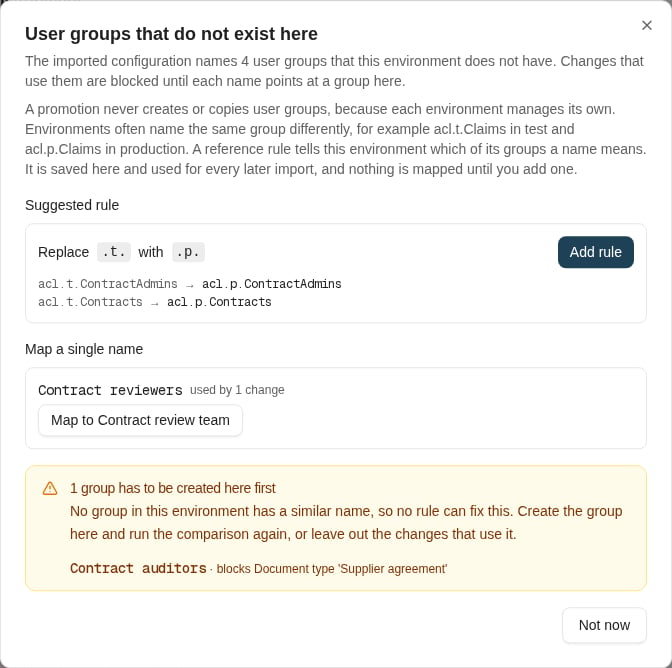 Rules are saved in this environment and used for every later import, and the preview refreshes as soon as a rule is saved. Saving a rule needs **Manage user groups**; without it, the dialog shows the proposals but cannot save them. Select **Not now** to close the dialog; **Map user groups** on the review opens it again.
Before you apply, check **Group mappings used by this plan**. It lists each group name a rule rewrote, the group it now points at, the rule, and how many changes use it. A rule points at whatever group it lands on, so this list is where a wrong mapping shows. See [User group reference rules](/configuration-promotion/rules-and-differences#user-group-reference-rules).
### Changes left out until you tick them
Some changes arrive unticked, and a notice above the list counts them:
* **Deletions.** A delete is never ticked for you. The file cannot tell something deleted in the source from something that was only ever set up here. These rows come back every time you compare until you delete them here, or the source has them too. **Review deletions** shows only these rows.
* **Changes that need a check.** The preview found something it cannot prove safe, and the warning on the row says what. **Review them** shows only these rows. Tick a row only if its warning is fine for this environment:
* A script uses a number that is the ID of a user group, document type, keyword type or other configuration in the source, and that ID is different here or missing. A promotion never edits script code, so change the script to look the configuration up by name, then promote it again.
* A workflow environment variable value looks environment-specific, such as a URL, host name, IP address or connection string.
* A workflow environment variable would overwrite a value here that looks like a credential.
* The AI search automatic indexing setting differs. Environments often index different document types on purpose.
* **Changes whose dependency is not ticked.** A change that needs another change you left out is left out too, and says so. For example, a document type that needs a new keyword type waits until you tick the keyword type as well.
A change that should never arrive here can be recorded as [kept different](/configuration-promotion/rules-and-differences#kept-different-in-this-environment). It is then listed under **changes are kept different in this environment** instead of the change list.
Rules are saved in this environment and used for every later import, and the preview refreshes as soon as a rule is saved. Saving a rule needs **Manage user groups**; without it, the dialog shows the proposals but cannot save them. Select **Not now** to close the dialog; **Map user groups** on the review opens it again.
Before you apply, check **Group mappings used by this plan**. It lists each group name a rule rewrote, the group it now points at, the rule, and how many changes use it. A rule points at whatever group it lands on, so this list is where a wrong mapping shows. See [User group reference rules](/configuration-promotion/rules-and-differences#user-group-reference-rules).
### Changes left out until you tick them
Some changes arrive unticked, and a notice above the list counts them:
* **Deletions.** A delete is never ticked for you. The file cannot tell something deleted in the source from something that was only ever set up here. These rows come back every time you compare until you delete them here, or the source has them too. **Review deletions** shows only these rows.
* **Changes that need a check.** The preview found something it cannot prove safe, and the warning on the row says what. **Review them** shows only these rows. Tick a row only if its warning is fine for this environment:
* A script uses a number that is the ID of a user group, document type, keyword type or other configuration in the source, and that ID is different here or missing. A promotion never edits script code, so change the script to look the configuration up by name, then promote it again.
* A workflow environment variable value looks environment-specific, such as a URL, host name, IP address or connection string.
* A workflow environment variable would overwrite a value here that looks like a credential.
* The AI search automatic indexing setting differs. Environments often index different document types on purpose.
* **Changes whose dependency is not ticked.** A change that needs another change you left out is left out too, and says so. For example, a document type that needs a new keyword type waits until you tick the keyword type as well.
A change that should never arrive here can be recorded as [kept different](/configuration-promotion/rules-and-differences#kept-different-in-this-environment). It is then listed under **changes are kept different in this environment** instead of the change list.
 ### Resolve blocked changes
A blocked change cannot be ticked. The reason is shown in the **What changes** column and in full when you open the row. Fix the cause, then select **Refresh preview**.
| Reason on the row | What to do |
| ----------------------------------------------------------------------------------------------------------------------------------------------------------------------------------------- | --------------------------------------------------------------------------------------------------------------------------- |
| A user group does not exist in this environment | Add a [reference rule](/configuration-promotion/rules-and-differences#user-group-reference-rules), or create the group here |
| A disk group, file type, note type or folder type does not exist in the target | Create it here by hand first |
| Secret values never leave an environment | Create the secret with its value here |
| A workflow environment variable value looks like a credential | Set the variable here by hand |
| Changing this needs a permission you do not have | Ask for the permission, or leave the change to someone who holds it |
| It needs something that exists neither in the file nor here, or that is itself blocked | Resolve that change first, or include its type in the export |
| Two changes need each other | Create or change one of them here first, then compare again |
| A change that cannot be made in place, such as a keyword type's data type or storage, a shorter keyword length, turning revisions off, or a Caseflow class's base class or attribute type | Align the source with this environment, or record the entry as kept different |
| A delete of something still in use, such as a document type with documents or a keyword type that is assigned | Leave the delete out, or remove the use first |
A promotion never deletes a workflow, a workflow schedule, a Caseflow class or an allowed reporting source.
## Apply
A tick changes what the rest of the plan can do, so every tick refreshes the preview. **Apply** waits until the refresh is done, and **Updating the preview with your choices…** shows while it runs.
Before you apply, read **If saving fails** under the list. It shows the order the changes are saved in:
* Changes stored in Nobly Insight are saved in steps. Within a step, either every change is saved or none is.
* Each workflow, script, workflow or script secret, workflow environment variable, workflow schedule and reporting data source is saved on its own.
* If a step fails, the steps before it stay saved and the rest are skipped. History then shows what was saved. To change it, promote again from the source environment.
### Resolve blocked changes
A blocked change cannot be ticked. The reason is shown in the **What changes** column and in full when you open the row. Fix the cause, then select **Refresh preview**.
| Reason on the row | What to do |
| ----------------------------------------------------------------------------------------------------------------------------------------------------------------------------------------- | --------------------------------------------------------------------------------------------------------------------------- |
| A user group does not exist in this environment | Add a [reference rule](/configuration-promotion/rules-and-differences#user-group-reference-rules), or create the group here |
| A disk group, file type, note type or folder type does not exist in the target | Create it here by hand first |
| Secret values never leave an environment | Create the secret with its value here |
| A workflow environment variable value looks like a credential | Set the variable here by hand |
| Changing this needs a permission you do not have | Ask for the permission, or leave the change to someone who holds it |
| It needs something that exists neither in the file nor here, or that is itself blocked | Resolve that change first, or include its type in the export |
| Two changes need each other | Create or change one of them here first, then compare again |
| A change that cannot be made in place, such as a keyword type's data type or storage, a shorter keyword length, turning revisions off, or a Caseflow class's base class or attribute type | Align the source with this environment, or record the entry as kept different |
| A delete of something still in use, such as a document type with documents or a keyword type that is assigned | Leave the delete out, or remove the use first |
A promotion never deletes a workflow, a workflow schedule, a Caseflow class or an allowed reporting source.
## Apply
A tick changes what the rest of the plan can do, so every tick refreshes the preview. **Apply** waits until the refresh is done, and **Updating the preview with your choices…** shows while it runs.
Before you apply, read **If saving fails** under the list. It shows the order the changes are saved in:
* Changes stored in Nobly Insight are saved in steps. Within a step, either every change is saved or none is.
* Each workflow, script, workflow or script secret, workflow environment variable, workflow schedule and reporting data source is saved on its own.
* If a step fails, the steps before it stay saved and the rest are skipped. History then shows what was saved. To change it, promote again from the source environment.
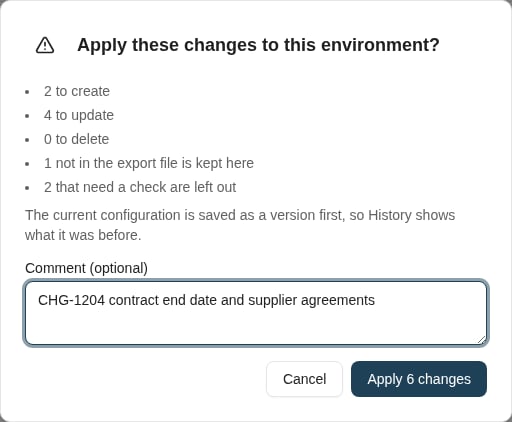
 Select **Apply N changes**. The confirmation counts what will be created, updated and deleted. It also counts the deletions and checks you left out.
Enter an optional comment of up to 2,000 characters, such as the change request or ticket the promotion belongs to. The comment is kept in History.
Select **Apply N changes** in the dialog. The current configuration is saved as a version first, so History shows what it was before.
Select **Apply N changes**. The confirmation counts what will be created, updated and deleted. It also counts the deletions and checks you left out.
Enter an optional comment of up to 2,000 characters, such as the change request or ticket the promotion belongs to. The comment is kept in History.
Select **Apply N changes** in the dialog. The current configuration is saved as a version first, so History shows what it was before.
 **Result** then shows the status and how many changes were applied, failed, rolled back, not run and left over, with details for each. The review refreshes, so applied changes no longer appear as pending.
If this environment's configuration changed after your preview, for example because someone saved a setting, the apply is refused. The review refreshes with your ticks kept. Review it again and apply.
## Where to read next
Map user group names between environments and record what an environment keeps different on purpose.
See every promotion applied to an environment and what has changed since.
**Result** then shows the status and how many changes were applied, failed, rolled back, not run and left over, with details for each. The review refreshes, so applied changes no longer appear as pending.
If this environment's configuration changed after your preview, for example because someone saved a setting, the apply is refused. The review refreshes with your ticks kept. Review it again and apply.
## Where to read next
Map user group names between environments and record what an environment keeps different on purpose.
See every promotion applied to an environment and what has changed since.