> ## Documentation Index
> Fetch the complete documentation index at: https://docs.insight.nobly.dk/llms.txt
> Use this file to discover all available pages before exploring further.
# Client defaults and document actions
> Configure shared upload behavior, distinguish personal overrides from enforced defaults, and expose document actions to selected groups.
## Shared settings and personal overrides
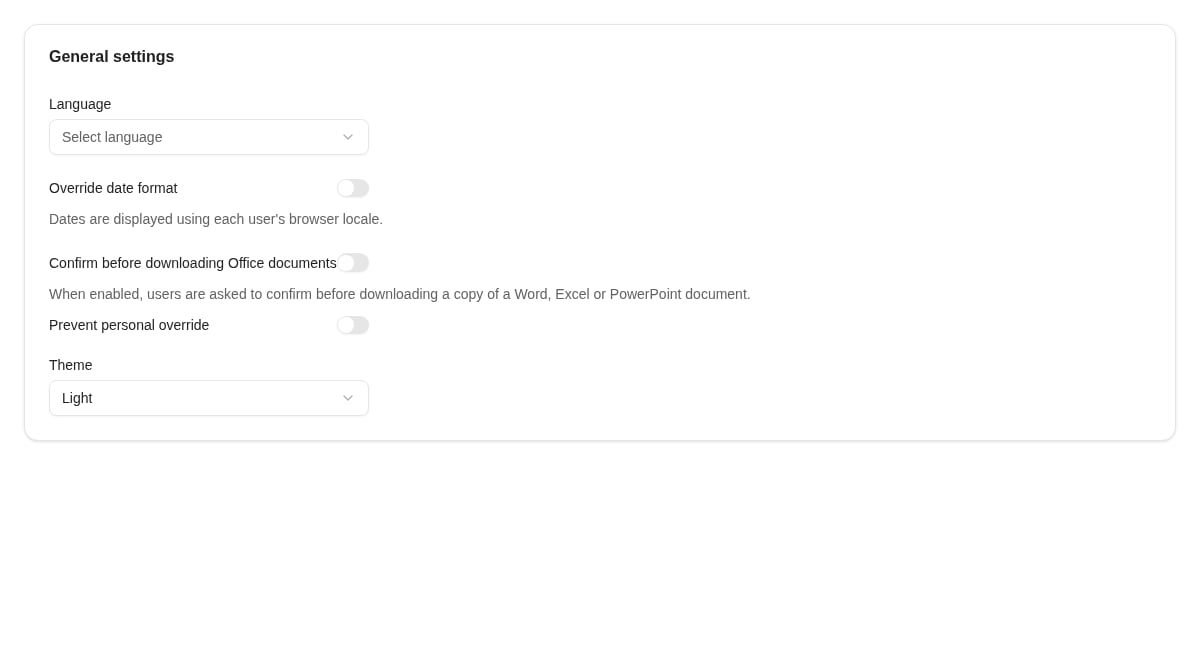
Open **Admin settings** from the profile menu. Shared defaults and **Personal settings** are separate scopes. Some settings let you prevent personal overrides; without that restriction, a user's existing personal choice may explain why they see different behavior.
**General settings** exposes language, theme, an administrative date-format override, and whether Office downloads require confirmation. The download setting includes a control to prevent personal override. Distinguish shared settings from the personal screen and verify the effective result for another account; presentation choices do not change stored document dates.
After changing a shared default, test with both a user who has no personal override and one who has customized the setting.
 ## Configure upload behavior
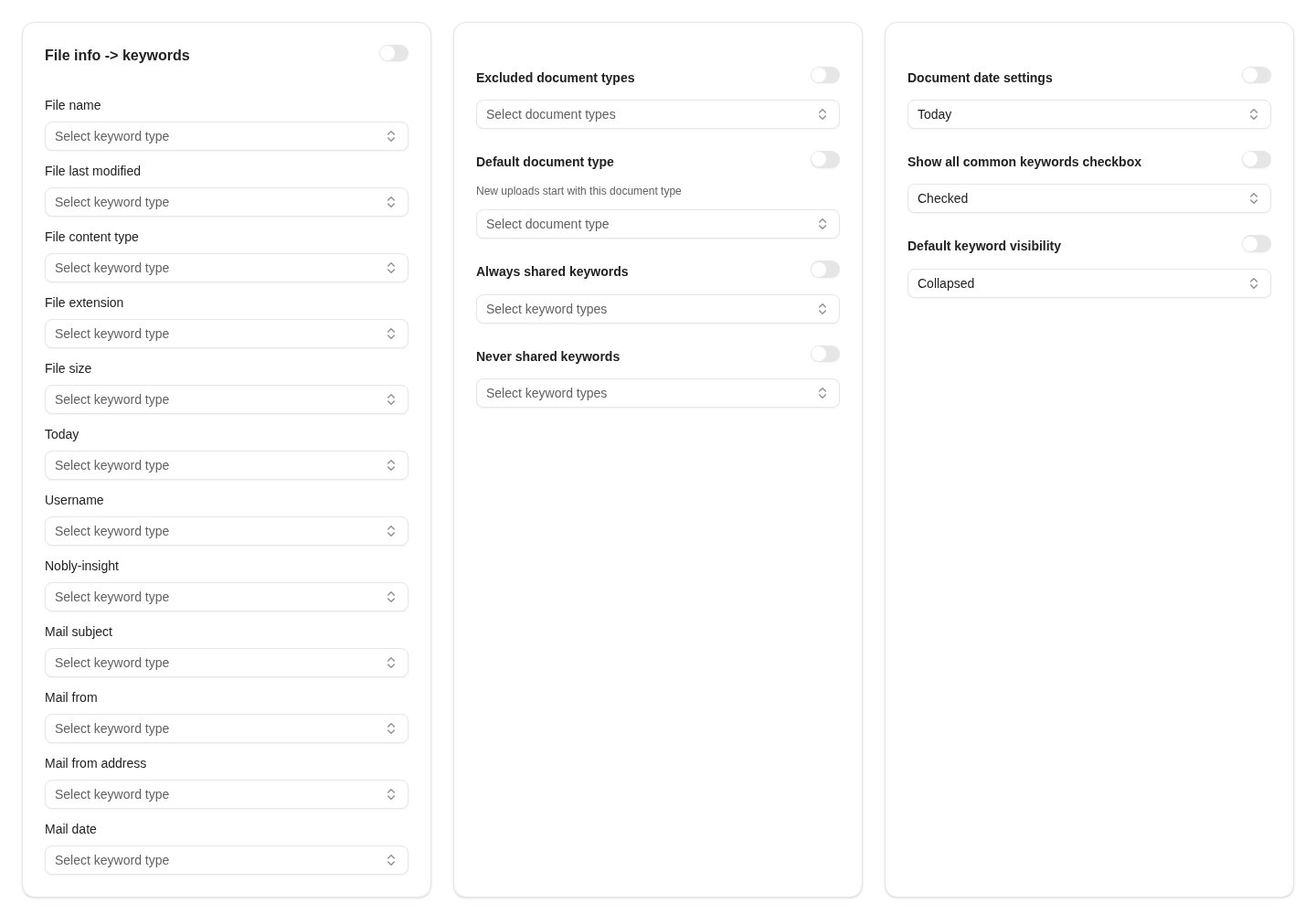
Open **Upload → Upload behavior** with `client.upload-behavior.view` or `client.upload-behavior.manage` as appropriate. Review:
| Setting | Configuration question |
| ---------------------------- | ---------------------------------------------------------------------- |
| Property maps | Which file/upload properties should populate which keywords? |
| Default document type | What type should a new upload start with? |
| Excluded document types | Which types should the upload UI omit? |
| Always/never shared keywords | Which values should carry across documents in a multi-document upload? |
| Document date | What date source should be used by default? |
| Keyword visibility | Which indexing fields should initially be shown? |
| Prevent personal overwrite | Which choices must remain under central control? |
These are client behavior settings. Hiding a document type in an upload picker is not a replacement for document-type access rights enforced by the API.
Verify with a representative file and destination type. Check the resulting stored metadata, not just the values initially displayed in the upload form.
## Configure upload behavior
Open **Upload → Upload behavior** with `client.upload-behavior.view` or `client.upload-behavior.manage` as appropriate. Review:
| Setting | Configuration question |
| ---------------------------- | ---------------------------------------------------------------------- |
| Property maps | Which file/upload properties should populate which keywords? |
| Default document type | What type should a new upload start with? |
| Excluded document types | Which types should the upload UI omit? |
| Always/never shared keywords | Which values should carry across documents in a multi-document upload? |
| Document date | What date source should be used by default? |
| Keyword visibility | Which indexing fields should initially be shown? |
| Prevent personal overwrite | Which choices must remain under central control? |
These are client behavior settings. Hiding a document type in an upload picker is not a replacement for document-type access rights enforced by the API.
Verify with a representative file and destination type. Check the resulting stored metadata, not just the values initially displayed in the upload form.
 ## Configure document actions
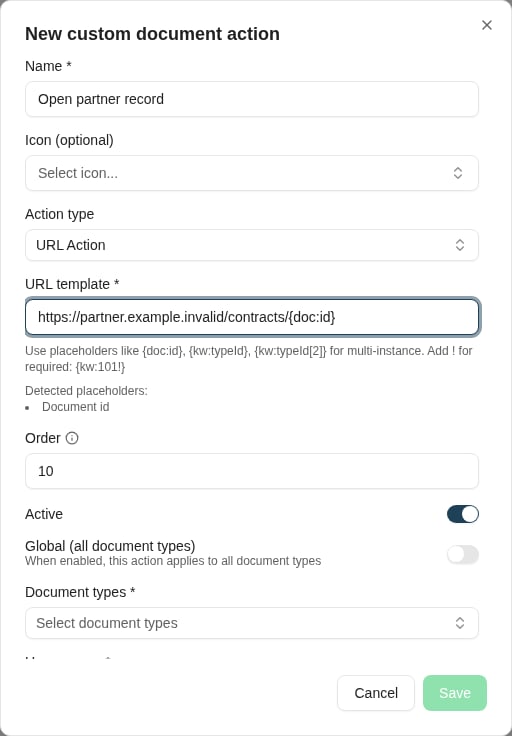
Open **Documents → Document actions** with document configuration access. Create an action with a name, optional icon, order, active state, document-type scope, and user groups.
Choose the action type:
* A **URL action** uses a template and the supported document/keyword placeholders shown by the editor. Mark required values where the action cannot work without them. Review what metadata is sent in the resulting URL and to which destination.
* A **workflow action** selects a published document workflow. It starts the latest published version for the document on which it is invoked.
Only the selected groups see the action. **Global** applies its type scope to all document types, not to every user group. Display order uses lower numbers first.
Test an eligible document, a document outside the type scope, an account outside the visibility groups, and a missing required keyword. For workflow actions, inspect the resulting instance and service-account access. Making a button visible does not guarantee its destination operation is authorized.
## Configure document actions
Open **Documents → Document actions** with document configuration access. Create an action with a name, optional icon, order, active state, document-type scope, and user groups.
Choose the action type:
* A **URL action** uses a template and the supported document/keyword placeholders shown by the editor. Mark required values where the action cannot work without them. Review what metadata is sent in the resulting URL and to which destination.
* A **workflow action** selects a published document workflow. It starts the latest published version for the document on which it is invoked.
Only the selected groups see the action. **Global** applies its type scope to all document types, not to every user group. Display order uses lower numbers first.
Test an eligible document, a document outside the type scope, an account outside the visibility groups, and a missing required keyword. For workflow actions, inspect the resulting instance and service-account access. Making a button visible does not guarantee its destination operation is authorized.
 ## Where to read next
Maintain client navigation and notices, and review permanently deleted content through the archive trashcan.
## Where to read next
Maintain client navigation and notices, and review permanently deleted content through the archive trashcan.