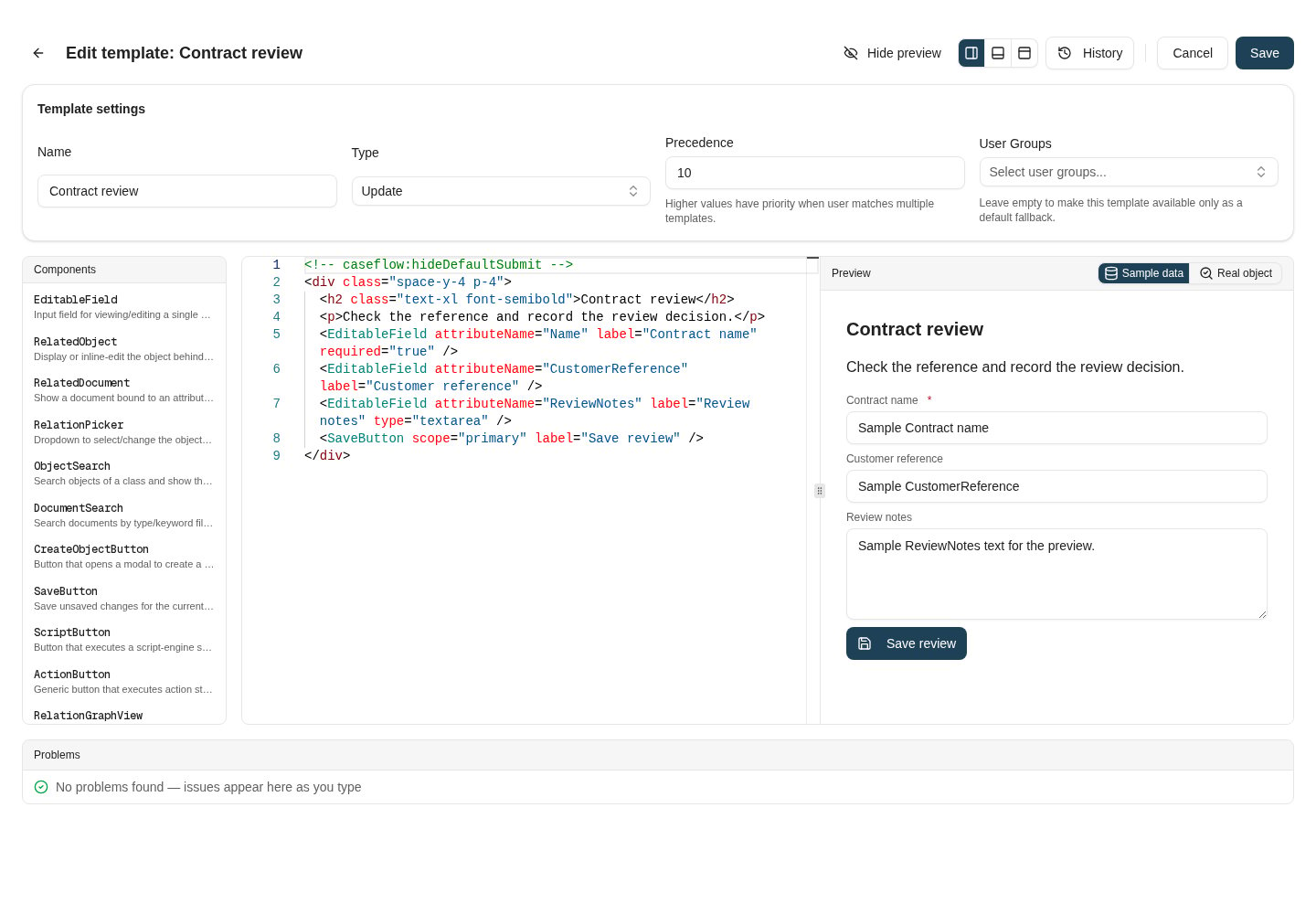
Check the reference and record the review decision.
 ## Save and verify selection
Save the template, then open the test object through the normal Caseflow surface. Check:
1. The intended Update template is selected for the account.
2. Existing values appear in all three fields.
3. Clearing Name prevents the form's required-field validation from passing.
4. Saving an edited review note persists it; reopening the object shows the new value.
5. An account without update rights cannot gain write access through the template.
If the wrong template opens, inspect its type, class, default fallback, group assignments, and precedence. An explicit template name in a link or component can select a specific template. See [template selection](/caseflow/templates#template-selection).
## Compare and restore a saved version
Open **History** while editing an existing template. Select a saved version to compare it with the current draft.
* **Load into editor** changes the draft only. Review the preview and save when ready.
* **Restore** is a server-side change: it overwrites the saved template with the selected version and creates a new history entry. Current group assignments remain unchanged. Read the confirmation before proceeding.
If a restore reports a precedence conflict or concurrent change, resolve that condition and reload the current version before trying again. Do not assume a failed restore changed the saved template.
## Use AI assistance for a bounded change
When AI template assistance is available to your group, open its panel and describe the business form and the change you want. You still need permission to manage Caseflow templates.
A useful request is: “Keep the current Contract form. Put the customer reference beside the contract name and move Review notes below them. Keep the existing attribute bindings and Save review action.”
The proposal appears as a diff against your draft. **Accept** brings it into the editor; **Discard** leaves the draft unchanged. Acceptance does not save the template. Inspect the Problems panel and preview, then verify saving with a real test object. If the draft changed during generation, compare against the current text before accepting.
Generated code can need further correction even after syntax checks pass. Begin with a starter or **Scaffold from class** when a standard layout is sufficient.
## Extend one behavior at a time
* Add a [RelationPicker](/caseflow/form-components#relationpicker) when the customer is a related object rather than text.
* Add an [ObjectSearch](/caseflow/data-components#objectsearch) for child records, with an explicit filter linking them to the current object.
* Add a [script-backed autofill](/scripts/examples) to normalize the reference, then verify the script's target attributes and published version.
* Add an `onBeforeSave` hook for a form business rule, and test both the successful and rejected paths.
Keep the basic save path working after each addition. Use template history to inspect changes, and test restored content before applying it to live work.
## Where to read next
## Save and verify selection
Save the template, then open the test object through the normal Caseflow surface. Check:
1. The intended Update template is selected for the account.
2. Existing values appear in all three fields.
3. Clearing Name prevents the form's required-field validation from passing.
4. Saving an edited review note persists it; reopening the object shows the new value.
5. An account without update rights cannot gain write access through the template.
If the wrong template opens, inspect its type, class, default fallback, group assignments, and precedence. An explicit template name in a link or component can select a specific template. See [template selection](/caseflow/templates#template-selection).
## Compare and restore a saved version
Open **History** while editing an existing template. Select a saved version to compare it with the current draft.
* **Load into editor** changes the draft only. Review the preview and save when ready.
* **Restore** is a server-side change: it overwrites the saved template with the selected version and creates a new history entry. Current group assignments remain unchanged. Read the confirmation before proceeding.
If a restore reports a precedence conflict or concurrent change, resolve that condition and reload the current version before trying again. Do not assume a failed restore changed the saved template.
## Use AI assistance for a bounded change
When AI template assistance is available to your group, open its panel and describe the business form and the change you want. You still need permission to manage Caseflow templates.
A useful request is: “Keep the current Contract form. Put the customer reference beside the contract name and move Review notes below them. Keep the existing attribute bindings and Save review action.”
The proposal appears as a diff against your draft. **Accept** brings it into the editor; **Discard** leaves the draft unchanged. Acceptance does not save the template. Inspect the Problems panel and preview, then verify saving with a real test object. If the draft changed during generation, compare against the current text before accepting.
Generated code can need further correction even after syntax checks pass. Begin with a starter or **Scaffold from class** when a standard layout is sufficient.
## Extend one behavior at a time
* Add a [RelationPicker](/caseflow/form-components#relationpicker) when the customer is a related object rather than text.
* Add an [ObjectSearch](/caseflow/data-components#objectsearch) for child records, with an explicit filter linking them to the current object.
* Add a [script-backed autofill](/scripts/examples) to normalize the reference, then verify the script's target attributes and published version.
* Add an `onBeforeSave` hook for a form business rule, and test both the successful and rejected paths.
Keep the basic save path working after each addition. Use template history to inspect changes, and test restored content before applying it to live work.
## Where to read next