> ## Documentation Index
> Fetch the complete documentation index at: https://docs.insight.nobly.dk/llms.txt
> Use this file to discover all available pages before exploring further.
# AI agents and shared settings
> Configure chat agents, context boundaries, tools, quick prompts, model choices, and request limits.
## Prerequisites
AI capabilities must be available in your environment. Chat administration uses `ai.chat.settings.view` or `ai.chat.settings.manage`. Shared model and rate-limit administration uses `ai.configuration.view` or `ai.configuration.manage`.
These controls shape AI behavior. They do not grant the person using an agent access to otherwise restricted content.
## Configure an agent's purpose and boundaries
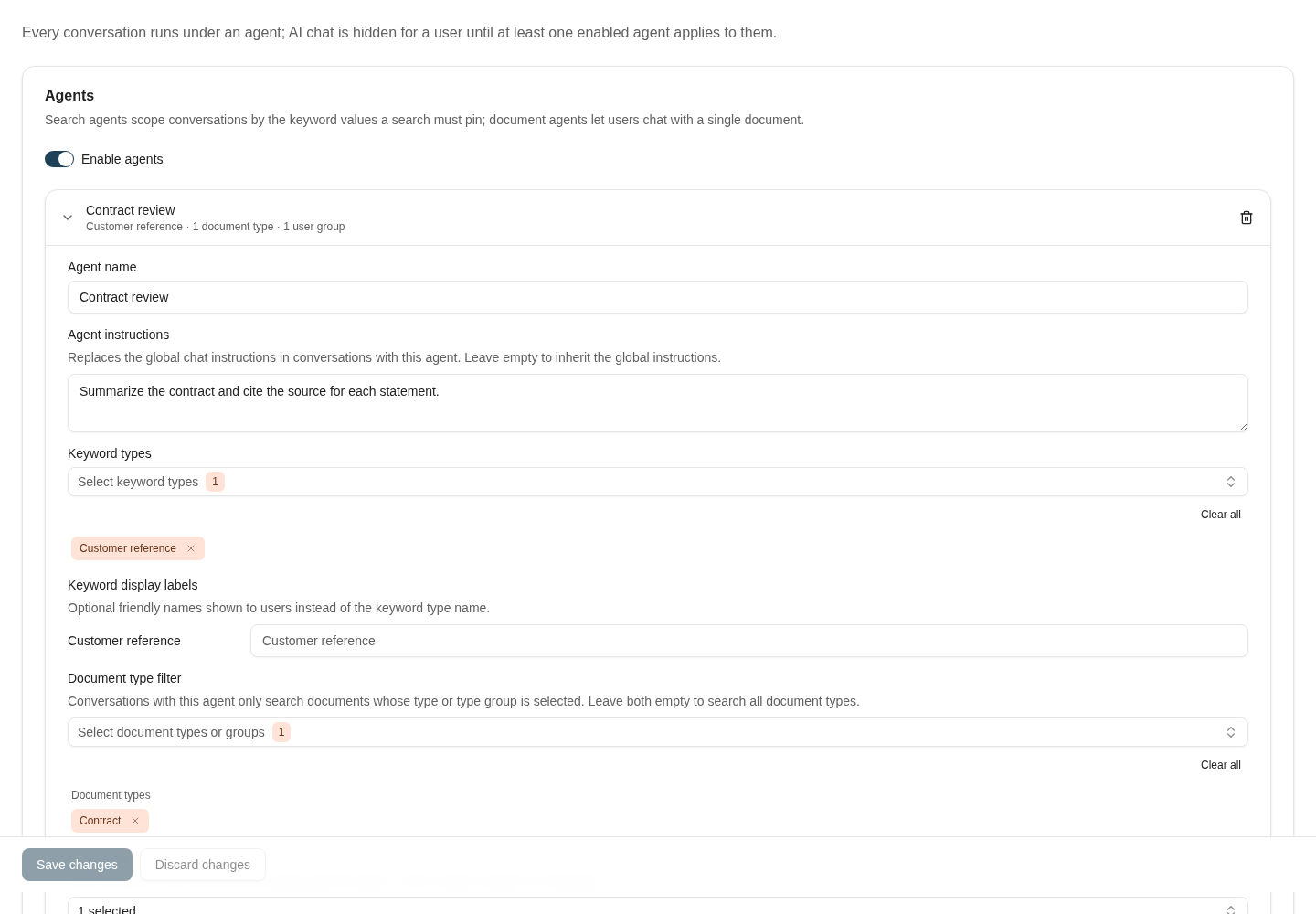
Under **Admin settings → AI Assistant → Agents**, create a search agent or a document agent:
* A **search agent** supports conversations over an explicitly configured search context.
* A **document agent** is offered for eligible document types and uses the document context.
Give the agent a name and instructions. Review the keyword types, document-type filter or eligibility, user groups, displayed keywords, and Caseflow anchors. Where an agent derives anchors from a document, verify the keyword-to-application/class/identity-attribute mapping with representative documents.
An empty group selection offers the agent to all groups. A broad or unbounded context is a deliberate configuration choice; test which content the agent can reach using an ordinary account with the intended rights.
 ## Tools and overrides
Configure shared chat tools and inspect the agent's **Tool overrides**. **Inherit**, **On**, and **Off** express that agent's choice relative to the shared setting. Review the effective behavior in a test conversation instead of assuming a tool label alone proves it will execute.
An enabled tool still operates within its available backend capability and the caller's access. Test both an allowed action and a denied one when granting a new operational capability.
### Verify proposals and continuing access
Where a keyword-change tool is enabled, the assistant presents proposed changes for approval. The person using the conversation reviews the selected changes before approving; rejecting the proposal executes none of them. The tool policy and the person's document rights still apply.
Test the agent with an allowed document, an inaccessible document, and a conversation whose access is later revoked. A conversation's retrieval scope is fixed when it is created and cannot silently widen. To work with a different scope, start a new conversation with an eligible agent.
Agent instructions are configured per agent. Do not depend on an older global chat-instructions setting. Keep displayed keywords useful for distinguishing documents, and verify that the agent's groups and content restrictions match the intended audience.
## Quick prompts and history
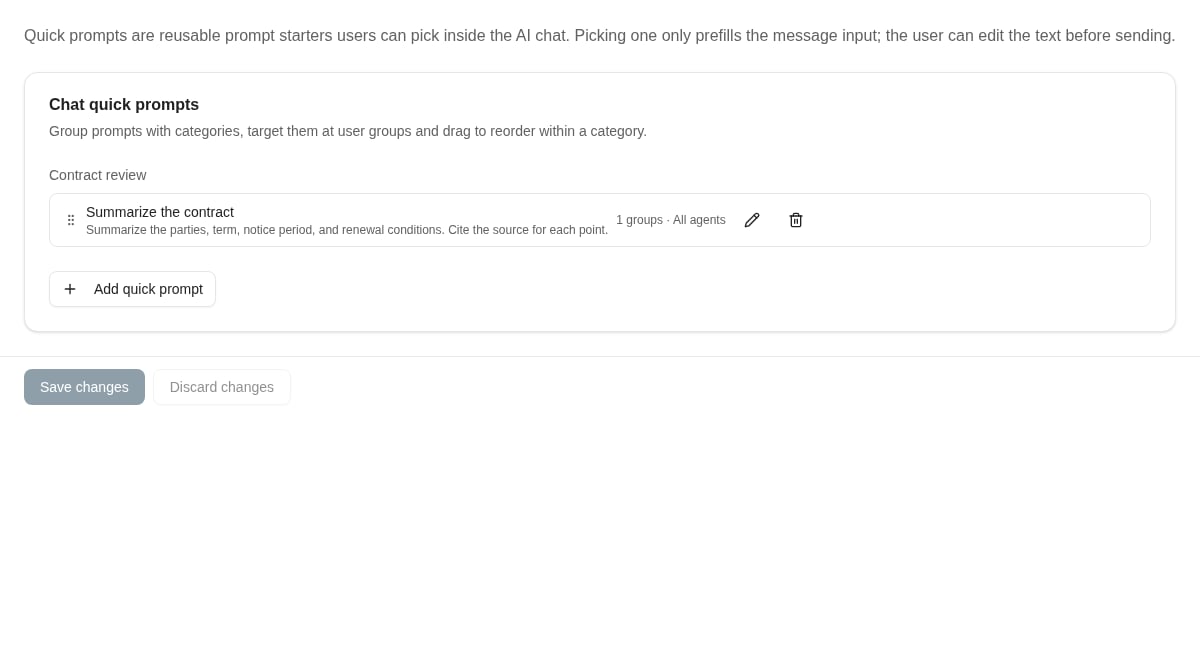
Use **Chat quick prompts** to offer reusable text with a title, prompt text, optional category, and optional group or agent restrictions. Selecting a quick prompt prefills the message; it does not submit it, and the user can edit it. Do not use a quick prompt as an enforcement mechanism.
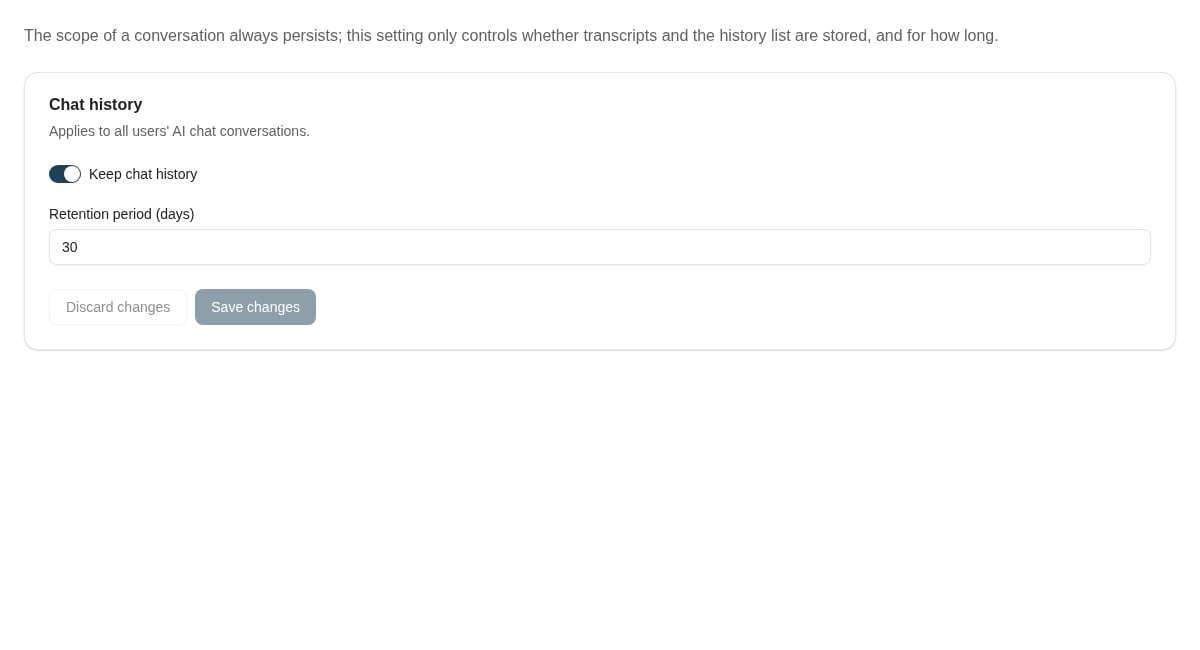
Review **Chat history** settings for conversation retention. Keep the retention decision aligned with your organisation's policy; it is separate from [document retention](/retention/introduction).
## Tools and overrides
Configure shared chat tools and inspect the agent's **Tool overrides**. **Inherit**, **On**, and **Off** express that agent's choice relative to the shared setting. Review the effective behavior in a test conversation instead of assuming a tool label alone proves it will execute.
An enabled tool still operates within its available backend capability and the caller's access. Test both an allowed action and a denied one when granting a new operational capability.
### Verify proposals and continuing access
Where a keyword-change tool is enabled, the assistant presents proposed changes for approval. The person using the conversation reviews the selected changes before approving; rejecting the proposal executes none of them. The tool policy and the person's document rights still apply.
Test the agent with an allowed document, an inaccessible document, and a conversation whose access is later revoked. A conversation's retrieval scope is fixed when it is created and cannot silently widen. To work with a different scope, start a new conversation with an eligible agent.
Agent instructions are configured per agent. Do not depend on an older global chat-instructions setting. Keep displayed keywords useful for distinguishing documents, and verify that the agent's groups and content restrictions match the intended audience.
## Quick prompts and history
Use **Chat quick prompts** to offer reusable text with a title, prompt text, optional category, and optional group or agent restrictions. Selecting a quick prompt prefills the message; it does not submit it, and the user can edit it. Do not use a quick prompt as an enforcement mechanism.
Review **Chat history** settings for conversation retention. Keep the retention decision aligned with your organisation's policy; it is separate from [document retention](/retention/introduction).
 ## Select models per task
Open **Model selection** in AI administration. Each task can use the default model or an override from the available catalogue, with a reasoning setting where the selected model supports it. Review the effective/default status after saving. A model that does not support reasoning has that control disabled; choose a supported model before setting a reasoning level. A supported **None** level is a reasoning choice, not a way to disable the AI task.
Use the same representative inputs when comparing a change. Check output quality, required fields, latency, and errors. A model change for one task does not necessarily change every AI feature. Resetting an override returns that task to its configured default.
## Select models per task
Open **Model selection** in AI administration. Each task can use the default model or an override from the available catalogue, with a reasoning setting where the selected model supports it. Review the effective/default status after saving. A model that does not support reasoning has that control disabled; choose a supported model before setting a reasoning level. A supported **None** level is a reasoning choice, not a way to disable the AI task.
Use the same representative inputs when comparing a change. Check output quality, required fields, latency, and errors. A model change for one task does not necessarily change every AI feature. Resetting an override returns that task to its configured default.
 ## Request limits and usage
**Rate limiting** configures a maximum request count, time window, and enabled state. Coordinate changes with the people responsible for the workload; disabling a limit does not make the underlying service unlimited.
Use **Usage statistics** to investigate usage before changing shared settings. For missing or slow search results, use [AI search index administration](/ai-search/index-administration) to separate retrieval/indexing problems from model behavior.
## Where to read next
Understand how Caseflow works in Nobly Insight — the object-data layer for case and process-driven business data.
Inspect indexed content and plan a bounded indexing or metadata-refresh operation.
## Request limits and usage
**Rate limiting** configures a maximum request count, time window, and enabled state. Coordinate changes with the people responsible for the workload; disabling a limit does not make the underlying service unlimited.
Use **Usage statistics** to investigate usage before changing shared settings. For missing or slow search results, use [AI search index administration](/ai-search/index-administration) to separate retrieval/indexing problems from model behavior.
## Where to read next
Understand how Caseflow works in Nobly Insight — the object-data layer for case and process-driven business data.
Inspect indexed content and plan a bounded indexing or metadata-refresh operation.